
When the keyboard on your iPad 10th Generation stops popping up or becomes unresponsive, it can really halt your workflow. This is usually a software hiccup in iPadOS, and there are several straightforward ways to get it working again.
Restart Your iPad
This is the quickest fix and often the most effective. A simple restart clears out temporary glitches that can affect the keyboard. Just press and hold the top button and either volume button until the power slider appears, then slide to power off.
Wait about 30 seconds, then press and hold the top button again until you see the Apple logo. Once it boots back up, try opening an app like Notes to see if the keyboard responds.
Force Restart Your iPad
If a normal restart doesn't help, a force restart is the next step. This is a bit more thorough and can clear deeper software issues. On the iPad 10th Generation, you do this by quickly pressing and releasing the Volume Up button, then quickly pressing and releasing the Volume Down button.
Finally, press and hold the Top button. Keep holding it until you see the Apple logo appear on the screen, then you can let go. This process doesn't erase any of your data.
Check for a Physical Keyboard Connection
Your iPad might think a physical keyboard is attached, which would prevent the on-screen one from appearing. This can happen if there's debris in the USB-C port or if a Bluetooth keyboard is paired but not in range.
First, check your Bluetooth settings. Go to Settings > Bluetooth and see if any keyboards are connected. If one is, tap the info icon (i) next to it and choose "Disconnect." Also, take a quick look inside the USB-C port for any lint or debris and gently clean it out if needed.
Close and Reopen Your App
The problem might be isolated to the specific app you're using. To fully close it, swipe up from the bottom of the screen and pause in the middle to enter the app switcher. Find the app's window and swipe it up and off the top of the screen to close it.
Then, go back to your home screen and tap the app icon to reopen it fresh. Try typing again. If the keyboard works in other apps, like Messages or Safari, then you know the issue is with that first app.
Update iPadOS
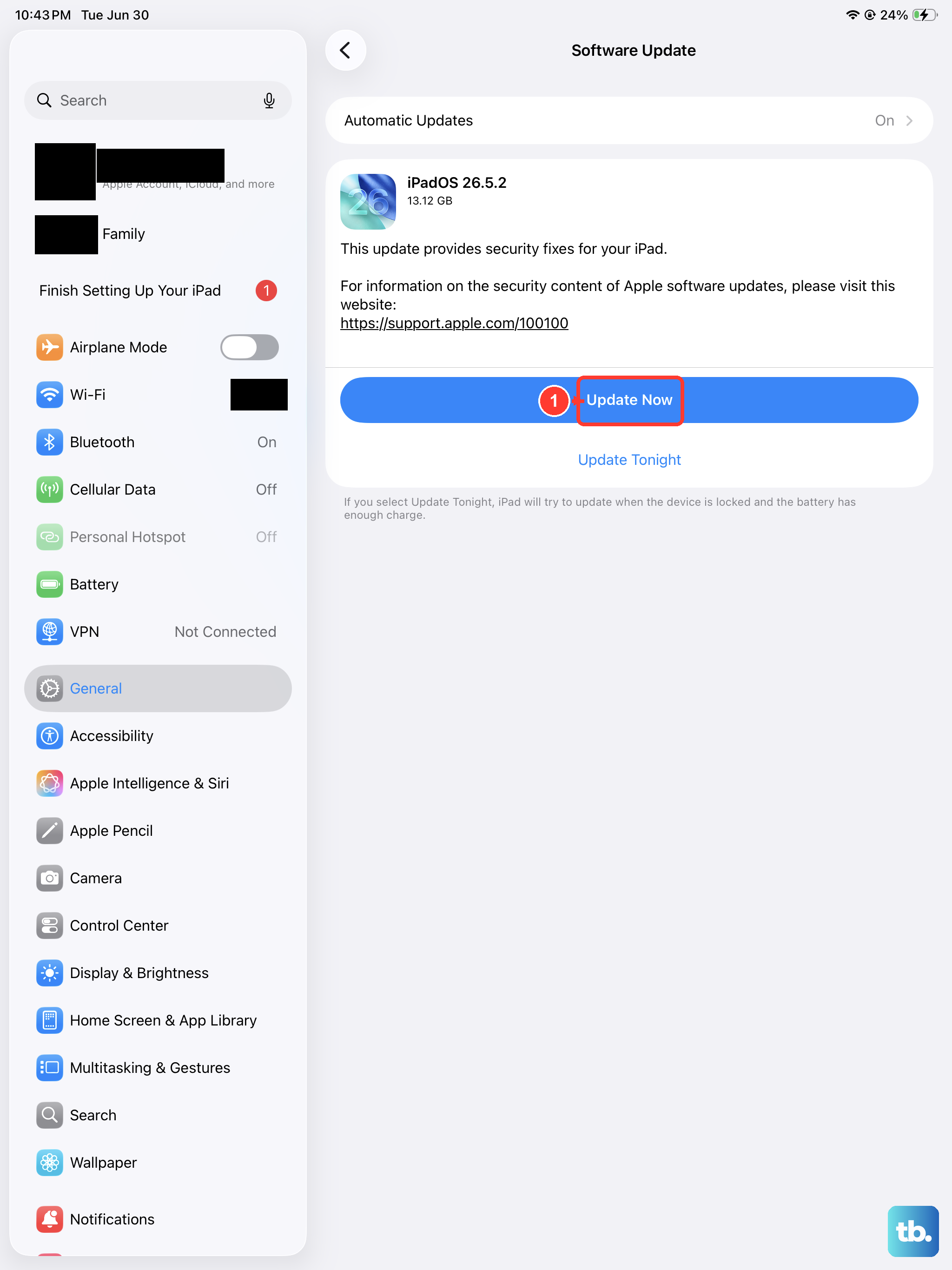
An outdated version of iPadOS can have bugs that affect keyboard performance. Apple releases updates that often include fixes for these kinds of issues. Make sure your iPad 10th Generation is connected to Wi-Fi and has sufficient battery.
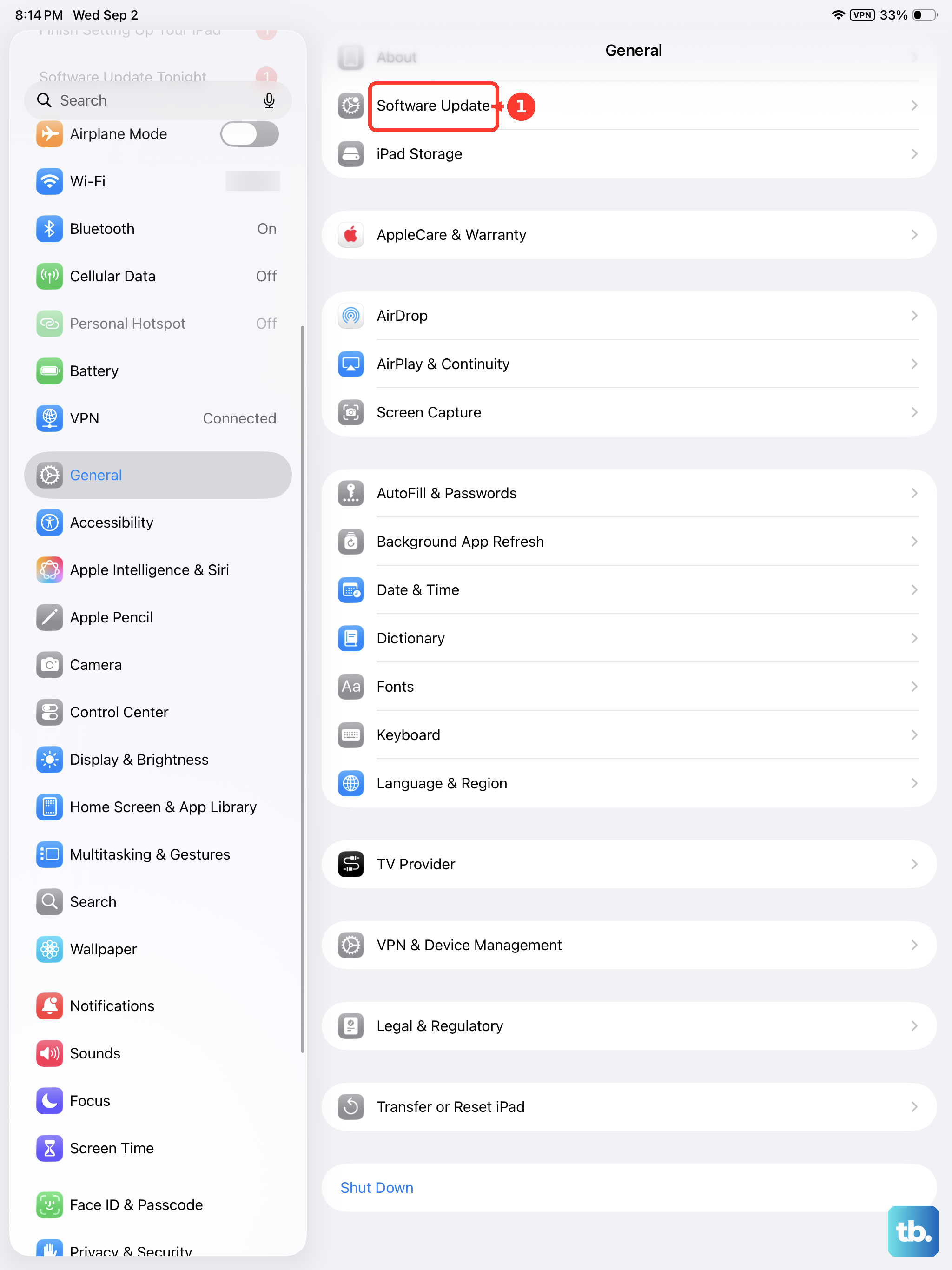
Then, go to Settings > General > Software Update. If an update is available, tap "Download and Install." I've seen minor iPadOS updates resolve keyboard responsiveness problems on several models.
Reset All Settings
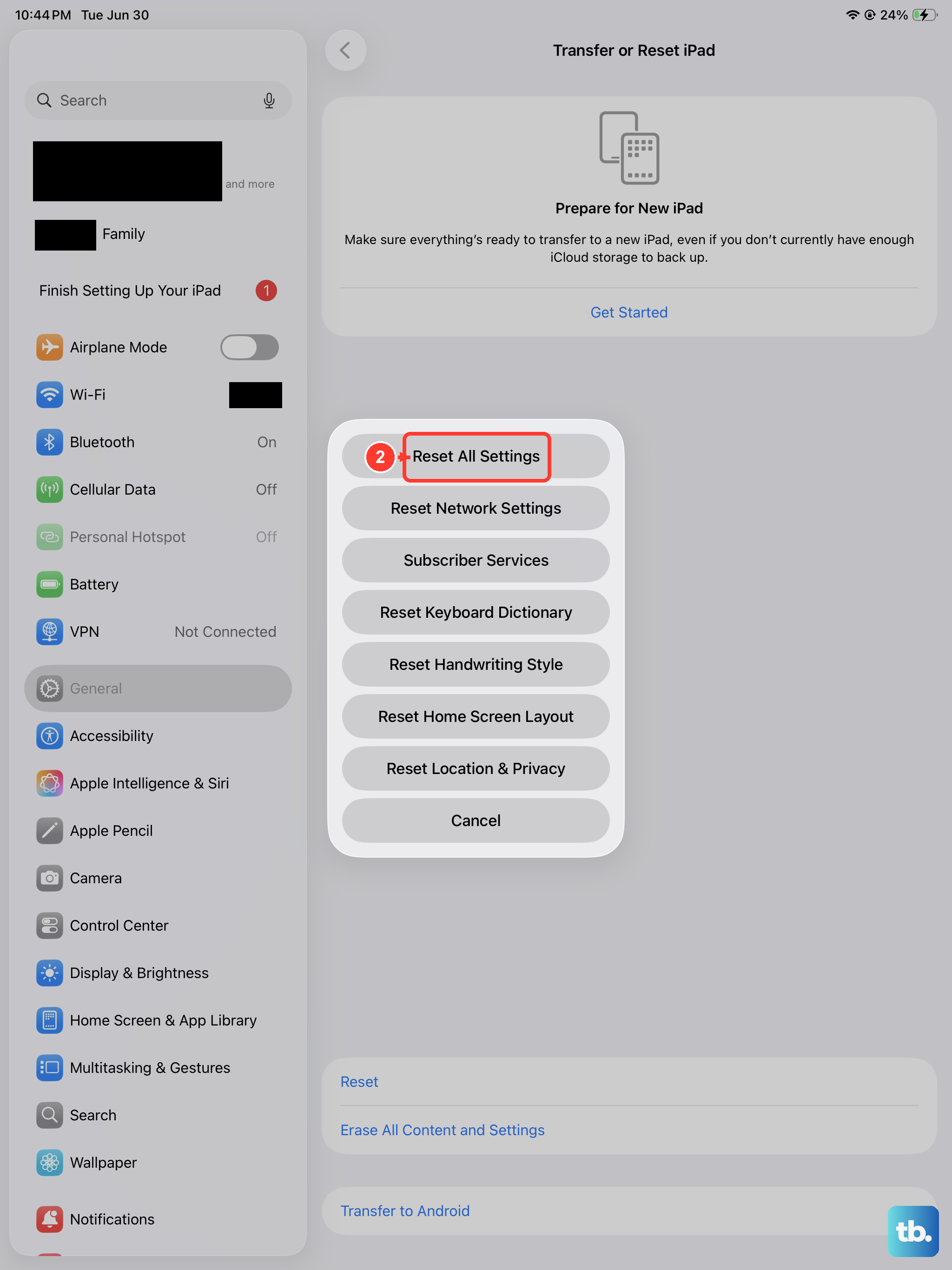
This will return all your system settings to their defaults without deleting your apps, photos, or personal data. You will have to reconnect to Wi-Fi networks and re-enter some preferences, but it can fix configuration conflicts that stop the keyboard.
To do this, go to Settings > General > Transfer or Reset iPad. Tap "Reset" at the bottom, then choose "Reset All Settings." Enter your passcode when prompted and confirm. Your iPad will restart and the keyboard should be available.
Check Keyboard Settings and Text Replacement
Sometimes, a setting might have been changed accidentally. Go to Settings > General > Keyboard. Here, make sure all the keyboards you need are listed under "Keyboards."
You can also try toggling features like "Auto-Capitalization" or "Predictive Text" off and back on. Further down, tap "Text Replacement" to see your shortcuts. A corrupted entry here can sometimes cause issues, so you might remove any recent additions.
Check for Focus Modes or Guided Access
Focus modes like Do Not Disturb or Work can sometimes restrict keyboard access, depending on how they're configured. Swipe down from the top-right corner to open Control Center and make sure no Focus mode (like a moon icon) is active.
Also, triple-click the top button to see if Guided Access is enabled. If it is, you'll be prompted to enter your passcode to turn it off. Guided Access can lock the iPad to a single app and disable certain areas of the screen, including the keyboard.
Consider a Third-Party Keyboard App
If the stock keyboard continues to have problems, installing an alternative from the App Store can be a great workaround. Apps like Gboard or SwiftKey offer their own prediction engines and layouts.
After installing one, you'll need to enable it. Go to Settings > General > Keyboard > Keyboards > Add New Keyboard. Select the keyboard you installed. You can then press the globe icon on the stock keyboard to switch between them.