
If your iPad 10th generation's autocorrect has started making bizarre suggestions or has stopped working entirely, it can really slow you down. This is usually a software hiccup in iPadOS, and there are a few straightforward ways to get it back on track.
Restart Your iPad
This is the quickest thing to try and often solves the problem right away. A simple restart clears out temporary glitches that can confuse the keyboard. Just hold the top button and either volume button, then slide to power off. Wait a moment and turn it back on.
If the screen is unresponsive, you can force restart it. Quickly press and release the volume up button, then the volume down button, then press and hold the top button until you see the Apple logo appear.
Check Your Text Replacement Settings
Sometimes, a custom text replacement shortcut you set up long ago can interfere. It's worth taking a quick look to make sure nothing there is causing conflicts.
Go to Settings > General > Keyboard > Text Replacement. Scroll through your list and see if any of the shortcuts seem to be triggering incorrectly. You can tap on one to edit it or swipe left to delete it.
Toggle Autocorrect Off and On
This essentially gives the autocorrect feature a fresh start. By turning it off and back on, you reset its immediate logic without losing your learned words.
Head to Settings > General > Keyboard. Find the switch for "Auto-Correction" and turn it off. Close Settings, open a note or message, and type a few lines. Then go back and turn "Auto-Correction" back on.
Reset the iPad's Keyboard Dictionary
This is a more thorough step. The keyboard dictionary stores all the words you've added by rejecting suggestions. If this file gets corrupted, it can cause all sorts of weird behavior.
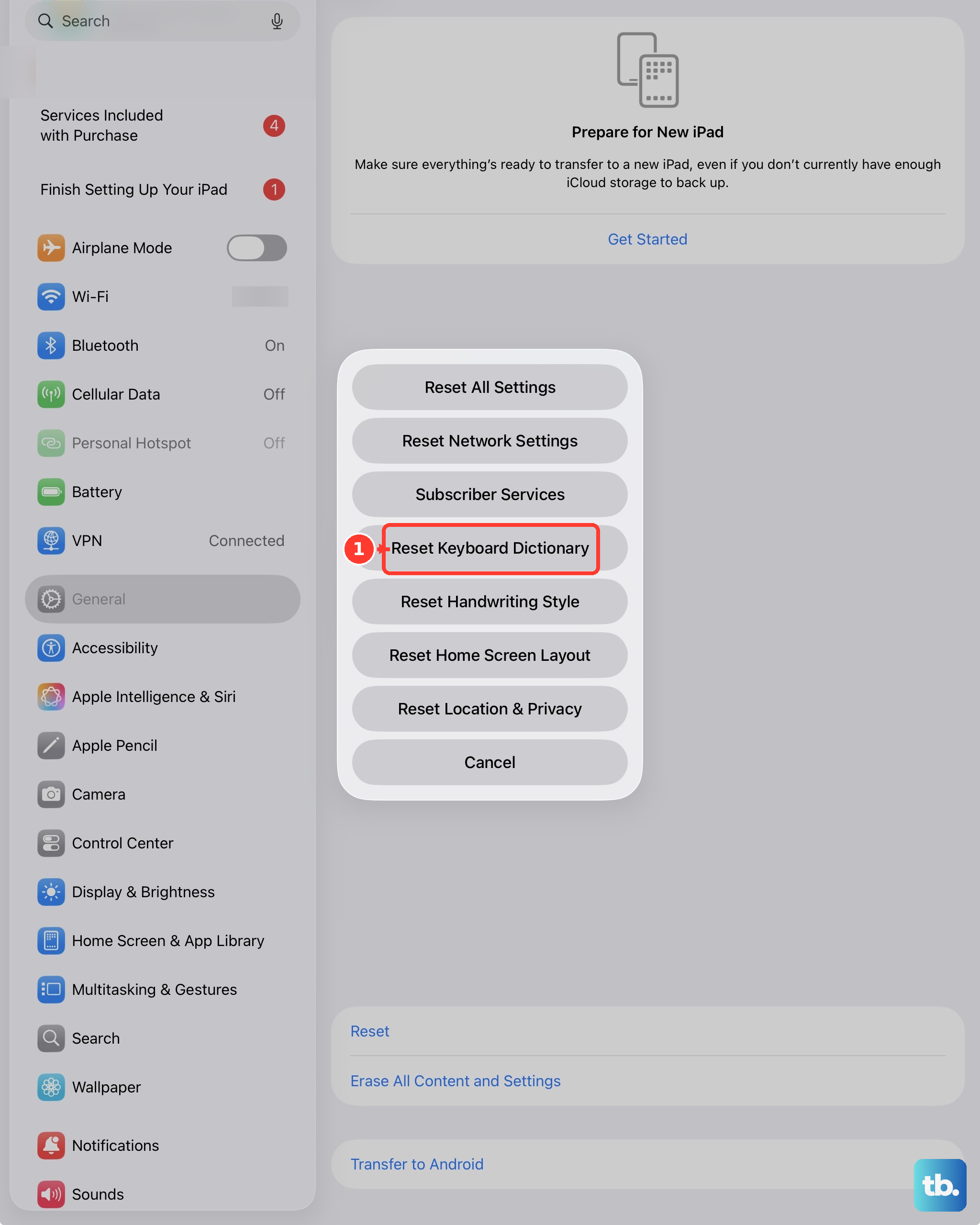
To reset it, go to Settings > General > Transfer or Reset iPad > Reset. Tap Reset Keyboard Dictionary. This will erase all the custom words you've taught your iPad, but it won't touch any other data.
Update iPadOS
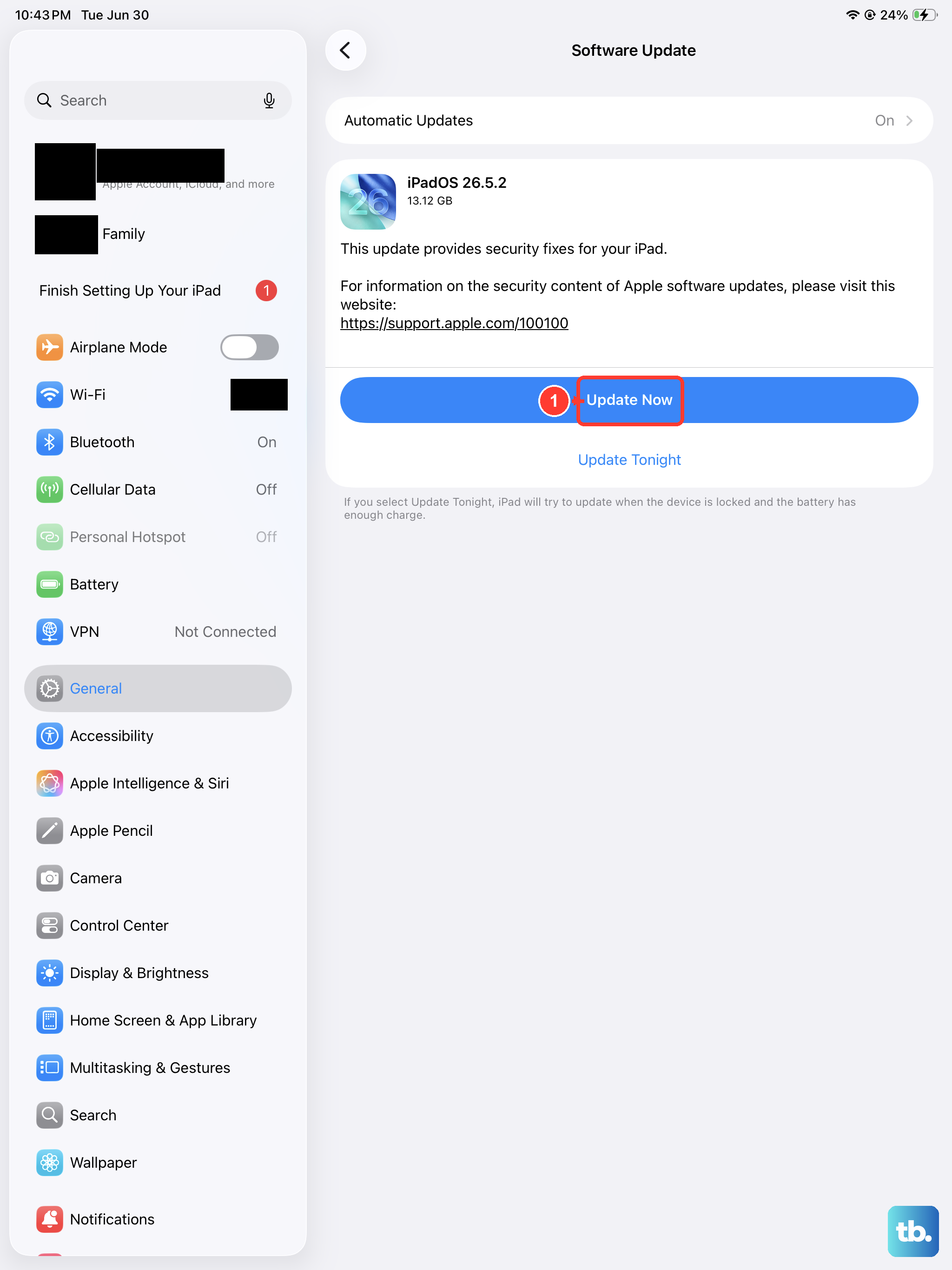
Apple frequently releases updates that include fixes for system bugs, including keyboard and autocorrect issues. Making sure you're on the latest version of iPadOS is important.
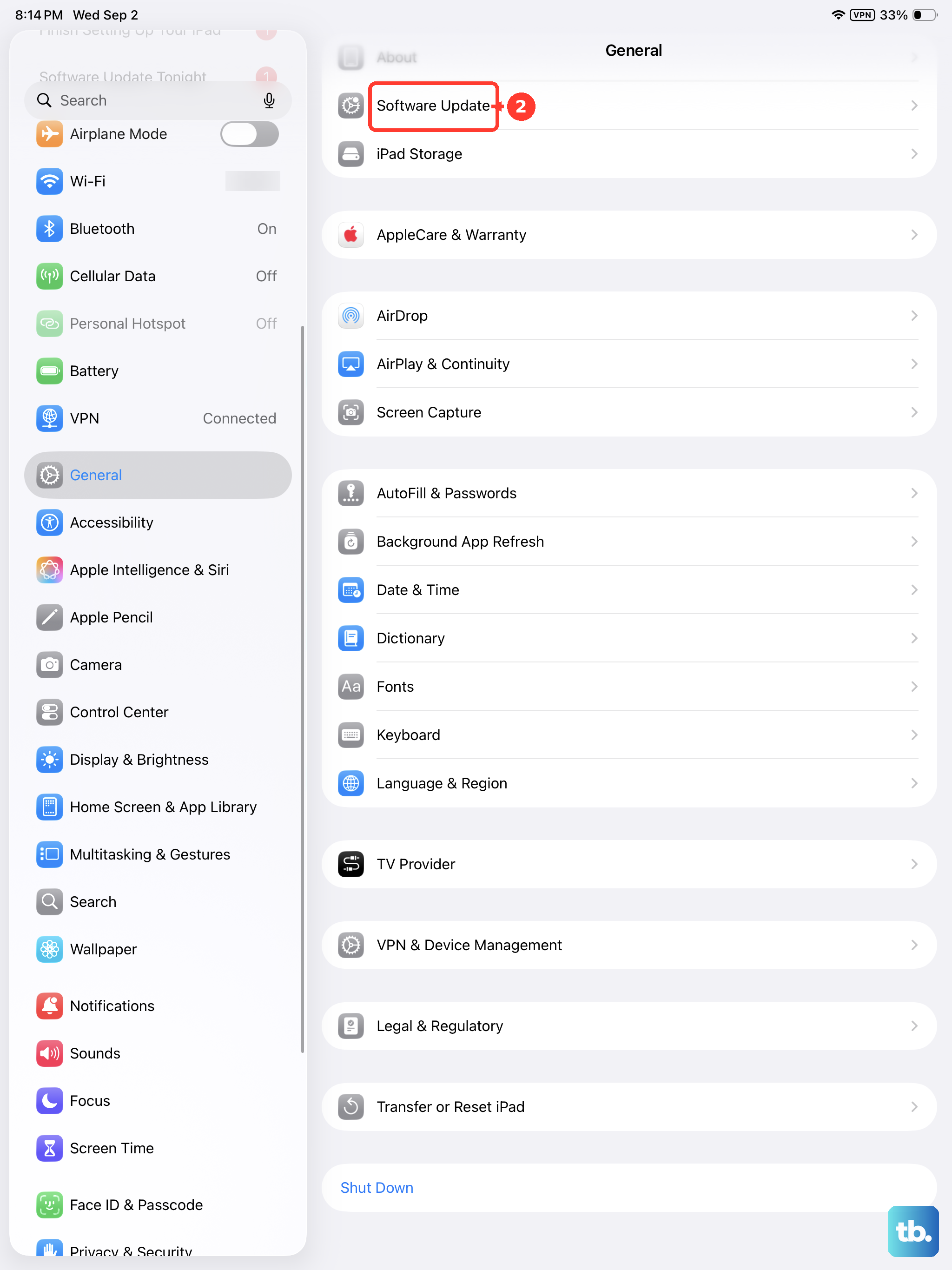
Open Settings > General > Software Update. If an update is available, tap "Download and Install." I'd recommend doing this over Wi-Fi and while your iPad is charging, as the 10th gen's large battery can take a while to update on a 20W charger.
Check for App-Specific Issues
Is the problem happening in every app, or just one like Notes or Safari? If it's app-specific, the issue might be with that particular app's cache or data.
Try force-closing the problematic app. Swipe up from the bottom of the screen and pause in the middle to enter the app switcher. Find the app's preview and swipe it up off the top of the screen to close it. Then reopen it and see if autocorrect behaves.
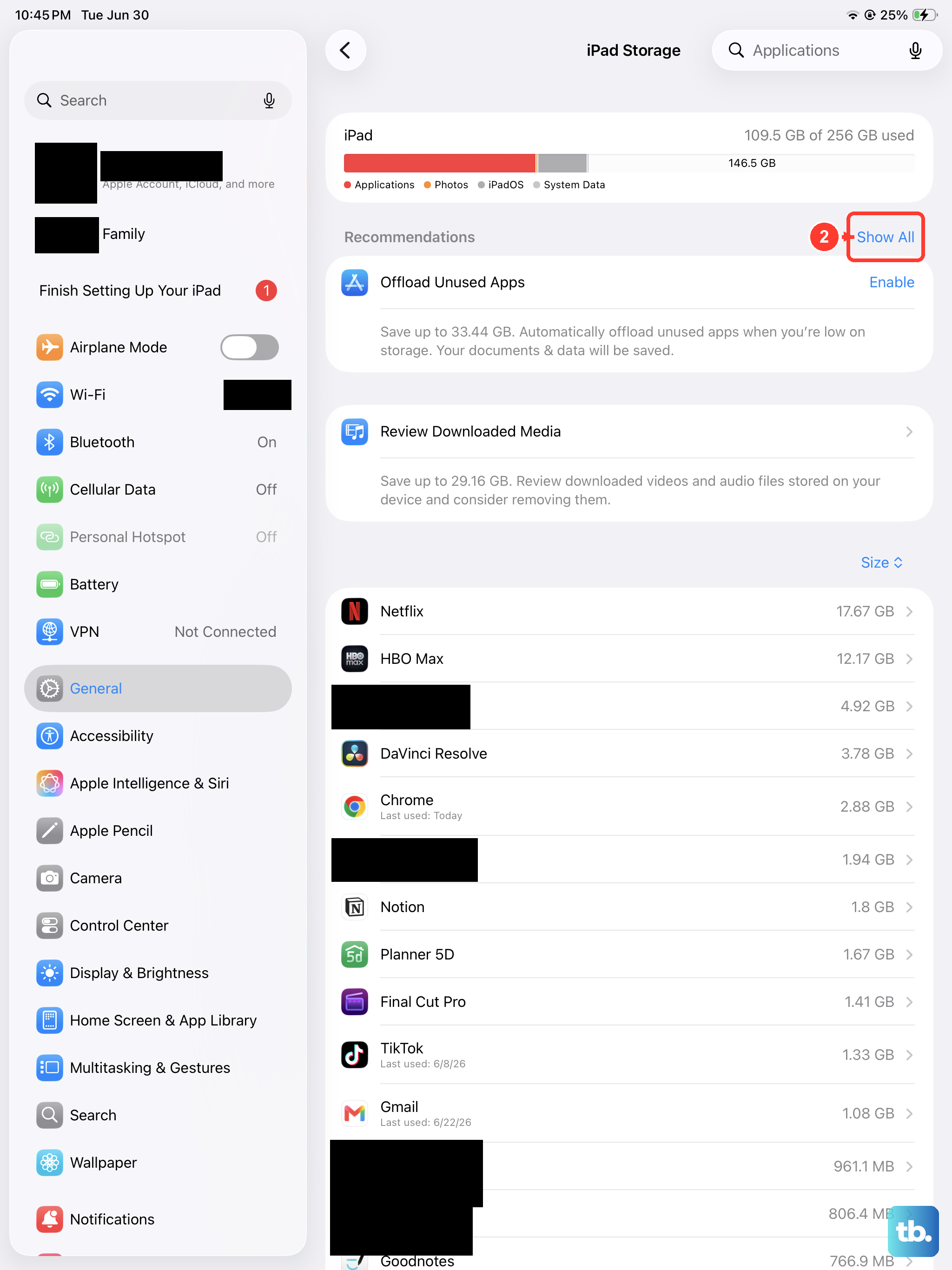
If that doesn't help, you can try offloading the app, which removes the app but keeps its documents and data. Go to Settings > General > iPad Storage, select the app, and choose "Offload App." Later, you can reinstall it from the App Store.