
When the volume buttons on your iPad 10th Generation stop responding, it can throw a wrench in your workflow or entertainment. You press them and get no feedback, no change in sound, and no satisfying click. I've found that most of the time, this is a temporary glitch you can fix without a trip to the Apple Store.
Let's start with the simplest and most common solutions that often get those buttons working again.
Remove Your iPad Case
First, take off any case or cover you have on your iPad. Cases, especially thicker or ill-fitting ones, can sometimes press against the buttons or prevent them from being fully depressed. This is a quick check that solves the problem more often than you'd think.
Perform a Force Restart
A force restart is a great way to clear out minor software bugs that might be causing the buttons to freeze. This process doesn't delete any of your apps or data, so it's a safe first step.
For the iPad 10th Generation, here's exactly what to do. Press and quickly release the Volume Up button, then press and quickly release the Volume Down button. Finally, press and hold the Top button (the one on the top edge) until you see the Apple logo appear on the screen, then let go.
Check Your Volume Button Settings
There's a specific setting that controls whether the physical buttons can change the volume. You'll want to make sure it's turned on. Head to Settings > Sounds.
Look for the option labeled "Change with Buttons" and ensure the toggle is switched on. If it was accidentally turned off, your volume buttons won't do anything, so flipping it back on should solve the issue immediately.
Use the On-Screen Volume Controls
While you're figuring out the physical buttons, you can still control your volume. Swipe down from the top-right corner of the screen to open Control Center. You'll see a volume slider there that you can drag up or down.
You can also adjust it by going into Settings > Sounds and using the slider at the top of that menu. This is a good way to confirm that the iPad's audio system itself is working.
Clean Around the Volume Buttons
Dust, lint, or a bit of sticky residue can easily get lodged around the small buttons on the side of your iPad. This physical blockage is a very common reason they stop clicking and responding.
Gently use a can of compressed air to blow around the edges of the buttons. For any grime, you can lightly dampen a cotton swab with a small amount of isopropyl alcohol (90% or higher is best) and carefully clean around them. Just be sure not to push any debris further inside.
Test the Buttons in Different Apps
Sometimes the issue isn't with the buttons themselves, but with a specific app. Open a few different apps like Apple Music, YouTube, or the Podcasts app and try pressing the volume buttons in each one.
If the buttons work perfectly in some apps but are dead in others, you've likely found an app-specific bug. Try force-closing the problematic app or checking for an update in the App Store.
Enable AssistiveTouch for Virtual Buttons
iPadOS has a great accessibility feature called AssistiveTouch that puts a virtual menu on your screen. You can use it to create software-based volume buttons, which can sometimes help reset the system's connection to the physical ones.
Go to Settings > Accessibility > Touch > AssistiveTouch and turn it on. A small gray button will appear on your screen. Tap it, go to Device, and then tap Volume Up or Volume Down a few times. After using the virtual controls, try your physical buttons again.
Update Your iPadOS Software
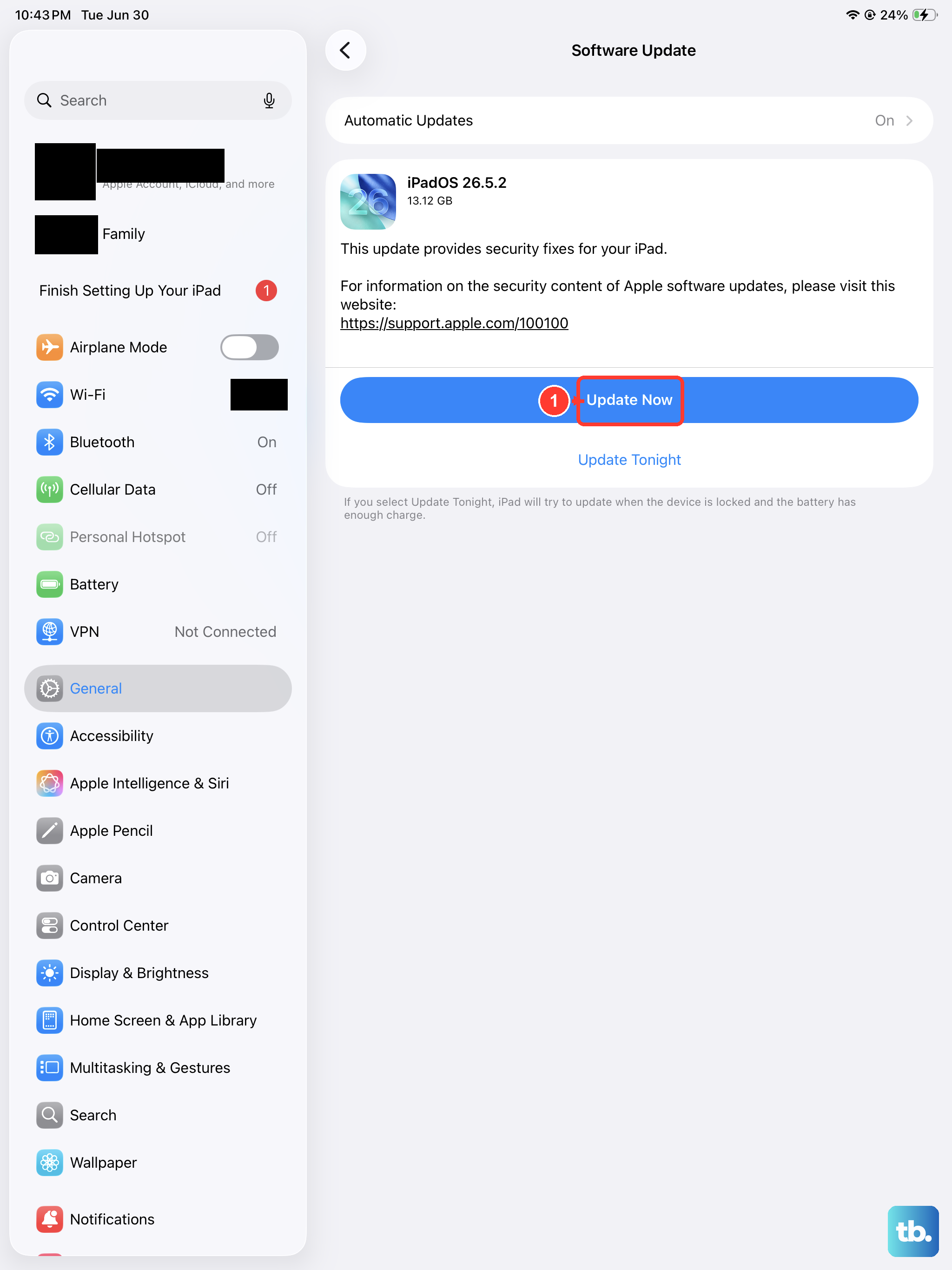
Software bugs in the operating system can occasionally cause hardware controls to act up. Making sure you're on the latest version of iPadOS is an important step. Connect your iPad to Wi-Fi and, if possible, plug it into its 20W USB-C charger.
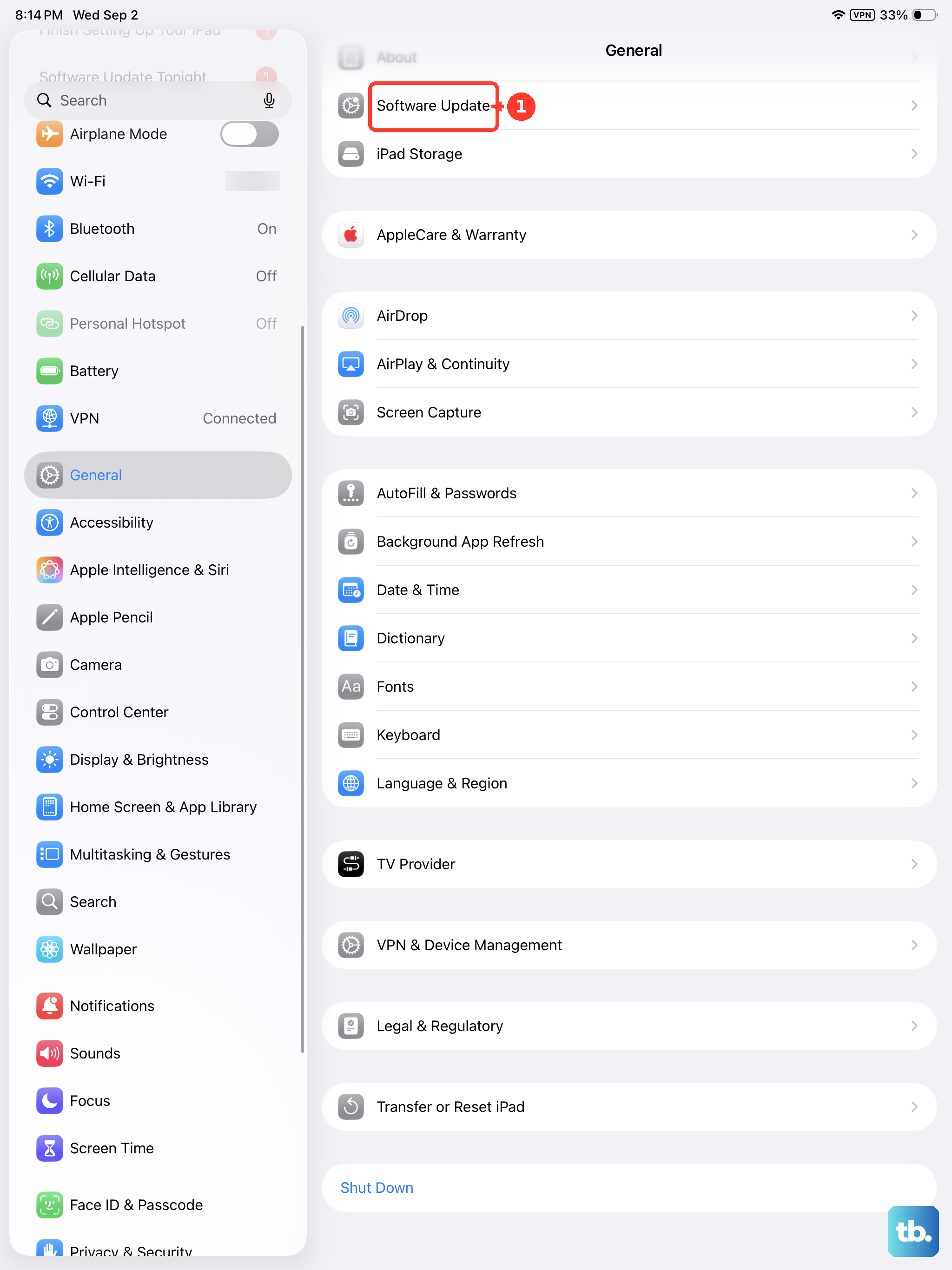
Then, open Settings, tap General, and select Software Update. Download and install any available updates. A recent update might contain a fix specifically for button responsiveness issues.
Reset All Settings
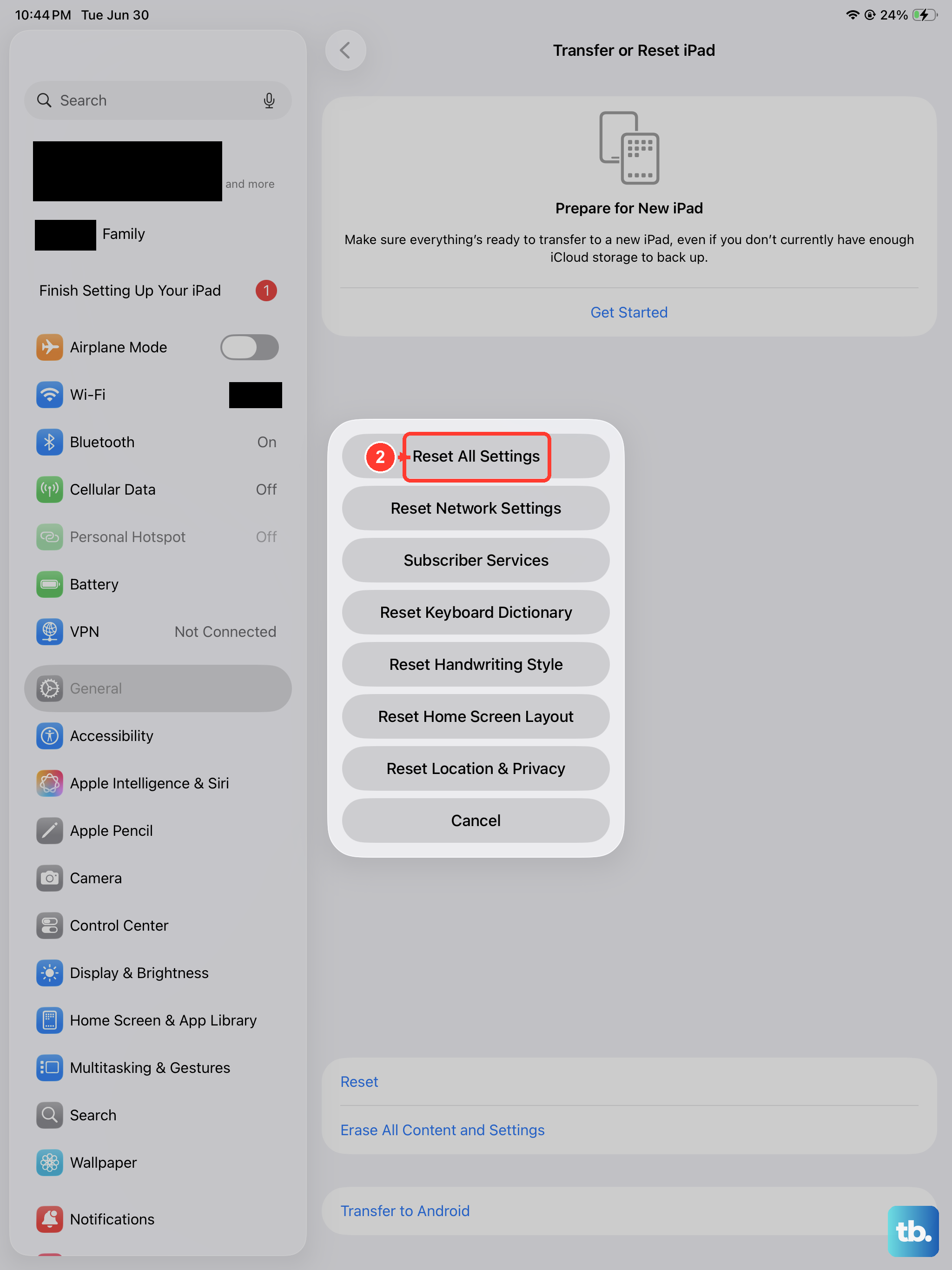
If you're still having trouble, a deeper software reset can help. This will revert all your preferences, like wallpaper, network passwords, and privacy settings, back to their defaults, but it won't touch your personal data or apps.
Go to Settings > General > Transfer or Reset iPad. Tap Reset and then choose Reset All Settings. You'll need to enter your passcode and confirm. After the iPad restarts, you'll need to reconfigure your Wi-Fi and other preferences, but it often clears persistent glitches.
If you've worked through all these steps and the volume buttons are still completely unresponsive, the issue is likely physical. The internal switch mechanism could be damaged or worn out. Since the iPad 10th Generation doesn't have a traditional home button, the volume buttons see a lot of use for functions like taking screenshots, which can contribute to wear over time.