
That spinning wheel where your Wi-Fi icon should be is incredibly frustrating on an iPad. You've got a big, beautiful screen ready for streaming or browsing, but nothing loads. I've seen this happen a lot with the 10th gen iPad, especially after an update to iPadOS 18, and it's almost always something you can fix yourself.
Toggle Wi-Fi and Restart Your iPad
Let's start with the simplest fix. Swipe down from the top-right corner to open Control Center and tap the Wi-Fi icon to turn it off. Wait a few seconds, then tap it again to turn it back on. This forces your iPad to drop the connection and search for networks fresh, which often solves a temporary glitch.
If that doesn't work, restart your iPad. This clears out any minor software bugs that might be interfering with the wireless hardware. Just hold the top button and either volume button, slide to power off, wait 30 seconds, and then press the top button again to turn it back on.
Forget the Network and Rejoin
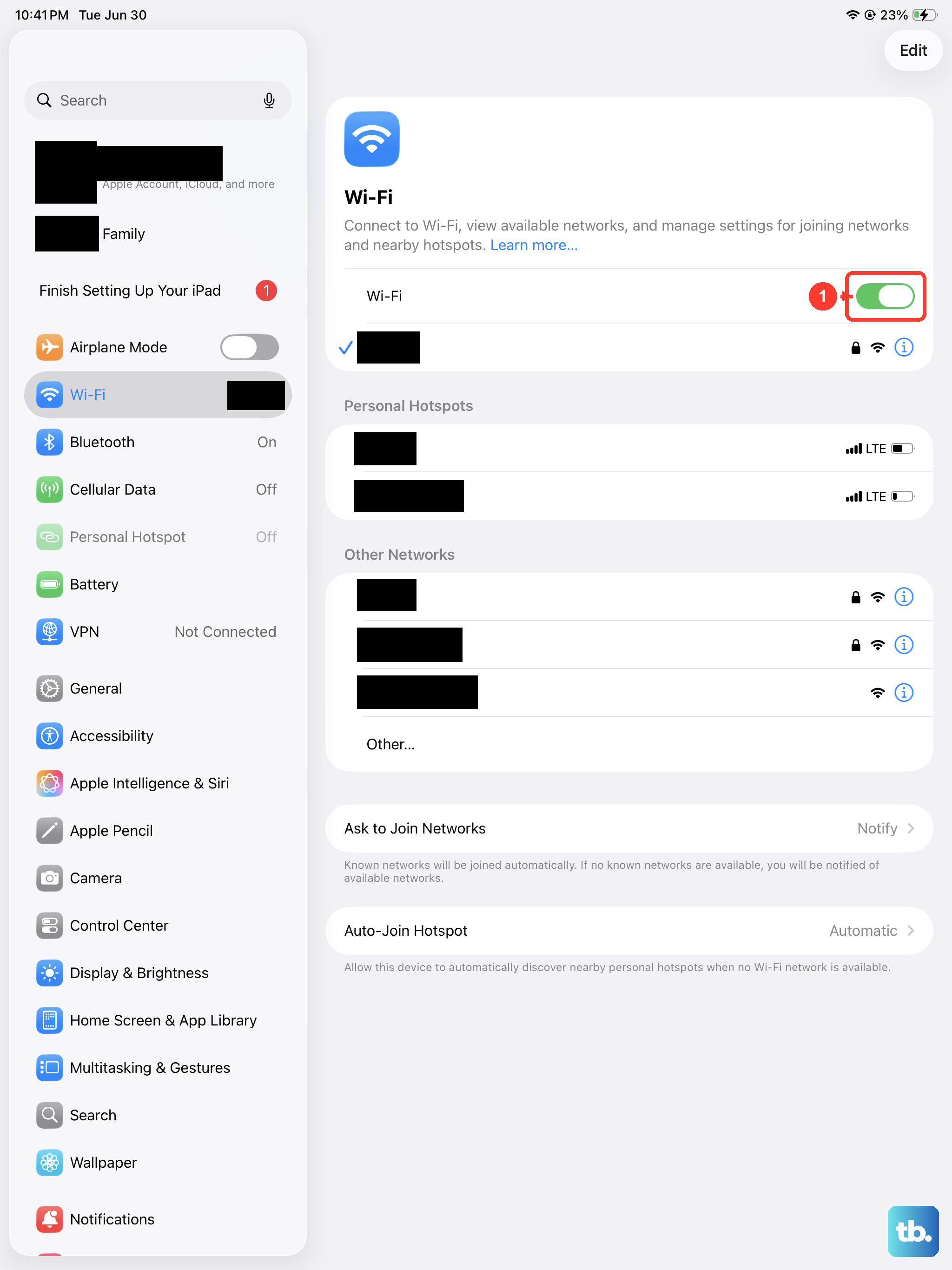
Your iPad might be holding onto outdated information for your home network. To clear it, go to Settings > Wi-Fi. Tap the info icon (the "i" in a circle) next to your network name, then tap Forget This Network. Confirm, then select the network again from the list and re-enter the password.
This is the most effective step if you've recently changed your Wi-Fi password or gotten a new router. Your iPad will be trying to connect with the old credentials, which will never work.
Check for Router Issues
Before you spend more time on your iPad, make sure the problem isn't with your internet source. Unplug your router and modem from power for a full minute. Plug the modem back in first, wait for all its lights to settle, then plug the router back in.
See if other devices, like your phone or a laptop, can connect to Wi-Fi. If everything else is also disconnected, the issue is definitely with your router or internet service, not your iPad.
Disable Bluetooth Temporarily
Bluetooth accessories, especially older ones, can sometimes cause interference on the 2.4GHz band, which is what many Wi-Fi networks use. Open Control Center and tap the Bluetooth icon to turn it off. Try connecting to Wi-Fi again.
If your connection works with Bluetooth off, you've found the conflict. You can try turning Bluetooth back on afterward to see if it holds. Sometimes just resetting the connection is enough.
Turn Airplane Mode On and Off
This is a more thorough radio reset. Swipe into Control Center and tap the Airplane Mode icon to turn it on. Wait about 15 seconds, then tap it again to turn it off. This cycle disables and re-enables all wireless antennas, including Wi-Fi and Bluetooth, giving them a clean slate.
Update Your iPad Software
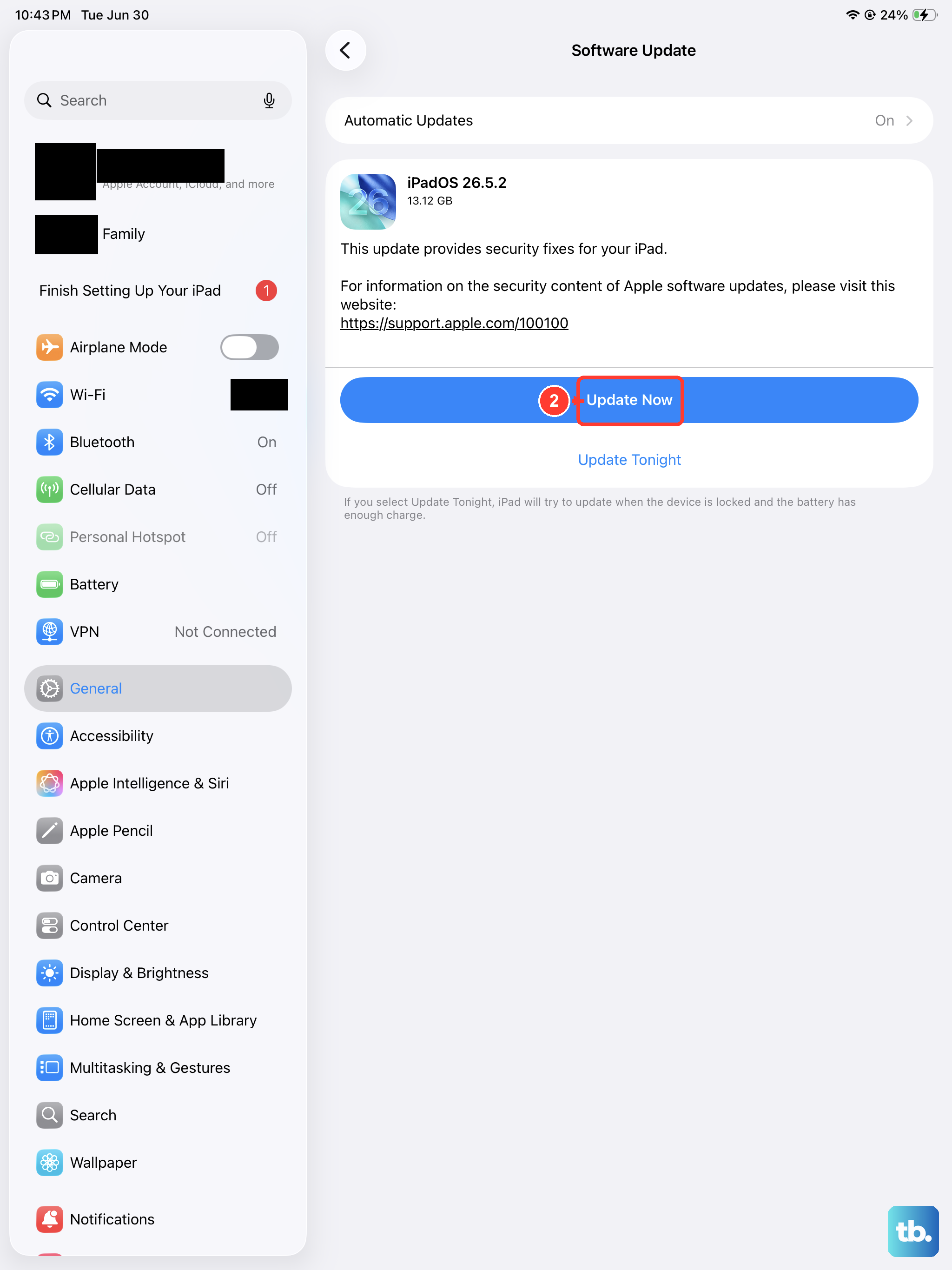
Apple frequently releases iPadOS updates that include fixes for connectivity bugs. Go to Settings > General > Software Update. If an update is available, install it. Make sure your iPad is plugged in with a 20W or higher USB-C charger and has a good Wi-Fi connection to download it.
If you can't connect to Wi-Fi to get the update, you can update using a Mac or Windows PC with a USB-C cable, but trying the other fixes here first is easier.
Reset Your Network Settings
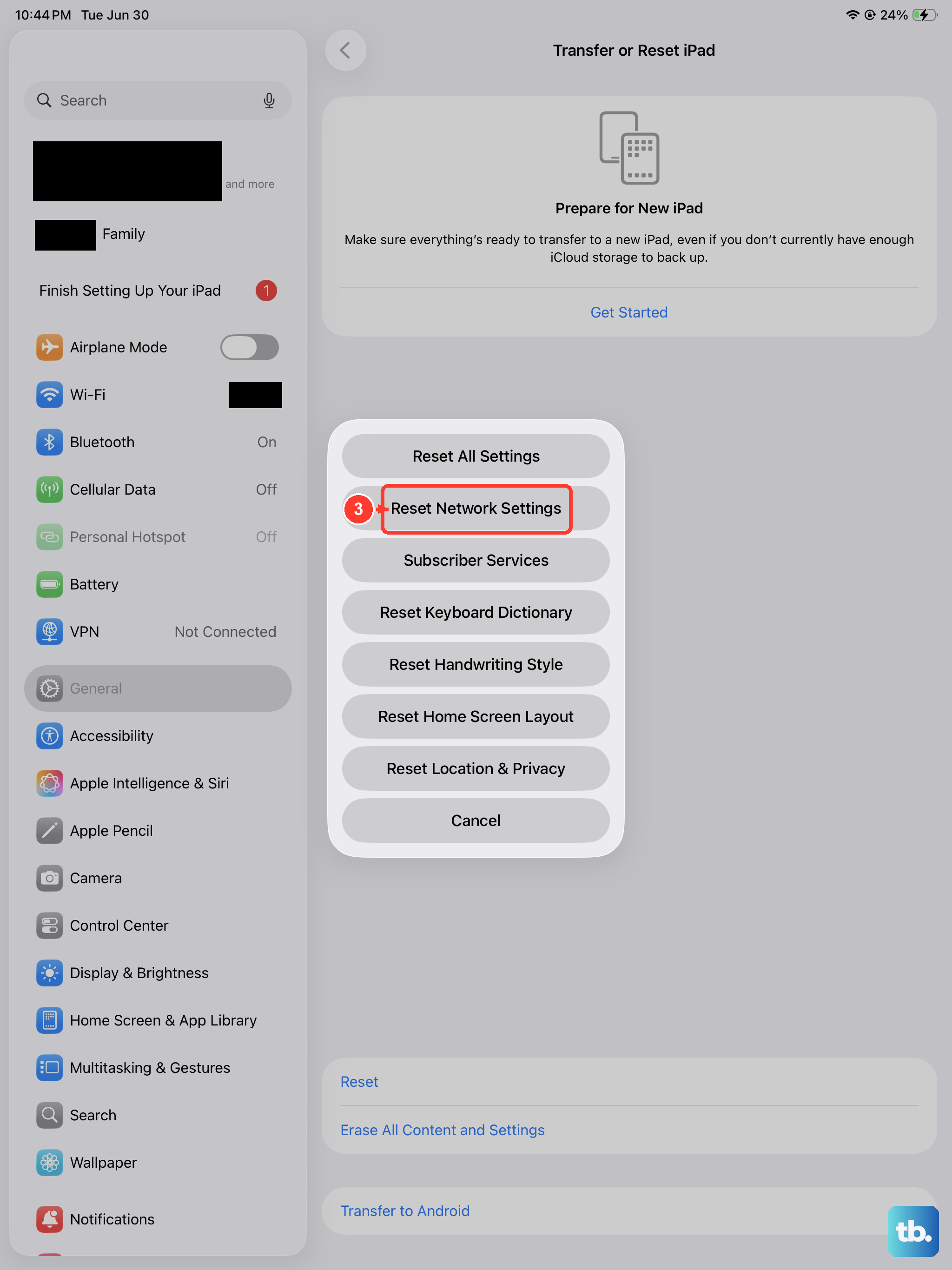
This is a bigger step, but it resolves deeper configuration problems. It will erase all saved Wi-Fi networks and passwords, Bluetooth pairings, and VPN settings on your iPad. Go to Settings > General > Transfer or Reset iPad > Reset.
Tap Reset Network Settings. Your iPad will restart, and you'll need to reconnect to your Wi-Fi and re-pair any Bluetooth devices, like your Apple Pencil.
Check Your Date and Time Settings
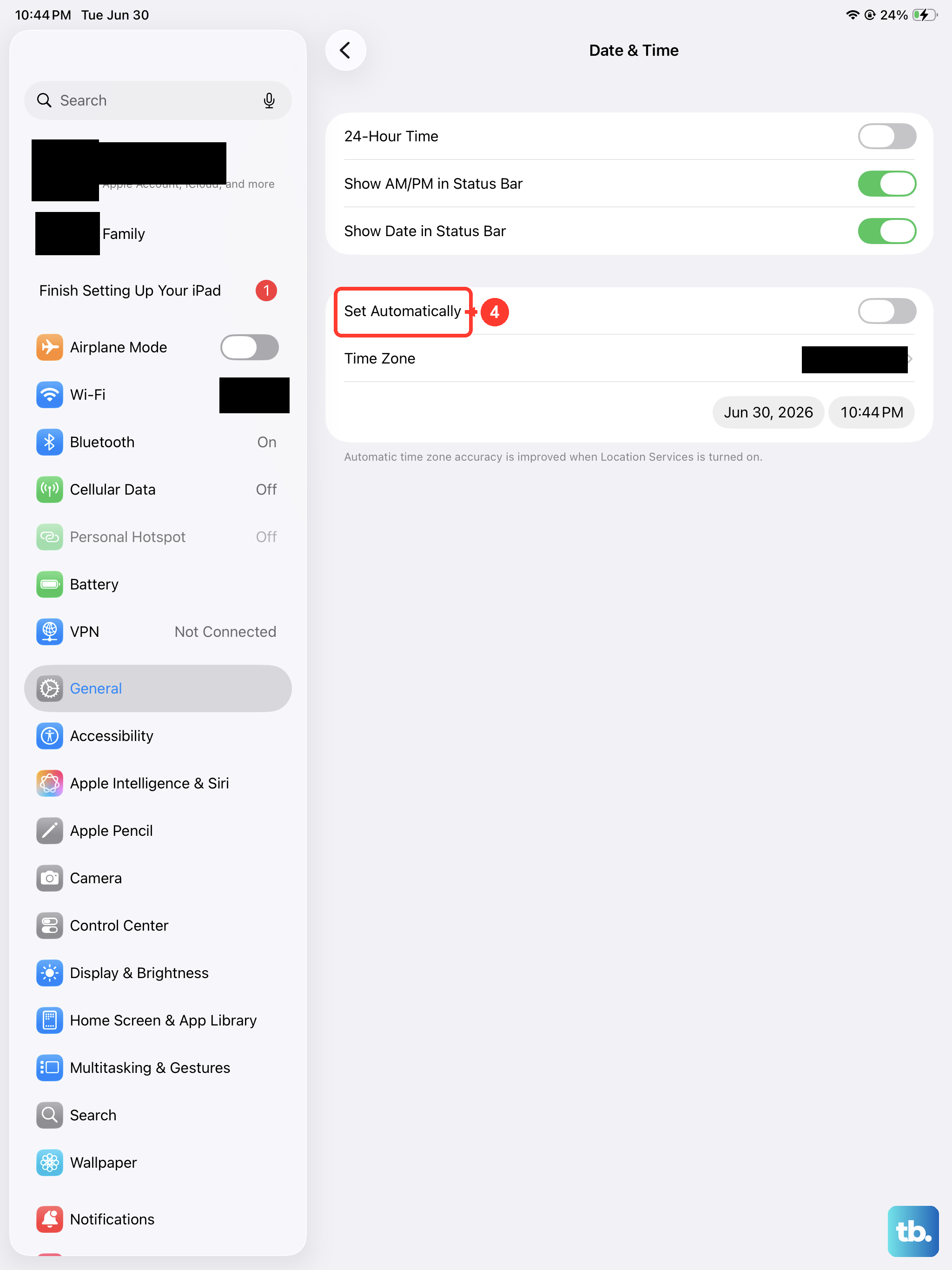
This seems unrelated, but it's critical for network security. If your iPad's clock is wrong, it can fail to properly authenticate with secure Wi-Fi networks. Go to Settings > General > Date & Time.
Make sure Set Automatically is turned on. This allows your iPad to get the correct time from the network, which helps with those background security checks.
Try a Different Wi-Fi Network
To rule out a hardware problem with your iPad's antenna, try connecting to a completely different network. Take it to a friend's house, a coffee shop, or use your phone's personal hotspot.
If your iPad connects to other networks without any issue, the problem is specific to your home network setup. If it can't connect to any network at all, the issue is more likely with the iPad itself.
Perform a Force Restart
A force restart is different from a normal shutdown. It can clear more stubborn software hiccups. Quickly press and release the Volume Up button, then quickly press and release the Volume Down button. Finally, press and hold the Top button.
Keep holding the Top button until you see the Apple logo appear, then let go. This doesn't erase any data, it just gives the system a hard reboot.