
When the microphone on your iPad 10th Generation stops picking up your voice, it can ruin video calls, voice notes, and commands to Siri. The first thing I'd do is figure out exactly which microphone is having trouble, as this iPad has a few of them.
It is worth running a microphone test before working through the steps below. The live waveform makes it obvious whether the microphone is picking up sound at all.
Test Which Microphone Isn't Working
Open the Voice Memos app and try recording while speaking directly at the top of the iPad, near the front-facing camera. Then, try another recording while holding the iPad in landscape mode, speaking toward the side where the volume buttons are. Play them back to see if one sounds muffled or silent. This helps pinpoint if it's the top microphone or the ones on the sides that are used for video calls.
You can also ask Siri a question by saying "Hey Siri" or holding the top button. If Siri doesn't respond or consistently mishears you, it's a good sign there's a broader microphone issue. For a final check, record a quick video in the Camera app with both the front and rear cameras, as they use different microphones.
Check for Simple Blockages First
Take a close look at the small microphone ports. On the iPad 10th Gen, you'll find them on the top edge next to the front camera, on the left side when held in portrait, and near the rear camera. These tiny holes can easily get clogged with pocket lint or dust.
Use a soft, dry brush, like a clean, unused makeup brush, to gently sweep over the openings. Avoid using compressed air or poking anything sharp inside, as you could push debris further in or damage the delicate microphone mesh.
Disconnect Any Audio Accessories
If you have Bluetooth headphones like AirPods connected, or even a wired pair using a USB-C adapter, your iPad might be routing all audio through them. Swipe down from the top-right corner to open Control Center and tap the Bluetooth icon to turn it off temporarily.
Also, check if you have any USB-C hubs or audio interfaces plugged in. Unplug them and test the built-in microphone again. Sometimes the iPad gets stuck trying to use an external input that's no longer active.
Restart Your iPad
A simple restart clears out temporary software glitches that can affect hardware. Press and quickly release the Volume Up button, then press and quickly release the Volume Down button. Finally, press and hold the Top button until you see the Apple logo appear, then let go.
This force restart sequence is the same for all iPad models without a Home button, and it often resolves quirky issues like a microphone dropping out.
Review App Permissions in iPadOS
If the problem is only happening in one app, like Zoom, FaceTime, or Discord, that app might have lost permission to use the microphone. Go to Settings > Privacy & Security > Microphone.
You'll see a list of all apps that have requested microphone access. Find the problematic app and make sure the toggle is switched on. If it was already on, try turning it off and back on again.
Update to the Latest iPadOS
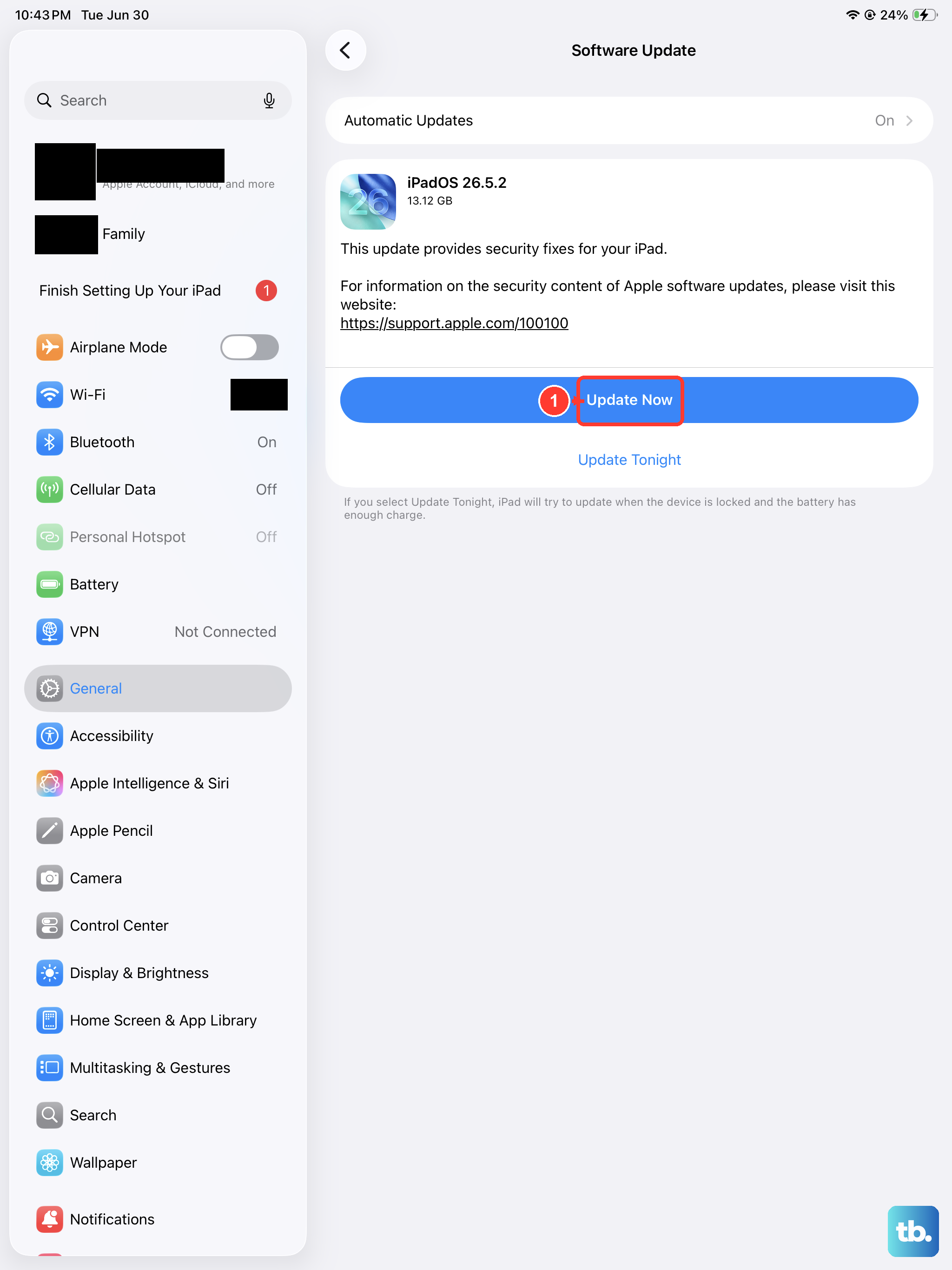
Apple releases software updates that frequently include fixes for audio and hardware communication bugs. To check, open Settings > General > Software Update.
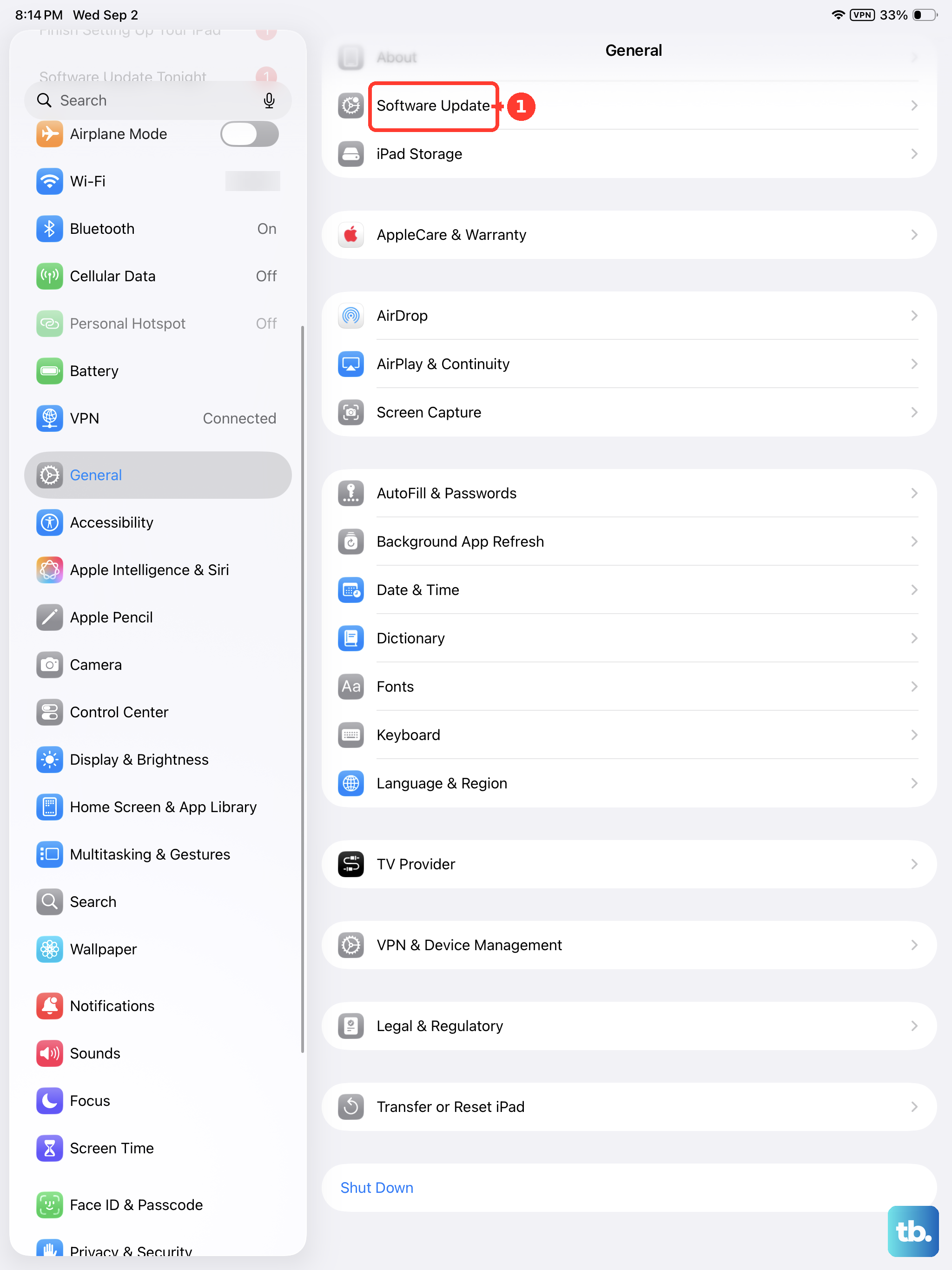
If an update is available, I'd recommend installing it. Make sure your iPad is connected to power and has a good Wi-Fi connection first, as the update for iPadOS 18 can be fairly large.
Reset All Settings
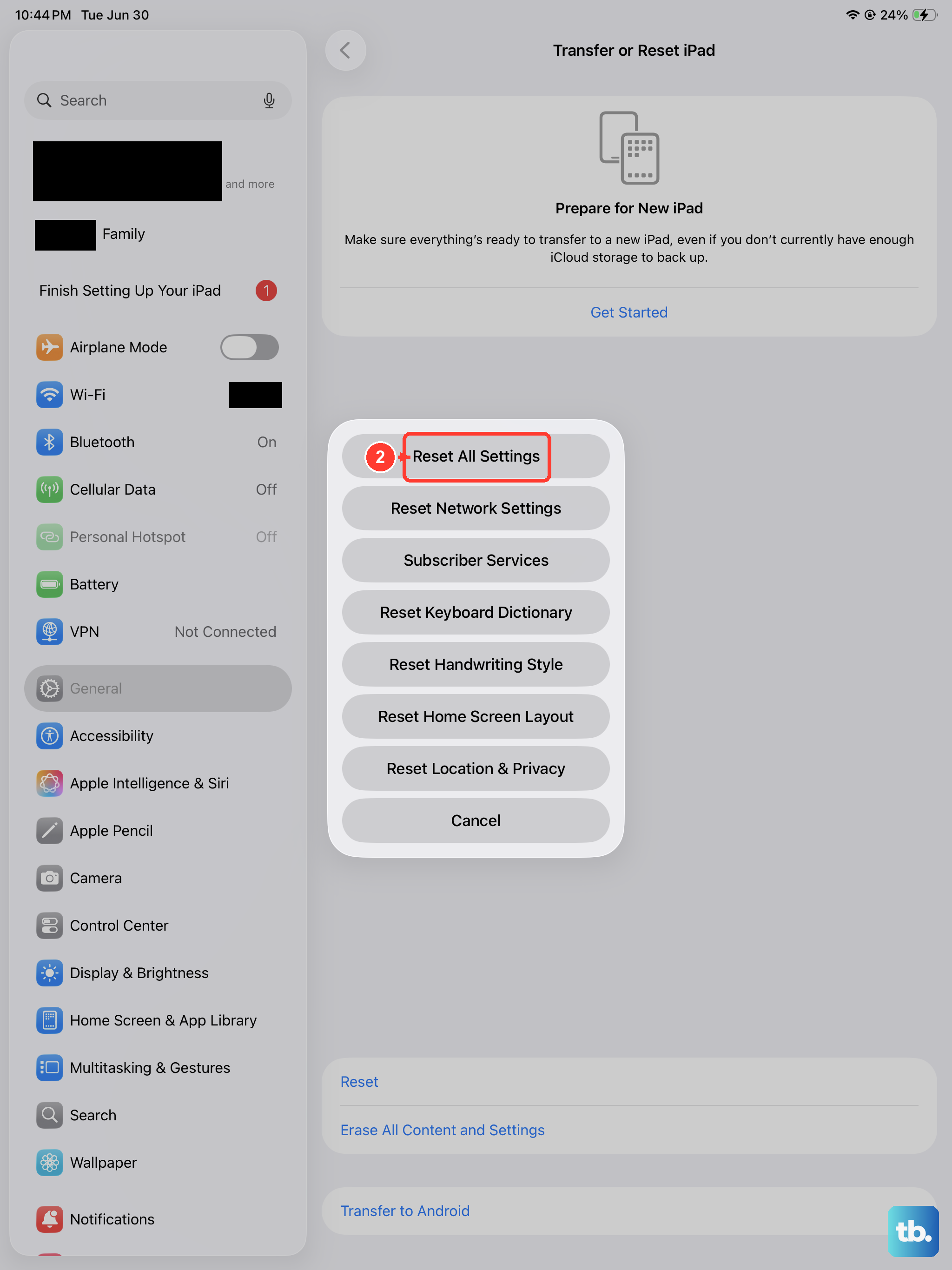
This is a more thorough step that resets every system setting on your iPad, like Wi-Fi passwords, wallpaper, and privacy permissions, back to factory defaults. Your personal data and apps remain untouched.
Go to Settings > General > Transfer or Reset iPad. Tap Reset and then choose Reset All Settings. You'll need to enter your passcode. After the iPad restarts, test the microphone immediately before reconfiguring anything else.
Check for Physical Damage
The iPad 10th Generation doesn't have a laminated display, which means there's a slight air gap between the glass and the screen. While this generally doesn't affect the microphone, it can make the device a bit more susceptible to vibration and shock.
Think about whether the iPad has had any recent drops or spills. Even a small impact on a corner could potentially disconnect an internal microphone cable. Look for any dents or cracks near the microphone ports on the aluminum chassis.
Restore Your iPad via a Computer
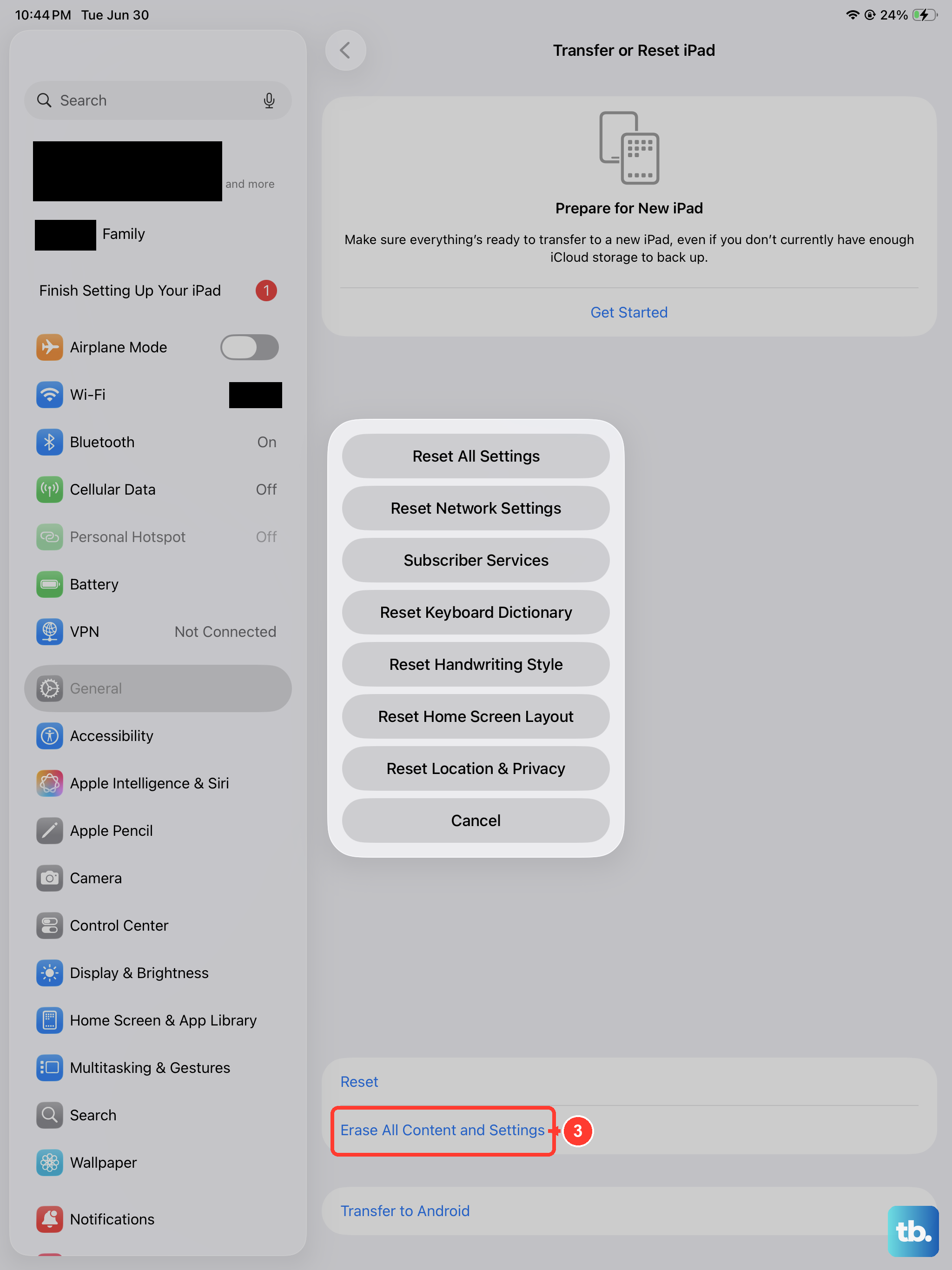
If you're still having no luck, the last software step is to restore the iPadOS software completely. This requires a Mac or PC. Connect your iPad to the computer using a USB-C cable.
On a Mac with macOS Catalina or later, open Finder. On a PC or older Mac, open iTunes. Select your iPad, and choose the option to Restore it. This will install a clean, fresh copy of iPadOS. Remember, this will erase all content and settings, so ensure you have a recent backup in iCloud or on your computer first.