
When Maps on your iPad 10th Generation can't find your location, it's more than just an inconvenience. You might be trying to get directions, find a nearby restaurant, or use an app that needs to know where you are. The good news is that most GPS issues on iPadOS are software-related and can be fixed without much hassle.
Start With These Quick Actions
Before we get into the detailed steps, try these three things right now. I'd start with the force restart, as it clears out temporary glitches in the system that often affect the GPS chip.
First, perform a force restart. Press and quickly release the Volume Up button, then press and quickly release the Volume Down button. Finally, press and hold the Top button until you see the Apple logo appear.
Next, swipe down from the top-right corner to open Control Center. Tap the location services icon (it looks like a hollow arrow) to turn it off, wait a few seconds, and then tap it again to turn it back on.
Finally, check if you're connected to Wi-Fi or cellular. While the iPad's GPS works independently, having a data connection helps Maps load map tiles and find your initial position much faster.
Verify Your Location Services Settings
Sometimes the issue is simply that location access is turned off for Maps or set to the wrong mode. Open the Settings app and tap Privacy & Security, then select Location Services.
Make sure the main Location Services toggle at the top is green and turned on. Scroll down and find the Maps app in the list. Tap on it and ensure the setting is "While Using the App" or "Always". The "Precise Location" switch underneath should also be enabled for best accuracy.
Check for iPadOS and App Updates
Outdated software is a common culprit. Apple frequently releases updates that fix bugs, including ones related to location services and the GPS hardware.
Go to Settings > General > Software Update. If an update is available, plug your iPad into power using a 20W or higher USB-C charger and install it. Also, open the App Store, tap your profile icon, and update the Maps app and any other navigation apps you use.
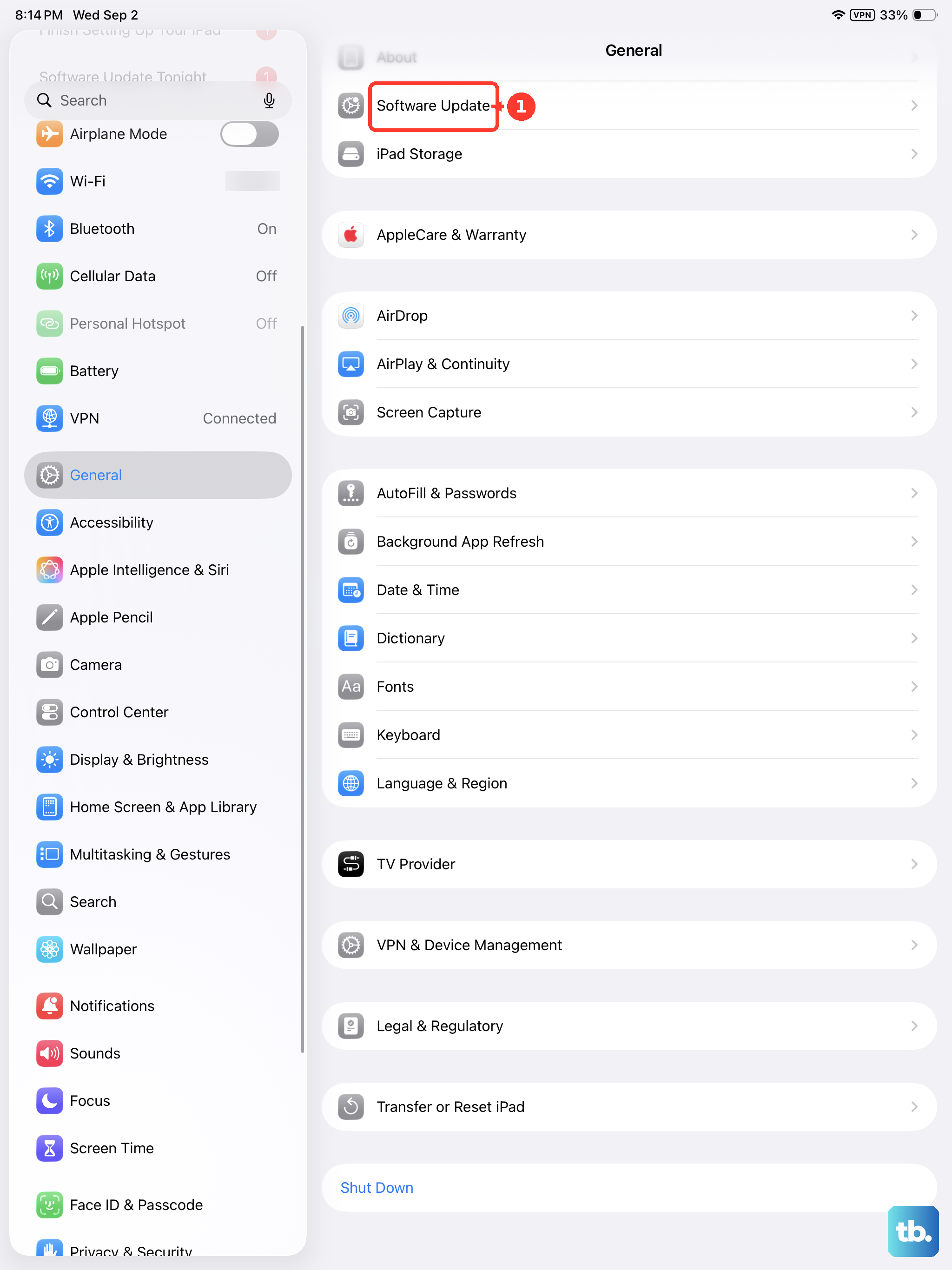
Reset Your Network and Location Settings
This step can resolve deeper configuration conflicts without erasing your personal data. It will forget all Wi-Fi networks and passwords, reset cellular settings, and restore location and privacy settings to their defaults.
Navigate to Settings > General > Transfer or Reset iPad. Tap Reset and then choose Reset Location & Privacy. You'll need to enter your passcode. After it reboots, you'll have to re-grant location permissions to your apps.
Test in a Different Location and App
It's important to figure out if the problem is with the Maps app specifically or with your iPad's GPS system as a whole. Try using a different navigation app like Google Maps or Waze to see if they also fail to get a lock.
Also, go outside or near a window with a clear view of the sky. Thick buildings, basements, or even certain types of window tint can block the relatively weak signals from GPS satellites. I've seen this make a huge difference for tablets.
Review Date & Time Settings
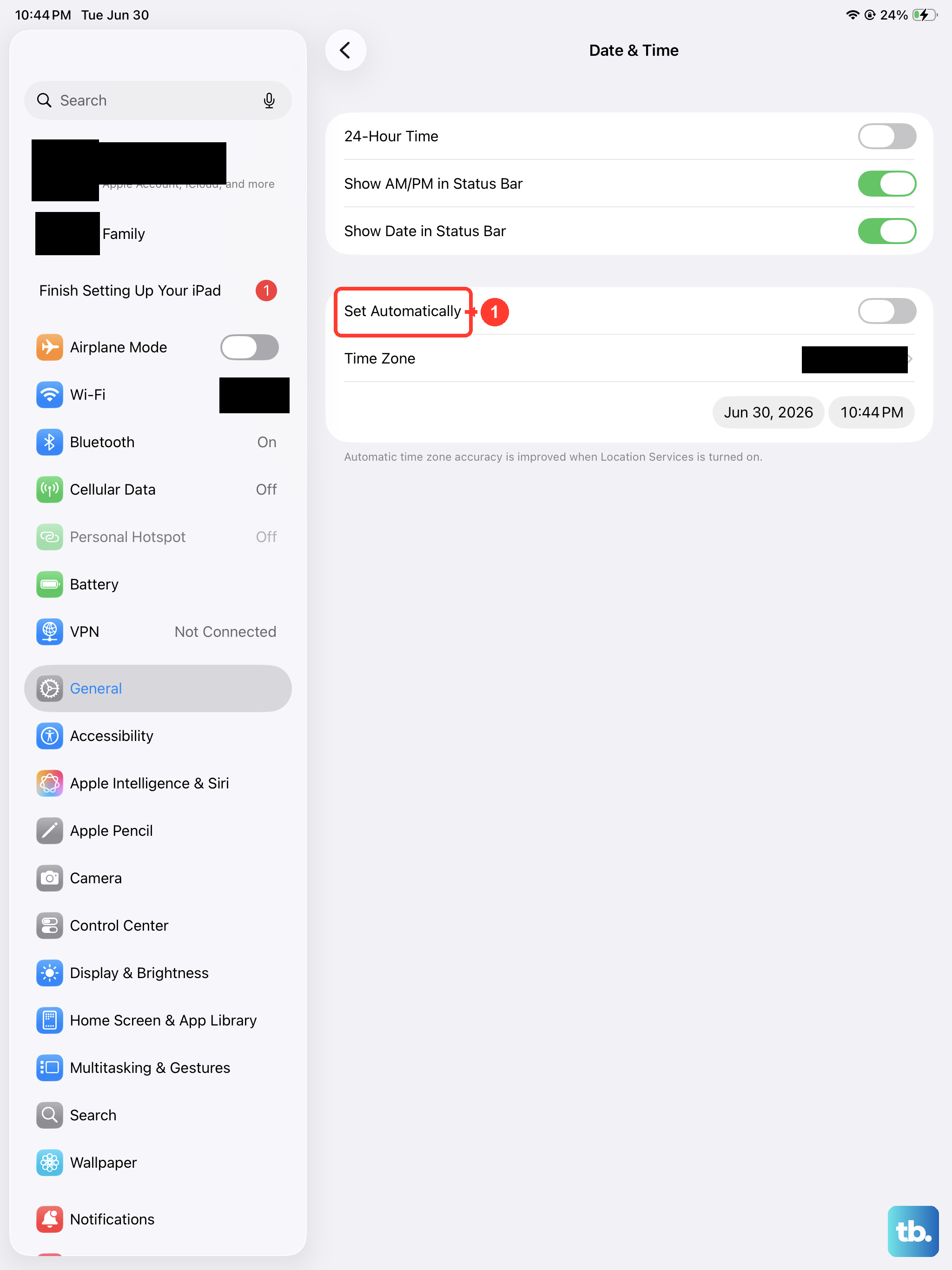
Your iPad uses the correct time and date to help calculate its position from satellite signals. If these are wrong, it can confuse the system. Go to Settings > General > Date & Time.
Make sure "Set Automatically" is turned on. This allows your iPad to get the correct time from the network, which is crucial for GPS functionality. If it's already on, try turning it off and back on again.
Check for Physical or Case Interference
While less common, a physical obstruction can be the issue. Remove your iPad from any folio case or thick sleeve and test the GPS again. Some cases with metal elements or magnetic clasps in the wrong place can potentially interfere with the internal GPS antenna.
Also, ensure nothing is plugged into the USB-C port that shouldn't be. While unlikely, a faulty cable or accessory could theoretically cause system noise that affects other components.
Use a GPS Diagnostic Tool
If you're still having trouble, you can download a free app from the App Store like "GPS Status" or "GNSS View". These apps show you raw satellite data.
Open the app while you're outside. It will show you how many satellites your iPad can see and connect to. If the app shows zero satellites after a few minutes, it points more strongly toward a deeper software or hardware issue. If it sees plenty of satellites, then the problem is likely with the Maps app configuration.
Consider a Full Software Restore
This is a last resort, but if all else fails, restoring your iPad through a computer can eliminate any corrupted system files. First, make a complete backup to iCloud or your computer.
Then, connect your iPad 10th Gen to a Mac or PC with a USB-C cable. On a Mac with macOS Catalina or later, open Finder. On a PC or older Mac, open iTunes. Put your iPad into recovery mode by doing the force restart sequence, but keep holding the Top button until you see the recovery mode screen. Choose to "Restore" your iPad. This will install a fresh copy of iPadOS.
Understanding iPad 10th Gen GPS Hardware
Your iPad uses a combination of GPS, GLONASS, and Galileo satellite systems, along with crowd-sourced Wi-Fi hotspot locations and cellular tower triangulation (on cellular models) to find you. This is why a data connection helps, even though the core GPS works without it.
The antenna is built into the frame of the iPad. If your iPad has suffered a significant drop or impact, it's possible the antenna connection was damaged, which would require professional repair. The steps above will help you rule out everything else first.