
If you're trying to download a photo or video someone sent you on your iPad 10th Generation and it's just stuck, it's a common snag. On an iPad, MMS messages rely on your cellular data connection, and a few settings need to be just right for them to come through.
Let's get those pictures and videos downloading.
Restart Your iPad
This is always the best first step. A quick restart can clear out a temporary software glitch that's blocking the download. On your iPad 10th Generation, press and quickly release the Volume Up button, then press and quickly release the Volume Down button. Finally, press and hold the Top button until you see the Apple logo appear.
Check Your Cellular Data Connection
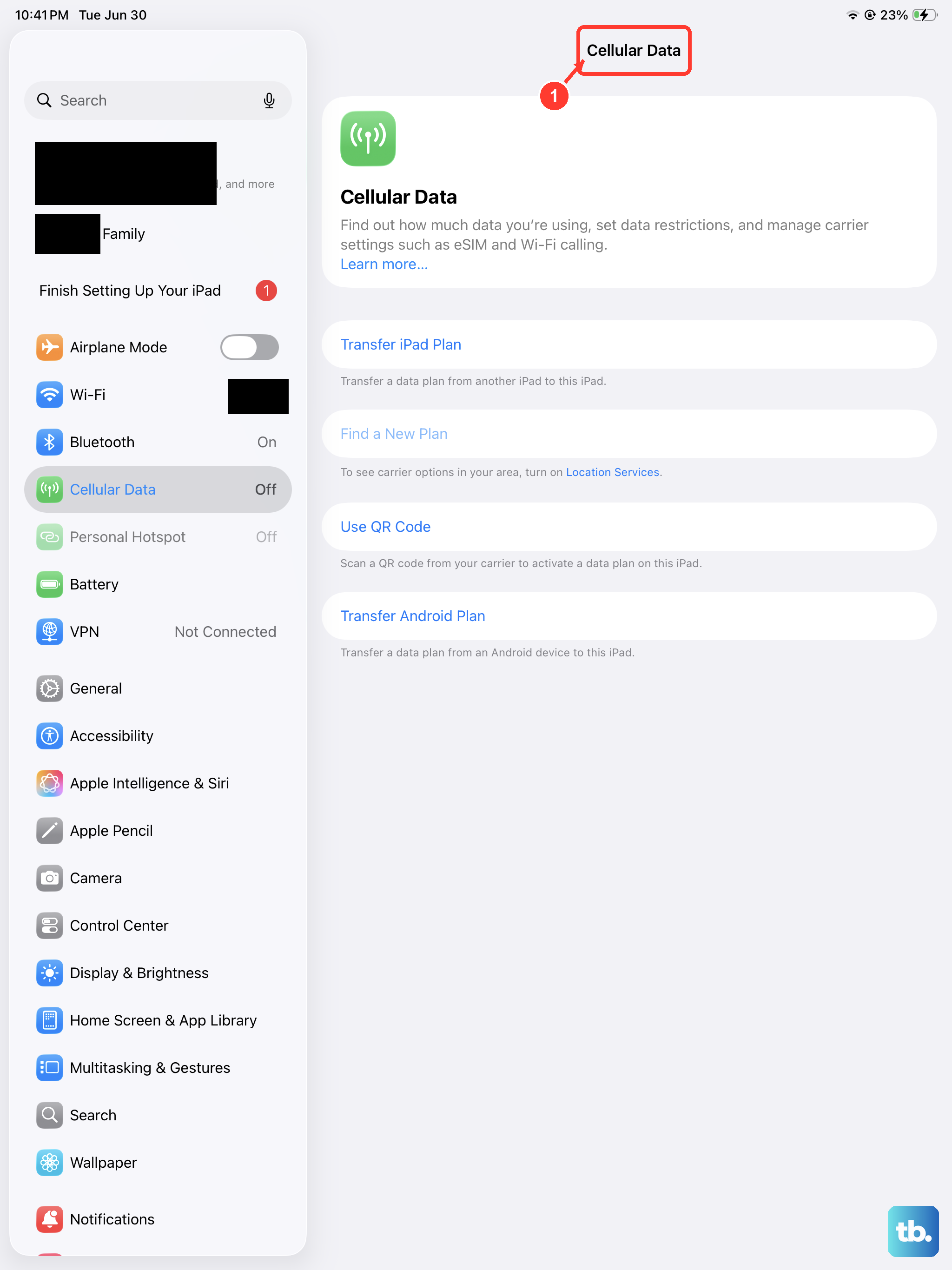
MMS messages won't download over Wi-Fi alone on an iPad. You need an active cellular data connection. Swipe down from the top-right corner to open Control Center and make sure the cellular data icon is blue. If you have a weak signal, try moving to a different location.
Also, ensure you haven't accidentally turned off data for the Messages app. Go to Settings > Cellular, scroll down, and make sure the toggle for Messages is switched on.
Enable MMS Messaging in Settings
This is the most crucial setting for iPad MMS. Open the Settings app and tap Messages. Scroll down and make sure MMS Messaging is turned on. If it was off, turn it on and give it a minute, then try downloading the message again.
Right below that, also check that Send as SMS is enabled. While this is for sending, it can sometimes help with the overall MMS handshake with your carrier.
Check Your Carrier Settings Update
Carrier settings are small files from your mobile provider that configure network features like MMS. Sometimes these need an update. To check, make sure your iPad is connected to Wi-Fi and has cellular service.
Then, go to Settings > General > About. If an update is available, a prompt will appear. This process only takes a moment and won't erase any of your data.
Review Your Message Thread
If a specific message won't download, the issue might be with that particular file or thread. Try asking the sender to resend the photo or video. Sometimes files get corrupted during transmission.
For group messages, which use MMS, try leaving the group and having someone add you back in. A problematic group thread can sometimes block all MMS downloads.
Update iPadOS
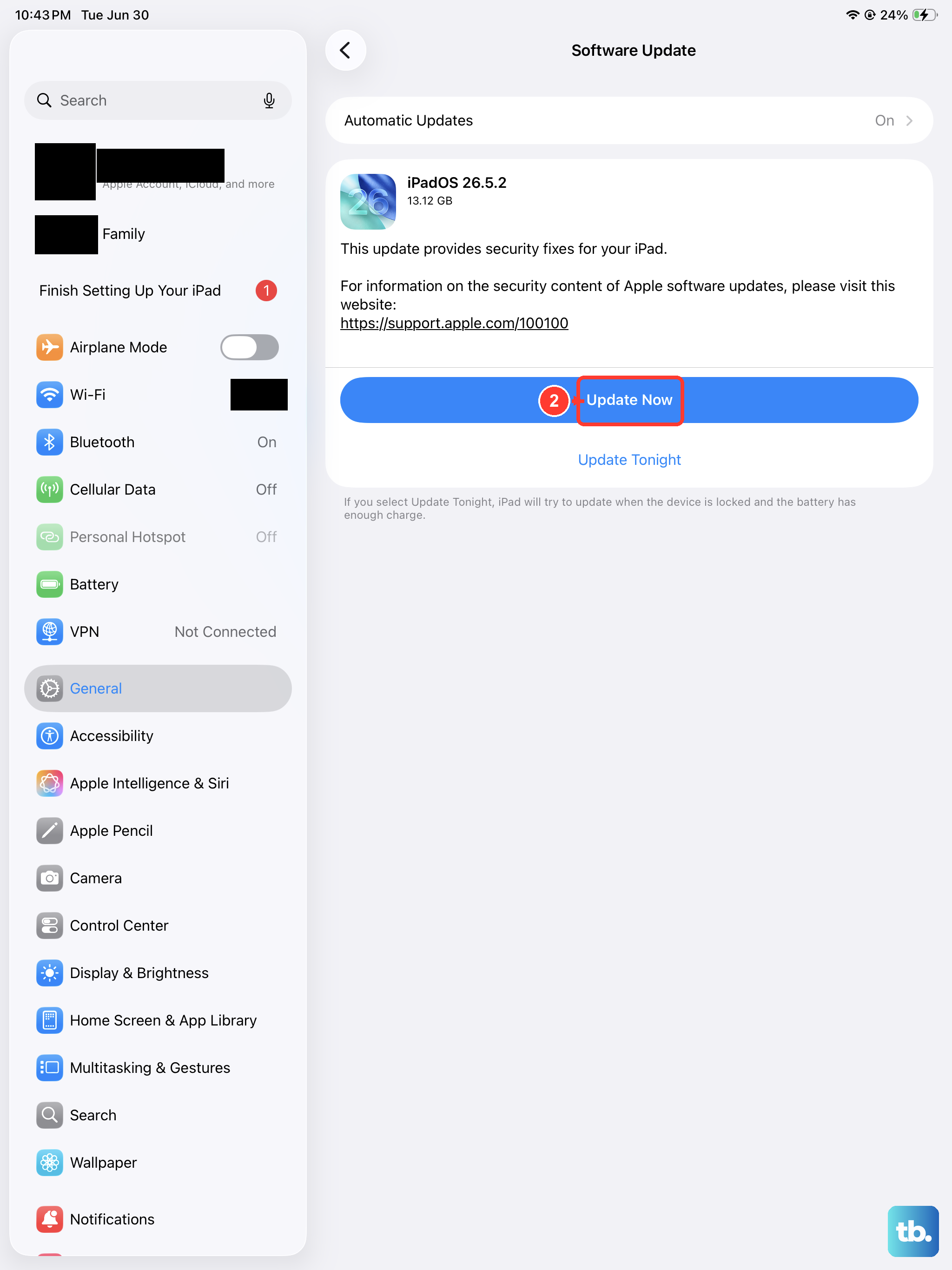
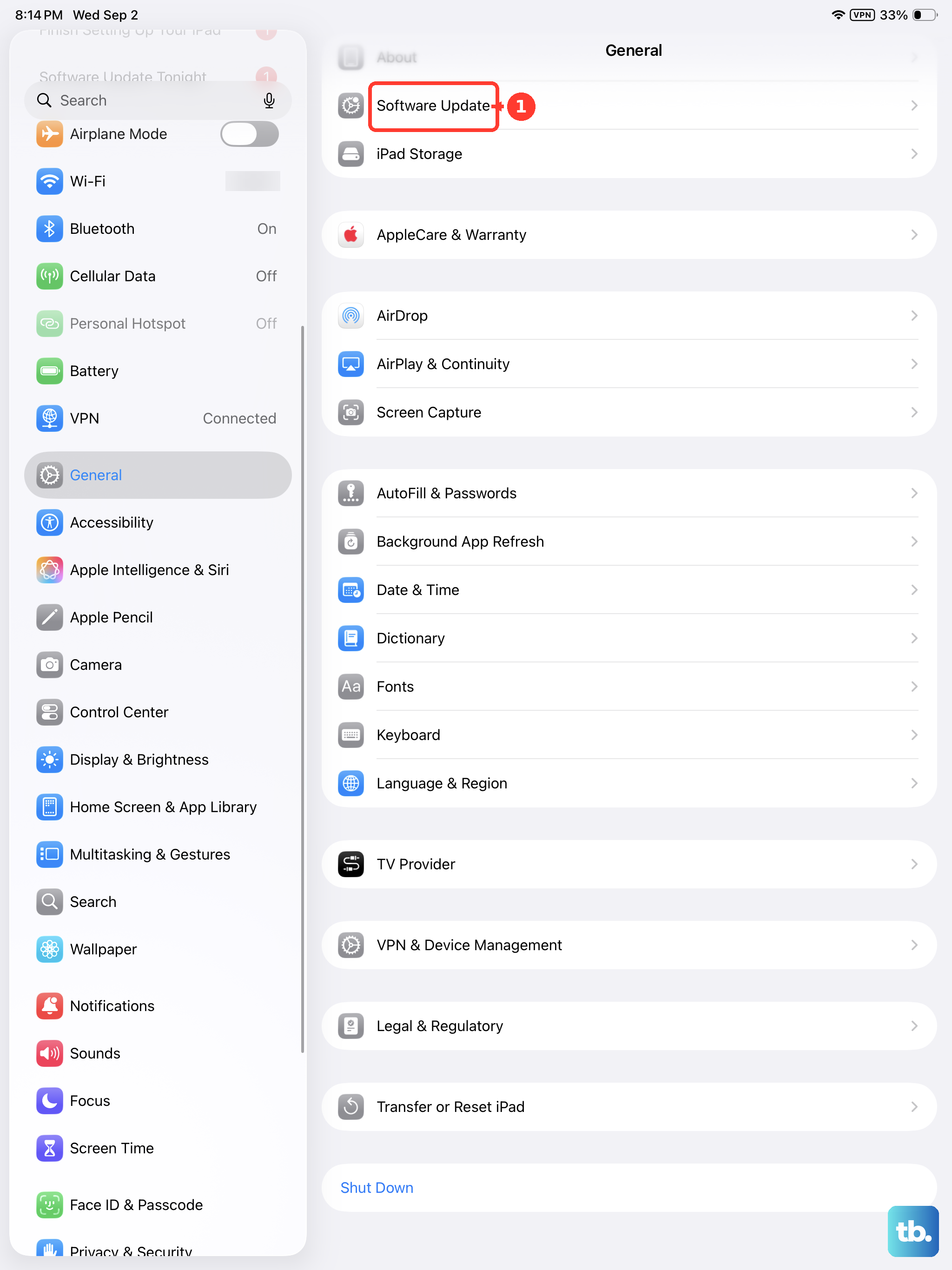
Running an outdated version of iPadOS can lead to bugs that affect messaging. It's a good idea to make sure you're on the latest version. Go to Settings > General > Software Update.
If an update is available, I'd recommend installing it. These updates often include fixes for connectivity and messaging issues. Since your iPad 10th Generation supports iPadOS 18, you should have access to the latest patches.
Reset Your Network Settings
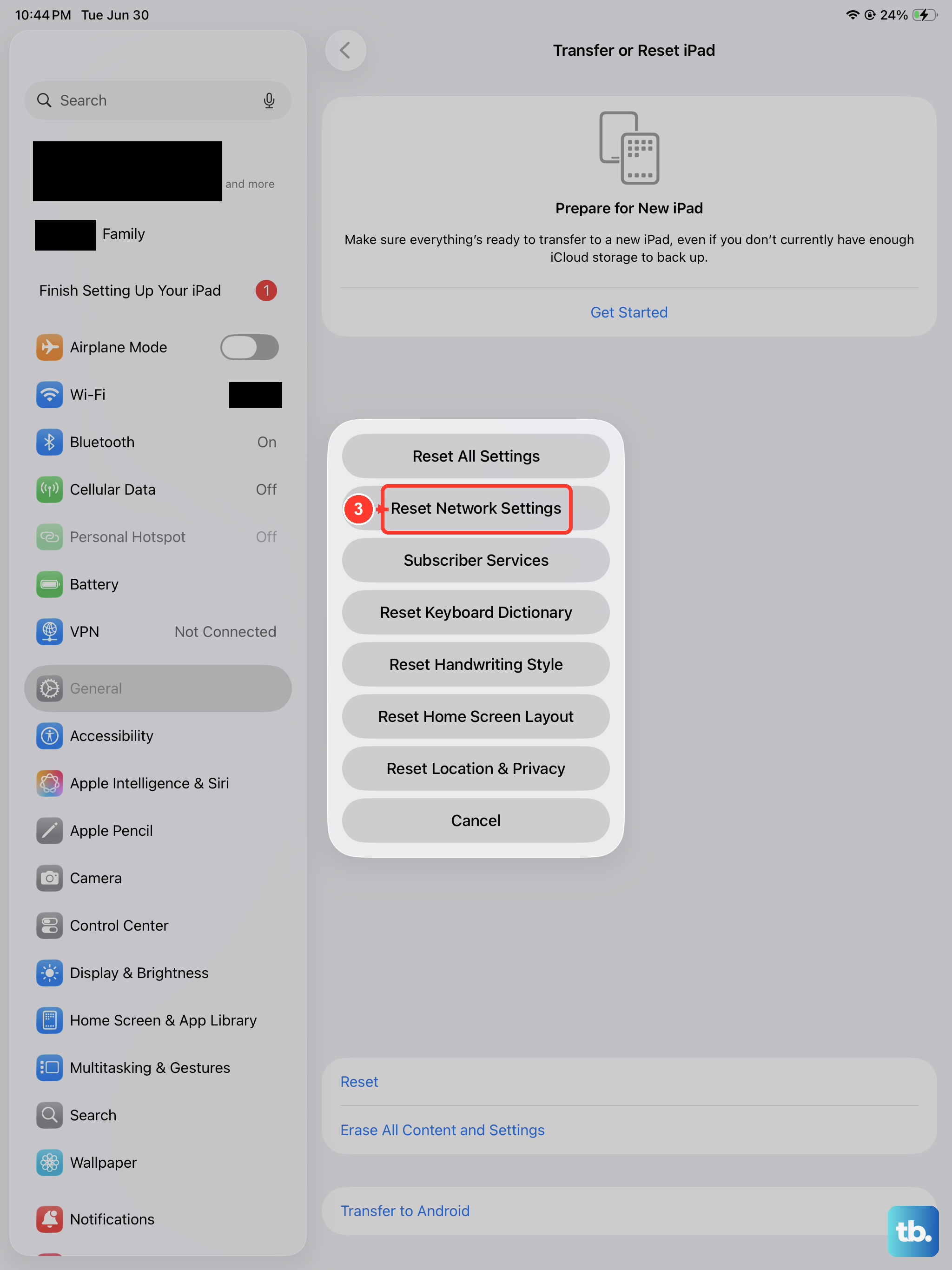
This will clear all your Wi-Fi passwords, cellular network settings, and VPN configurations, so you'll need to rejoin Wi-Fi networks afterward. It's a strong fix for persistent cellular data problems.
Go to Settings > General > Transfer or Reset iPad. Tap Reset and then choose Reset Network Settings. Enter your passcode if asked and confirm. Your iPad will restart.
Check for a Configuration Profile
If your iPad is managed by a school or employer, they might have installed a configuration profile that restricts MMS. You can check this in Settings. Look for a section called VPN & Device Management or just Profiles.
If you see a profile there, the restrictions are likely set by your organization's IT department, and you may need to contact them for assistance with changing MMS settings.
Contact Your Carrier
If you've worked through all these steps and MMS still won't download, the problem is likely on your carrier's end. They may need to reprovision MMS service on your line or check for an outage in your area.
When you call, be ready to tell them you're using an iPad 10th Generation on iPadOS 18 and that you've already confirmed MMS Messaging is enabled in your settings. They can often push the correct settings directly to your device.