


To change print settings in Windows 11, open Settings > Bluetooth & devices > Printers & scanners, select your printer, and choose Printing preferences. Adjust the supported options, then select OK to save them. To choose your default printer instead, turn off Let Windows manage my default printer, select your preferred printer, and choose Set as default.
Your default printer determines where a job goes, while printing preferences control how it prints. An application's print dialog can override those preferences for an individual document. Use Windows settings for your everyday choices and the app's controls for exceptions.
The short version
- Everyday options: Use Printing preferences to save supported paper, color, quality, orientation, and two-sided settings.
- Printer choice: Turn off Let Windows manage my default printer before choosing a fixed default.
- One document: Change options in the application's Print window for a job-specific override.
- Missing controls: Available settings depend on your printer, its driver, and its print-support app.
| Method or place | Use it to |
|---|---|
| Windows Settings | Open your installed printer's controls |
| Windows Search | Find Printers & scanners directly |
| Set as default | Choose a fixed printer destination |
| Let Windows manage my default printer | Automatically use the last printer used |
| Printing preferences | Save everyday print options |
| Word Print window | Choose document pages and job settings |
| Desktop Excel Print window | Choose sheets, selections, and driver options |
| Excel for the web Print command | Set spreadsheet options before browser printing |
| Acrobat Reader Print window | Adjust PDF pages, sizing, and output |
| Photos More settings | Access additional photo print controls |
| Edge print dialog | Adjust webpage printing options |
| Edge Print using system dialog | Reach Windows and driver preferences |
| Chrome print preview | Choose a destination and job settings |
| Firefox More settings | Adjust paper, scaling, margins, and webpage details |
| HP PSA presets | Save and restore reusable settings |
| Canon profiles and Defaults | Reuse settings or restore factory options |
| Print server properties > Forms | Define a supported custom paper size |
| Windows Update Optional updates | Install an offered printer driver update |
| Manufacturer installation software | Obtain supported model-specific controls |
| Windows protected print mode | Check restrictions on traditional drivers |
| Remove and Add device | Rebuild a printer installation |
Open your printer settings
Open Start, select Settings, then choose Bluetooth & devices > Printers & scanners. Select the installed printer you want to configure. From its page, you can open Printing preferences for print options or Printer properties for other printer controls.
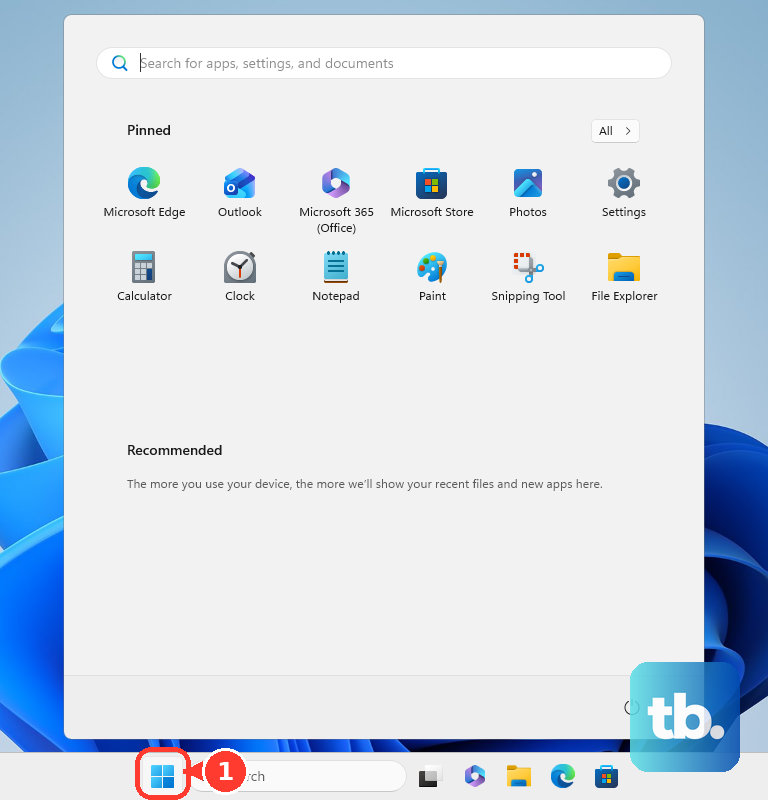
For a faster route, press Windows + Q, type printers, and select Printers & scanners. Choose your printer to change its options, or use the controls under Printer preferences to manage automatic default-printer selection.
Choose your default printer
To keep one printer as your default, return to Printers & scanners and find Printer preferences. Turn Let Windows manage my default printer off, select your preferred printer, then choose Set as default. You can choose an installed physical printer or a virtual printer.
If you prefer automatic selection, turn Let Windows manage my default printer on. Windows then uses the last printer you used, and on a mobile device, the default can also change with location. Turn this option off if your default keeps changing and you want one fixed destination.
Choosing a default does not set paper size, color, or two-sided printing. Those options belong in Printing preferences, and you can still choose another printer from an application's Print window. Check the selected destination before sending a job when you have several printers installed.
Save your everyday printing preferences
Select your printer in Printers & scanners, then open Printing preferences. Set the supported paper size, paper type, orientation, print quality, color, and duplex options for your usual output. Select OK to save your choices.
The tabs and labels depend on your installed driver or print-support app. Your saved preferences provide a starting point for future jobs, but explicit settings in an application can take priority. If a document needs different settings, check its print dialog before changing your everyday preferences.
For document layout changes, you can make one page landscape in Word. If you need to adjust the document's spacing, change margins in Word.
Change settings for a single document
In Word, open File > Print, choose your printer, and set Copies. Adjust the options under Settings, and open Print All Pages to choose a page range or other document content. Select Printer Properties for driver-specific options, then select Print.
In desktop Excel, open File > Print or press Ctrl + P, then choose your printer under Printer. Under Settings, choose Print Active Sheets, Print Entire workbook, Print Selection, or Ignore print area as needed. Select Printer Properties for additional options before printing.
In Excel for the web, use File > Print > Print to reach the spreadsheet-specific controls. In Print Options, choose Current Selection or the applicable whole-sheet or workbook option. Select Print, then complete the browser's print dialog.
In Acrobat Reader, open File > Print and choose Printer and Copies. Adjust Pages to Print, Page Sizing & Handling, Orientation, and Comments & Forms as needed. Use Properties for driver options or Page Setup for paper settings. You can also use Print in grayscale or, with a compatible printer and driver, Print on both sides of paper.
In Windows Photos, open the print window and select More settings to reach additional job controls. Other applications may label access to driver options Properties or Printer Properties. Open the available driver tabs or Advanced options when the initial print window does not include the setting you need.
Adjust browser print settings
In Microsoft Edge, press Ctrl + P or open Settings and more > Print. Choose your printer and adjust the available print options. You can also right-click the webpage and select Print.
To reach Windows and driver controls from Edge, select Print using system dialog or press Ctrl + Shift + P. Choose your printer under Select Printer, then select Preferences. Adjust Layout, Paper/Quality, or other available driver options, select OK, then select Print.
In Chrome, open the page, image, or file and press Ctrl + P. Choose your destination, change the available settings, then select Print. Selecting Save to PDF in a browser is separate from selecting the installed Microsoft Print to PDF printer.
In Firefox, open Application menu > Print…, then adjust Destination, Copies, Orientation, Pages, and Color mode. Expand More settings for Paper size, Scale, Pages per sheet, Margins, Format, Two-sided printing, Print headers and footers, and Print backgrounds. Some options depend on your printer or webpage. Select Print when your choices are ready.
Save presets for repeated print tasks
Driver presets let you reuse a group of settings instead of changing each option separately. Their names and availability vary by printer software, so use the controls supported by your model. With HP Print Support Application, presets created inside an application's dialog may apply only while that application is open, while preferences created through Windows have broader scope.
On supported HP printers using HP Print Support Application, open Printing preferences and select Factory Defaults under Preset. Change the options, select the Save icon, enter a Preset Name, then select Save. Select that preset to reuse it, or use the Revert to the selected preset icon to restore its saved options.
In the Canon TS7700 series Windows driver, open Printing preferences > Basic Settings. Configure your options, select Add…, then enter a Name in Add to Profiles and use Options… to choose which settings to save. Select the saved entry under Profiles to reuse it. To restore factory options instead, select Defaults, which restores changed settings on Basic Settings, Media/Quality, and Page Setup.
Create a supported custom paper size
For a printer and driver that support custom sizes, open Printers & scanners > Print server properties > Forms. Select Create a new form, enter a Form name, choose Metric or English, and enter Width and Height. Select Save Form, then OK or Close.
Next, choose the supported custom size in the application's printer preferences. Your printer and driver must support the size you define. For label sheets, create and print labels on your computer, then select the matching supported paper settings.
Restore missing settings or printer access
If an option is missing, open the driver controls from your application's print window. In Edge, use Print using system dialog; in Word, use Printer Properties. Available controls still depend on your printer's capabilities and its installed driver or print-support app.
To install an offered printer driver update, open Settings > Windows Update > Advanced options > Optional updates. Select the available printer driver update, choose Download and install, then restart. If no compatible update is offered, check your manufacturer's model-specific installation software.
For an HP printer, open HP Software and Drivers and identify your model. For a Canon printer, use Canon Software and Drivers to find your model's downloads. Select the correct Windows version and architecture, download and open the offered installation software, then complete its setup prompts. On an ARM PC, you may need to use Windows Add device instead.
Windows protected print mode blocks traditional third-party drivers and can change which settings are available. To check it on Windows 11 version 24H2 or later, open Printers & scanners > Printer preferences > Windows protected print mode. If you need to disable it to use a traditional driver, select Turn Off > Yes, unless an administrator's policy prevents the change. Some printers then need removal and reinstallation to return to their original driver.
To rebuild an installation, select your printer in Printers & scanners, choose Remove, and confirm with Yes. Return to Printers & scanners, select Add device, and use Add manually if necessary. Configure your printing preferences and default printer again after installation. If the printer shows offline, follow the steps to fix a printer that shows offline.
Frequently Asked Questions
Can you open printer settings with a Run command?
Press Windows + R, enter ms-settings:printers, then press Enter to open Printers & scanners. You can also use the same URI as a shortcut target.
Are Adobe PDF settings the same as Microsoft Print to PDF settings?
The Adobe PDF printer is a separate virtual printer available with Adobe Acrobat. If you have it installed, select Adobe PDF in Printers & scanners and open Printing preferences. Its Adobe PDF Settings tab includes Default Settings, Adobe PDF Security, Adobe PDF Output Folder, and Adobe PDF Page Size.
Can you change printer settings using voice controls?
You can operate printer settings with Windows 11 Voice access. Open Settings > Accessibility > Speech, turn Voice access on, and complete its first-use setup. Use commands such as Open Settings, Click Printers & scanners, and Show numbers to navigate the controls.
Does resetting the printer itself reset Windows printing preferences?
Device settings and Windows application preferences have separate scopes. On Brother DCP-L3515CDW, DCP-L3520CDW, DCP-L3520CDWE, and DCP-L3527CDW models, press Menu, open Printer > Reset Printer, and follow the confirmation prompts to restore device printer settings. This does not reset your Windows application preferences.
What happens if you uninstall HP Print Support Application?
You can continue printing through the Windows IPP Class Driver, but you will have fewer settings. HP says removing the app affects every installed HP printer and prevents its automatic reinstallation on subsequent printer detection. To remove it, open Settings > Apps > Installed apps, select HP Print Support Application, and choose Uninstall.