Your printer says offline when your computer, phone, or tablet cannot reach it, or when a stuck print job blocks the queue. Start with power, Wi-Fi, and the selected printer, then move into Windows, Mac, mobile, and brand-specific fixes.
Every fix below uses current printer guidance for July 2026 and skips retired methods like Google Cloud Print.
1. Wake the printer and clear its panel errors
Start at the printer. If the device is asleep, jammed, out of paper, or showing an ink, toner, cover, or paper error, your computer has nothing useful to send jobs to.
- 1.Turn the printer off and unplug it.
- 2.Wait 30 seconds.
- 3.Plug it back in and turn it on.
- 4.Wake the printer from sleep.
- 5.Check the printer screen or status lights.
- 6.Clear any visible error, including paper jam, open cover, low paper, empty ink, or empty toner.
For a wireless printer, restart the computer, phone, router, and modem, then print again.
2. Confirm the cable or Wi-Fi connection
USB: connect the USB cable directly to the computer, not through a hub. Ethernet: confirm the cable is connected to the printer and the router or access point.
Wi-Fi: turn on the printer wireless option and check the wireless light or icon. Same Wi-Fi network: connect your computer, phone, or tablet to the same network name as the printer. Many wireless printers use a blue wireless icon or button. If that light is off, turn the printer wireless option back on from the printer panel.
3. Choose the correct printer before sending the job
The wrong destination looks exactly like an offline printer. Open the print screen inside the app first, then choose the printer you actually want to use.
In desktop apps, select File, then Print. Choose the intended printer and confirm the status shows Ready.
In Chrome, press Ctrl+P on Windows or Command+P on Mac. Open Destination, select the correct printer, then click Print.
On Windows 11, set the default printer from Start, Settings, Bluetooth & devices, Printers & scanners, select your printer, then choose Set as default. If Set as default is missing, turn off Let Windows manage my default printer first.
4. Clear stuck jobs on Windows
A blocked queue stops new jobs from printing even after the printer reconnects. Open Start, then Settings. Go to Bluetooth & devices, then Printers & scanners.
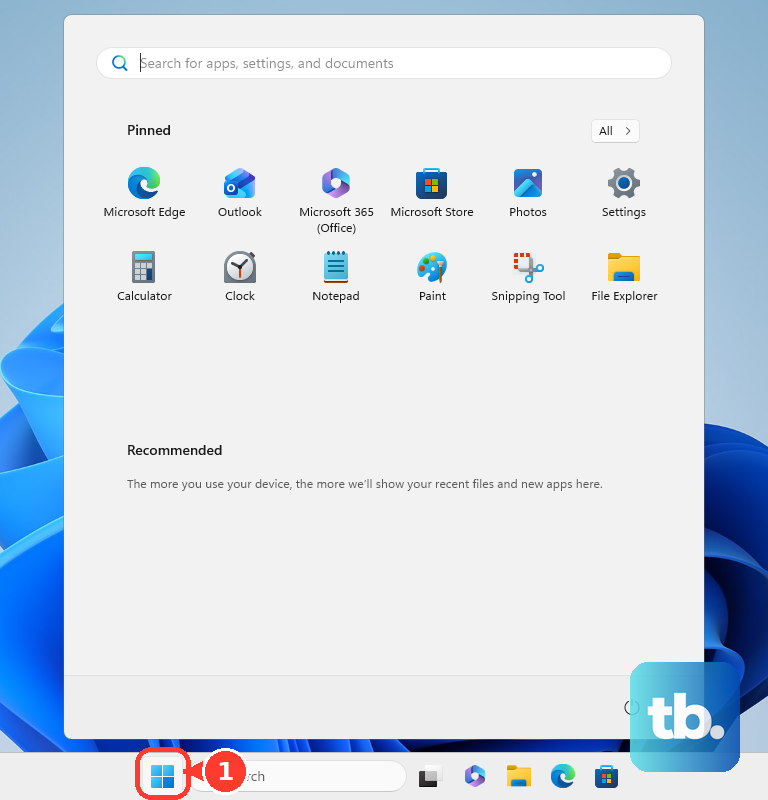
Select your printer, then open Open print queue. Select ..., then choose Cancel all. You can also right-click each job and choose Cancel.
After that, search for Services. Open Services, select Print Spooler, then choose Restart.
If the queue does not clear, open Services, select Print Spooler, and choose Stop. Open File Explorer, then go to C:\Windows\System32\spool\PRINTERS. Delete the files in that folder. Return to Services, select Print Spooler, then choose Start.

5. Run Windows repair and reinstall the printer
Windows 11 puts the current printer troubleshooter in Get Help. Open Get Help, search for printer troubleshooter, then follow the prompts to scan for printers and repair the setup.
Still offline? Remove and add the printer again. Open Start, Settings, Bluetooth & devices, then Printers & scanners.
Select the printer. Choose Remove, then confirm with Yes. Return to Printers & scanners. Next to Add a printer or scanner, select Add device.
Follow the prompts. For drivers, use Add device in Windows or download software from the printer maker's official support page for your exact model. On Windows on Arm, use Add device unless the printer manufacturer gives specific Windows on Arm instructions.
6. Resume or reset printing on Mac
On Mac, the fastest queue fix lives in Print Center. Click the Print Center icon in the Dock. If Resume appears in the toolbar, click it.
To fix one blocked job, select the job in Print Center. Then click Delete Job or Resume Job.
To set up the printer again, open the Apple menu. Choose System Settings, then Printers & Scanners. Select the printer, then remove it. Click Add Printer, Scanner, or Fax, then add it again.
For a full reset, open Printers & Scanners. Control-click the printer in the Printers list on the right. Choose Reset Printing System. If no printers appear there, Control-click the empty list instead.
This removes printer queues and settings, so use it after the normal queue and re-add steps. For AirPrint setup trouble, use the printer setup assistant or WPS path for your model.
If the printer creates an ad-hoc Wi-Fi network, turn it on from the printer. Open the Mac Wi-Fi menu, then select the printer's temporary network. Finish setup in the assistant. Then return the Mac to your regular Wi-Fi network.
7. Reconnect from iPhone Android or Chromebook
iPhone and iPad: confirm the printer supports AirPrint and both devices use the same Wi-Fi network. Open the app, then tap Share or Actions. Choose Print, tap No Printer Selected, and choose the AirPrint printer. Then tap Print.
For printer companion apps, open Settings, Privacy & Security, then Local Network. Turn on access for the printer app.
Chromebook: select the time at the bottom right. Open Settings. Go to Device, Printers and scanners, then Print. Under Other available printers, next to a compatible printer on the same Wi-Fi network, select Save.
For USB, connect the printer. Follow the on-screen notification. ChromeOS does not support Bluetooth printing.
Android: open the app's print option. Choose a nearby printer. For Mopria, install Mopria Print Service from Google Play.
Next, open Android Settings. Go to Printing or Print services. Select Mopria Print Service, then turn it on. Keep the phone and printer on the same Wi-Fi network, or use Wi-Fi Direct when your printer supports it.
8. Use the official HP Canon Epson or Brother tool
If the printer drops offline again after the basic connection fixes, use the official utility for your brand and exact model.
HP: open the HP app. Select the printer. Choose Diagnose & Fix, then select Start. HP retired the older HP Print and Scan Doctor in 2025, so use the HP app and its Diagnose & Fix tool on Windows instead.
Canon: download Wi-Fi Connection Assistant from Canon. Run it, then use it to check, diagnose, and repair Wi-Fi communication. For supported models, use Canon PRINT or Easy Wireless Connect to reconnect the printer to Wi-Fi.
Epson: open Epson support for your exact model. Choose the guided wireless printing help. Run Epson Printer Connection Checker when Epson offers it for that model. To update firmware, use Epson Software Updater.
Brother: on supported touchscreen models, press Wireless Status. Press Recover WLAN, then press OK. On some button-panel models, press Wi-Fi and Color Copy or Colour Copy together. Wait for Wi-Fi to reconnect.
Then print again. For network printers, print the network configuration or LAN details page from the printer panel. Confirm the IP address, SSID, signal strength, and connected status. For AirPrint discovery, keep AirPrint or Bonjour enabled in the printer network settings or web admin page.
9. Skip retired fixes and call IT for managed printers
Work and school printers are often controlled by sharing settings, deployment tools, Universal Print, Intune, Google Admin console, Group Policy, or Apple device management. Ask IT to check the managed printer setup, sharing, deployment, and AirPrint restrictions.
Do not use Google Cloud Print as an offline printer fix. Google Cloud Print was deprecated in January 2021 and is no longer supported. Use native ChromeOS printing, AirPrint, Mopria, a vendor printer app, or your organization's current print system.
For Windows 10 or earlier, older Microsoft and Brother instructions include Use Printer Offline and Pause Printing in the classic Control Panel queue. On current Windows 11, use Settings, Get Help, the print queue, Print Spooler, and printer reinstall steps instead.
Frequently Asked Questions
Why is my printer offline even though it is connected to Wi-Fi?
The printer wireless option is off, the printer and device are on different Wi-Fi network names, or the print queue is stuck. Turn on the printer wireless option, confirm the same SSID, then clear the queue.
Should I remove and reinstall my printer?
Yes, after checking power, panel errors, cables, Wi-Fi, the selected printer, and stuck jobs. Reinstalling fixes a saved printer queue that no longer communicates with the device.
Why does my printer go offline after changing routers?
The printer is still set up for the old Wi-Fi network. Reconnect it to the new network from the printer panel, WPS, AirPrint setup assistant, or the official HP, Canon, Epson, or Brother setup tool.
Can a stuck print job make the printer show offline?
Yes. A blocked queue stops new jobs. On Windows, cancel the jobs and restart Print Spooler. On Mac, use Print Center to delete or resume the job.











