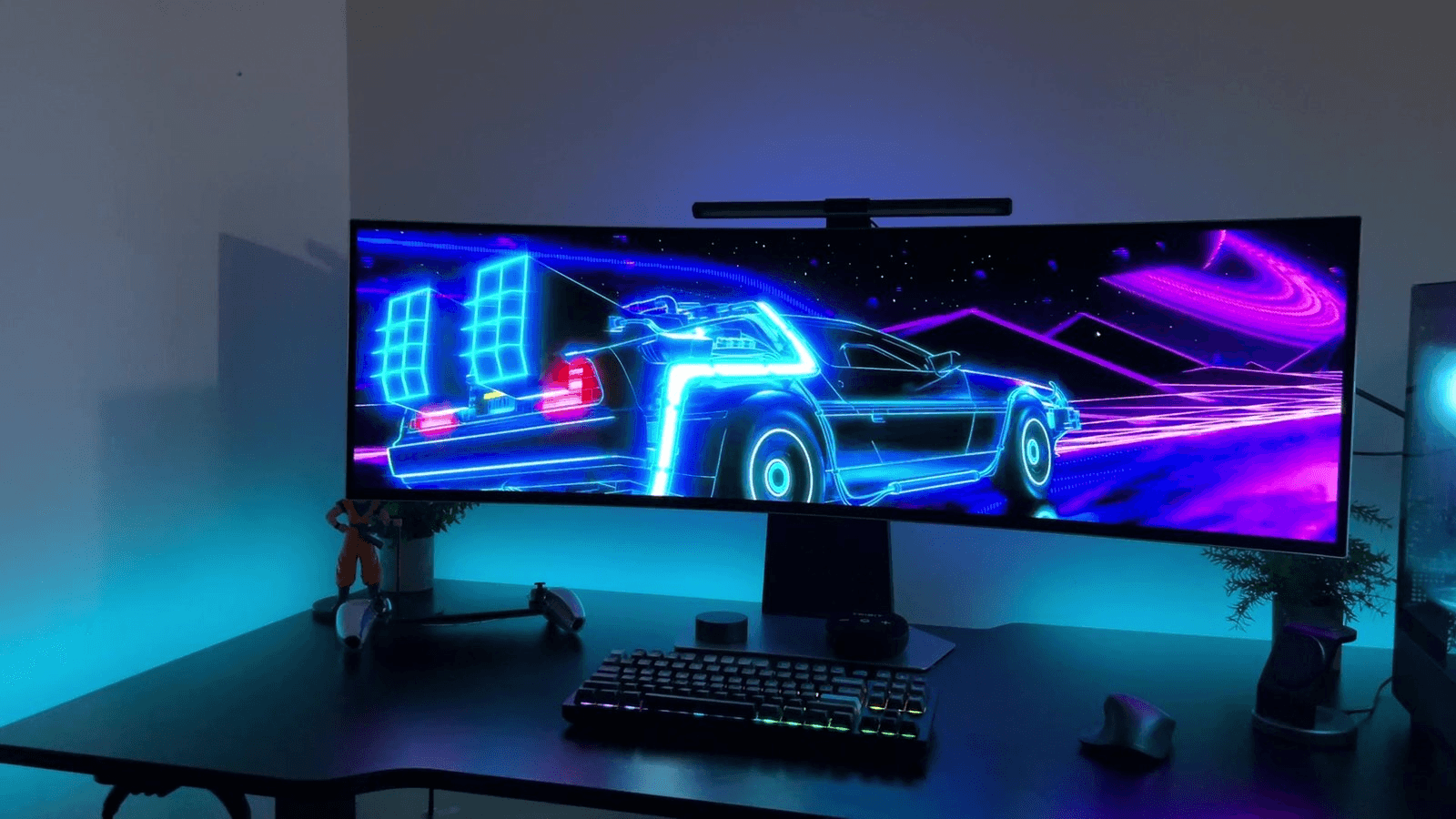
My 49-inch Samsung Odyssey OLED G9 is on for 10 to 12 hours a day, and most of that is work. After 11 months, burn-in, the usual OLED warning, hasn't shown up on it. A warm back panel, a Mac cable quirk and a lot of black bars around video have.
This is the G95SD version, a 49-inch, 32:9 QD-OLED with a 5120 x 1440 resolution, up to 240Hz and an 1800R curve. It's the easiest way to picture two 27-inch 1440p monitors side by side with no bezel between them. I bought mine with my own money for about $1,400, so it's my unit, not a review sample.
You set your windows up once and leave them
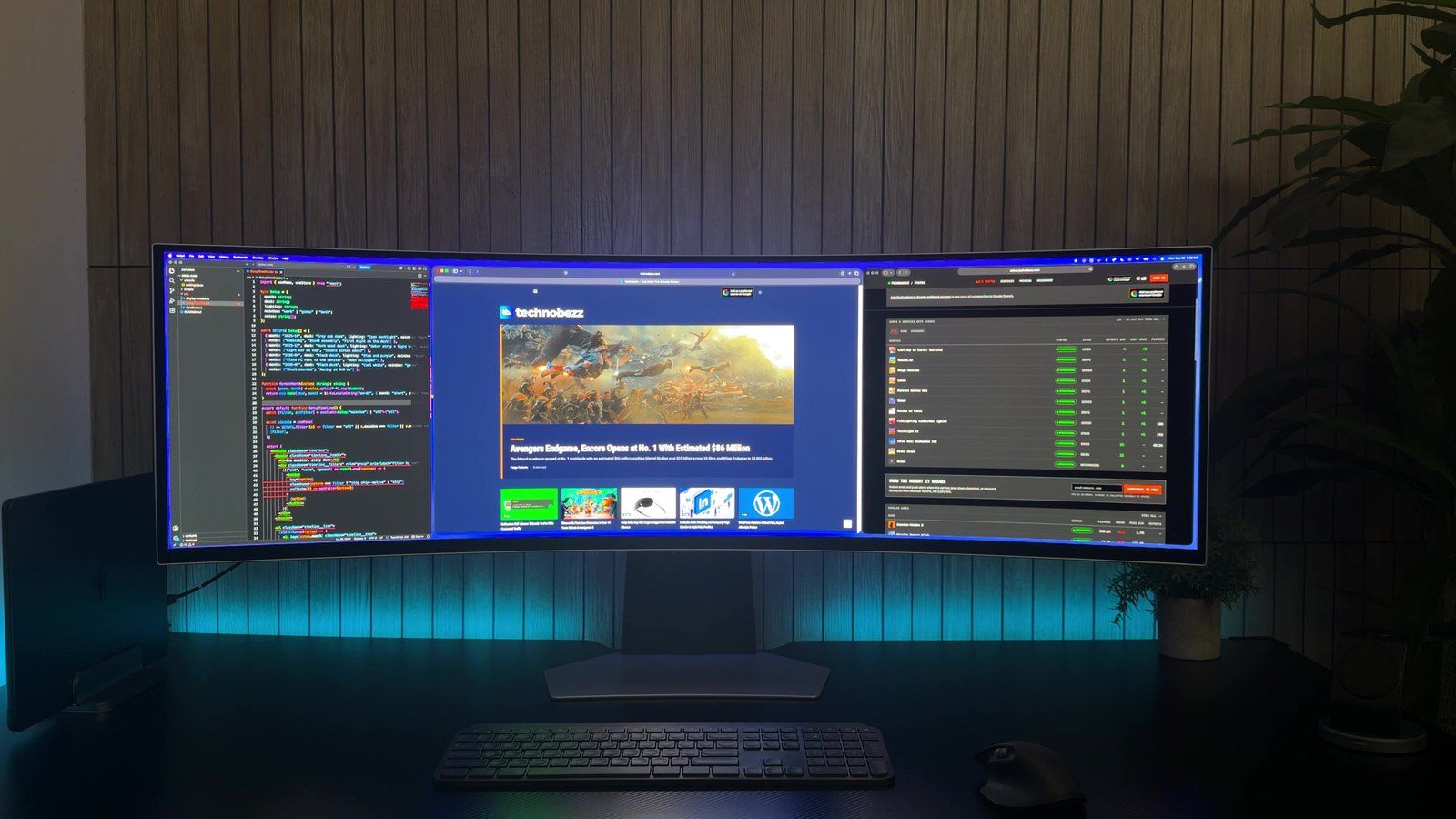
About 90% of my screen time is work: code, writing, design, video editing and spreadsheets. I tile three or four windows side by side and leave them there all day. On a normal day that's a code editor on the left, Technobezz in the middle and our status page on the right. The curve is gentle enough that I can see from edge to edge without turning my head much.
No visible burn-in, and I tested for it properly
The worry with OLED for work is a taskbar or dock burned into the panel. Mine never hide, on Windows or on my MacBook. After 11 months I ran a full-screen color test in a dark room, then boosted the footage to 12 times its normal contrast to hunt for any outline. Nothing showed. That's one monitor and one routine, not a promise for every panel, and the full method is in my OLED burn-in test.
The monitor also does some care on its own. After four or more hours of use, it runs a 10 to 15 minute Screen Optimization cycle when you switch it off, and it needs to stay plugged in at the wall to do it. In the US, Samsung's three-year warranty on this model covers burn-in from normal use.
The back gets warm
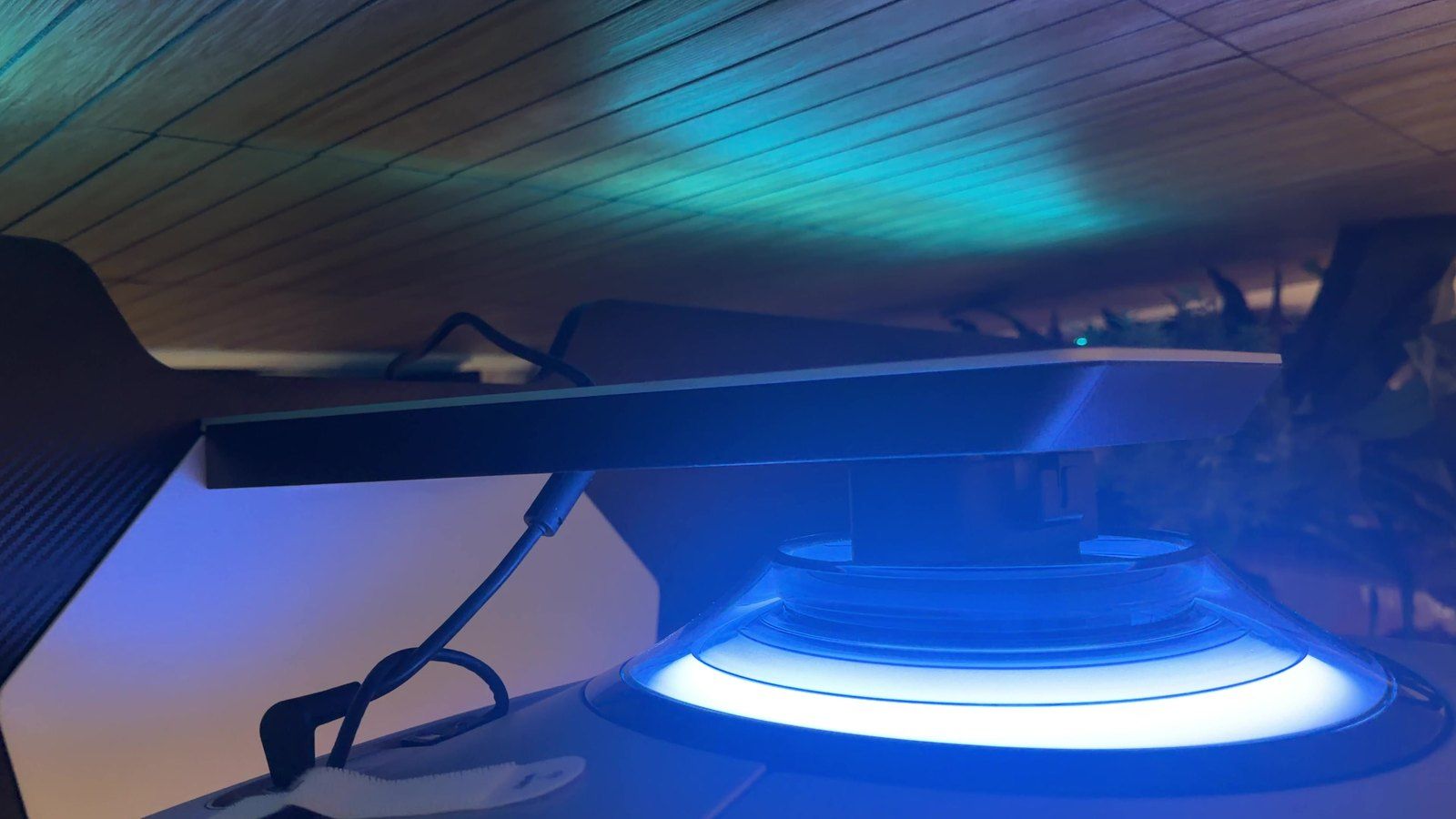
After a long day, the back of the monitor gets warm right behind the logo. It isn't hot enough to worry me and it has never affected the picture, but you'll notice it if you touch it.
Switching modes can make it flicker
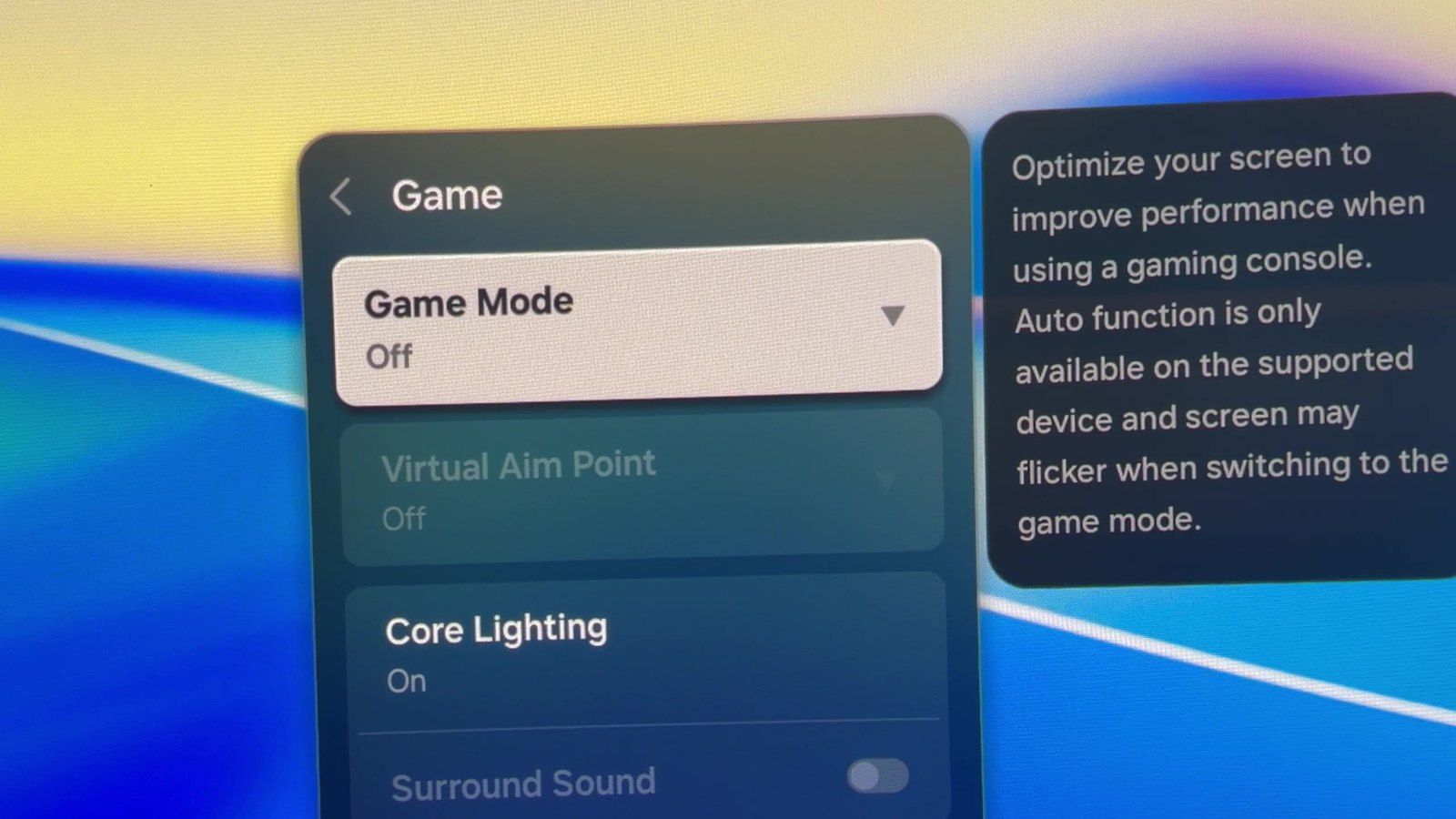
About four times in 11 months, the screen flickered when I switched picture or game modes. Samsung's own Game Mode tooltip warns that the screen may flicker when switching to game mode. Turning the monitor off and on again fixed it every time.
My Mac needed the right cable for 240Hz
The G9's USB-C ports carry data only, so my MacBook Air connects through a USB-C to DisplayPort cable. Over DisplayPort the Mac only offered 120Hz until I switched on Game Mode on the monitor and reconnected the cable. Then 240Hz appeared. On my Windows PC it runs at 240Hz, and I can feel it when gaming or just scrolling quickly.
Video leaves big black bars
Regular 16:9 video plays in the middle of the 32:9 screen with wide black bars on both sides. The smart TV side, with Samsung's Tizen apps and Multi View for two sources, is there, but I barely use it. If you mostly watch movies and TV, a 16:9 OLED makes more sense.
The black and the speakers are better than they need to be
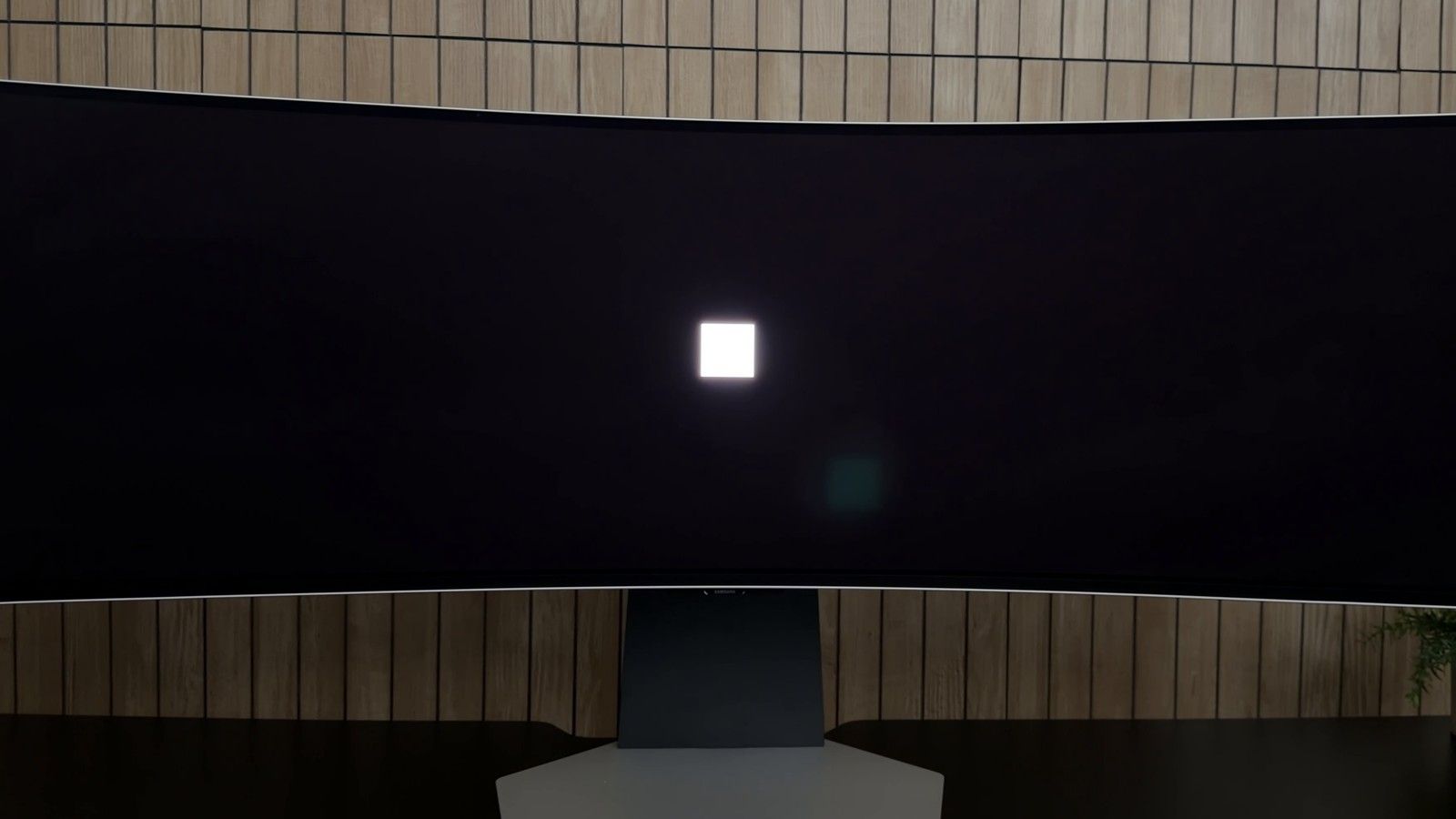
True black is the part I notice every day. A small white square on a black screen leaves the pixels around it simply off, with none of the gray glow most LCD monitors show. Dark scenes, photo edits and a dark-mode code editor all look deeper. The built-in speakers were a surprise too. Samsung lists 10W of output, and while I use my own speakers most days, these are clearer than they have any right to be.
Is it worth it for long workdays?
For me, yes. I'd give it 9.8 out of 10. If you work long days on one big canvas and burn-in is what's holding you back from OLED, 11 months of taskbars and docks didn't leave a visible mark on mine. If you mostly watch 16:9 video, look closer first.