Getting locked out of a Google Account usually happens at the worst time: a lost phone, a changed number or a forgotten password. The settings that get you back in only work if you add them before that happens, because you cannot add recovery information while you are locked out or going through account recovery.
Start with the ways Google can reach you, then add backup ways to sign in. They improve your chances, but Google may still be unable to verify that an account belongs to you.
The short version
- Add a recovery phone and a separate recovery email.
- Turn on 2-Step Verification and keep another way to complete the second step.
- Save backup codes and invite a trusted recovery contact.
- Review your passkeys, security recommendations, and signed-in devices.
1. Add a Recovery Phone Number You Control
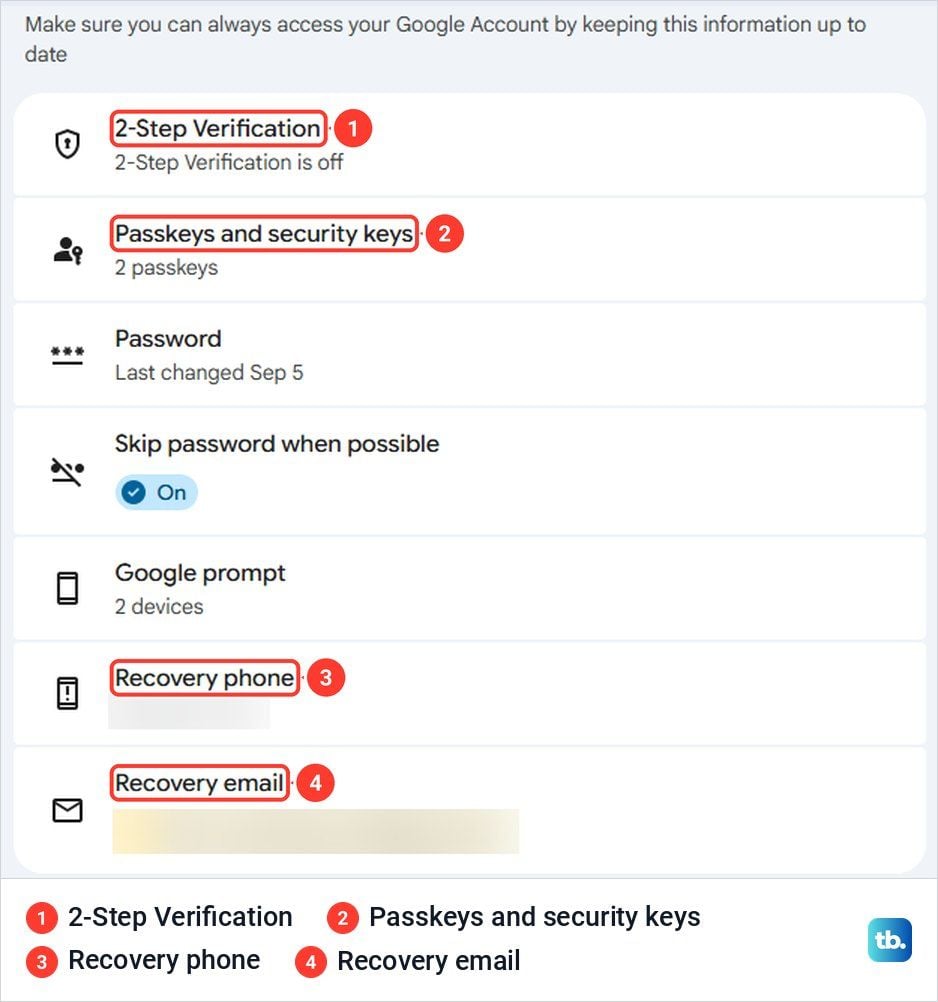
What it does: Google can send a code to your recovery phone if you are locked out. The number can also help you prove the account is yours, alert you to suspicious activity, and block someone from using the account without permission. Use a mobile number that receives texts, belongs only to you, and stays with you.
Update this number before you give up an old one. A new or changed recovery phone may take up to seven days to take effect. A recovery number is useful only if you can receive its messages when you need them, so check it while you can still sign in.
How to set it up: On a computer, open your Google Account, then choose Security & sign-in > Recovery phone under "How you sign in to Google." Follow the prompts. On Android, start in Settings > Manage your Google Account. On iPhone, start in Gmail > your profile picture > Manage your Google Account. Both then use Security & sign-in > Recovery phone. See Google's recovery options instructions.
2. Add a Recovery Email You Can Still Open

What it does: A recovery email can help you get back into your Google Account if you forget the password or cannot sign in for another reason. Google can also use it to tell you about suspicious activity. Choose an address you check regularly that is different from the address you use to sign in to this account.
If you are already locked out, go to Google's Account recovery page and answer its questions as best you can. Google advises using a device, browser, and location where you usually sign in. A failed attempt does not mean you must stop, and you can try again if Google could not verify the account belongs to you.
How to set it up: Open your Google Account and select Security & sign-in > Recovery email under "How you sign in to Google," then follow the prompts. On Android, you can reach your account from Settings; on iPhone, from your profile picture in Gmail. The same web path works on a computer. See Google's recovery email instructions.
3. Turn On 2-Step Verification With a Backup Method

What it does: 2-Step Verification adds a second check when you sign in with a password. That helps protect the account if someone gets the password. Google recommends setting up other verification methods in case you cannot get a Google prompt or lose your phone.
Google prompts can reach Android phones signed in to your account. They can also reach signed-in iPhones through Google apps such as Gmail. If your primary phone is lost, Google's listed alternatives include another signed-in phone, a backup code, a security key, or a passkey on another device. The choices available to you depend on what you set up beforehand.
How to set it up: Open your Google Account, select Security & sign-in, then choose Turn on 2-Step Verification under "How you sign in to Google." Follow the on-screen steps, then set up another method listed in Google's 2-Step Verification help. The account path is the same on Android, iPhone, and a computer. For the setup walkthrough, see our step-by-step guide.
4. Print or Save Your Backup Codes

What it does: A backup code can serve as the second step when your usual 2-Step Verification method is unavailable. Google specifically recommends creating codes for times when you lose your phone, change your number, or cannot get codes by text, call, or Google Authenticator. You must turn on 2-Step Verification before you can use them.
Google provides a set of ten codes. Each code works only once, so mark it used after signing in. You can create a new set if you lose the codes or think someone obtained them; the old set then stops working. Keep the printed or downloaded copy somewhere safe. Google asks for a backup code only at sign-in.
How to set it up: On a computer, open your Google Account and choose Security & sign-in > 2-Step Verification > Backup codes > Continue. Select Get backup codes, then Print codes or Download Codes. Android and iPhone use the same account sections, with taps instead of clicks. Follow Google's backup code instructions.
5. Invite a Trusted Recovery Contact

What it does: A recovery contact is a person with a Google Account who can help you get back in if you cannot sign in. This is separate from a recovery email. The contact does not receive your security alerts. Choose someone you trust who can respond quickly when you need help.
Set this up well before an emergency. Your contact has up to seven days to accept the invitation, and Google requires another seven days after acceptance before you can use the contact for recovery. You cannot add one after you are locked out. Workspace accounts, child accounts, and accounts in the Advanced Protection Program cannot have recovery contacts.
How to set it up: Open your Google Account, then go to Security & sign-in > Recovery contacts under "How you sign in to Google." Select Add recovery contact, enter the trusted person's email address, and select Send request. The account path works on Android, iPhone, and a computer; Google shows taps on mobile and clicks on a computer. See Google's recovery contact help.
6. Create a Passkey on a Device You Own
What it does: A passkey lets you sign in with a fingerprint, face scan, or device screen lock instead of typing your password. If you use 2-Step Verification, a passkey can also bypass the separate second step because unlocking the device verifies that you have it. Adding one does not remove your existing recovery methods.
A passkey on a device you still have can help when another sign-in device is missing. Create passkeys only on devices you personally own and use: Google warns that anyone who can unlock a device with your passkey can access your account. If you lose that device but can sign in elsewhere, remove its passkey from your account. A newly created passkey may take seven days to become available at sign-in.
How to set it up: On an eligible Android phone, iPhone, or computer, go to myaccount.google.com/signinoptions/passkeys. Select Create a passkey, then Create a passkey, and unlock the device. Repeat on another device you own if you want another route. See Google's passkey instructions.
7. Set Up Google Authenticator as Another Second Step
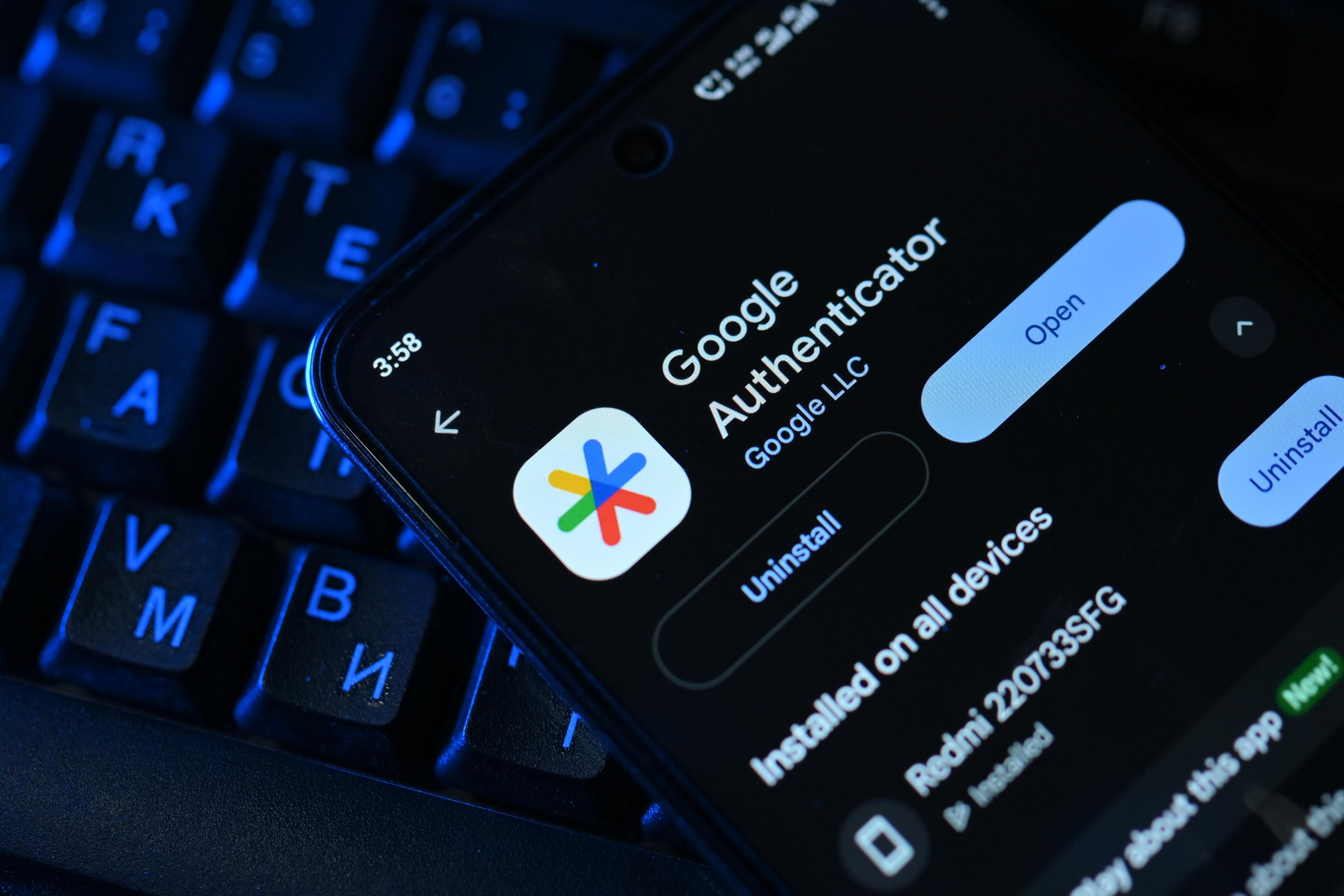
What it does: Google Authenticator generates one-time codes you can use to sign in after turning on 2-Step Verification. It can generate codes without internet access or mobile service, so it gives you another method when a text or call cannot reach you. Google also lets you sync Authenticator codes across devices by signing in to your Google Account in the app.
Do not rely on Authenticator as your only fallback. If the codes are kept only on a lost phone, you may need another sign-in method to regain access. A newly added Authenticator method may take up to seven days to appear as an available sign-in choice. Set it up while your current phone and account are accessible.
How to set it up: On Android, open your Google Account's 2-Step Verification settings, tap Set up authenticator, and follow the on-screen steps. Some devices show Get Started instead. On iPhone, use the same 2-Step Verification settings and follow Google's Authenticator instructions. For the app walkthrough, see our step-by-step guide.
8. Run Google's Security Checkup Regularly
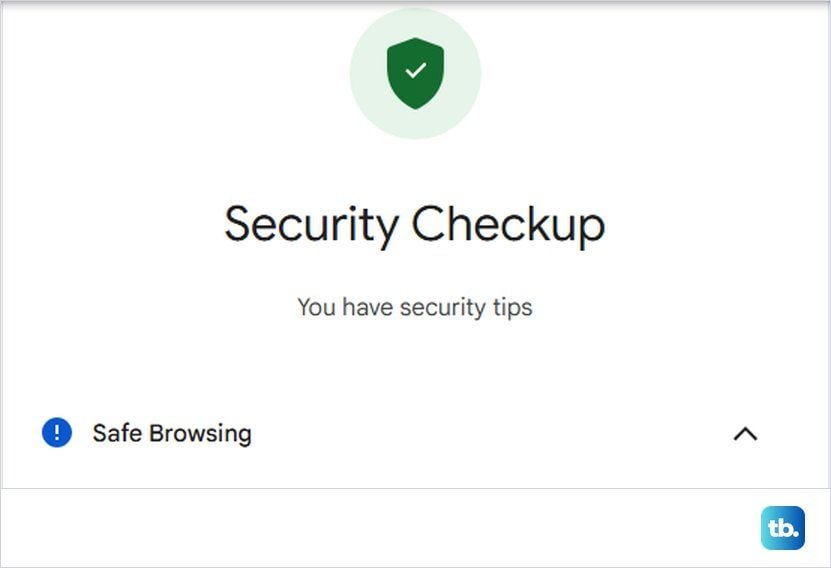
What it does: Security Checkup gives recommendations for your own Google Account. Google includes adding or updating recovery options among them. Reviewing those recommendations can reveal a recovery phone or email that needs attention before you need to use it. Run it again after you change phones or update your recovery details.
The checkup can also point you toward a passkey and 2-Step Verification. Its recommendations reflect your account, so the actions you see may differ from someone else's. Google uses colored exclamation marks for recommended actions and a green shield when it has no immediate action for you. The checkup is a review habit, not a separate recovery code or guarantee that you can regain access.
How to set it up: Sign in to your Google Account. On a computer, click your profile picture, then Recommended actions if it appears, which opens Security Checkup. You can also open Security Checkup from your account on Android or iPhone. Work through the recommendations shown in Google's account security help, and return to review them regularly.
9. Review Devices Signed In to Your Account

What it does: Google's device list shows where your account is signed in now or was signed in recently. Reviewing it can help you spot an unfamiliar session or remove access from a phone you lost or replaced. This matters if someone else has reached your account: Google says to sign out of devices that do not belong to you.
A device name can represent more than one session, and a recent activity time can reflect background syncing. If several sessions share the name of a device you no longer control, Google advises signing out of all of them. If you see an unfamiliar device or activity, follow Google's steps to secure the account.
How to set it up: On a computer, Android phone, or iPhone, open your Google Account and choose Security & sign-in > Manage all devices under "Your devices." Select a device or session to inspect it. Select Sign out for one that is lost, no longer yours, or unfamiliar. Review the list from time to time using Google's device access instructions.