
If your iPhone 17e's Settings app is refusing to open, you're not alone. This can be a jarring experience, especially on a brand new device. The good news is, it's almost always a software hiccup that you can fix yourself. Let's get right into the most common solution.
Force Restart Your iPhone 17e
This is the first thing you should try. A force restart clears the device's working memory without deleting any of your data. It's different from a normal restart and can clear up temporary glitches that freeze system apps like Settings.
On your iPhone 17e, quickly press and release the Volume Up button. Then, quickly press and release the Volume Down button. Finally, press and hold the Side button. Keep holding it until you see the Apple logo appear, then let go. This process takes about 10-15 seconds.
Check for an iOS Update
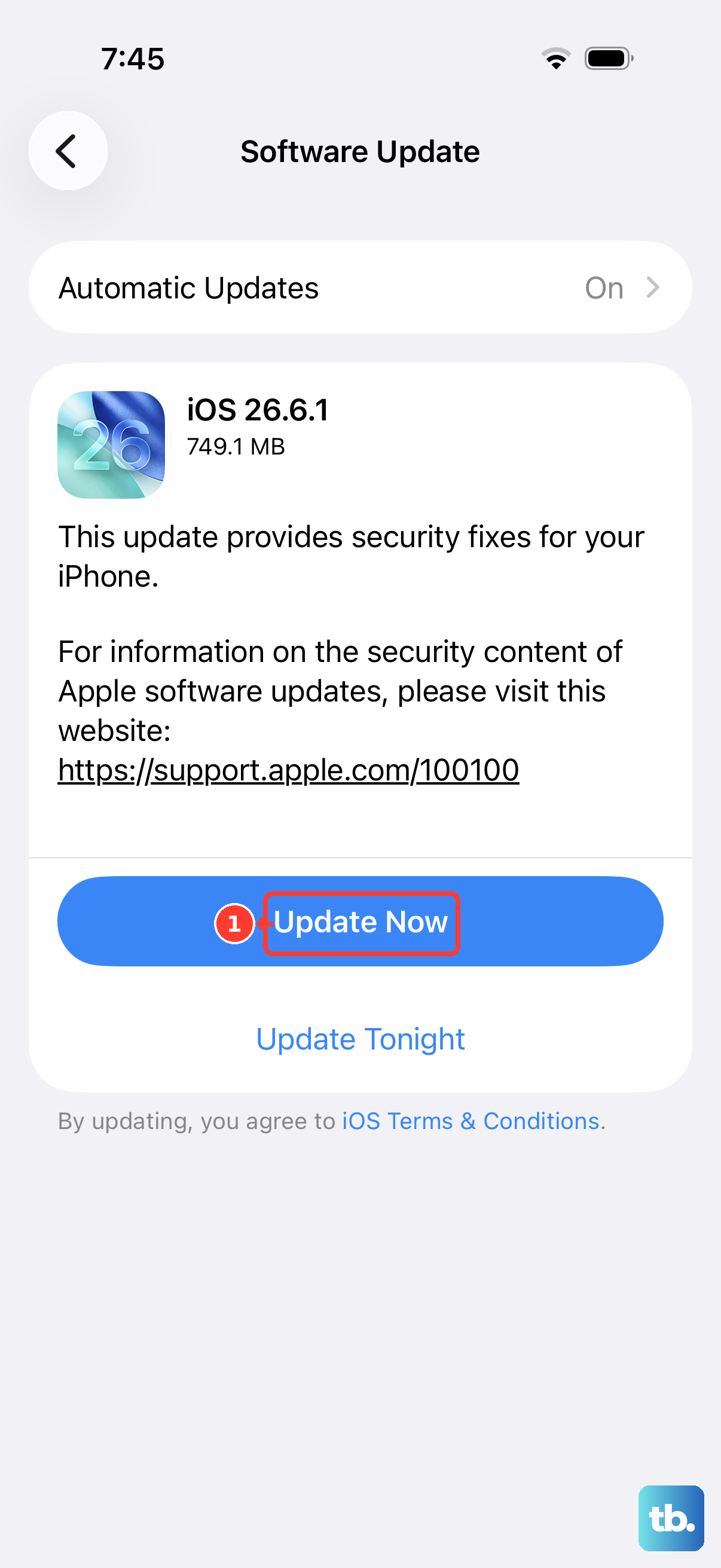
Since the iPhone 17e is a new model running iOS 26, early software bugs are a possibility. Apple is typically quick to release patches for such issues. You can check for an update even if the Settings app is problematic.
Ask Siri to "Open Software Update" for you. If that works, download and install any available update. If Siri can't get you there, you can also connect your phone to a Mac or PC with Finder or iTunes and check for updates there, which often bypasses the need for the Settings app.
Free Up Storage Space
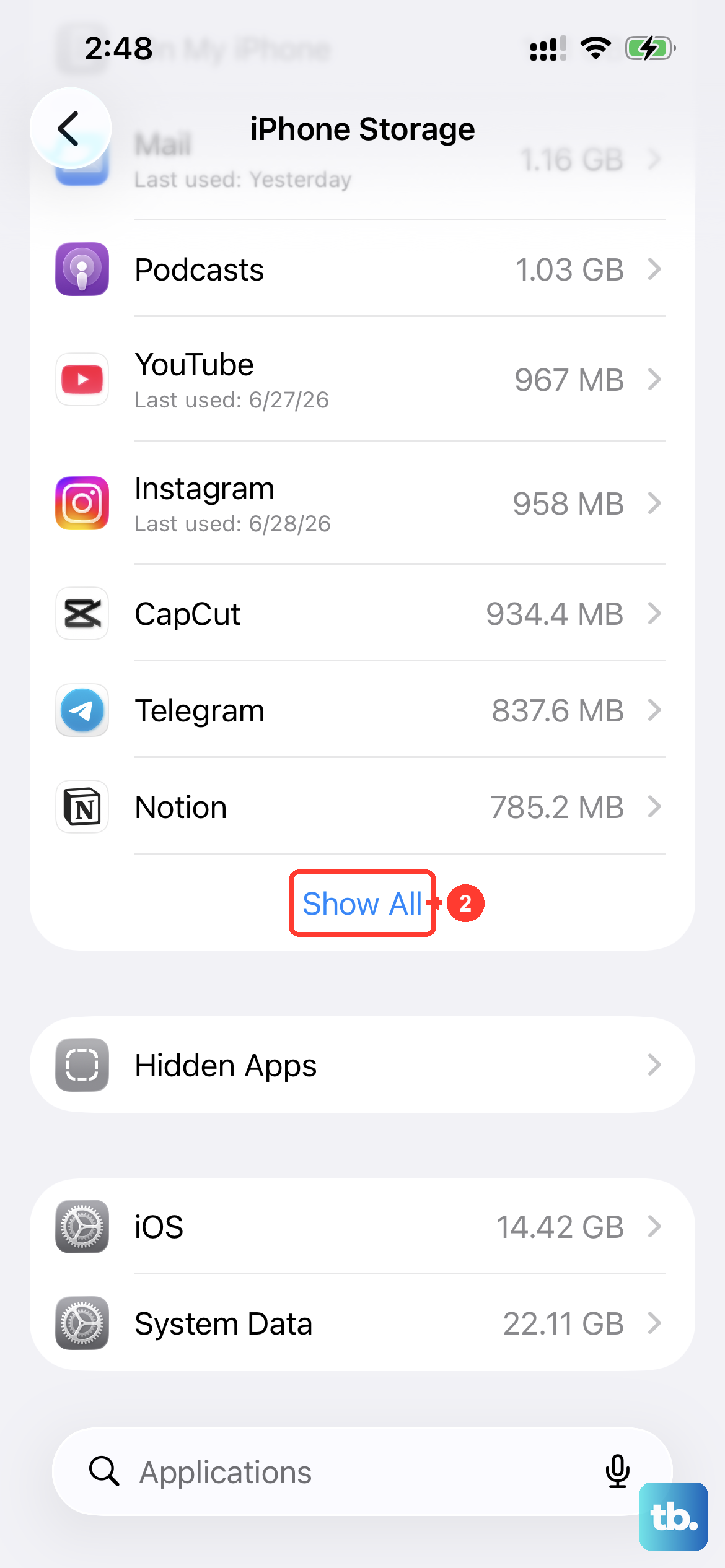
A nearly full storage drive can cause all sorts of strange behavior, including system apps failing to launch. While you can't check storage directly in Settings if it won't open, you can take some general cleanup actions.
Offload some large apps you don't use daily by pressing and holding their icons on the Home Screen, tapping Remove App, and then choosing Offload App. This deletes the app but keeps its documents and data. You can also use iCloud Photos to optimize phone storage if you have that enabled.
Reset All Settings
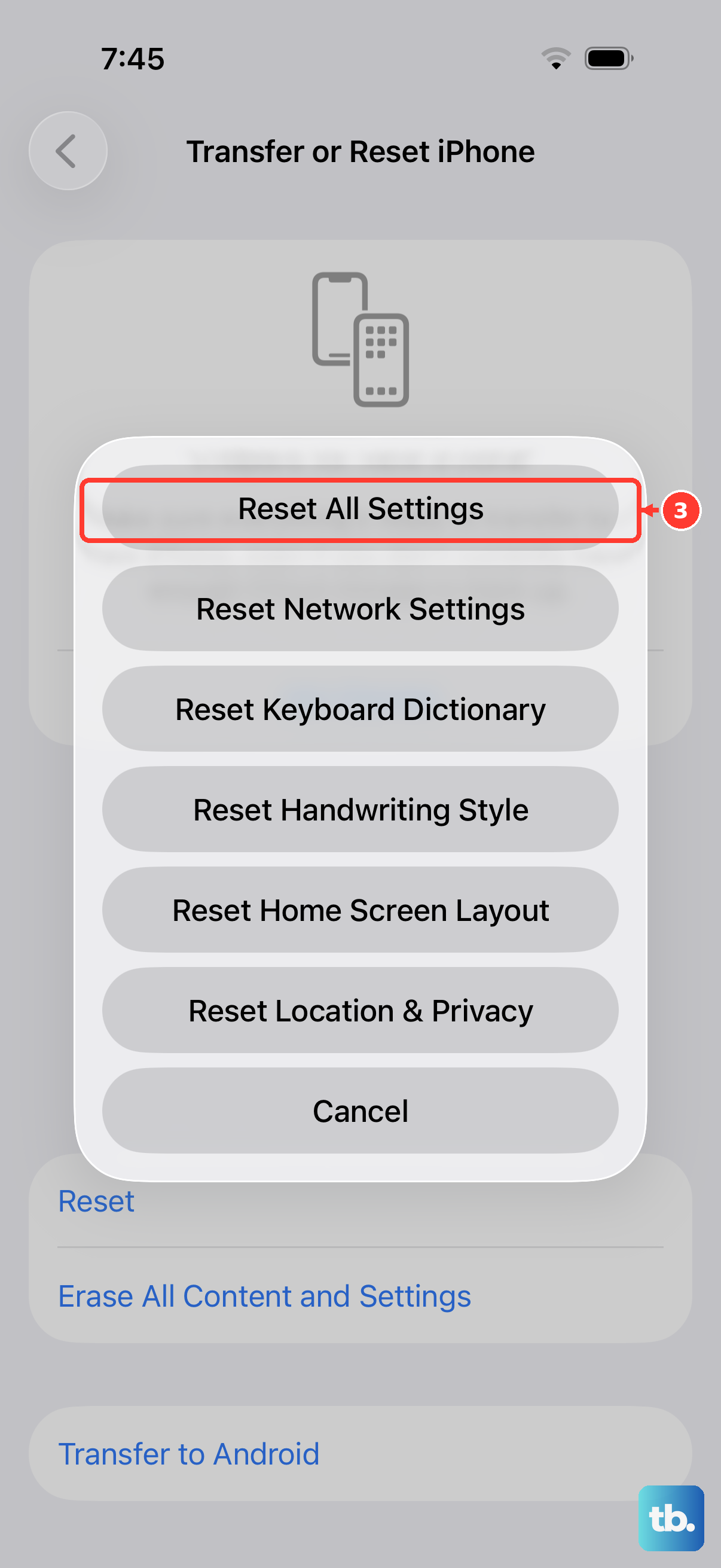
This is a more involved step, but it doesn't erase your personal data like photos, messages, or apps. It will, however, reset all your system preferences back to factory defaults. You'll need to reconnect to Wi-Fi networks, re-pair Bluetooth devices, and re-setup things like Face ID and Apple Pay.
If you can't access Settings to do this, you can use a computer. Connect your iPhone 17e to a Mac or PC, put it into Recovery Mode, and choose the "Update" option when prompted. This reinstalls iOS without touching your data, which often has the same effect as resetting settings.
Consider a Software Glitch with the A19 Chip
The iPhone 17e uses the new A19 chip. While powerful, new silicon can sometimes have unique interactions with system software that cause apps to hang. If the issue started after using a particularly intensive app or while the phone felt warm, it could be related.
Let the phone cool down completely, then try the force restart again. I've seen similar transient issues on new iPhone models that are resolved by a simple restart after the device returns to a normal temperature. The lack of ProMotion on this model isn't related, but it's a common point of confusion for users troubleshooting performance.
Restore Your iPhone
If nothing else has worked, a full restore is the final step. This will erase everything on your iPhone 17e and install a fresh copy of iOS 26. You must have a recent backup in iCloud or on your computer before proceeding.
Connect your phone to a computer, open Finder (on Mac) or iTunes (on PC), and select your device. Choose "Restore iPhone." This will completely wipe the device and install the latest iOS version. After it restarts, you can set it up as new or restore from your backup to see if the problem is resolved.