
When your iPhone 17e stops ringing for incoming calls, it can leave you feeling disconnected. Settings, outdated software, or a network problem can cause this hiccup. The good news is that checking a few settings can help, and you don't need to be a tech expert to get started.
I'd start with the simplest check first. Swipe down from the top-right corner of your screen to open Control Center and check the Focus button for an active Focus. If Do Not Disturb or another Focus is active, tap its icon to turn it off. A Focus mode like Do Not Disturb or Sleep can silence incoming calls, depending on its settings.
Next, give your iPhone a quick restart. This may help with a temporary software glitch that might be causing the issue. To force restart it, press and quickly release the volume up button, press and quickly release the volume down button, then press and hold the side button until you see the Apple logo appear.
Check Your Cellular and Focus Settings
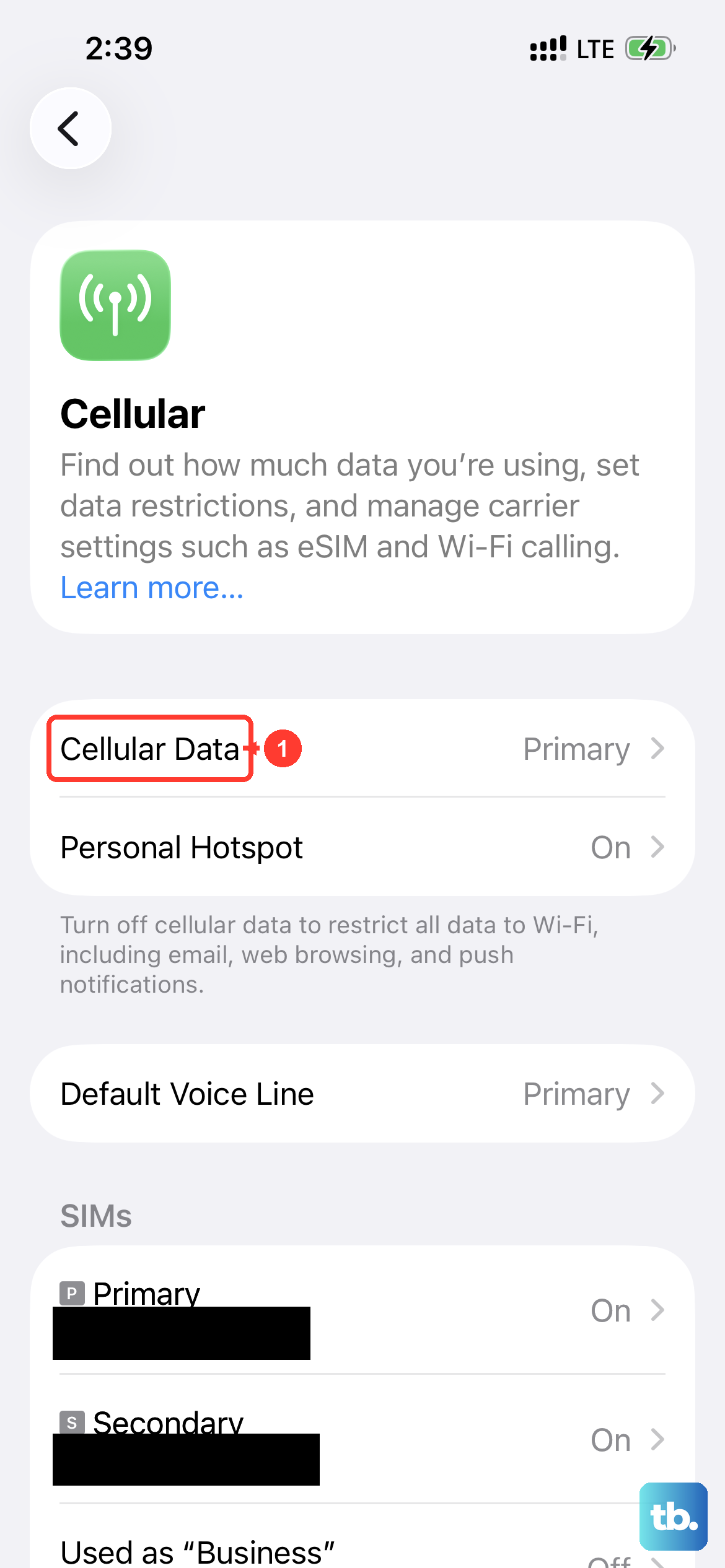
Head into Settings > Cellular. Make sure the Cellular Data switch is turned on. While you're there, tap Cellular Data Options and ensure Voice & Data is set to "5G Auto" or "LTE." Turn Airplane Mode on in Settings, wait five seconds, and turn it off again. Then test an incoming call.
Your Focus settings are a prime suspect. Go to Settings > Focus. Tap on each Focus mode (like Do Not Disturb, Work, Sleep) and look at the People section. Check the options for allowing calls from groups of people; allowing only contacts won't help callers whose numbers aren't saved. To allow specific people during that Focus, tap Allow Notifications From and select their contacts.
Review Call Blocking and Silence Unknown Callers
Your iPhone can screen or silence calls from numbers not in your contacts. To check this, go to Settings > Apps > Phone. Scroll down to Screen Unknown Callers and select Never so unsaved numbers ring like other calls. Add important numbers to Contacts so they're easy to recognize.
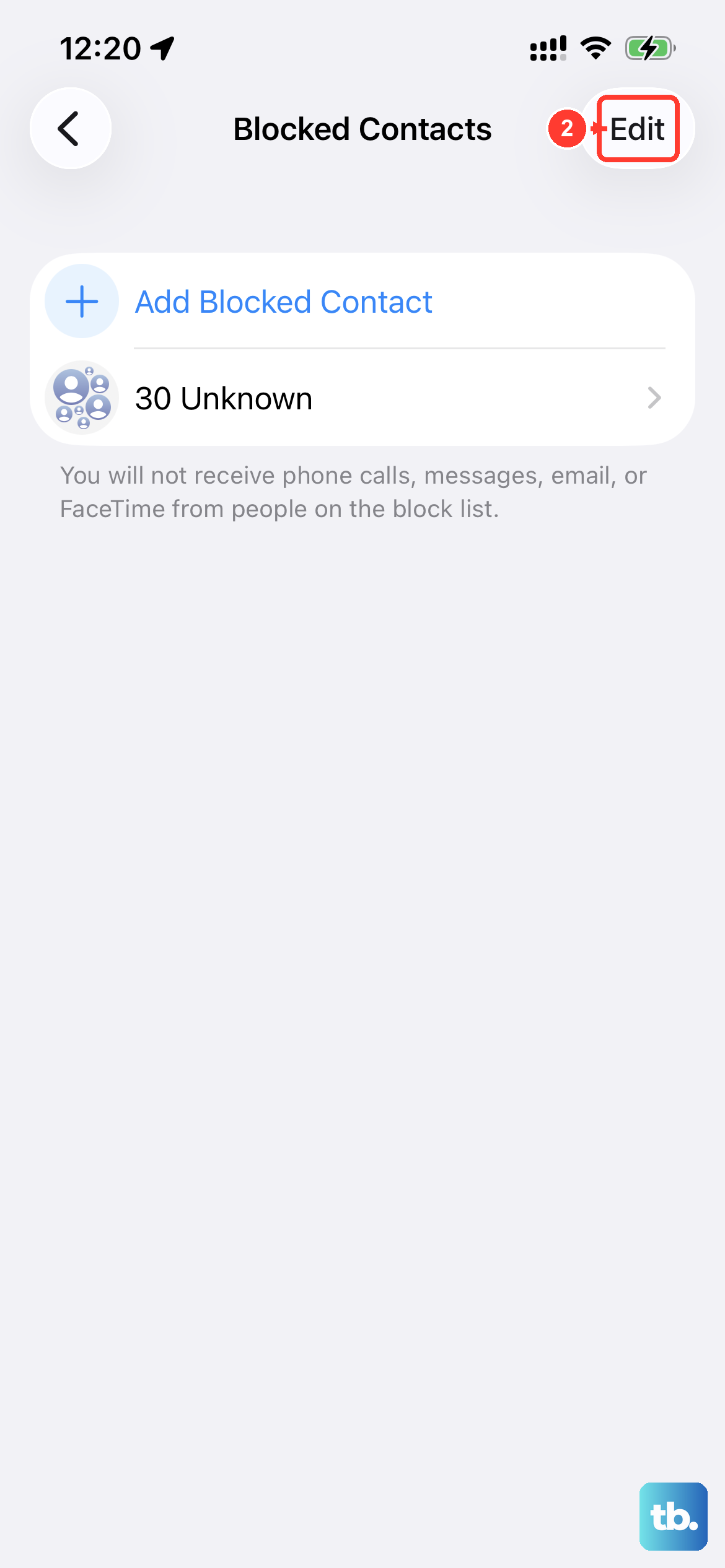
Also in the Phone settings, tap Call Blocking & Identification. This shows you any third-party apps (like your carrier's spam filter) that are managing calls. You can review the list to ensure a spam app isn't mistakenly blocking legitimate calls. For manually blocked numbers, go to Settings > Apps > Phone > Blocked Contacts. Tap Edit, tap the delete button next to the contact, then tap Unblock.
Ensure Call Forwarding is Off and Your Line is Active
Call forwarding could be sending your calls elsewhere. To check, go to Settings > Apps > Phone. Tap Call Forwarding and make sure it's off. Then ask someone to call you to check whether incoming calls reach your iPhone.
It's worth a quick call to your carrier from another phone, or checking their app. Confirm your account is in good standing and that there are no outages in your area. Ask them to confirm your account is set up for your iPhone, has no billing-related block, and has no call errors on their system.
Update iOS and Reset Network Settings
Check for the latest version of iOS. Go to Settings > General > Software Update. If an update is available, tap Download and Install. Back up your iPhone first, and keep it connected to power and Wi-Fi during the update. To check for a carrier settings update, go to Settings > General > About and follow any onscreen prompt.
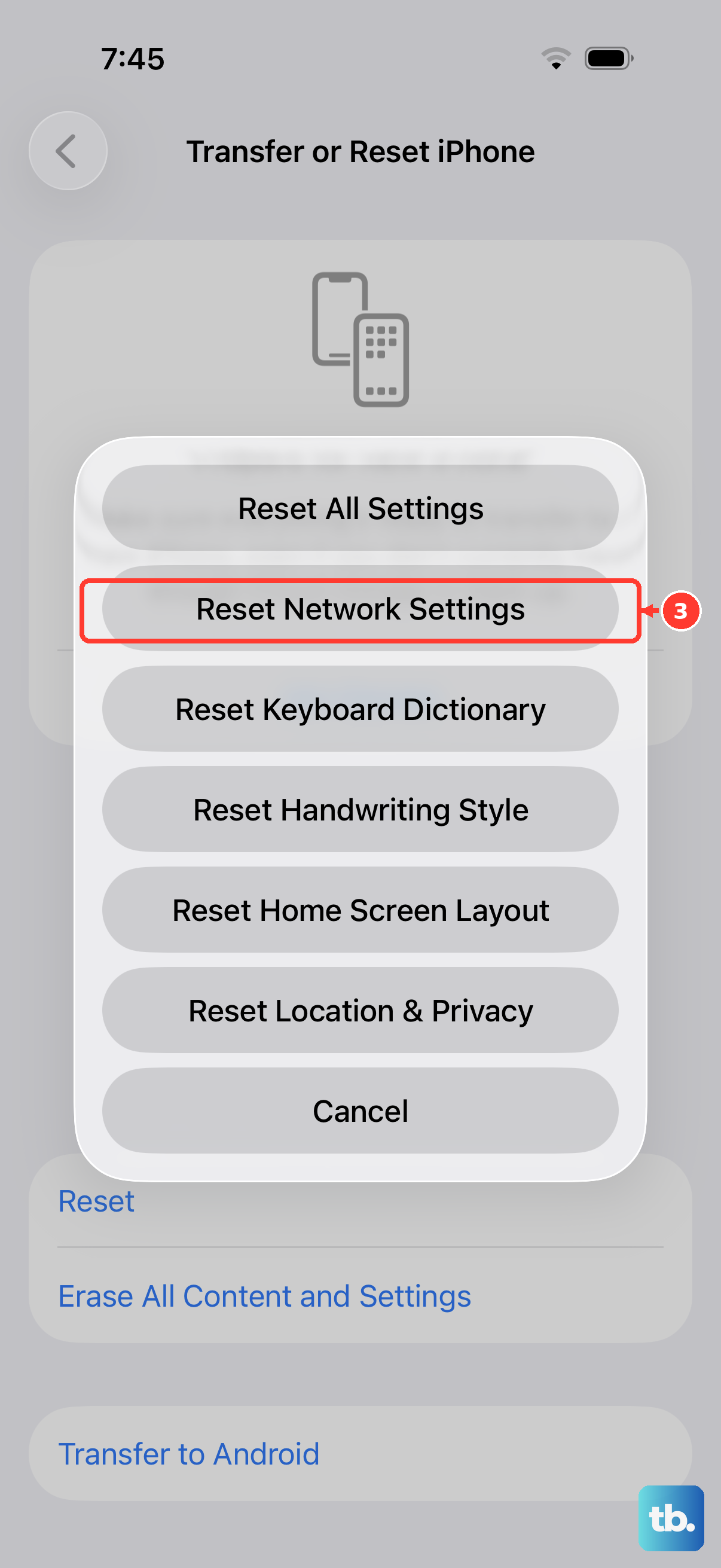
If the other fixes haven't helped, try resetting your network settings. Go to Settings > General > Transfer or Reset iPhone > Reset. Then tap Reset Network Settings. You'll need to re-enter your Wi-Fi passwords afterward, but it can resolve persistent calling issues.
Inspect Your SIM Card and Try a Fresh Start
If your iPhone 17e has a physical SIM tray, power it off and use the SIM eject tool to pop out the tray. Models bought in the United States, US Virgin Islands, Canada, Mexico, Japan, Guam, UAE, Saudi Arabia, Bahrain, Kuwait, Qatar and Oman are eSIM-only; for those models, ask your carrier to check that your account is set up for your iPhone.
Carefully remove the SIM card, give the gold contacts a gentle wipe with a soft, dry cloth, and reinsert it firmly. If you have access to another compatible phone, you could test your SIM card in it to see if the problem follows the card, which would point to a carrier issue.
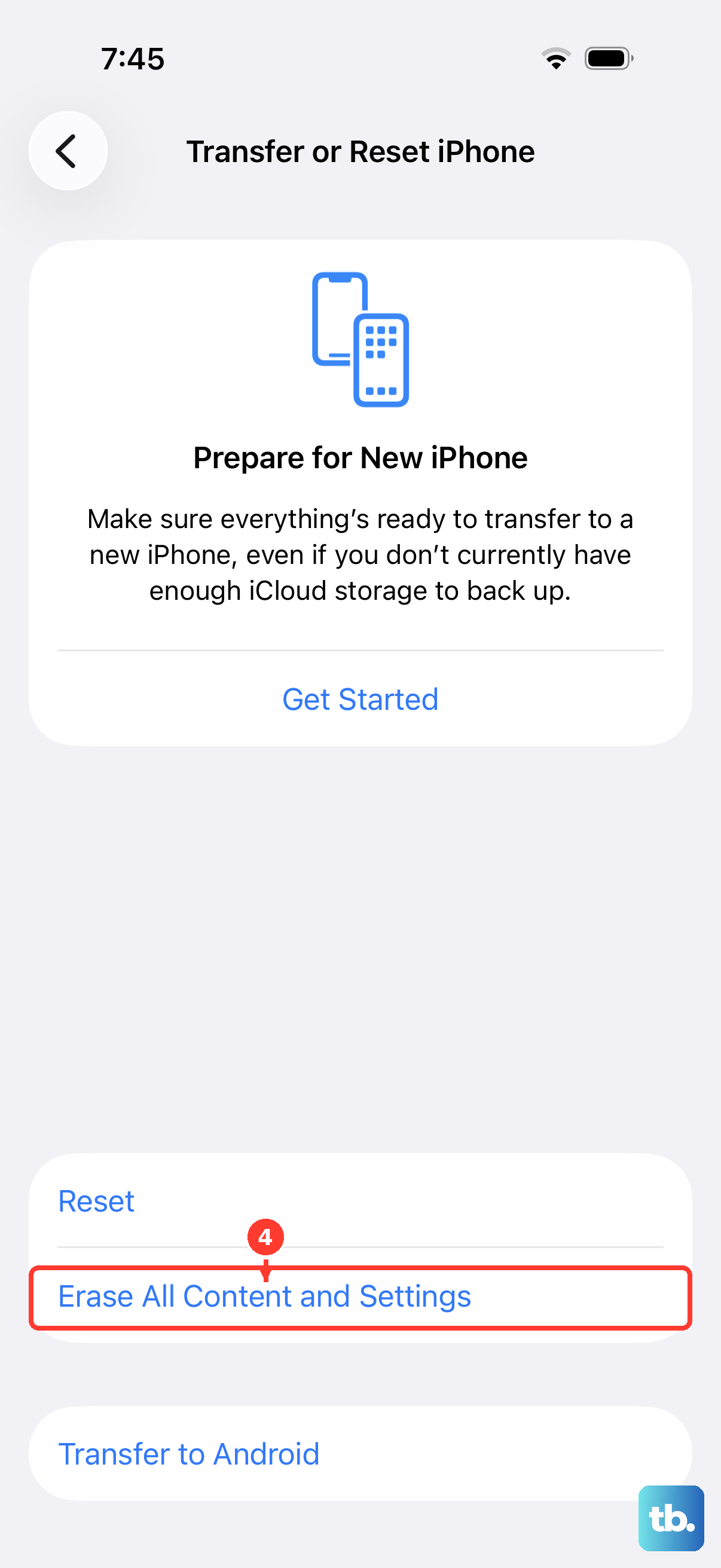
As an absolute last resort, you can back up your iPhone and then erase all content and settings. Before you do this, ensure you have a recent iCloud or computer backup. Then go to Settings > General > Transfer or Reset iPhone > Erase All Content and Settings. This erases your personal content and settings, so contact your carrier about unresolved calling issues before taking this step.