
If your iPhone 13 screen is stuck in one orientation and won't flip when you turn the phone, you're dealing with a common but annoying glitch. It usually boils down to a setting that got toggled off or a temporary software hiccup.
Let's start with the quickest fix, which solves the problem for most people.
Toggle the Rotation Lock
This is the absolute first thing to check. The Rotation Lock, which Apple calls "Portrait Orientation Lock," is a feature designed to keep your screen from flipping when you're reading in bed or watching a video. It's easy to turn on by accident from the Control Center.
To check it, swipe down from the top-right corner of your screen (or up from the bottom if you're on an older iOS version) to open Control Center. Look for the icon that looks like a lock with a circular arrow around it. If it's highlighted or red, tap it to turn Rotation Lock off.
You should see a brief notification at the top of your screen saying "Portrait Orientation Lock: Off." Try rotating your phone now. If it was just the lock, you're all set.
Force Restart Your iPhone 13
If the lock wasn't on, the next step is a force restart. This clears out any minor software bugs in the system's memory without deleting your data. It's different from a normal restart and often fixes sensor-related issues.
On the iPhone 13, you do this by quickly pressing and releasing the Volume Up button, then quickly pressing and releasing the Volume Down button. Finally, press and hold the Side button (on the right) until you see the Apple logo appear, then let go. This can take about 10-15 seconds.
Once it boots back up, open an app like Safari or Photos that you know supports rotation and test it again.
Check for App-Specific Behavior
Not every app supports landscape mode. If your screen rotates fine in your camera app or Safari but stays locked in Messages or Instagram, that's actually normal behavior for those apps.
Developers have to enable rotation support, and many social media and messaging apps choose to keep things in portrait for consistency. Try rotating in a few different apps to see if the issue is universal or just in one place.
Update to the Latest iOS
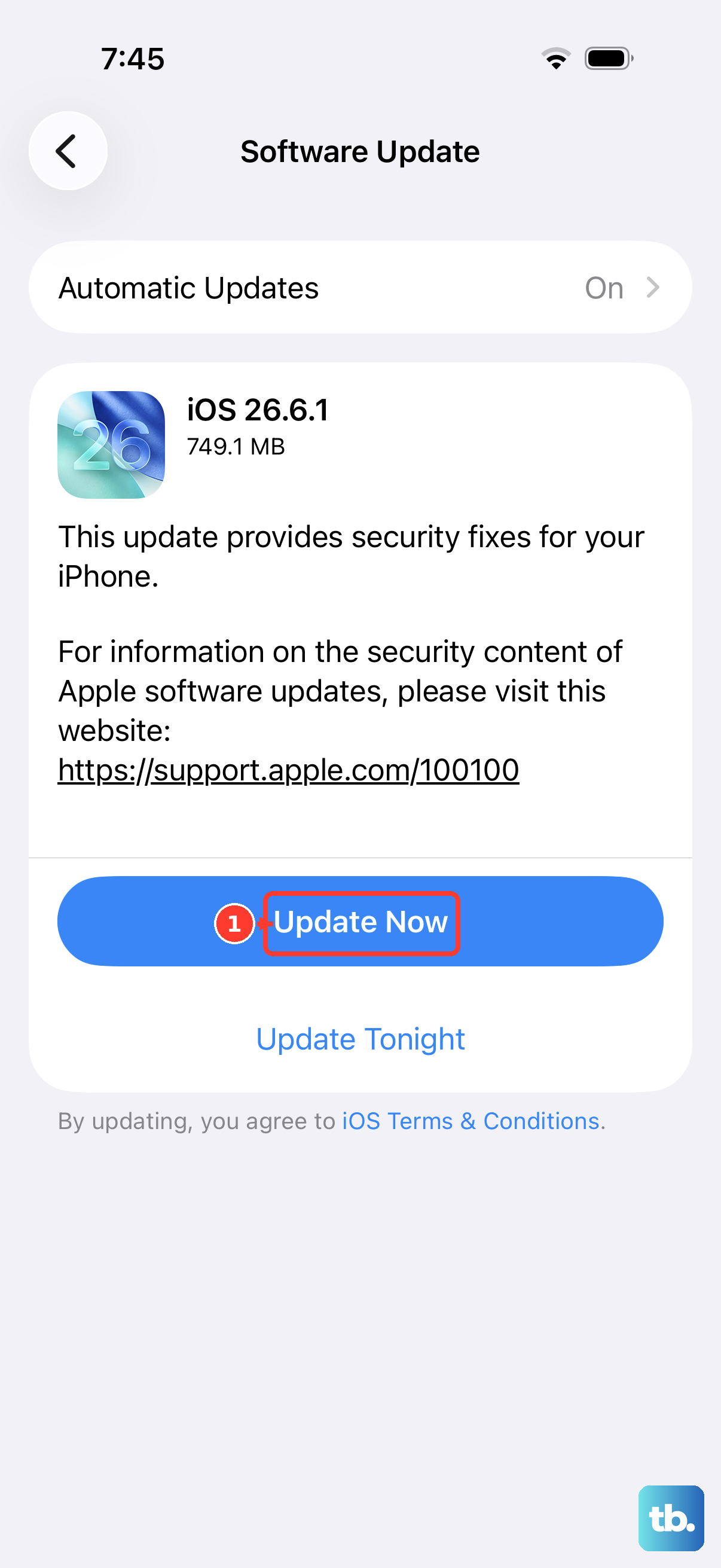
Sometimes, a bug in the operating system itself can cause the accelerometer and gyroscope (the sensors that detect motion) to act up. Apple regularly releases updates that fix these kinds of glitches.
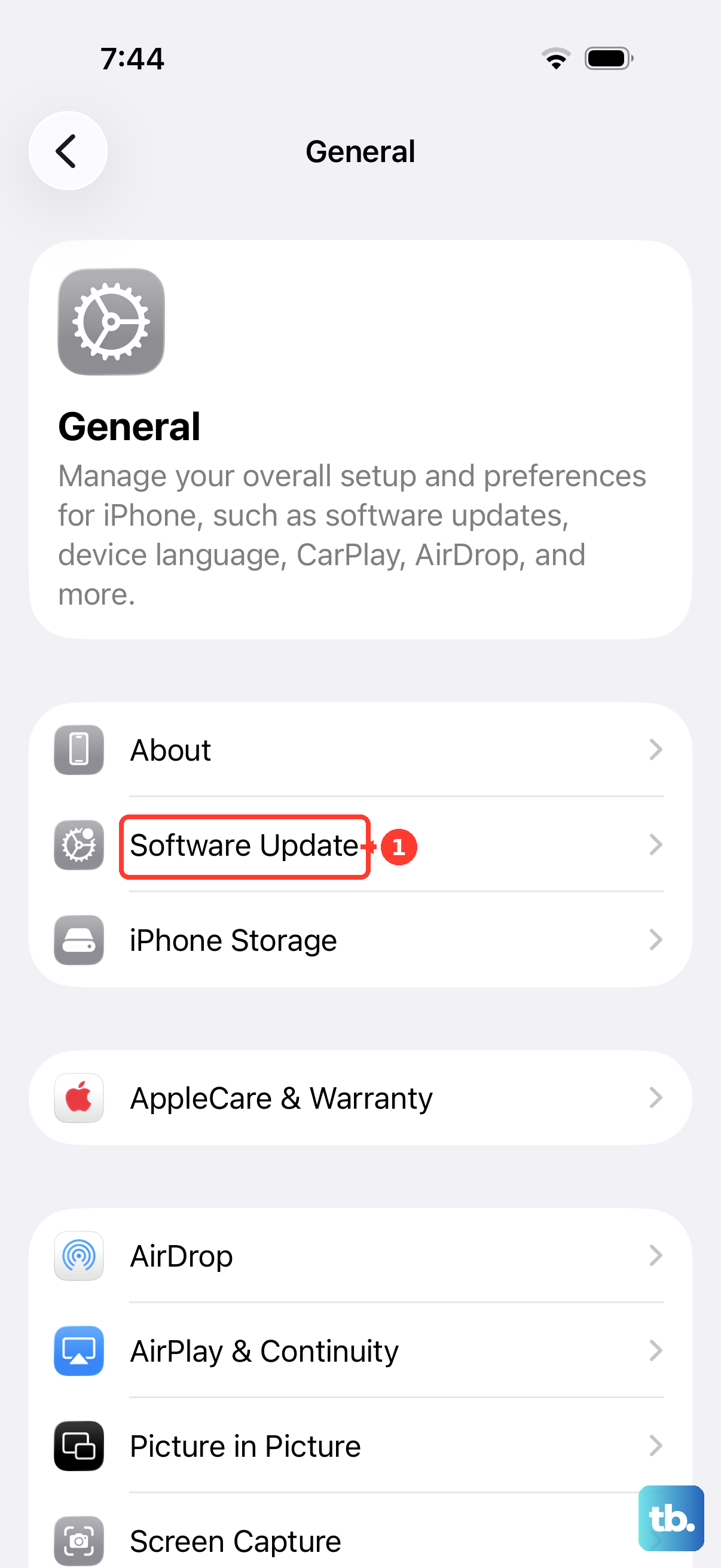
Go to Settings > General > Software Update. If an update is available, tap "Download and Install." Make sure your iPhone 13 is plugged into power and connected to Wi-Fi first. I've seen minor sensor issues get cleared up with a point update more than once.
Test the Sensors with a Level Tool
If you're still having trouble, you can do a basic check to see if the phone's motion sensors are responding at all. You don't need a secret code like on some Android phones; you can use a built-in app.
Open the "Measure" app that comes pre-installed on your iPhone. Tap on the "Level" tool at the bottom. As you tilt and rotate your iPhone 13, the on-screen level should move and the degrees should change. If this tool is completely frozen and doesn't react to any movement, it could point to a deeper sensor issue.
Reset All Settings
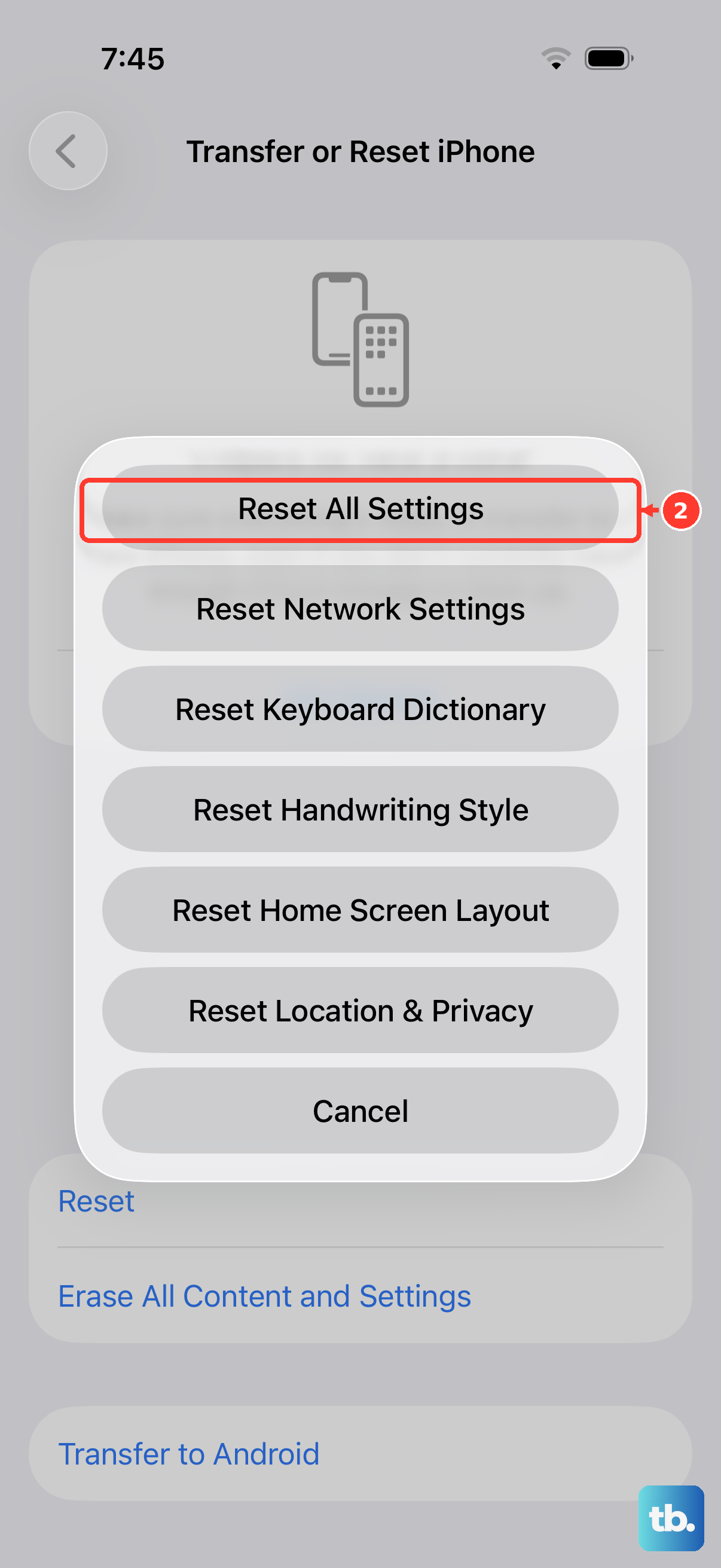
This is a more involved step, but it won't erase your personal data like photos or messages. It will, however, reset all your system preferences back to factory defaults. That includes network settings, wallpaper, privacy permissions, and, crucially, display and accessibility settings that might be interfering with rotation.
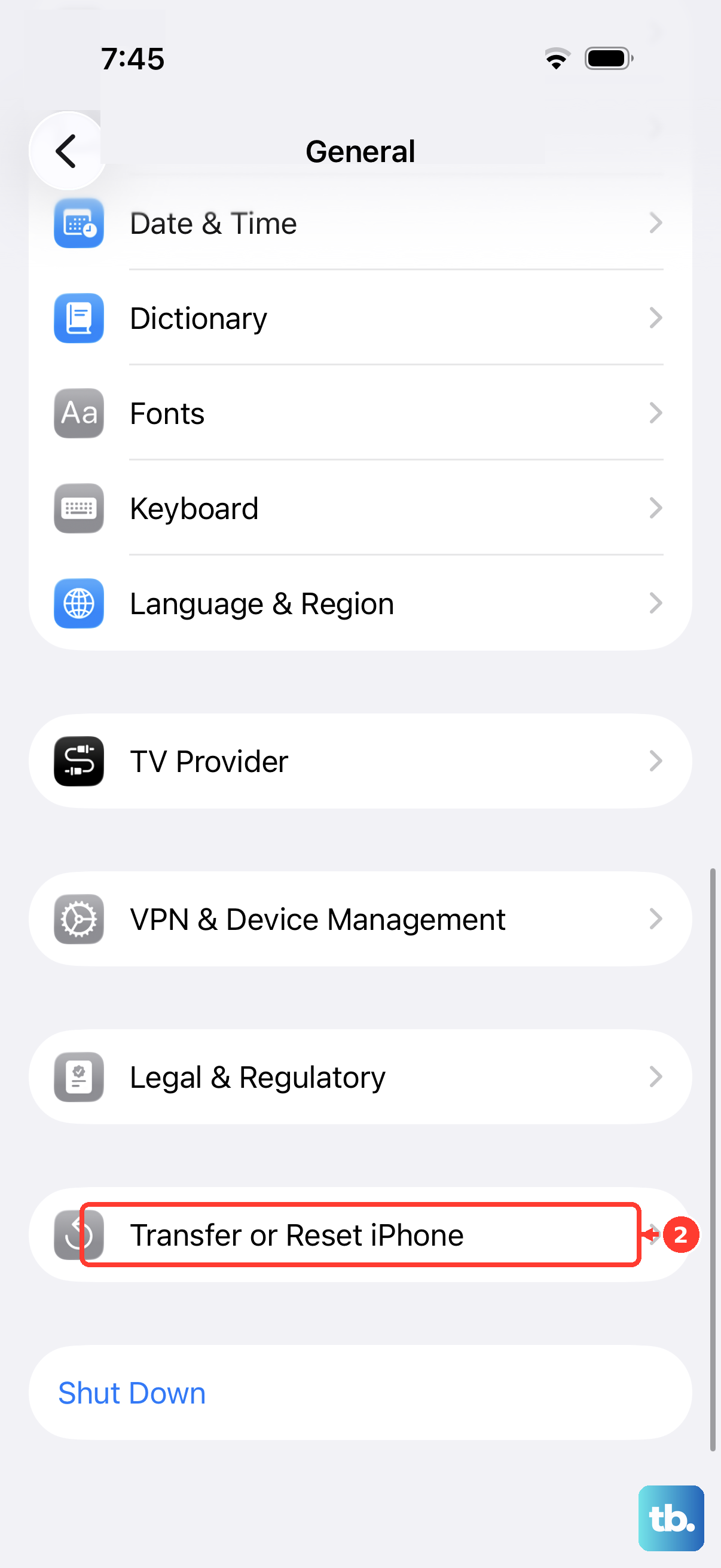
Go to Settings > General > Transfer or Reset iPhone. Tap "Reset" and then choose "Reset All Settings." You'll need to enter your passcode. After the phone restarts, you'll have to reconfigure things like Wi-Fi passwords and wallpaper, but it's worth a shot for a persistent software problem.
Check for Physical Damage or Case Interference
Think back to whether you've recently dropped your iPhone 13 or gotten it wet. Physical damage can affect the internal gyroscope. Also, a very thick or poorly fitting case can sometimes press against the screen or frame in a way that might theoretically interfere, though this is less common.
Try removing your case and see if rotation works. Inspect the phone for any obvious signs of damage, especially around the edges where internal components are housed.
Consider a Hardware Diagnostic
If you've tried every software fix here and the "Level" tool in the Measure app is completely unresponsive, the problem might be hardware. The sensors in the iPhone 13 can fail, though it's not super common.
You can contact Apple Support directly through the Apple Support app on your phone. They can run remote diagnostics to check the functionality of the gyroscope and accelerometer. If it's a hardware fault and your phone is still under warranty or you have AppleCare+, a repair or replacement would be the final step.