
When your iPhone 17's email stops syncing, it can leave you waiting on important messages or unable to send replies. This is a common hiccup, especially after an iOS update, but it's almost always something you can fix yourself. Start with the network checks.
Before you get into the steps, quickly confirm a couple of basics. Make sure you have a solid internet connection, either via Wi-Fi or cellular data. It's also worth checking your email provider's status page to see if Gmail, Outlook, or iCloud is having an outage.
Restart the Mail App and Check Your Connection
First, close the Mail app completely. On your iPhone 17, swipe up from the bottom of the screen, pause in the middle, and swipe the Mail app card up and off the top to close it. Wait a moment, then tap the Mail icon to reopen it. This clears any temporary glitch.
Next, try toggling Airplane Mode. Swipe down from the top-right corner to open Control Center and tap the airplane icon. Wait a moment, then tap it again to turn it off.
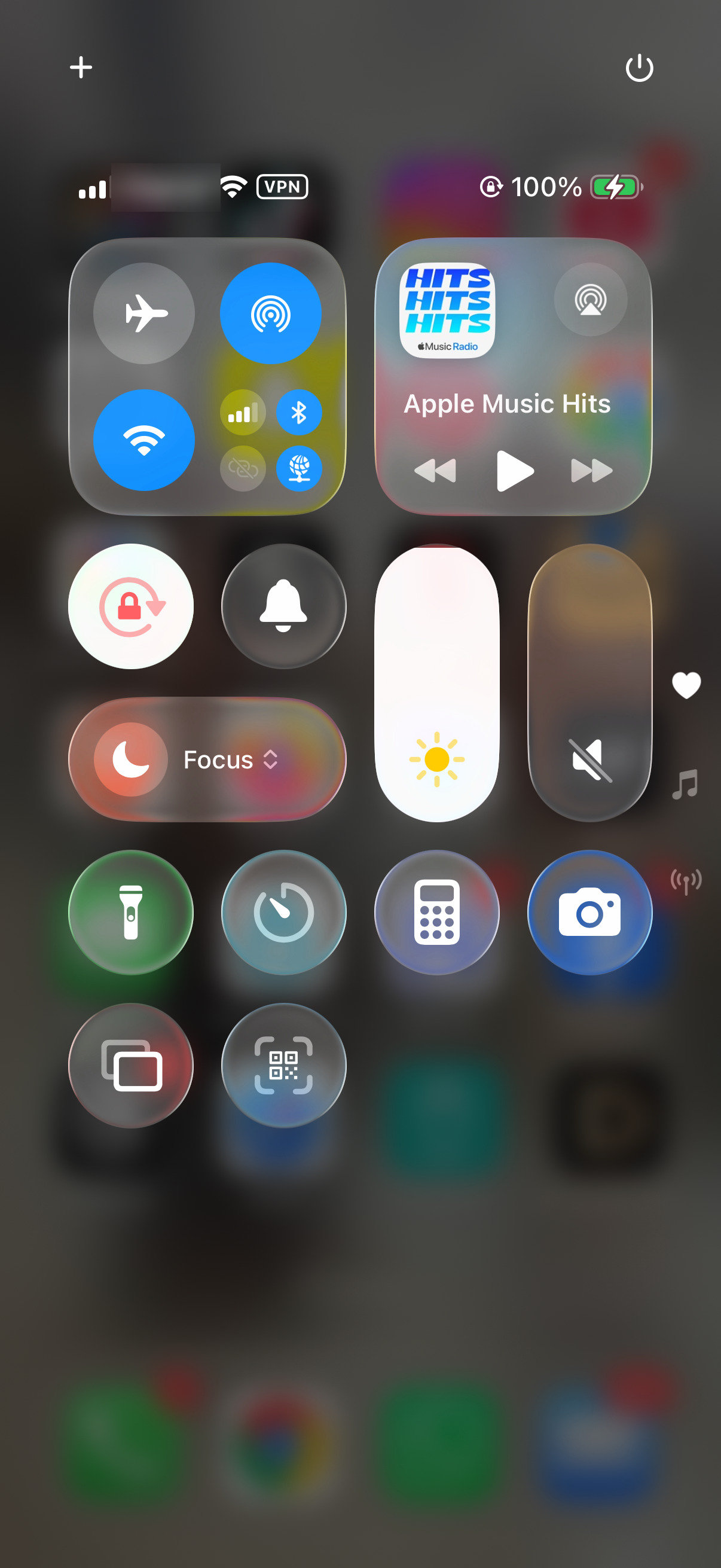
If that doesn't work, test your network more directly. Try sending an email while connected to Wi-Fi, then disconnect from Wi-Fi in Control Center and try again using just your cellular data. If one works and the other doesn't, you've isolated the problem to a specific network.
Verify Your Mail Account Settings
Sometimes the account itself needs a refresh. Head to Settings > Apps > Mail > Mail Accounts. Tap on the account giving you trouble. First, make sure the account is set to "Mail" and is toggled on. If everything looks correct here, the next step is to check how often your phone fetches new data.
Go back one screen and tap Fetch New Data. For accounts like iCloud or Microsoft Exchange, make sure "Push" is turned on. If Push is off or unavailable for your account type, your iPhone will only check for new mail on a schedule. With "Automatically," your iPhone fetches new data in the background only when it's charging and connected to Wi-Fi, so choose a schedule if you want regular checks at other times.
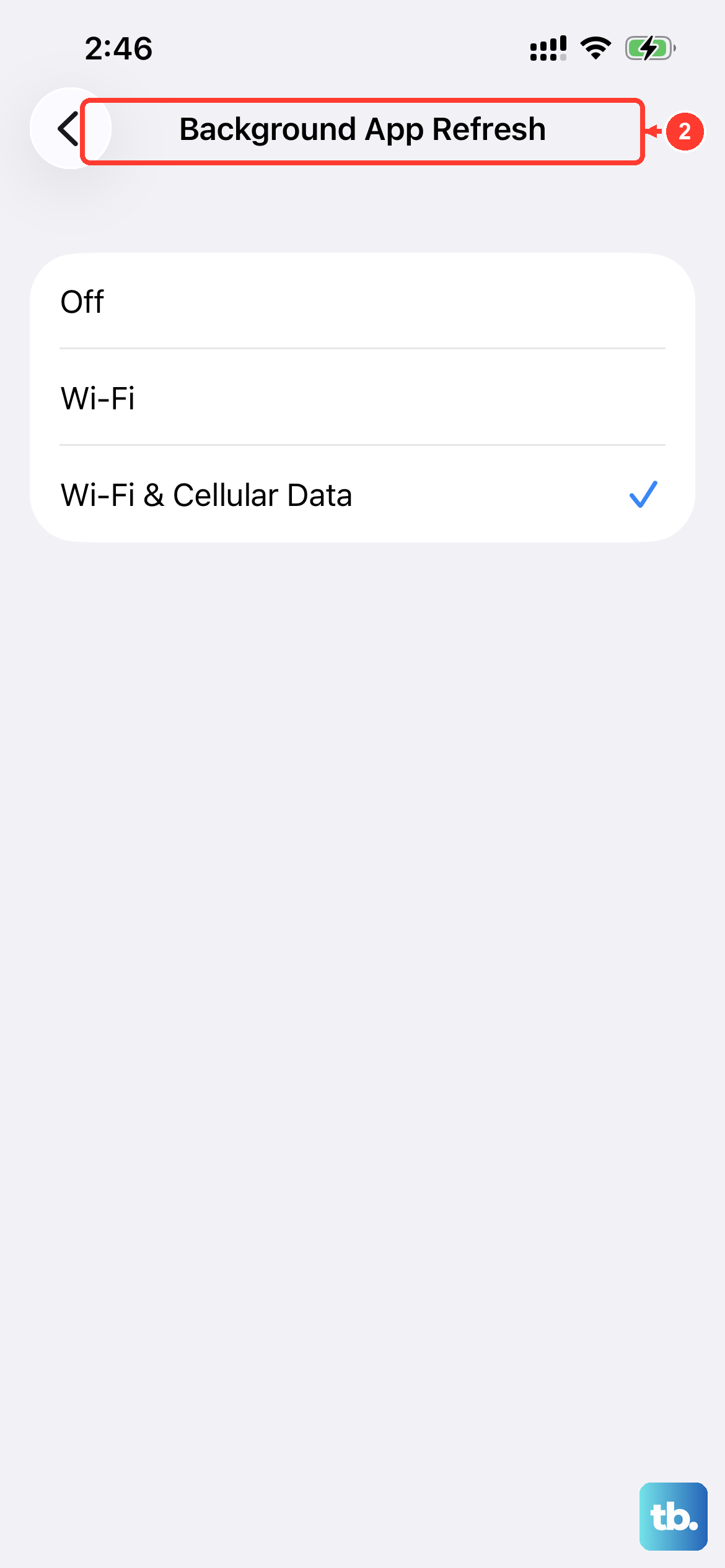
If you use a third-party mail app such as Gmail or Outlook, also go to Settings > General > Background App Refresh and make sure it's turned on for that app. This allows the app to update content even when you're not actively using it.
Update iOS and Check for App Updates
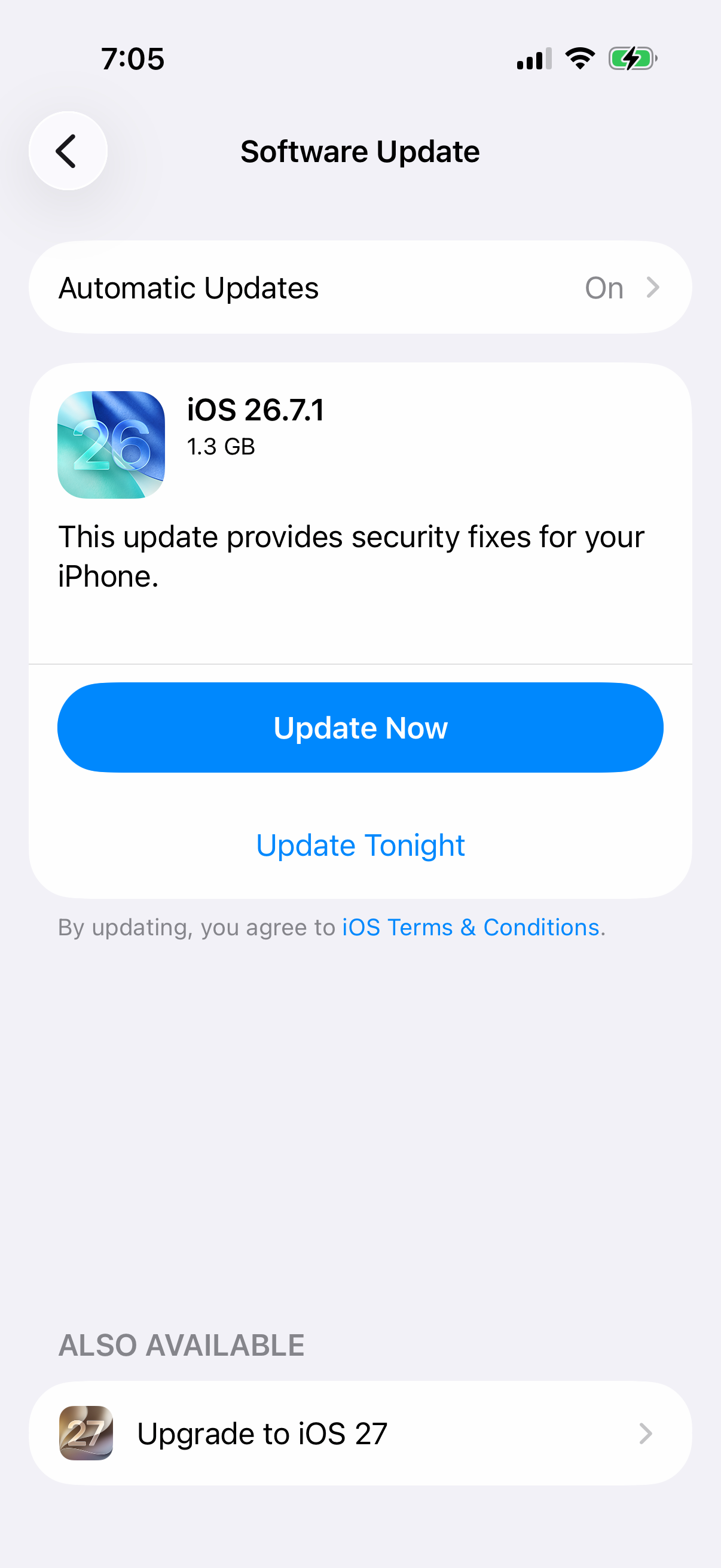
iOS updates often include fixes for Mail and network problems. Go to Settings > General > Software Update to see if any new iOS version is available. Installing it can resolve a host of background communication issues.
If you're using a third-party app like the Gmail or Outlook app from the App Store, make sure it's updated, too. Open the App Store, tap your profile icon at the top, then tap App Updates to see pending updates. An outdated app version can lose compatibility with your email provider's servers.
Re-add Your Email Account
When settings checks don't work, removing and re-adding the account often does the trick. Go to Settings > Apps > Mail > Mail Accounts, tap the problematic account, and then tap Delete Account. With most accounts (IMAP or Exchange), your emails stay on the server.
Immediately after deleting it, tap "Add Account" and walk through the setup process again. For services like Gmail, Yahoo, or Outlook, you can usually just choose the provider and enter your email and password. For other accounts, you may need to enter the incoming and outgoing server details manually, which you can get from your email provider's help site.
Review Cellular and Notification Settings
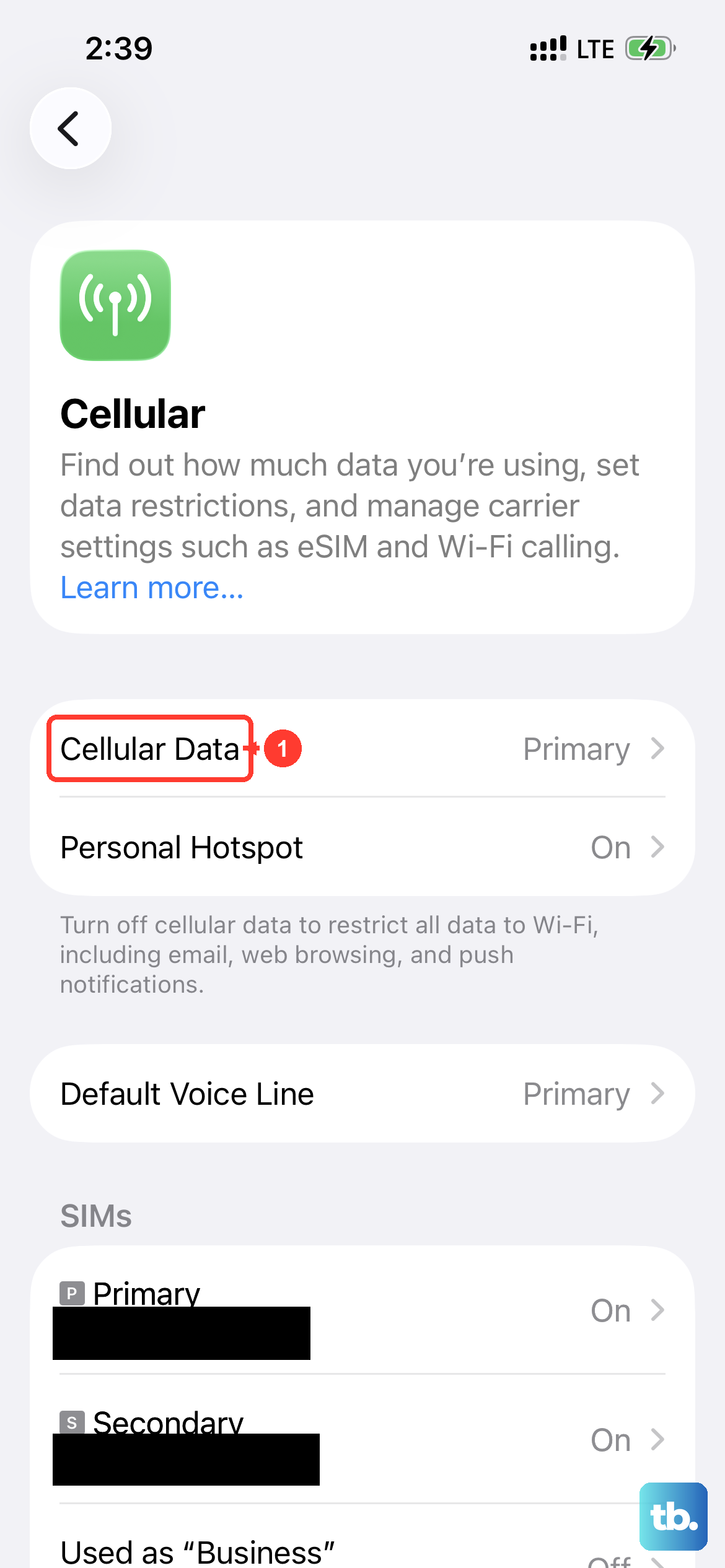
If emails only fail when you're off Wi-Fi, your cellular data might be blocked for Mail. Go to Settings > Cellular and scroll down the list of apps. Find "Mail" and make sure its toggle is switched on.
If emails are arriving but you're not getting alerts, your notification settings might be off. Navigate to Settings > Notifications > Mail and make sure "Allow Notifications" is on. Tap "Customize Notifications" to set alerts for each account. You can also customize the alert style, sounds, and whether it appears on your Lock Screen here.
Disable VPNs and Check Date & Time
A VPN can sometimes interfere with the specific ports your email uses to communicate. Go to Settings > General > VPN & Device Management. If you see a VPN configuration that says "Connected," tap on it and toggle it off. Try your email again. If it works, you may need to adjust your VPN's settings or use a split-tunneling feature to exclude the Mail app.
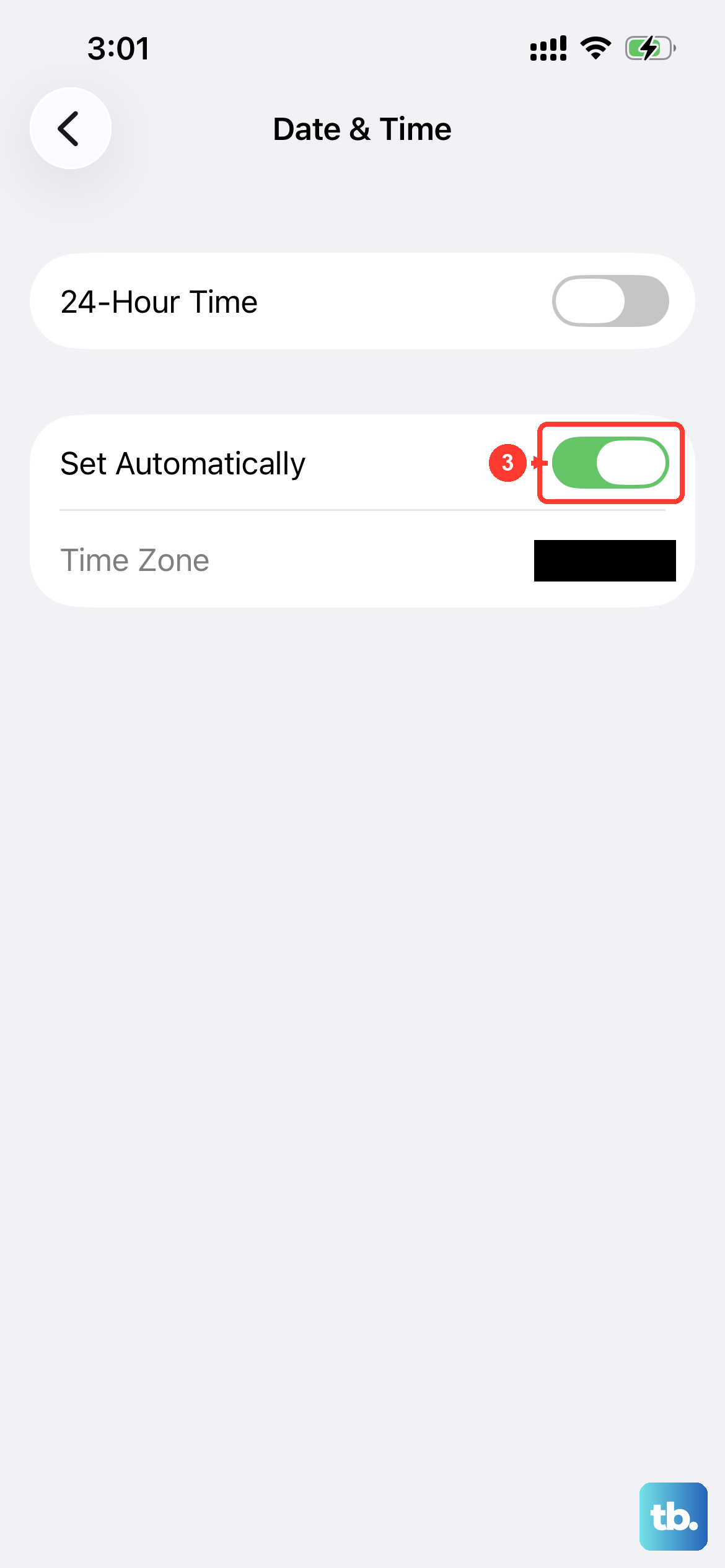
An incorrect system time can cause SSL certificate errors that block email. Go to Settings > General > Date & Time and make sure "Set Automatically" is turned on. This keeps your iPhone's clock accurate, which secure connections depend on.
Perform a Force Restart
A standard restart can help, and a force restart is worth trying if it doesn't. On the iPhone 17, quickly press and release the Volume Up button, then quickly press and release the Volume Down button. Finally, press and hold the Side button. Keep holding it until you see the Apple logo appear, then release. This doesn't erase any data.
Reset All Network Settings
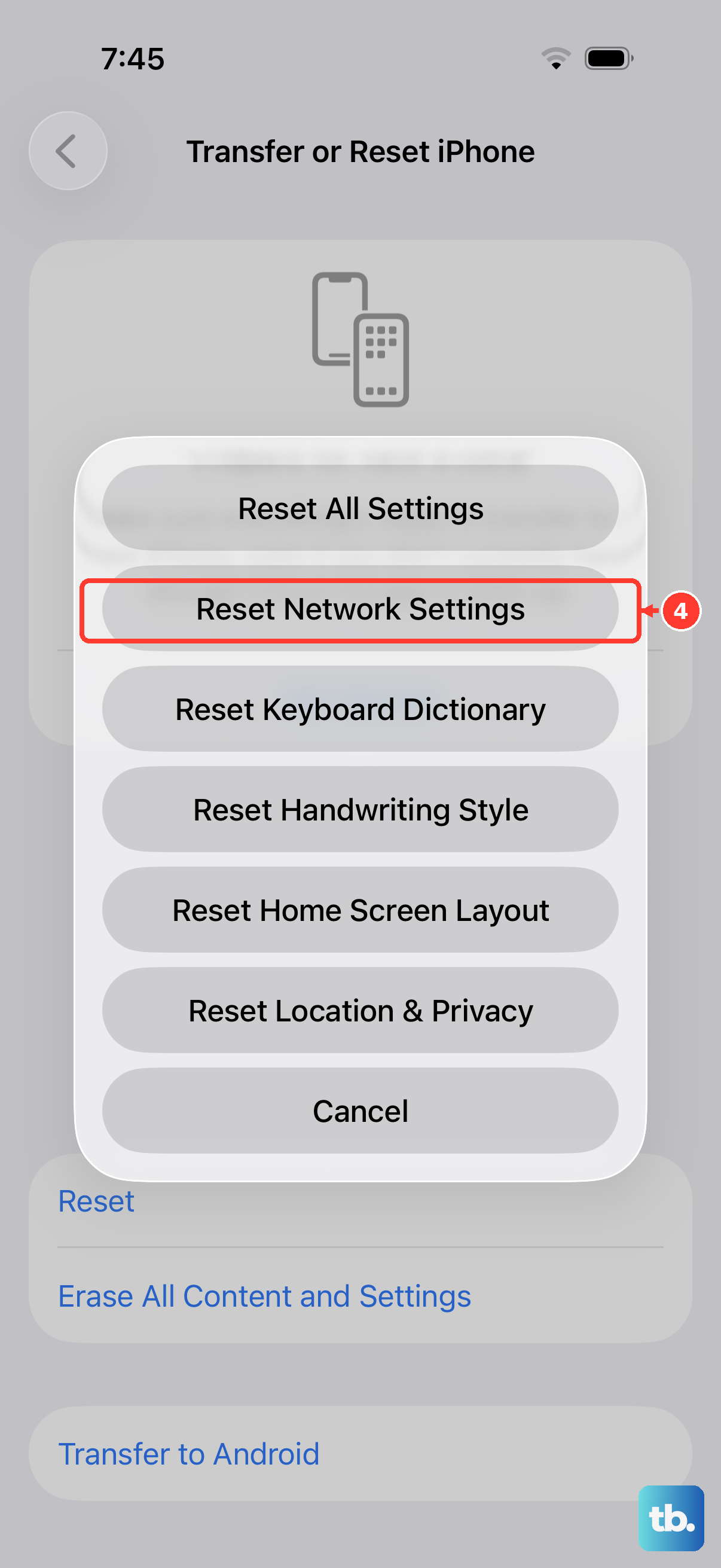
This step clears all your Wi-Fi passwords, cellular settings, and VPN configurations, so you'll need to rejoin Wi-Fi networks afterward. It often resolves persistent connection bugs. Go to Settings > General > Transfer or Reset iPhone > Reset. Tap Reset Network Settings and enter your passcode to confirm.
After the phone restarts, reconnect to your Wi-Fi and try the Mail app again. This gives the entire network stack a clean slate, which can fix issues that simpler toggles don't touch.
Check for Mail-Specific iOS Options
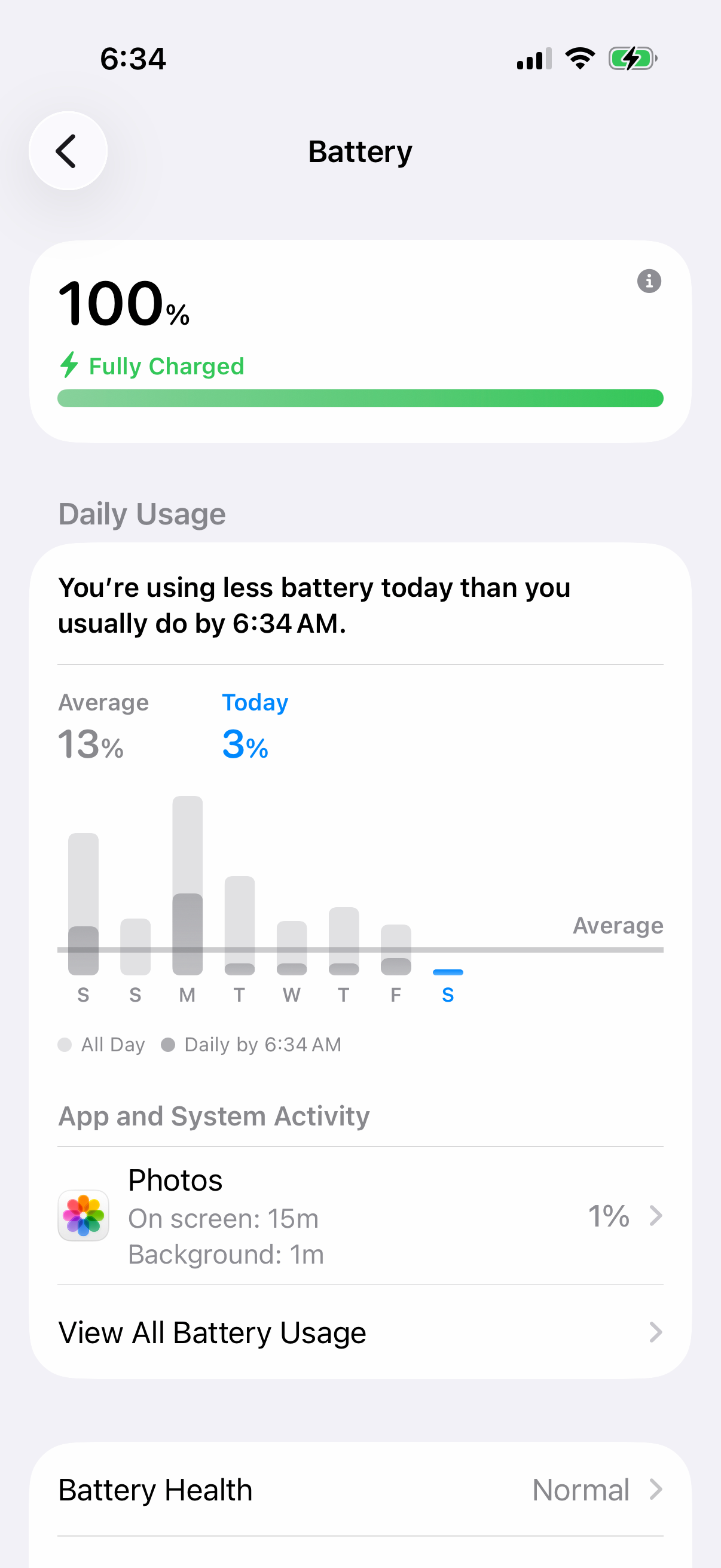
Battery features can affect background mail activity. Go to Settings > Battery and look at the battery usage graph. If Mail shows unusually high battery use, it may be having trouble syncing.
If you've tried all these steps and your email is still not working, the issue could be with your account itself, like being over storage limit or requiring a new app-specific password if you have two-factor authentication enabled. Log into your email account on a computer's web browser to check its status and security settings directly.