
If your iPhone 16's Settings app keeps closing as soon as you open it, you're not stuck. This is usually a temporary software hiccup, and I'd start with a simple restart to clear it out.
Force Restart Your iPhone 16
This is the quickest fix for most app crashes on iOS. A force restart clears the phone's working memory without deleting any of your data. It's different from just turning the screen off and on.
On the iPhone 16, you do this by quickly pressing and releasing the Volume Up button, then quickly pressing and releasing the Volume Down button. Finally, press and hold the Side button. Keep holding it until you see the Apple logo appear on the screen, then let go.
Check for a Software Update
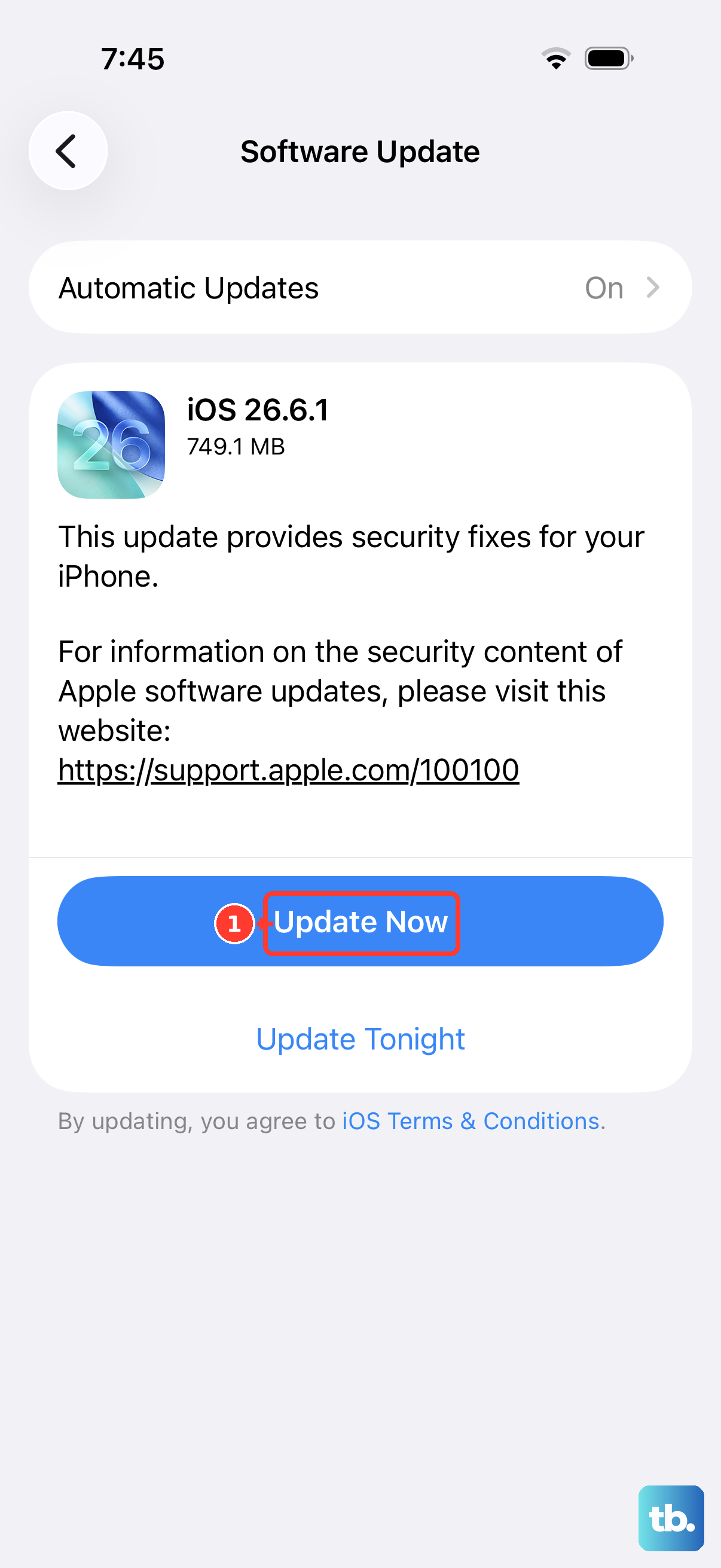
Since you're running iOS 26, Apple may have already released a patch for a bug causing the Settings app to crash. It's worth checking, as updates often include stability fixes for system apps.
You can try to get to the update screen by going to Settings > General > Software Update. If the app crashes before you can get there, you can also update via your computer. Connect your iPhone 16 to a Mac or PC with a USB-C cable, open Finder (on Mac) or iTunes (on Windows), and check for updates from there.
Reset All Settings
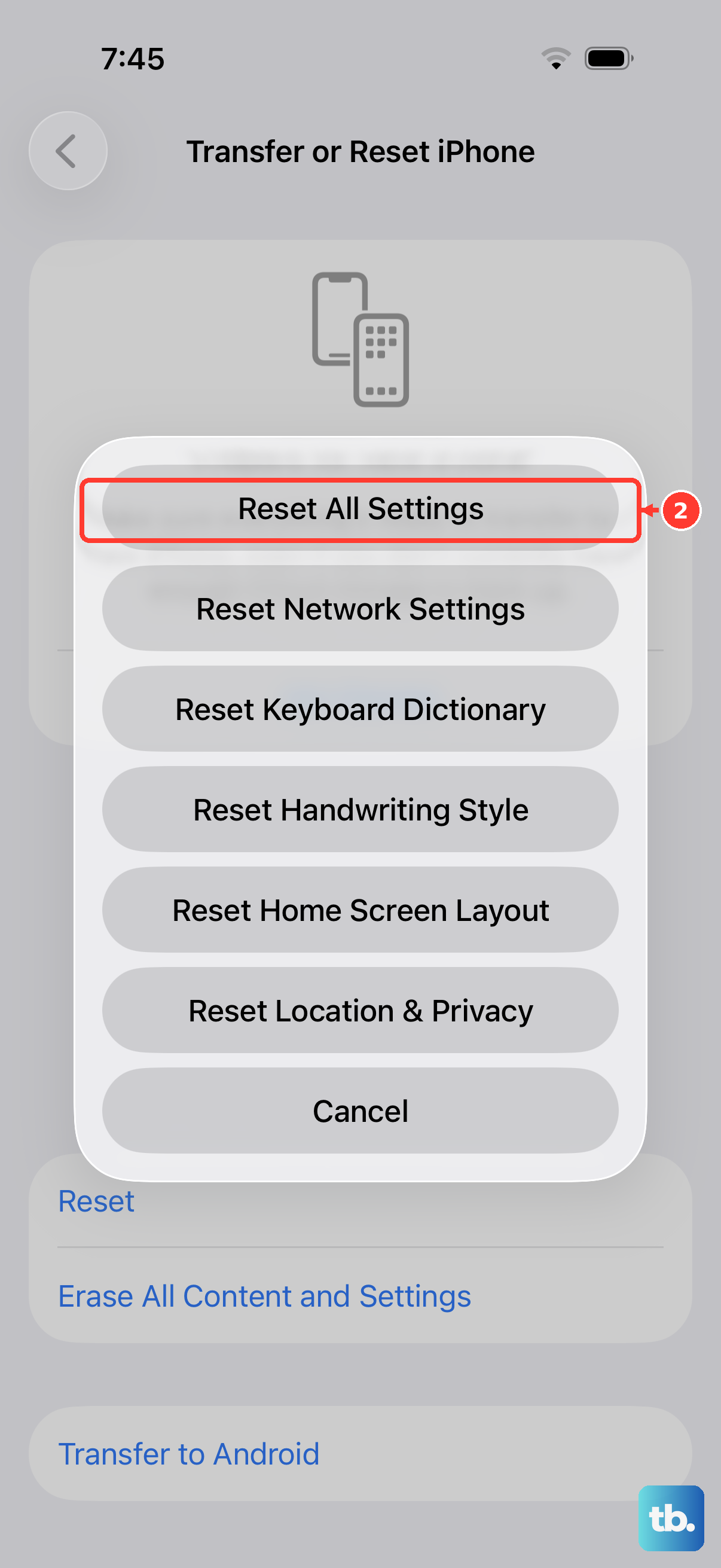
If the app is still crashing, the next step is to reset all settings. This won't erase your photos, messages, or apps, but it will revert all your personalized preferences back to factory defaults.
You'll need to re-enter Wi-Fi passwords, reconfigure notifications, and set up your wallpaper again. To do this, navigate to Settings > General > Transfer or Reset iPhone > Reset. Then, tap "Reset All Settings." You'll need to enter your passcode to confirm.
Update Apps Individually
Sometimes, a buggy third-party app can cause system-wide instability, including crashes in Apple's own apps. It's a less common cause on iOS than on other platforms, but it's still possible.
Since you can't open the Settings app to check for updates, you'll need to use the App Store. Open the App Store, tap your profile icon in the top right, and scroll down to see pending updates. Update any apps that are listed there, then restart your phone to see if the Settings app behaves.
Restore Your iPhone via Computer
If the crash persists through all the steps above, the system software itself may be corrupted. Restoring your iPhone using a computer is the most thorough software fix. This process will install a fresh, clean copy of iOS 26.
First, make sure you have a recent iCloud backup or a backup on your computer. Then, connect your iPhone 16 to your computer with a USB-C cable. On a Mac with macOS Catalina or later, open Finder. On a PC or older Mac, open iTunes. Select your iPhone, and choose "Restore iPhone." This will completely erase the device and install the latest version of iOS.
After the restore is complete, you can set up the phone as new to test if the problem is gone, or restore from your backup. If the issue returns after restoring from a backup, the corruption might be within the backup data itself.