
If your iPhone 14 feels sluggish on the internet, it's a common headache. You might notice web pages taking forever to load, videos buffering constantly, or apps struggling to refresh. This can happen on both WiFi and cellular data, and it's often a quick software or settings issue you can fix yourself.
I'd start with the simplest fix first, which is to restart your iPhone 14. This clears out temporary software glitches that can bog down your network connection. To do a force restart, quickly press and release the Volume Up button, then quickly press and release the Volume Down button. Finally, press and hold the Side button until you see the Apple logo appear on the screen.
Toggle Airplane Mode
This is a classic trick that forces your iPhone to reconnect to the cellular network from scratch. Swipe down from the top-right corner of your screen to open Control Center and tap the airplane icon to turn it on. Wait about 15 seconds, then tap it again to turn Airplane Mode off. This can often kickstart a faster data connection immediately.
Check Your Cellular Data Settings
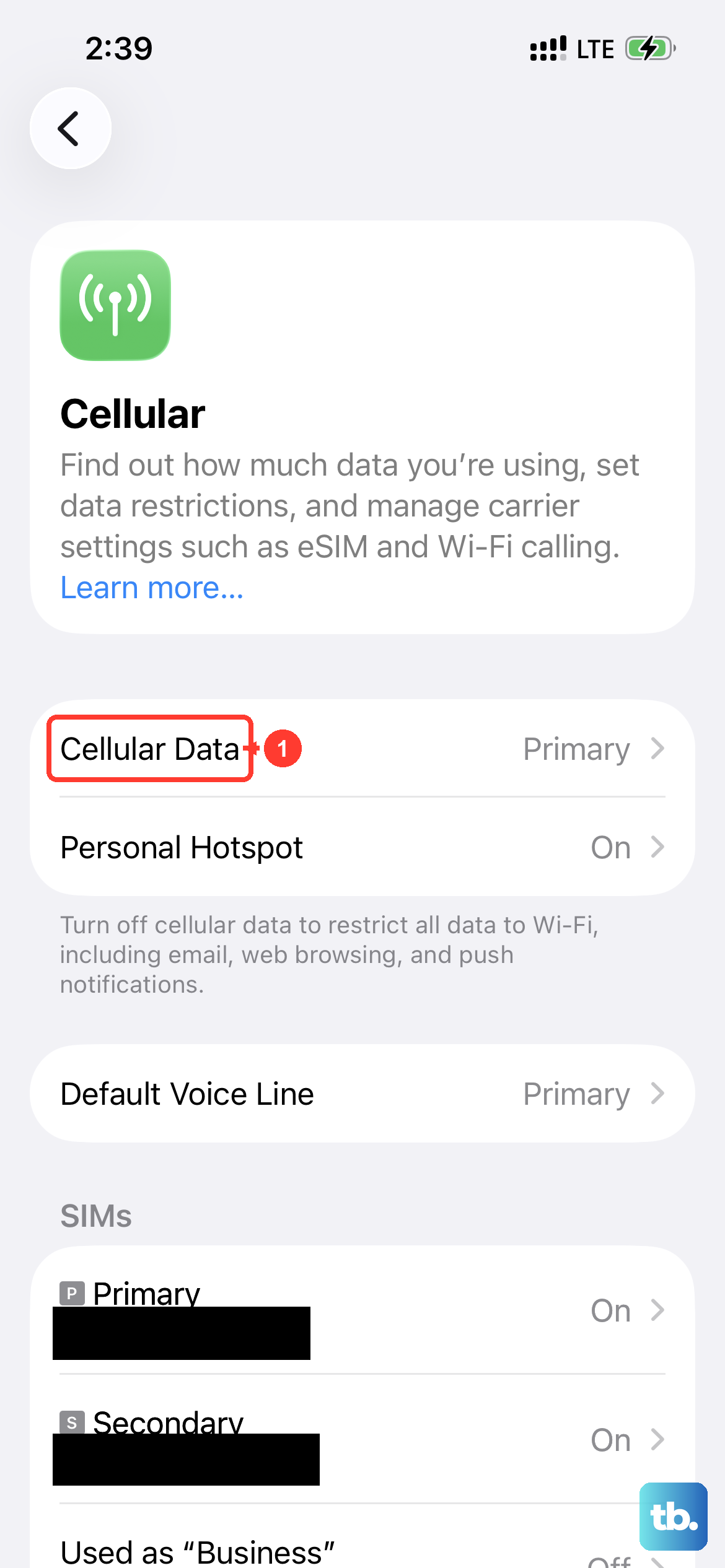
Your iPhone 14 might be stuck on a slower network mode. Go to Settings > Cellular > Cellular Data Options > Voice & Data. Make sure "5G Auto" or "LTE" is selected for the best balance of speed and battery life. If you're in an area with spotty 5G, switching to "LTE" can sometimes provide a more stable and consistent speed.
Also in the Cellular settings menu, scroll down and make sure WiFi Assist is turned on. This feature automatically switches to cellular data when your WiFi connection is poor, preventing you from being stuck on a barely-working network.
Forget and Rejoin Your WiFi Network
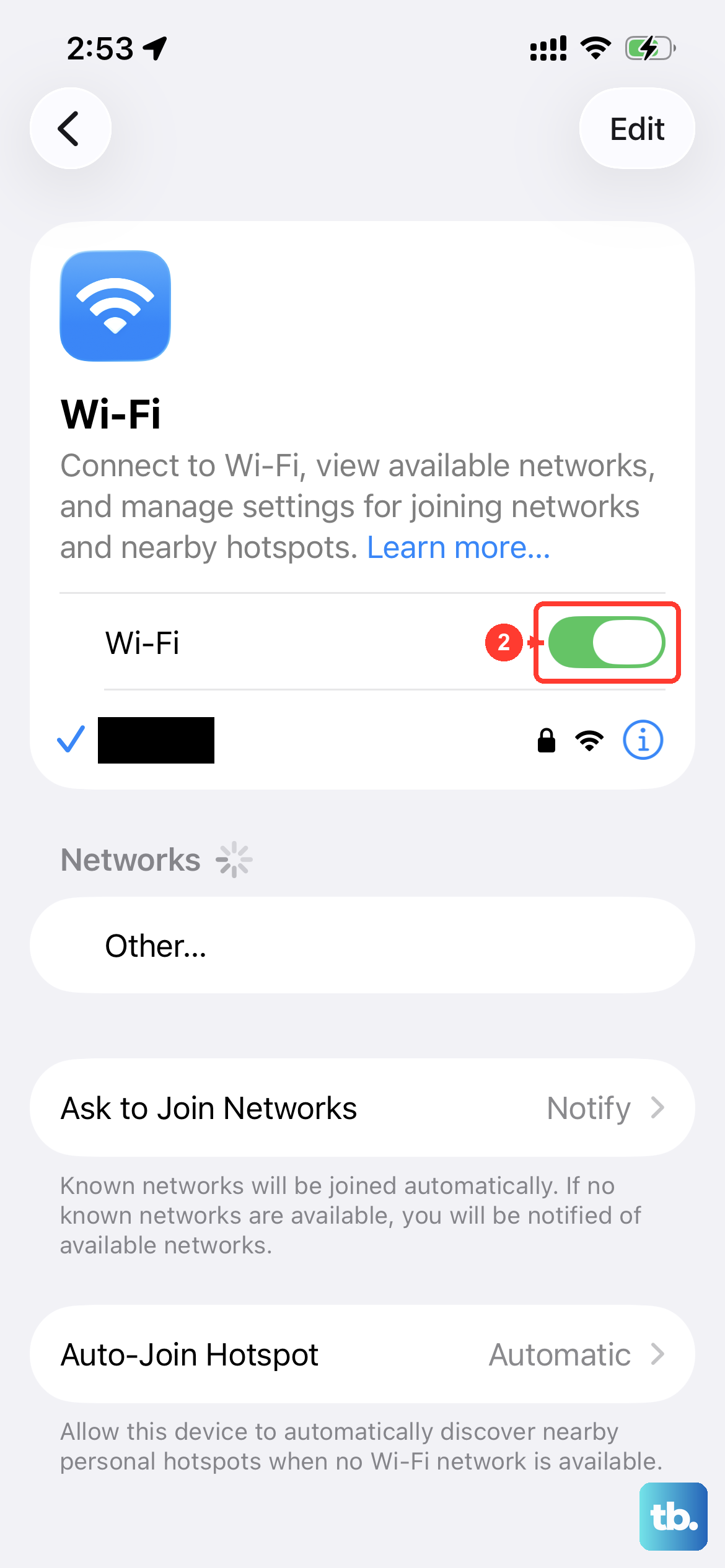
If the slowdown is specific to your home or office WiFi, re-establishing the connection can help. Go to Settings > WiFi and tap the "i" icon next to your network name. Tap Forget This Network and confirm. Then, select the network again from the list and re-enter the password to reconnect. This clears any corrupted connection data.
Disable Low Data Mode on WiFi
Low Data Mode is great for saving bandwidth, but it can intentionally slow things down. Go back to your WiFi network's settings page (the "i" icon). If Low Data Mode is enabled, toggle it off. This allows apps and services to use the full bandwidth of your connection for faster loading.
Update Your iOS Software
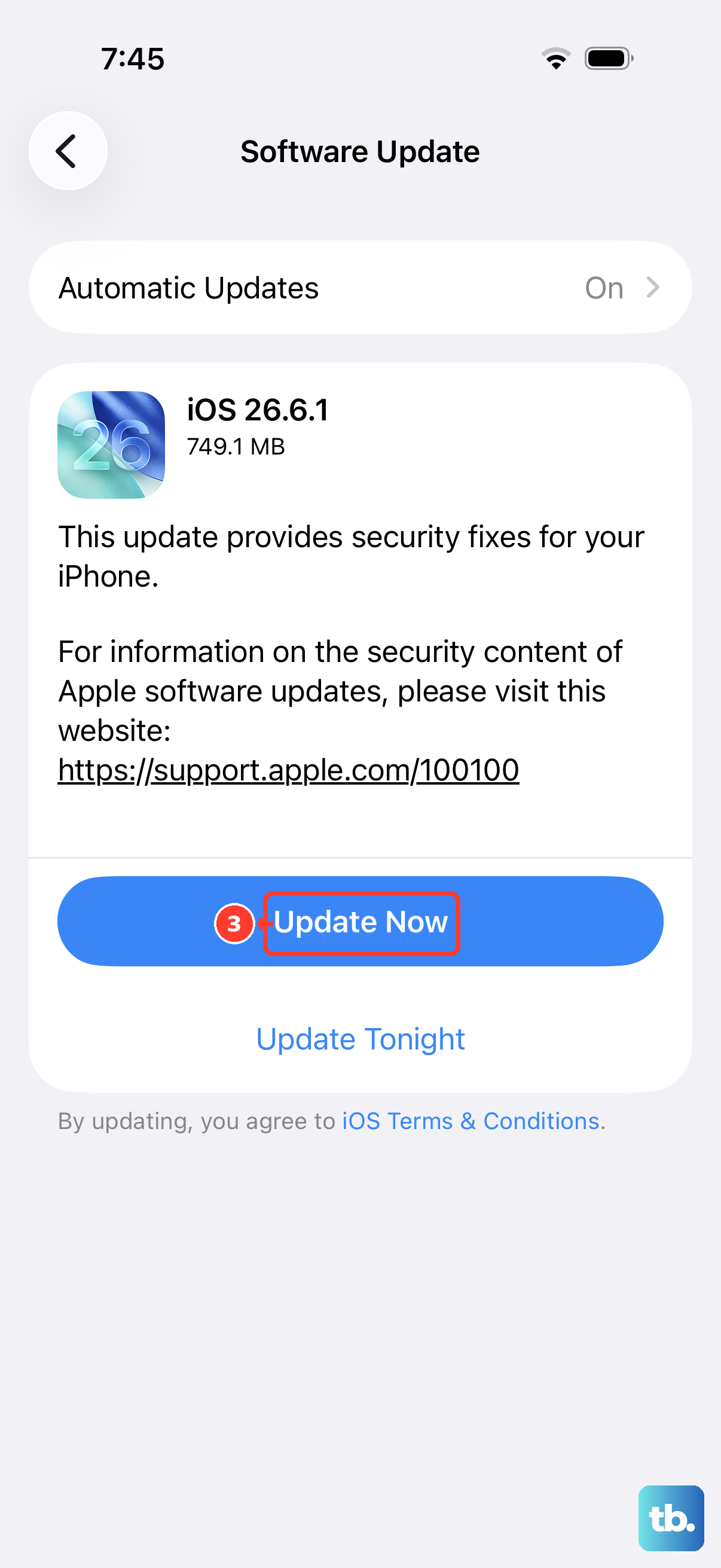
Apple frequently releases updates that include fixes for connectivity and performance bugs. Since the iPhone 14 launched, there have been several updates addressing network issues. Go to Settings > General > Software Update. If an update is available, install it. Make sure your phone is connected to power and WiFi first.
Reset Your Network Settings
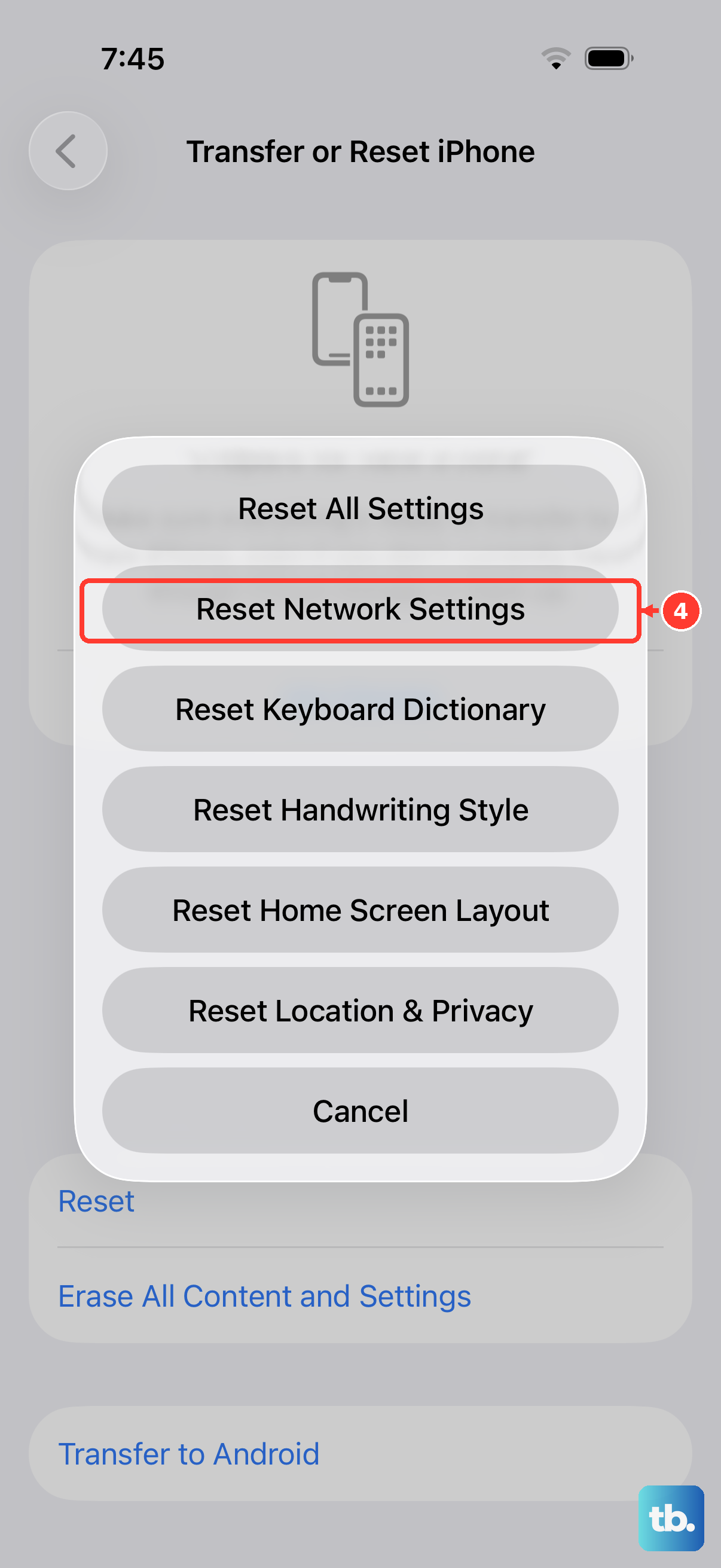
This is a more thorough step that will erase all your saved WiFi passwords, Bluetooth pairings, and cellular settings, returning them to factory defaults. It often resolves persistent, weird network problems. Go to Settings > General > Transfer or Reset iPhone > Reset. Tap Reset Network Settings and enter your passcode to confirm. Your iPhone will restart.
Check for a VPN or Content Blocker
If you're using a VPN app or a Safari content blocker, try disabling it temporarily. These services route your traffic through another server, which can significantly slow down your connection speed. Go to Settings and look for any VPN profiles; you can toggle them off there. For content blockers, go to Settings > Apps > Safari > Extensions to manage them.
Clear Your Safari Cache
Over time, your browser stores website data that can become corrupted or overloaded. Clearing it out can speed up browsing. Go to Settings > Apps > Safari. Scroll down and tap Clear History and Website Data. Confirm your choice. This will log you out of most websites, so you'll need to sign back in.
Contact Your Carrier
If slow speeds persist only on cellular data, the issue might be with your carrier's network. There could be local tower maintenance, congestion, or an account issue. You can try removing and reinserting your SIM card, or contact your carrier's support to check for outages or problems with your specific line. They can also reprovision your network connection remotely.