
Missing important calls because your iPhone 16 Pro stays silent is a real headache. You see the missed call notification pop up, but you never heard a thing, even though you're sure the phone should be ringing. Start by checking Silent mode on your specific model.
First, check your Action button. If it's set to Silent mode, press and hold it to turn Silent mode on or off. If it's assigned to another function, go to Settings > Sounds & Haptics and turn Silent mode off.
You can customize what the Action Button does in Settings > Action Button. Swipe left or right to choose different functions, but make sure it's not set to something other than Silent Mode if you want the classic toggle behavior.
Check Your Focus Modes
Focus modes, like Do Not Disturb or Sleep, are designed to silence interruptions. If one is active, some calls may not ring, depending on your settings. Swipe down from the top-right corner to open Control Center and look for a highlighted moon or another Focus icon.
Tap the icon to turn the active Focus off. For a deeper check, go to Settings > Focus. Here, you'll see all your configured modes like Work, Personal, and Do Not Disturb.
If Do Not Disturb keeps turning back on, go to Settings > Focus > Do Not Disturb, scroll down to "Set a Schedule," and check for active schedules to turn off.
Adjust Your Ringer Volume
Your ringer volume might just be turned all the way down. Go to Settings > Sounds & Haptics and drag the ringer volume slider back and forth to test the sound. The side volume buttons adjust ringer volume only when "Change with Buttons" is turned on.
You can also set it precisely. In Settings > Sounds & Haptics, drag the ringer volume slider to the right. Test it right after by having a friend call you.
Review Your Ringtone and Alert Settings
If you're using a custom ringtone, try switching to a different, built-in ringtone. Head to Settings > Sounds & Haptics > Ringtone and pick a new one. Test an incoming call after changing the tone.
While you're there, ensure "Change with Buttons" is turned off if you want your ringer volume separate from your media volume. This prevents the side buttons from accidentally changing your ringer volume.
Disconnect Bluetooth Accessories
If your iPhone 16 Pro is connected to AirPods, a CarPlay system, or a Bluetooth speaker, call audio may route to that device. Disconnect the accessory and test whether your phone rings.
Go to Settings > Bluetooth and toggle it off temporarily. Test a call with Bluetooth disabled to see if that's the culprit.
Investigate Call Blocking and Filtering
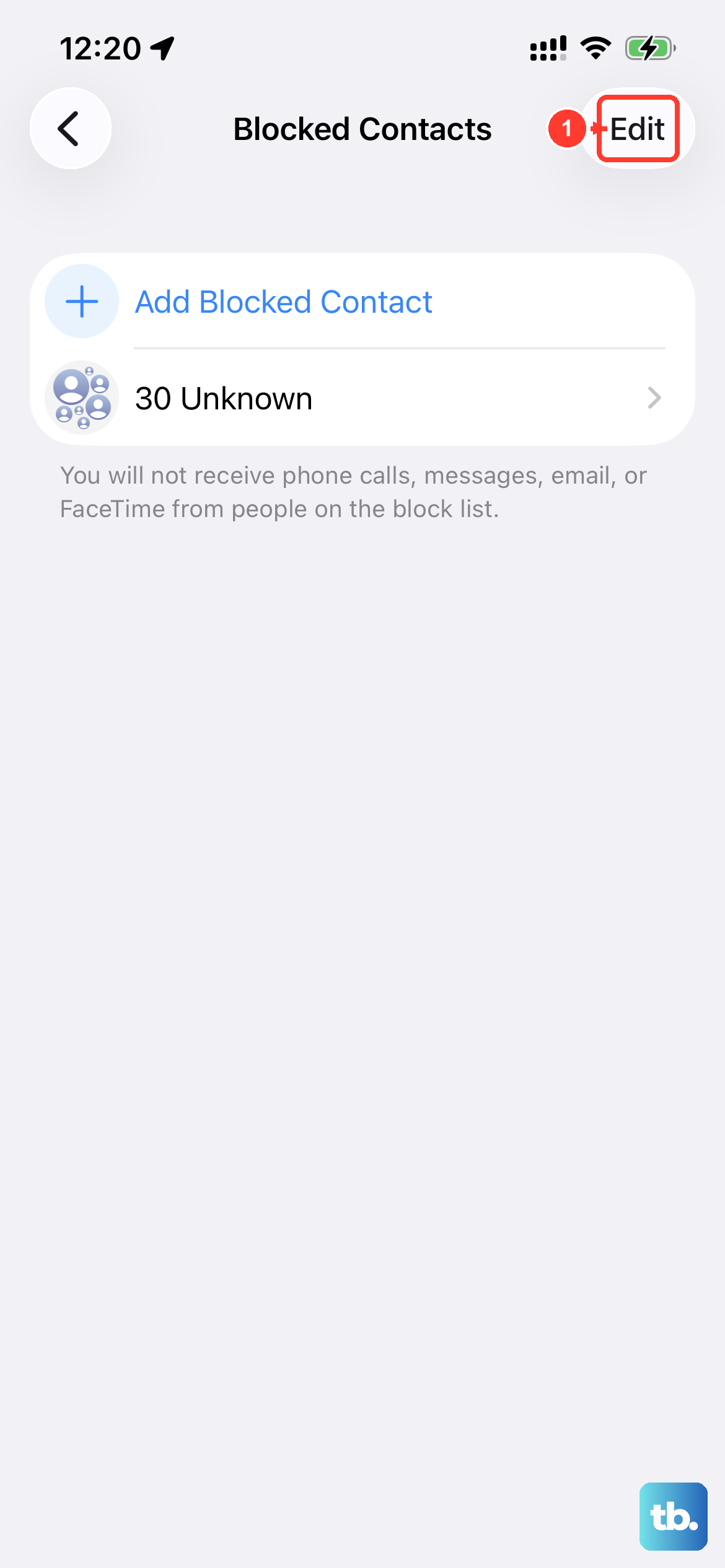
Your phone has several features that can silently filter calls. First, check for blocked numbers. Go to Settings > Apps > Phone > Blocked Contacts to see if the caller was accidentally added there.
Next, look at "Screen Unknown Callers" in the same Phone settings menu. Select "Never" if you're expecting calls from unsaved numbers. "Ask Reason for Calling" screens these calls before your phone rings, while "Silence" sends them to voicemail without ringing.
Also, check Settings > Apps > Phone > Call Forwarding. If this is accidentally enabled and set to another number, your iPhone 16 Pro won't ring because calls are being sent elsewhere.
Perform a Force Restart
A quick force restart can clear out temporary software glitches affecting the ringer. On the iPhone 16 Pro, you press and quickly release the Volume Up button, then press and quickly release the Volume Down button.
Immediately after, press and hold the Side button. Keep holding it until you see the Apple logo appear, then release.
Update to the Latest iOS Version
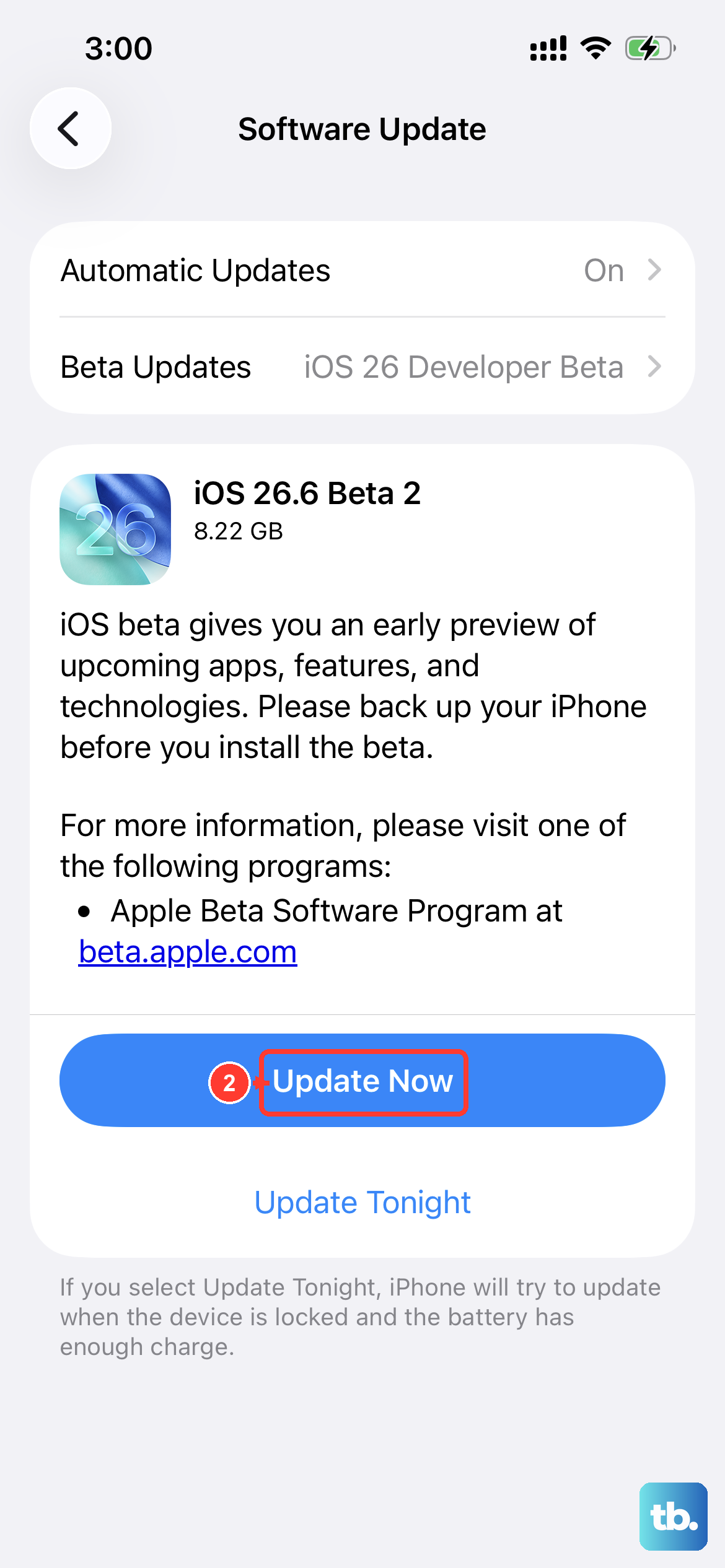
Apple frequently releases software updates that fix bugs, including audio and notification issues. Make sure your iPhone 16 Pro is running the latest version of iOS.
Connect to Wi-Fi and plug in your charger. Go to Settings > General > Software Update. If an update is available, tap "Download and Install." Keeping software current is one of the best ways to prevent these kinds of problems.
Reset All Settings
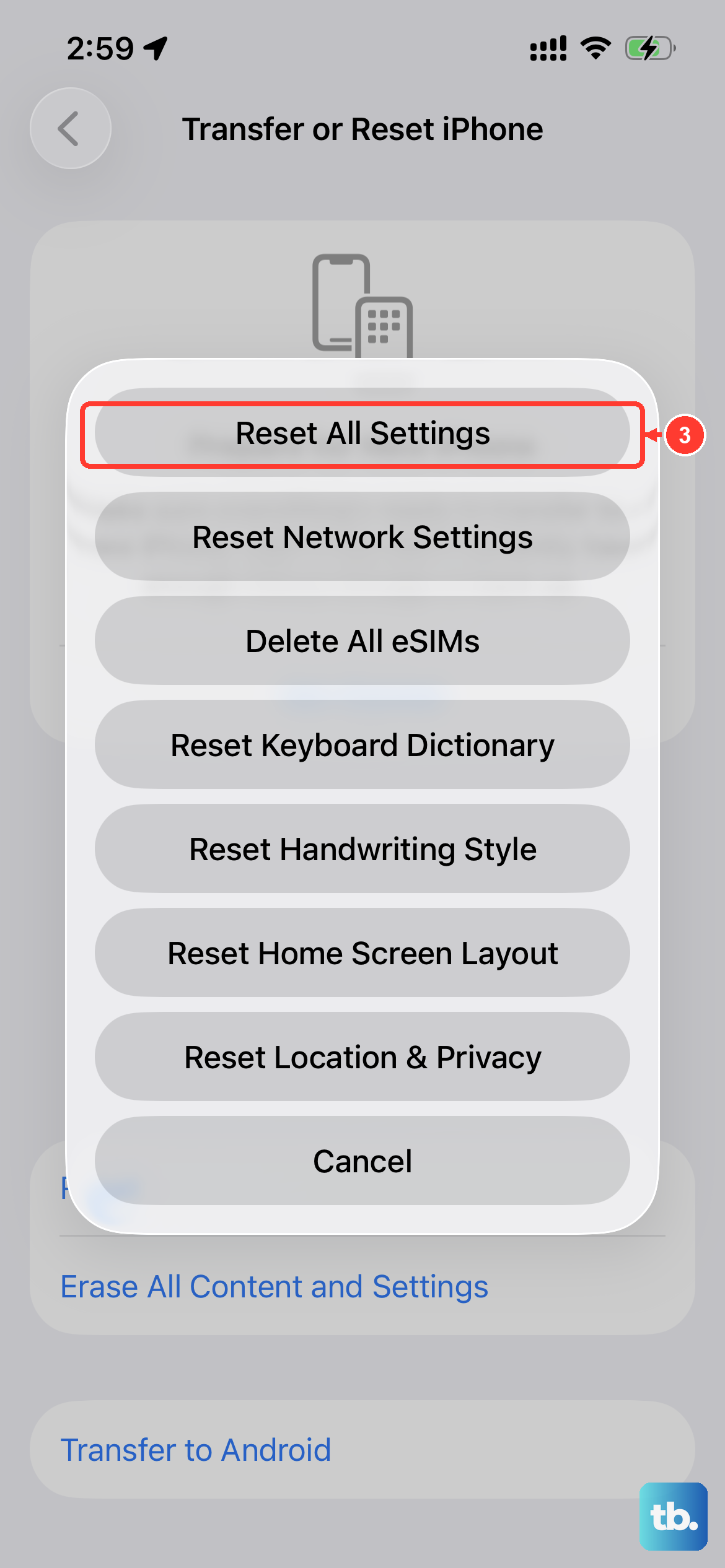
If the problem persists, a settings reset can help. This won't delete your photos, apps, or personal data, but it will revert all your preferences back to defaults. Things like Wi-Fi passwords and wallpaper will need to be set up again.
Go to Settings > General > Transfer or Reset iPhone > Reset. Then, tap "Reset All Settings." You'll need to enter your passcode to confirm. After the phone restarts, check if your ringer works.
Check App-Specific Calling Issues
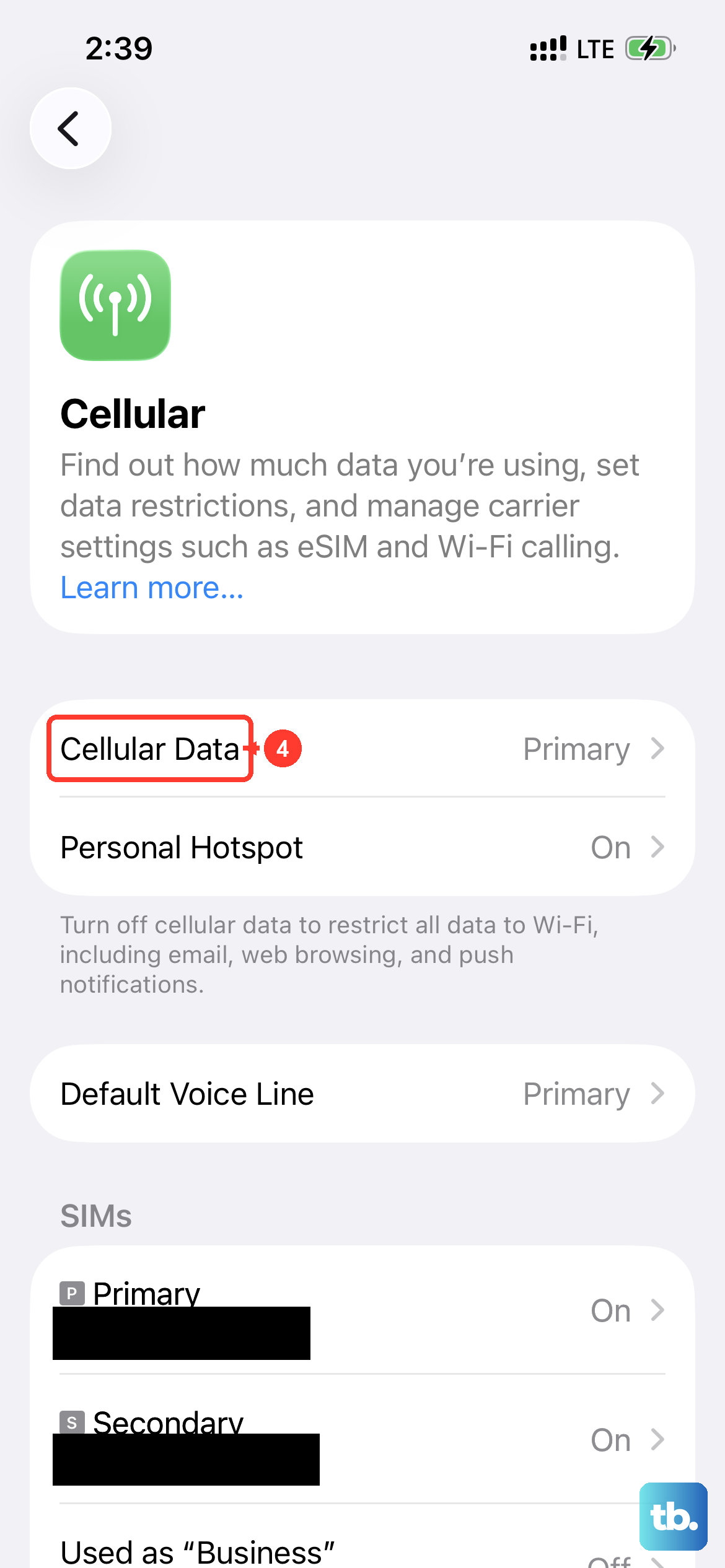
If your iPhone rings for regular calls but not for calls from apps like WhatsApp, FaceTime, or Telegram, the issue is likely with that specific app. First, head to the App Store and make sure the app is updated to its latest version.
Then, check the app's notification permissions. Go to Settings > Notifications and tap the app. Ensure Allow Notifications is on and that Sounds is turned on. Sometimes switching from cellular data to a strong Wi-Fi connection can also improve VoIP call reliability.
Reset Network Settings
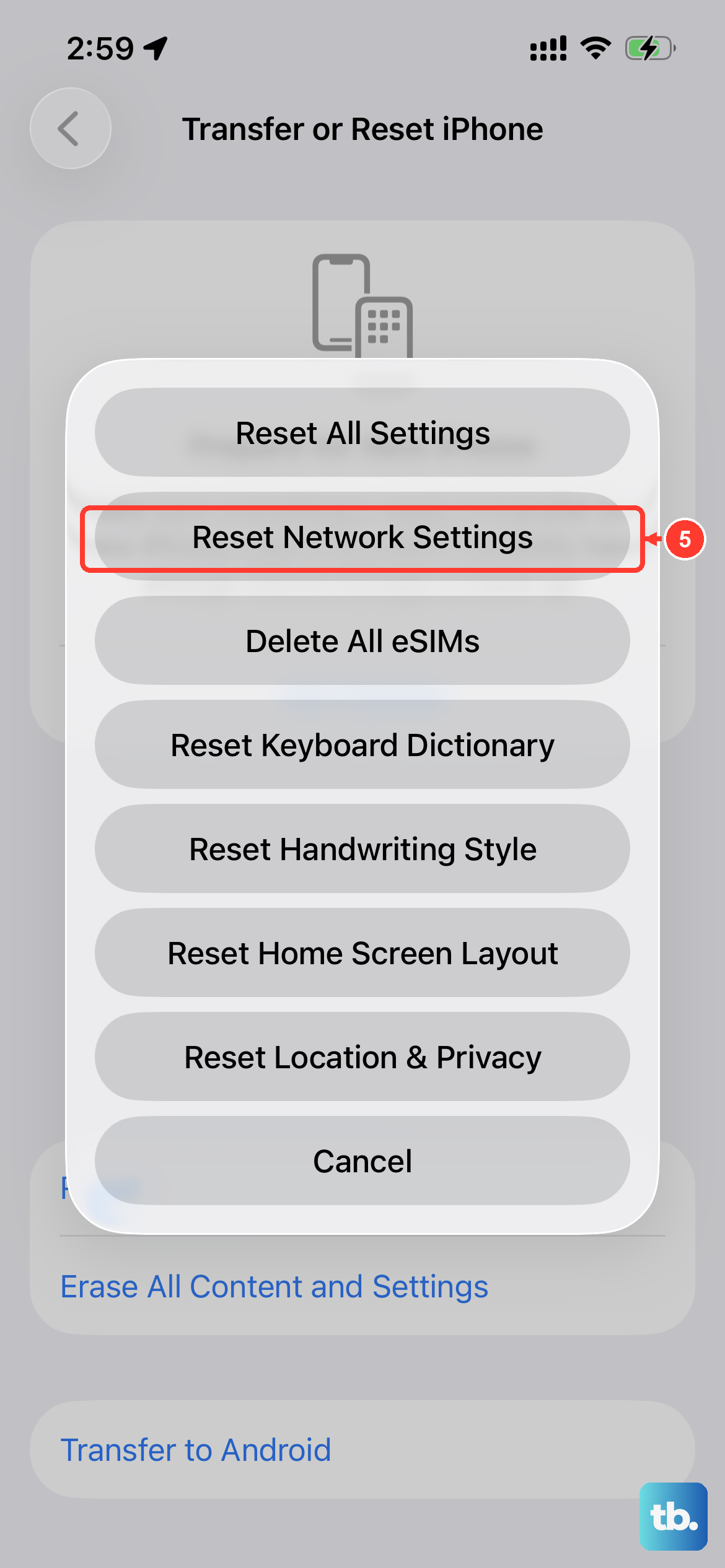
If the other fixes haven't helped with call connectivity or app-based calls not ringing, resetting network settings can be a useful step. This clears saved Wi-Fi networks and passwords, cellular settings, and VPN and APN settings.
Navigate to Settings > General > Transfer or Reset iPhone > Reset. This time, select "Reset Network Settings." Confirm your passcode, and your phone will restart. You'll then need to rejoin your Wi-Fi networks.