
When your iPhone 17e's keyboard disappears or stops responding, it can really halt your day. Since this is a brand new model running iOS 26, there are a few quick things you can try that often clear up these early software hiccups.
Force Restart Your iPhone 17e
This is the single most effective first step for any unresponsive app, including the keyboard. It clears the device's temporary memory without deleting any of your data. On the iPhone 17e, you force restart by quickly pressing and releasing the Volume Up button, then quickly pressing and releasing the Volume Down button, and finally pressing and holding the Side button until you see the Apple logo appear.
Once it boots back up, try opening Messages or Notes to see if the keyboard pops up normally.
Close and Reopen the App
If the keyboard is missing in just one app, like Safari or Mail, the app itself might be glitching. Swipe up from the bottom of the screen and pause in the middle to enter the app switcher. Find the problematic app and swipe it up and off the top of the screen to close it completely.
Then, tap the app icon again to relaunch it. This fresh start often resolves minor conflicts that can hide the keyboard.
Check Your Keyboard Settings
It's possible a setting was accidentally changed. Go to Settings > General > Keyboard. Here, make sure the keyboards you want to use are listed under "Keyboards."
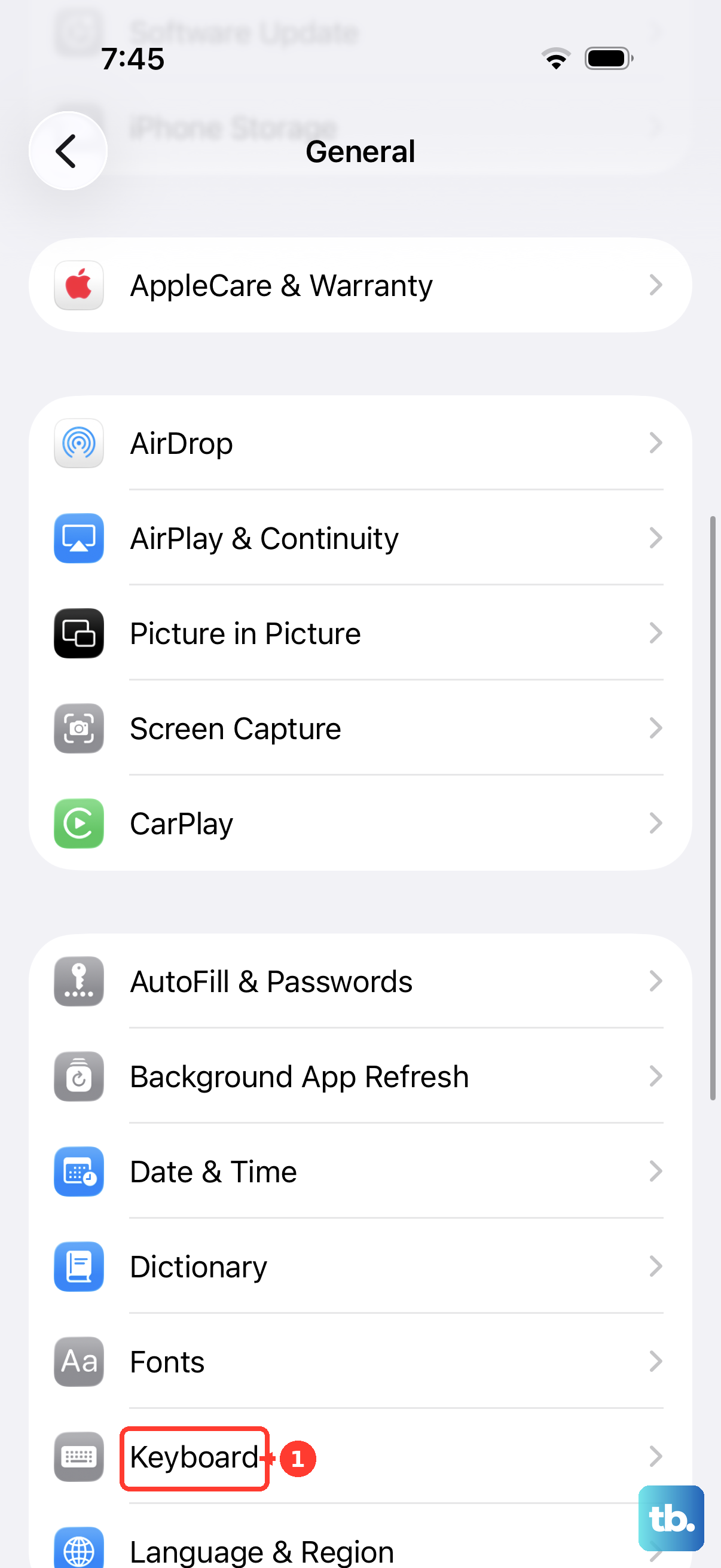
Tap "Keyboards" and ensure "English" or your primary language is present. If you use a third-party keyboard like Gboard, it should be listed here too. You can tap "Edit" in the top right to remove and re-add a keyboard if it seems stuck.
Toggle Off and On a Keyboard
Sometimes a keyboard's software gets into a bad state. In Settings > General > Keyboard > Keyboards, tap "Edit." You'll see a red minus icon next to each keyboard.
Tap the minus icon next to the problematic keyboard (or a third-party one) and confirm deletion. Don't worry, you're not deleting the app, just removing it from the active list. Immediately tap "Add New Keyboard..." and select it again from the list to re-enable it.
Update iOS
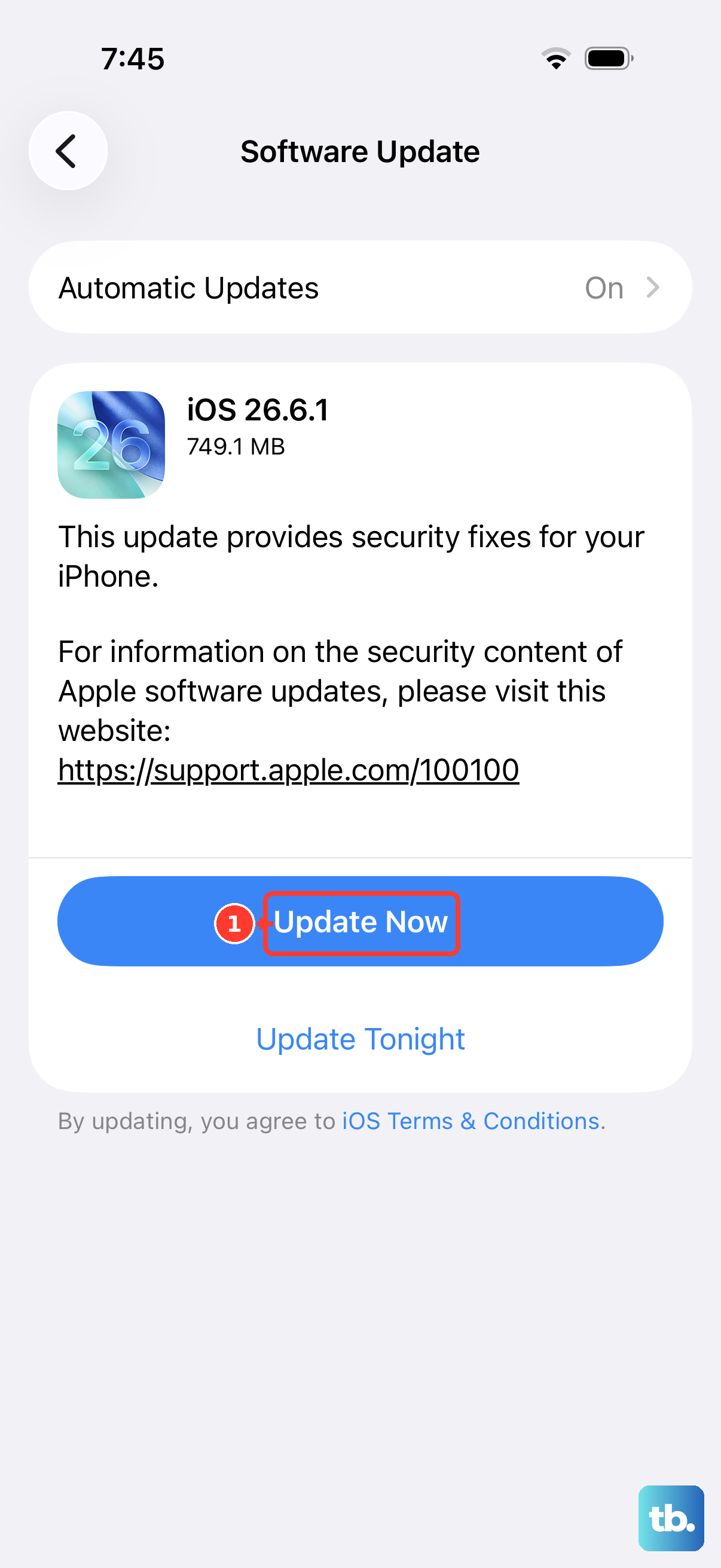
Your iPhone 17e is new, and Apple is likely releasing frequent iOS 26 updates to squash bugs. A keyboard issue could be a known bug that's already been patched. Go to Settings > General > Software Update.
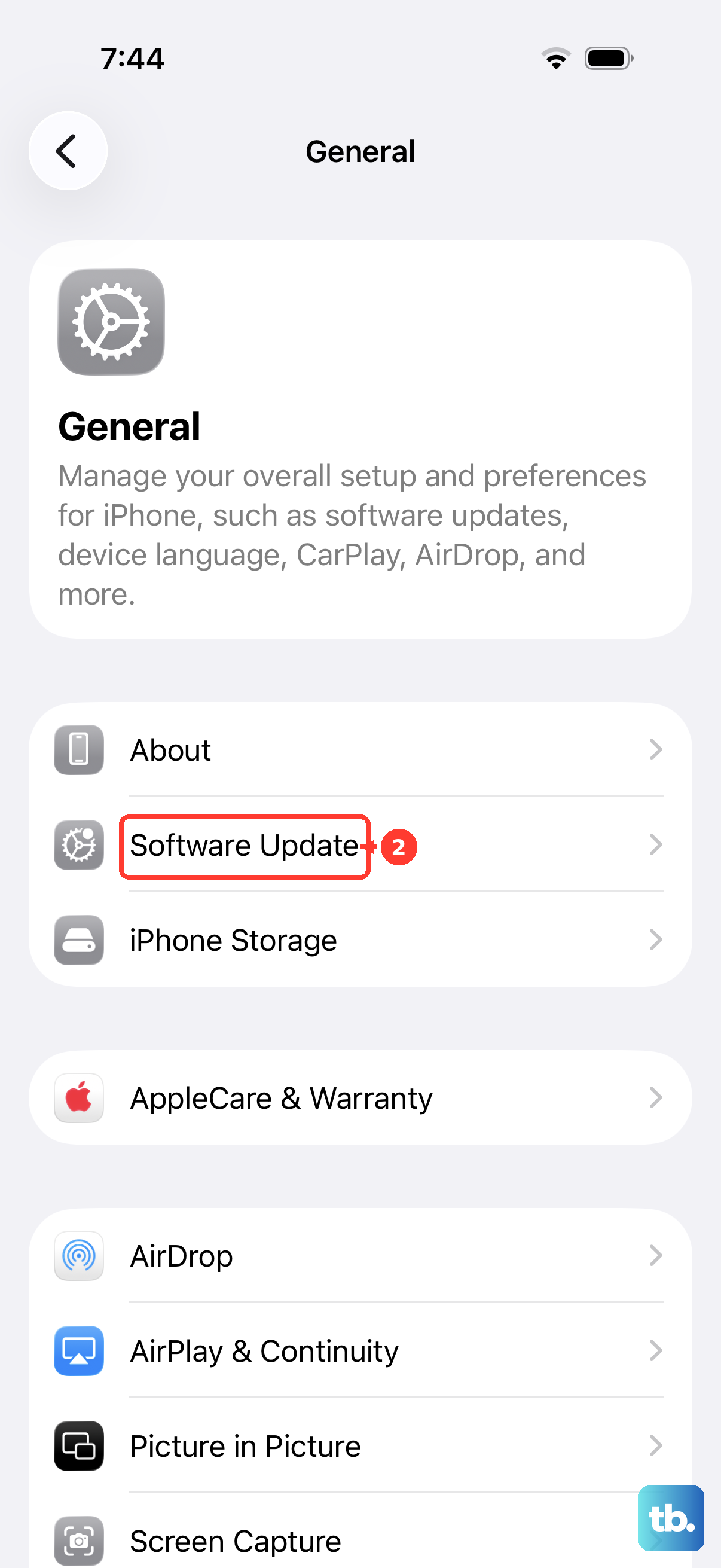
If an update is available, I'd recommend installing it. It's a good practice to plug your phone into power using its USB-C port or a MagSafe charger first, as the A19 chip can run warm during intensive tasks like updates.
Reset All Settings
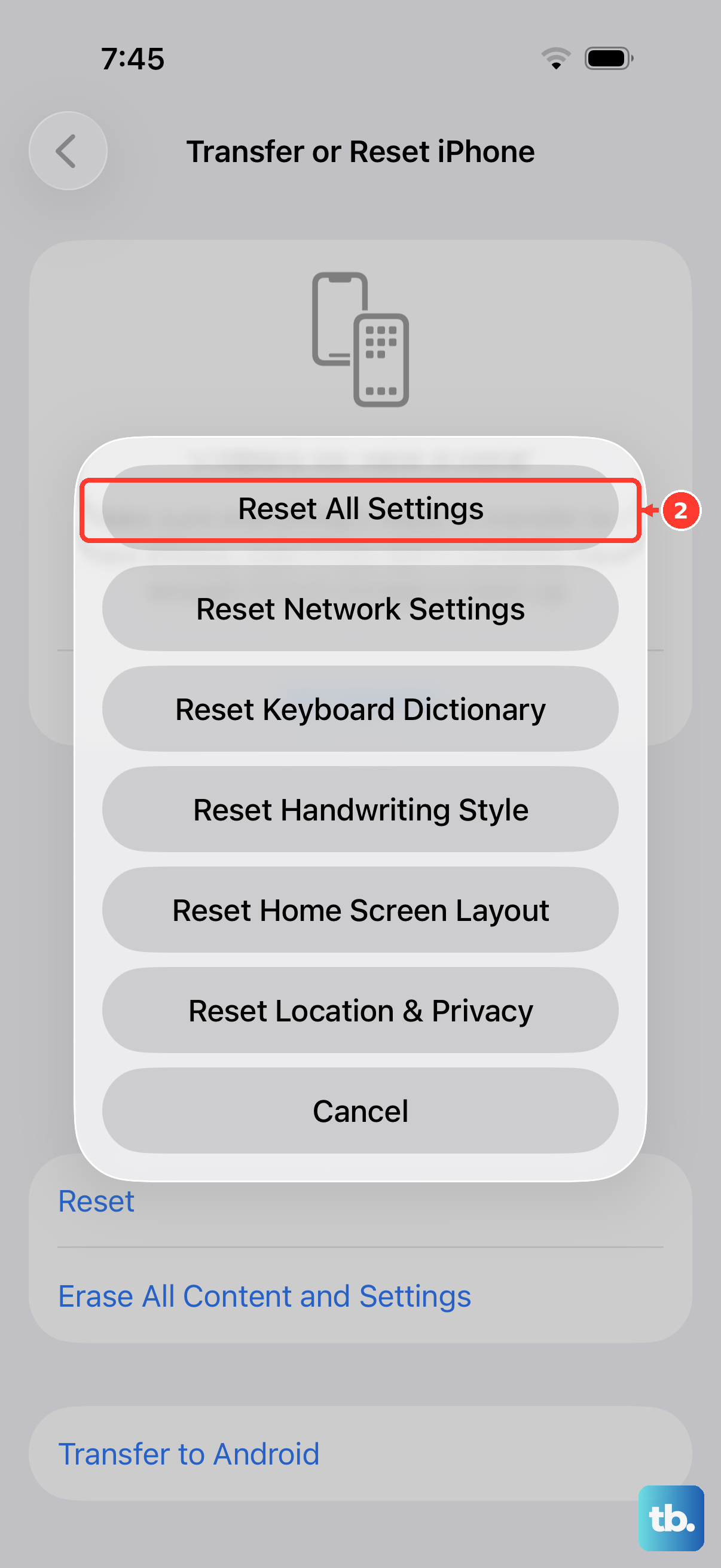
This is a stronger step that won't erase your photos, messages, or apps, but it will revert all your system preferences back to factory defaults. You'll lose Wi-Fi passwords, wallpaper choices, and notification settings, so be prepared to set those up again.
If the keyboard is still failing, go to Settings > General > Transfer or Reset iPhone. Tap "Reset" at the bottom, and then choose "Reset All Settings." Enter your passcode and confirm. When the phone restarts, test the keyboard in a basic app like Notes.
Check for App-Specific Issues
If the keyboard only fails in one app, like Instagram or Facebook, the problem is likely with that app, not your iPhone's system. Try updating the app through the App Store. Open the App Store, tap your profile icon in the top right, and see if the app has a pending update.
If an update doesn't help, try deleting the app and reinstalling it. You won't lose your account data, but you may lose some in-app settings.
Try a Third-Party Keyboard
As a diagnostic step, installing a different keyboard from the App Store can tell you if the issue is with iOS's default keyboard or something deeper. Popular options like Gboard or SwiftKey are free.
Once installed, you need to enable it. Go to Settings > General > Keyboard > Keyboards > Add New Keyboard. Select the keyboard you installed. Now, when you tap in a text field, you can press and hold the globe or emoji icon to switch to the new keyboard.
Restore Your iPhone
This is the most comprehensive fix and should be a last resort. You'll use a computer to install a fresh, clean copy of iOS 26. First, make sure you have a recent iCloud backup or create one using your computer.
Connect your iPhone 17e to your Mac or PC with a USB-C cable. On a Mac with macOS 12.4 or later, open Finder. On a PC or older Mac, open iTunes. Select your device, and choose "Restore iPhone." This will completely wipe the phone and install the latest iOS.
After it restarts, you can set it up as new to test the keyboard, or restore from your backup. If the problem was a deep software corruption, this should resolve it.