
When your iPhone 14 doesn't show up on your PC, it stops you from transferring photos, backing up files, or syncing music. This is a common hiccup, but it's almost always something you can fix yourself. The problem usually sits with the cable, the port, or a simple software setting.
I'd start with the cable and port, as that's the fix for most people. Grab your Lightning cable and check both ends. Make sure you're using a genuine Apple cable or an MFi-certified one, as cheaper cables often only handle charging and not data transfer.
Unplug it from both your iPhone and your computer, then plug it back in firmly. Try a different USB port on your PC, preferably one directly on the motherboard instead of a hub. If you have another cable handy, test with that one to rule out a faulty wire.
Clean the Lightning Port
Your iPhone 14's Lightning port is a magnet for pocket lint and debris. Even a tiny bit of compacted fluff can block the connector from seating properly, which breaks the data connection.
Shine a flashlight into the port. If you see any debris, power off your iPhone first for safety. Then, take a dry wooden toothpick or a plastic dental pick and gently scrape around the center tongue to loosen any gunk. Be very careful not to damage the gold contacts.
You can also use a can of compressed air to blow out loose particles. Never use metal objects, as they can short the pins. After cleaning, try the connection again.
Restart Your iPhone and Computer
A simple restart clears out temporary glitches that can block the connection. Start by restarting your Windows PC. Once it's back up, restart your iPhone 14.
If a normal restart doesn't help, try a force restart. On the iPhone 14, quickly press and release the Volume Up button, then quickly press and release the Volume Down button. Finally, press and hold the Side button until you see the Apple logo appear, then let go.
This force restart doesn't erase any data, but it can clear more stubborn software hiccups than a standard reboot.
Check the Trust This Computer Alert
When you connect your iPhone to a new computer, you must grant it permission. Look at your iPhone 14's screen for a prompt that says "Trust This Computer?" and tap Trust. If you accidentally tapped Don't Trust, you'll need to reconnect the phone to get the prompt again.
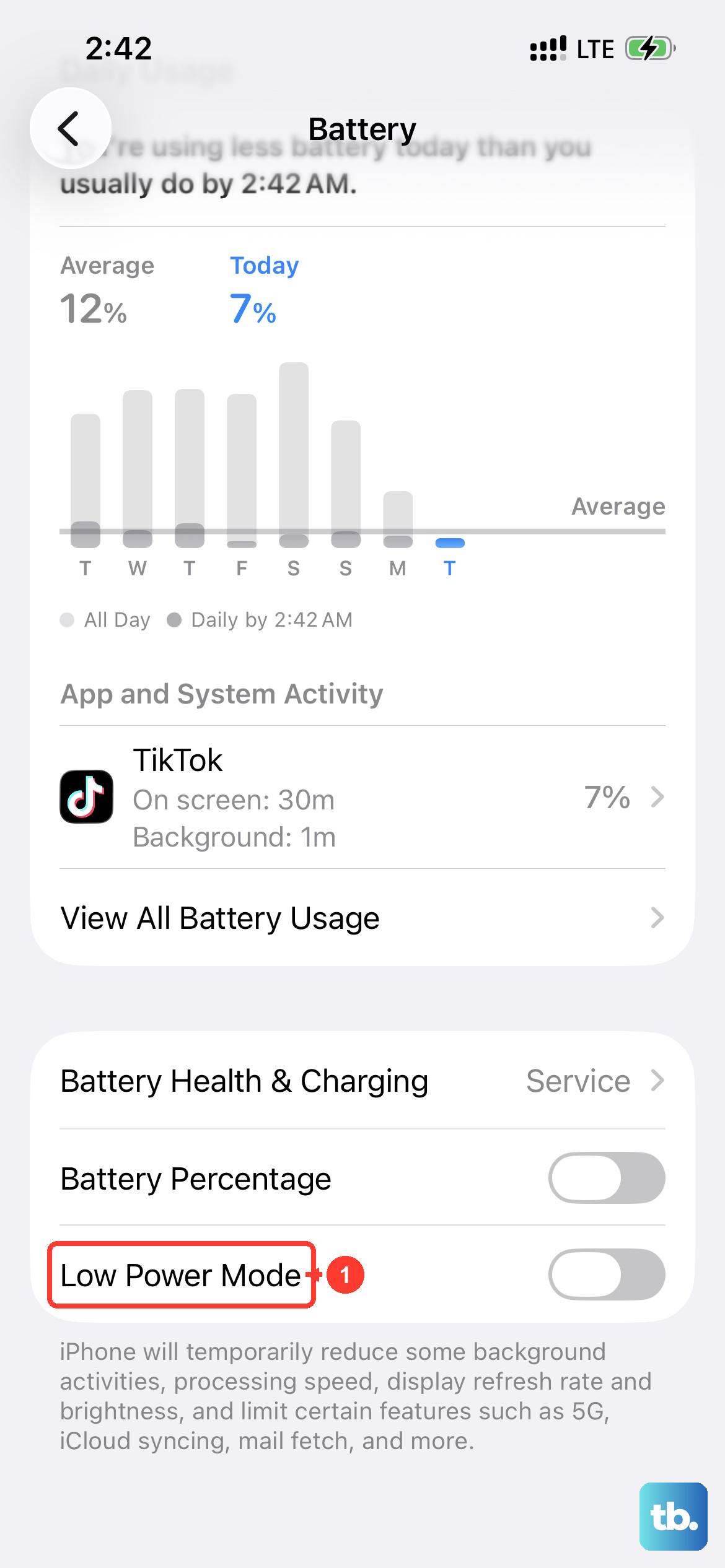
If the alert isn't appearing, unlock your iPhone with your passcode while it's connected. Sometimes the prompt gets stuck behind the lock screen. Also, make sure you're not in Low Power Mode, as some users have reported it can interfere with the trust process.
Update iTunes or Apple Devices App
On Windows, your iPhone 14 connects through either iTunes or the newer Apple Devices app. An outdated version can cause recognition problems.
If you use iTunes, open the Microsoft Store app and check for updates. For the Apple Devices app, you can get updates through the Microsoft Store as well. If you're on a Mac with macOS Catalina or later, your iPhone will connect directly through the Finder, so make sure your macOS is up to date via System Settings.
Update Your iPhone Software
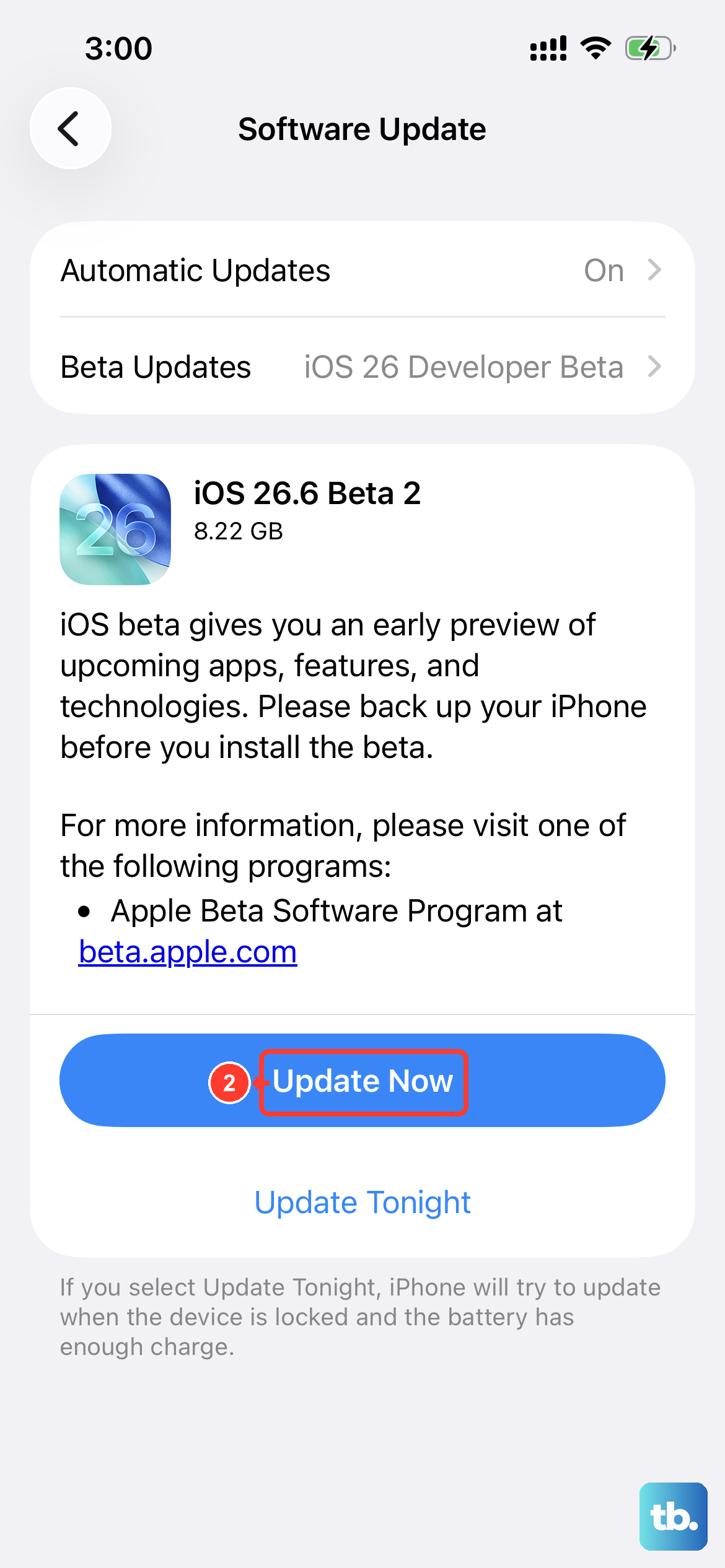
Go to your iPhone's Settings, then General, and tap Software Update. Install any available update. There was a known issue after the iOS 18 update that affected connectivity for some users, and subsequent updates have included fixes.
Keeping iOS updated ensures you have the latest drivers and bug patches for connecting to computers. Make sure your iPhone has at least 50% battery or is plugged into power before starting the update.
Update Windows and USB Drivers
Open Windows Update on your PC and install all available updates. This ensures your system has the latest USB drivers. You can also update drivers manually by opening Device Manager.
In Device Manager, look under Portable Devices or Universal Serial Bus controllers. If you see your iPhone listed with a yellow exclamation mark, right-click it and select Update driver. Choose "Search automatically for drivers." If that doesn't work, right-click the device, select Uninstall device, then disconnect and reconnect your iPhone to let Windows reinstall the driver.
Try a Different Computer or User Account
To figure out where the problem lies, try connecting your iPhone 14 to a different Windows or Mac computer. If it works there, the issue is with your original PC. If it doesn't work on any computer, the problem is likely with the iPhone, its cable, or its port.
On your own PC, try creating a new temporary user account and see if the iPhone connects there. This can tell you if the problem is with corrupted settings in your main user profile.
Reset Location & Privacy Settings
This resets the trust relationship with all computers without erasing your personal data. On your iPhone 14, go to Settings > General > Transfer or Reset iPhone. Tap Reset, then choose Reset Location & Privacy.
After the reset, reconnect your iPhone to the PC. You'll see the "Trust This Computer" alert again. Tap Trust. This often clears up persistent connection issues where the phone and computer have a confused handshake.
Check for Third-Party Software Conflicts
Security software like antivirus or firewall programs can sometimes block the connection between your iPhone and PC. Try temporarily disabling your antivirus real-time protection to see if that's the culprit.
Also, close any other phone management software you might have running, like older versions of third-party sync tools. The goal is to have only iTunes, the Apple Devices app, or Finder trying to communicate with your iPhone.