
If your iPhone 16 isn't buzzing for calls or notifications, start by checking its vibration settings. Settings or software may be the cause, so try the checks below before arranging service for a possible hardware problem.
Force Restart Your iPhone
This is the universal first step for any weird iPhone behavior, including a silent vibration motor. It clears out temporary glitches without touching your data. On the iPhone 16, you'll quickly press and release the Volume Up button, then press and release the Volume Down button. Finally, press and hold the Side button until you see the Apple logo appear on the screen.
Wait for the phone to reboot completely. Once it's back on, open Settings > Sounds & Haptics, tap Ringtone, then tap Haptics and choose a pattern. Try calling your phone from another device to check whether it vibrates.
Check Silent Mode
Your iPhone 16 has an Action button instead of a Ring/Silent switch. If the button is assigned to Silent mode, press and hold it to turn Silent mode on or off. Silent mode silences ringing and alerts, but your phone may still vibrate.
If your Action button has another assignment, open Settings > Sounds & Haptics and turn Silent mode on or off there. Now, try calling your phone from another device to check its behavior in the mode you normally use.
Verify Sound and Vibration Settings
Head into your Settings app and tap on Sounds & Haptics. Tap Ringtone, then Haptics and choose a vibration pattern. You can also tap Create New Vibration to record your own pattern for incoming calls.
While you're here, use the volume slider below Ringtone to adjust how loud incoming calls sound. The slider controls ringer volume, while Haptics controls the vibration pattern. Turn Change with Buttons on or off depending on whether you want the volume buttons to adjust ringer volume.
Test and Adjust Keyboard Haptics
If vibration is missing while you type, go back to Settings > Sounds & Haptics and tap Keyboard Feedback. Turn Haptic on, then type a message to check the feedback.
If you still don't feel feedback, open Settings > Accessibility > Touch and make sure Vibration is turned on. For feedback from system controls and interactions, return to Settings > Sounds & Haptics and turn System Haptics on.
Review Focus Mode Settings
Focus modes can silence calls and notifications. Swipe down from the top-right corner to open the Control Center and see if any Focus icon (like a moon for Do Not Disturb) is active. Tap it to turn it off.
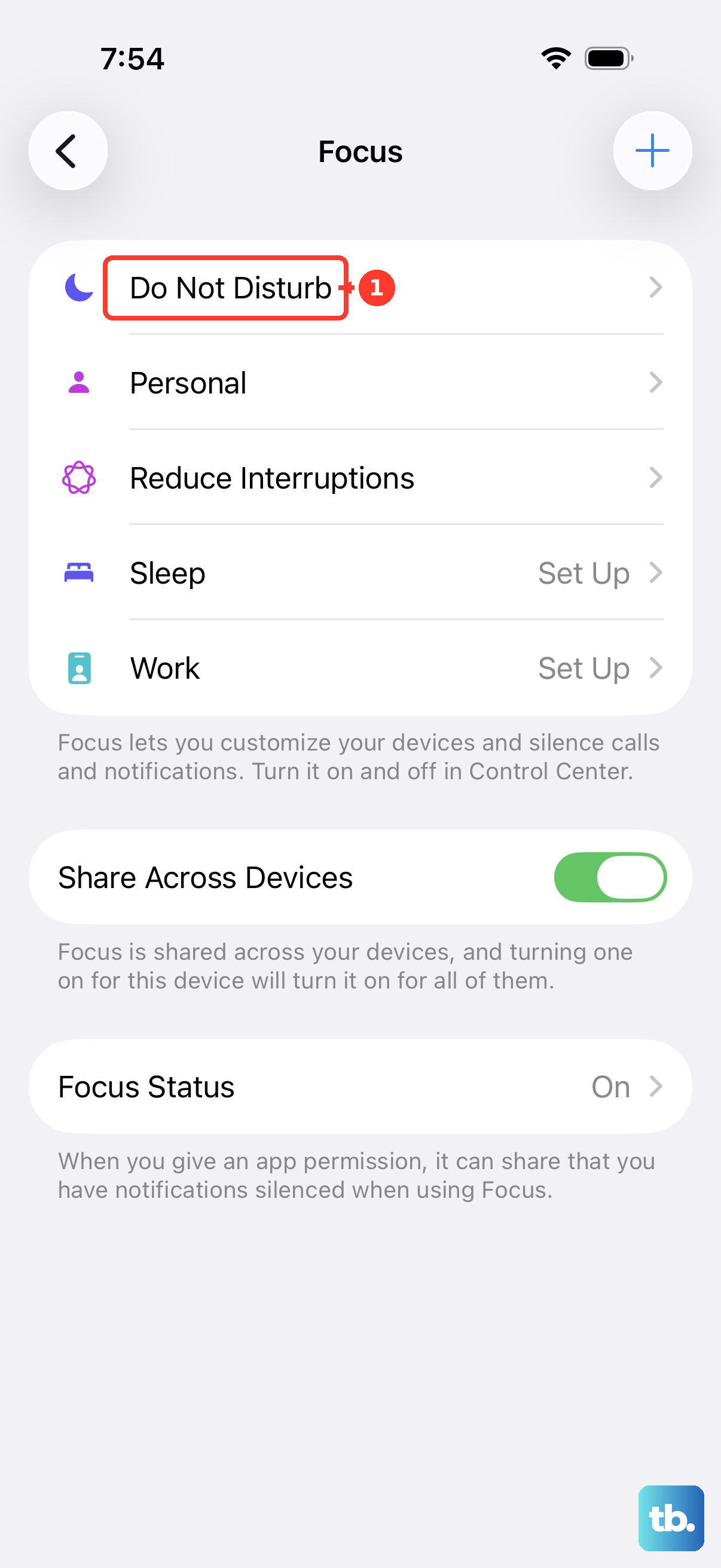
If vibration is still missing for specific people or apps, you need to dig deeper. Open Settings > Focus. Select the Focus mode you use most often, like Do Not Disturb or Personal. Tap on Apps or People and make sure your important contacts and messaging apps are allowed to notify you.
Check App-Specific Notification Settings
Sometimes the system is set correctly, but an individual app has its notifications disabled. Open Settings > Apps and select the app giving you trouble, like Messages or WhatsApp. Tap on it, then select Notifications.
Ensure notifications are allowed at the top. For text-message vibrations, open Settings > Sounds & Haptics > Text Tone. Tap Haptics and choose a pattern, or tap Create New Vibration to record one. Other alert categories have their own haptic patterns too.
Update iOS
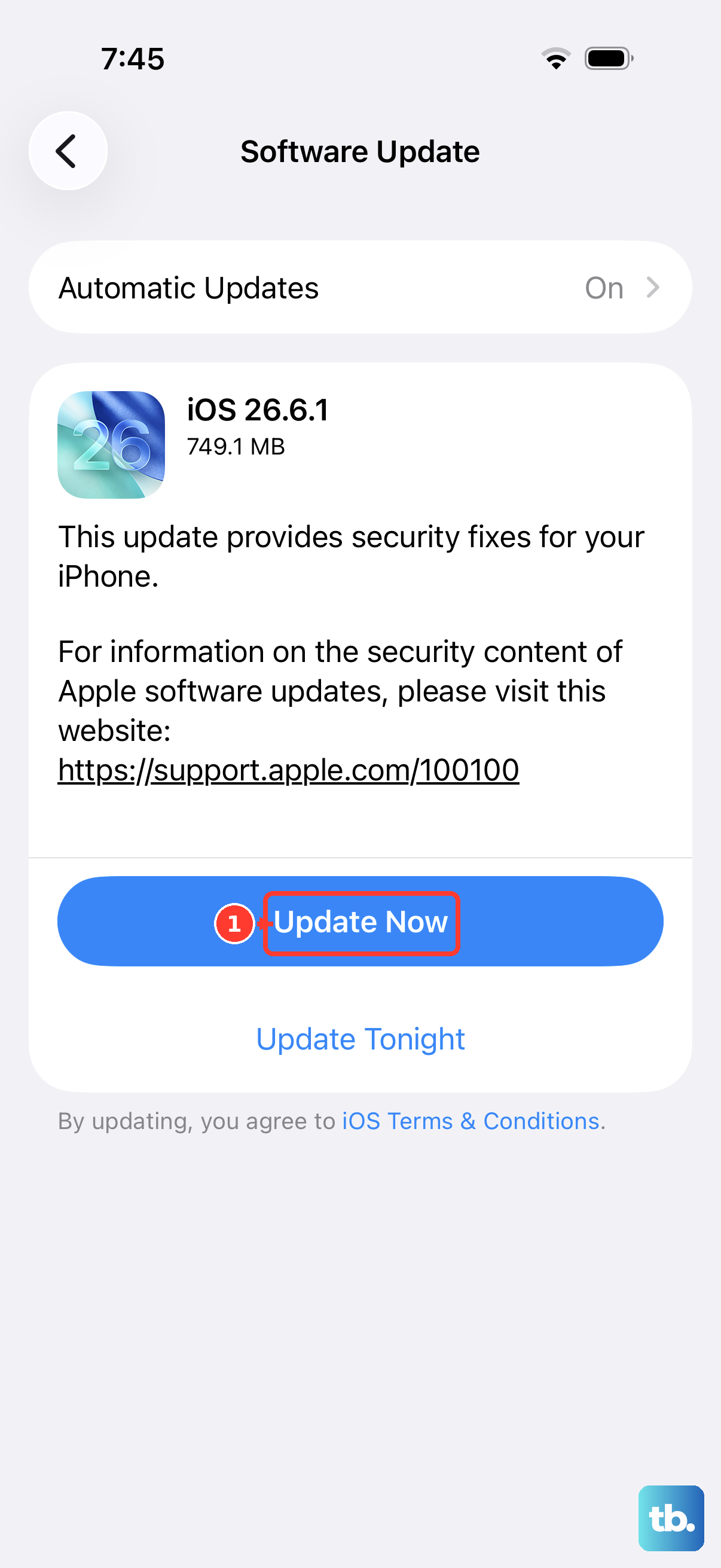
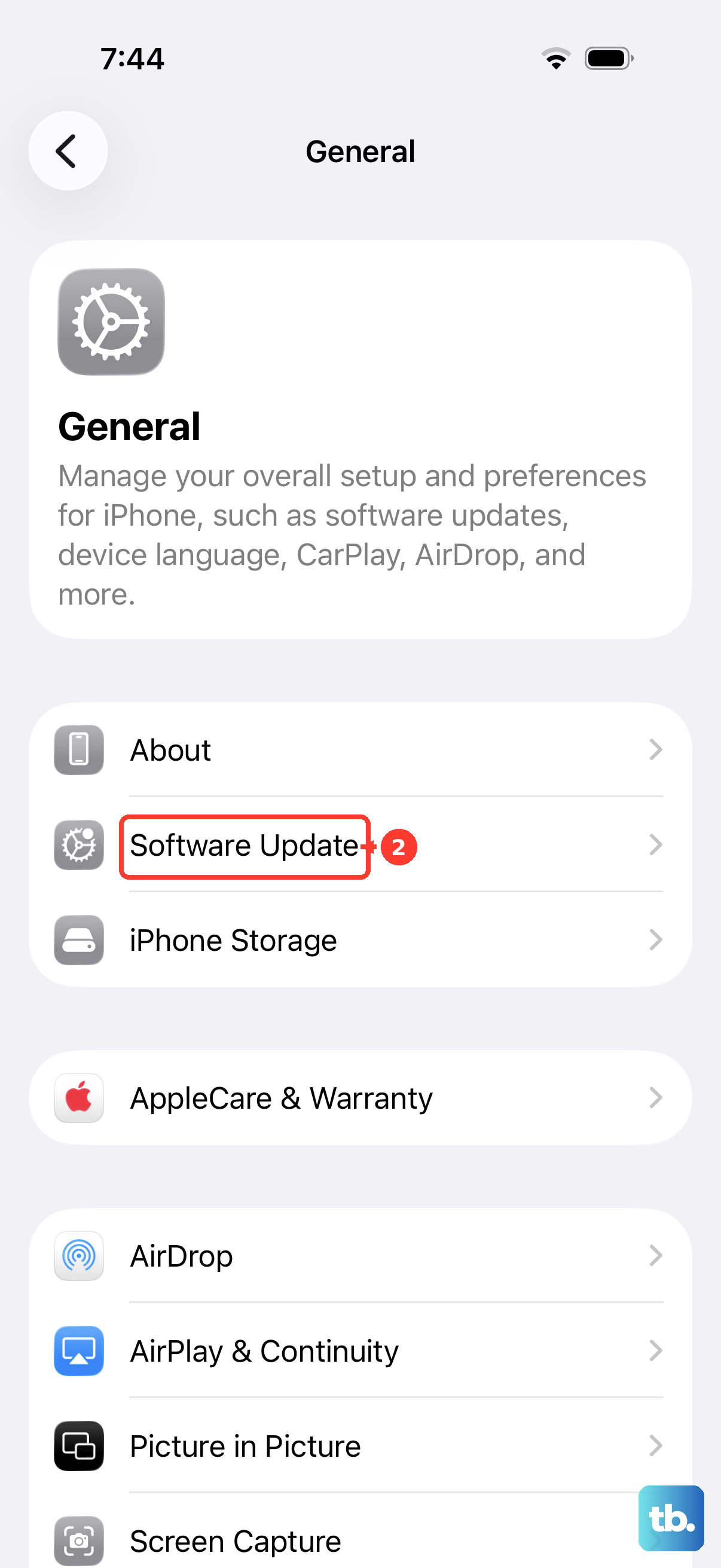
A software issue could be responsible. Back up your iPhone 16 before updating, then connect it to Wi-Fi and plug it into power. Open Settings > General > Software Update to check for the latest version of iOS.
If an update is available, tap Download and Install. Follow any onscreen instructions and keep your phone connected to power while it updates. Let the update complete and then test your vibration again.
Reset All Settings
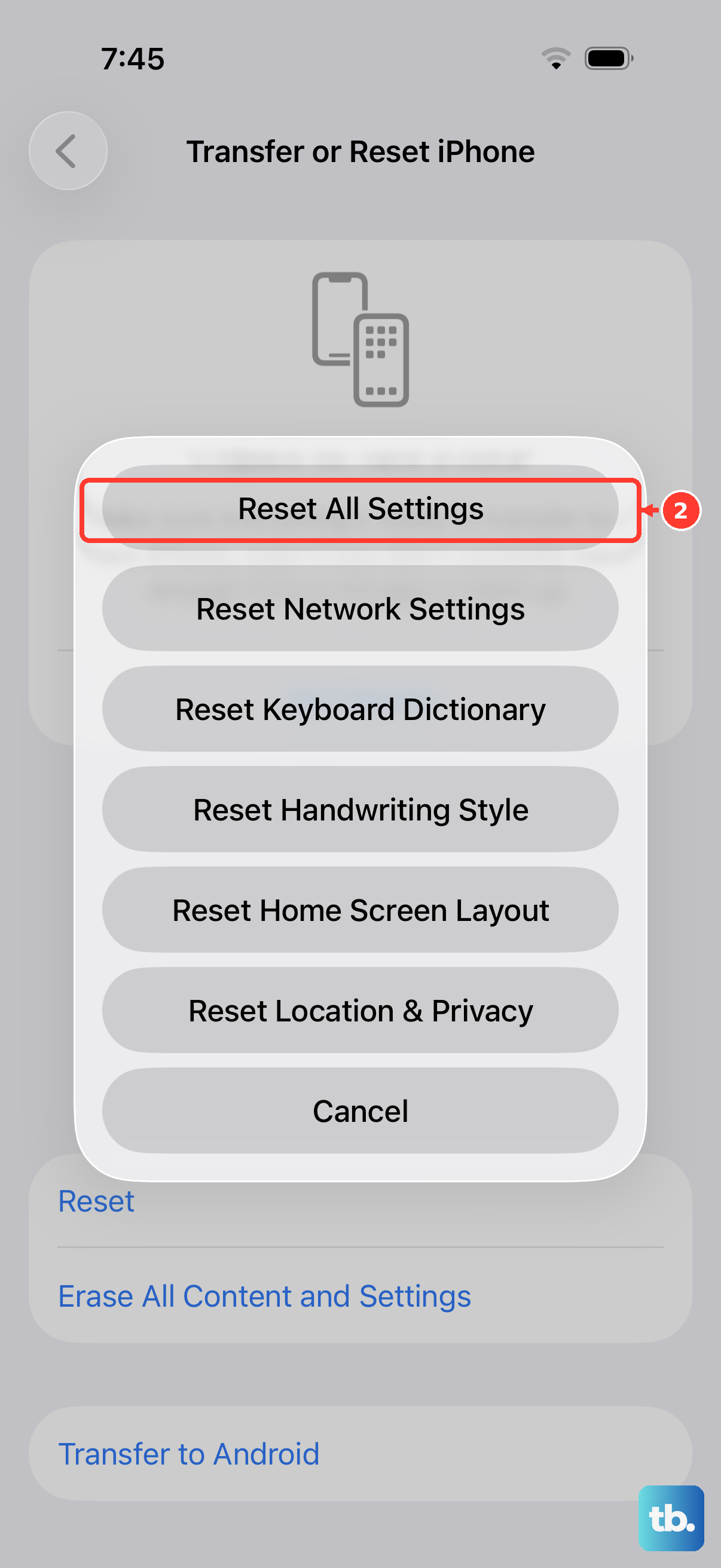
If you've checked everything and the vibration is still dead, this is a strong next step. It will reset all your preferences, like wallpaper, network settings, and privacy permissions, back to factory defaults without erasing any of your personal data, photos, or apps.
Go to Settings > General > Transfer or Reset iPhone. Tap on Reset and then choose Reset All Settings. You'll need to enter your passcode. Afterward, rejoin Wi-Fi, re-pair Bluetooth devices and any Apple Watch, and set up Face ID again. Then test vibration before changing other settings.