
When your iPhone 17 Pro isn't recognized by your PC, it stops you from transferring photos, syncing files, or doing a local backup. This is a common hiccup, but it's almost always something you can fix yourself without a trip to the Apple Store.
The issue usually comes down to a few simple things: a finicky cable, a software setting on your phone, or a driver issue on your Windows computer. Let's start with the quickest fix that works most of the time.
Check the Cable and Port
This is the most likely culprit. The iPhone 17 Pro uses a USB-C port, but not all USB-C cables are created equal. Some are designed only for charging and don't support data transfer. Grab the cable that came with your phone, or another high-quality USB-C cable you know works for data.
Try plugging it into a different USB-C port on your computer, if you have one. Front-panel ports can sometimes be underpowered or glitchy, so use one directly on the motherboard on the back of a desktop PC. While you're at it, take a quick look inside the phone's port with a flashlight for any lint or debris.
Unlock and Trust the Computer
This step catches a lot of people. When you connect your iPhone 17 Pro, you must have the screen unlocked. A prompt should appear asking if you want to "Trust This Computer." If you accidentally tapped "Don't Trust" before, your phone will remember and won't ask again.
To reset this, go to Settings > General > Transfer or Reset iPhone > Reset. Tap Reset Location & Privacy. This will clear all trusted computer connections, and you'll get the "Trust" prompt again the next time you plug in.
Force Restart Your iPhone 17 Pro
A simple restart can clear out a temporary software bug that's blocking the connection. For the iPhone 17 Pro, you force restart by pressing and quickly releasing the Volume Up button, then quickly pressing and releasing the Volume Down button. Immediately after, press and hold the Side button until you see the Apple logo appear, then let go.
Wait for it to boot up fully, then try connecting it to your PC again. It's also a good idea to restart your computer at the same time to cover all bases.
Update Your iPhone Software
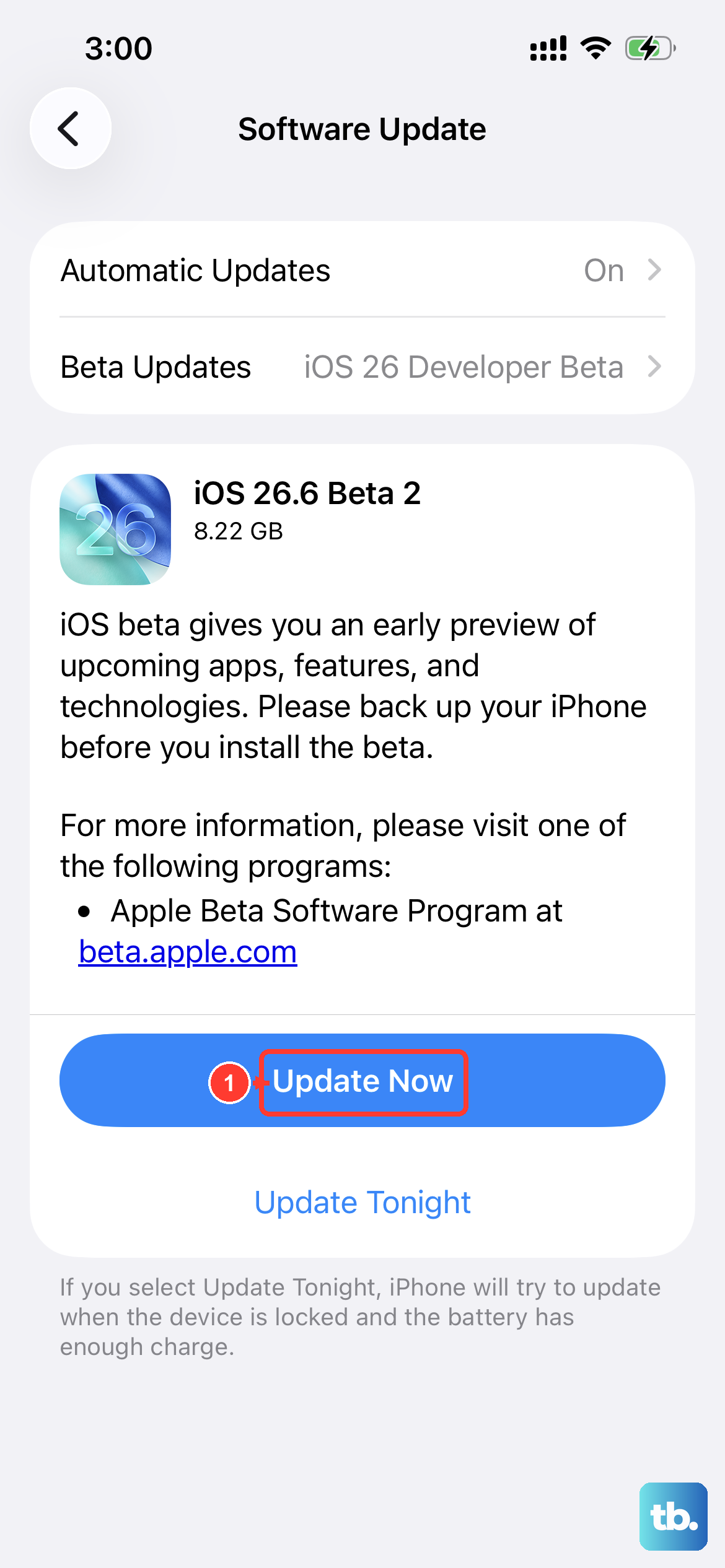
Apple frequently releases iOS updates that include bug fixes for connectivity. Make sure your iPhone 17 Pro is running the latest version of iOS 26. Go to Settings > General > Software Update.
If an update is available, install it. I've seen updates specifically address issues where phones wouldn't appear in Windows File Explorer. It's a straightforward fix that's easy to overlook.
Check the USB Connection Setting
When you connect your iPhone, iOS decides how to handle the connection. Sometimes it gets set to a mode your PC doesn't understand. Immediately after plugging in your phone and unlocking it, a small USB icon or connection notification should appear near the top of your screen or in the Dynamic Island.
Tap on it. Unlike Android, the iPhone doesn't have a USB mode selector, so there are no "Charge Only," "File Transfer," or "Photos" options to choose from, and there is no "USB Preferences" setting under AirPlay & Handoff. Once you tap "Trust This Computer" with the phone unlocked, Windows recognizes it as a Portable Device automatically, and you access your photos and videos through File Explorer, the Windows Photos app, or the Apple Devices app.
Update Drivers on Windows
Windows needs the correct driver to talk to your iPhone. Open the Device Manager on your PC (search for it in the Start menu). Look under "Portable Devices" or "Universal Serial Bus controllers" for anything with a yellow exclamation mark or listed as "Apple Mobile Device," "iPhone," or "Unknown Device."
Right-click on it and select "Update driver." Choose "Search automatically for updated driver software." Windows will often find and install the generic Apple driver it needs. If that doesn't work, you may need to uninstall the driver, disconnect your phone, restart your PC, and then reconnect to trigger a fresh driver installation.
Try a Different Computer or OS
This is a great diagnostic step. If you have access to another computer, even a Mac, try connecting your iPhone 17 Pro to it. If it works perfectly on the other machine, then the problem is isolated to your primary PC's software, drivers, or USB ports.
If it doesn't work on any computer, then the issue is almost certainly with the phone's cable, port, or a software setting that needs a deeper reset.
Check for PC Software Conflicts
Security software, especially third-party antivirus or firewall suites, can sometimes block the connection between your iPhone and PC. Try temporarily disabling your antivirus's real-time protection (just for a minute) and see if your iPhone appears in File Explorer.
Also, if you have any old phone management software like iTunes from years ago or utilities from other phone manufacturers, they can cause conflicts. Uninstalling them through the Windows Control Panel can clear the path for a clean connection.
Reset All Settings on Your iPhone
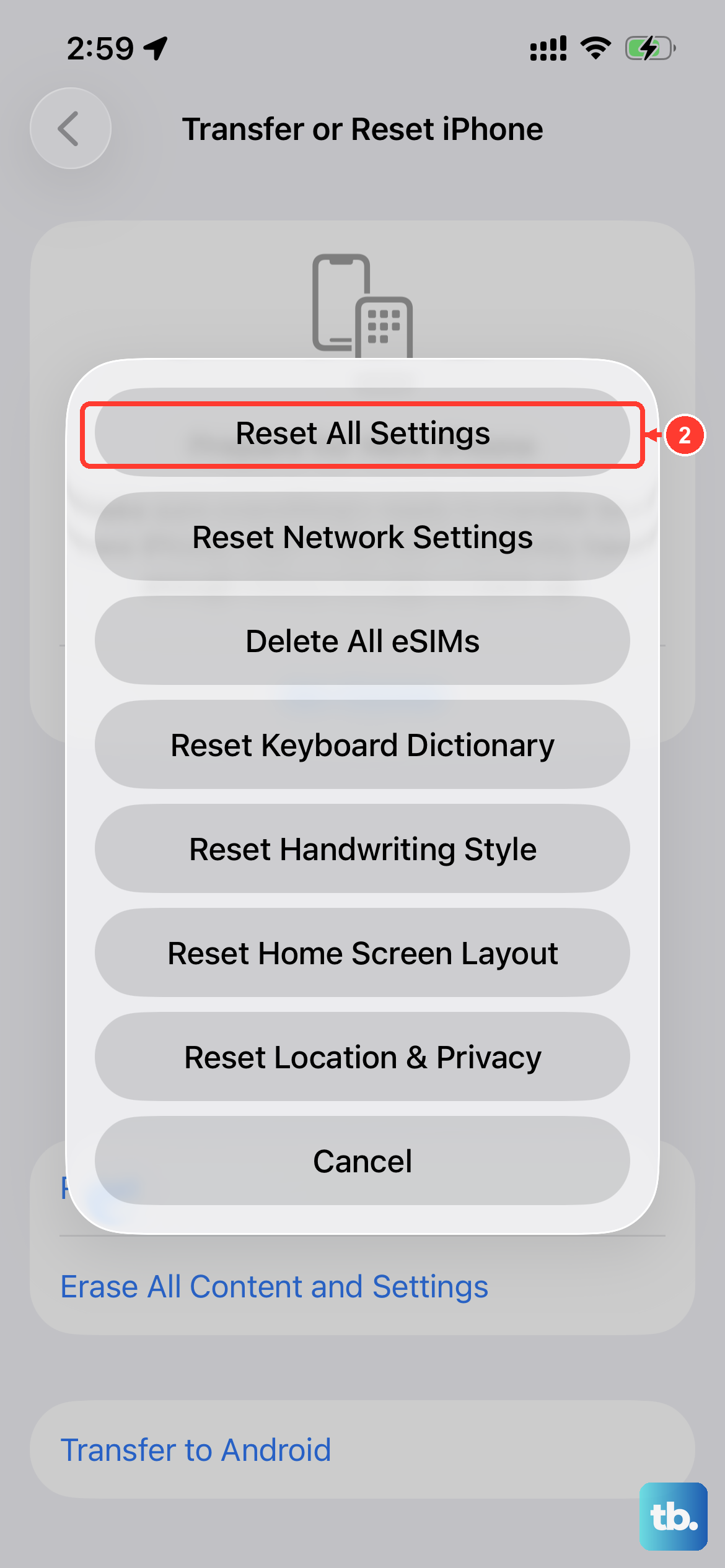
If you've tried everything else, this is a more comprehensive reset that won't erase your personal data. It will reset all your system settings, Wi-Fi passwords, wallpaper, privacy permissions, and importantly, network and connection settings.
Go to Settings > General > Transfer or Reset iPhone > Reset. Choose Reset All Settings. After your phone reboots, you'll need to reconnect to Wi-Fi and re-adjust some preferences, but it often resolves stubborn USB recognition problems.
Consider the USB Port Hardware
While less common, hardware issues are possible. If your iPhone 17 Pro charges perfectly with the same cable but just isn't recognized for data, the data pins in the USB-C port might be damaged. Inspect the port carefully for any bent pins or debris you might have missed.
Also, remember that the iPhone 17 Pro supports very fast 60W charging, but only with Apple's specific 40W Dynamic Power Adapter. That's a charging issue, not a data one, but using a high-quality cable rated for high-speed data is crucial for a reliable PC connection.











