


Press Windows + + to start Windows Magnifier, then use Windows + + or Windows + - to enlarge or reduce the view. Press Windows + Esc to close it. On versions with view locking, that exit shortcut releases existing locks first, so press it again to exit.
The steps below use Windows 11 menus. Magnifier is included with Windows 11, so you do not need to download or install it. You can enlarge the whole screen, use a movable lens, or keep an enlarged view in a separate strip.
The short version
- Start and zoom: Press Windows + + to open Magnifier and increase magnification.
- Reduce magnification: Press Windows + - to zoom out.
- Choose a view: Use Full screen, Lens, or Docked to suit what you want to enlarge.
- Open settings: Press Windows + Ctrl + M to adjust Magnifier.
- Exit: Press Windows + Esc, repeating it if the first press releases view locks.
| View | What it enlarges | Shortcut |
|---|---|---|
| Full screen | The whole screen | Ctrl + Alt + F |
| Lens | The area inside a movable lens | Ctrl + Alt + L |
| Docked | An area shown in a separate magnified strip | Ctrl + Alt + D |
Open Magnifier and its settings
You can also turn Magnifier on through Settings. On Windows 11, open Start > Settings > Accessibility > Magnifier, then turn on Magnifier. The same switch turns it off.
For direct access to its settings, press Windows + Ctrl + M. You can also press Windows + U and select Magnifier. To operate the switch without a mouse, press Tab until it has focus, then press Spacebar to change its state. If you use Narrator, it can announce the focused control.
Quick settings offers another route on Windows 11 installations with the Accessibility flyout. Press Windows + A, select Accessibility, and turn on Magnifier. For keyboard navigation within the flyout, use the Arrow keys to reach the switch and press Spacebar.
Adjust the zoom to a comfortable size
With Magnifier running, press Windows + + to zoom in or Windows + - to zoom out. You can also hold Ctrl + Alt while scrolling the mouse wheel. For mouse controls, select the + or - button on the Magnifier toolbar.
With the toolbar focused, press Tab or Shift + Tab to reach a control, then press Spacebar to activate it. Press Esc to leave an options list.
To set the starting magnification on Windows 11, open Settings > Accessibility > Magnifier and adjust Zoom level. Choose a value under Zoom increments to control how much each zoom action changes the view. Depending on your installed Magnifier version, you can also open Settings on its toolbar and choose Zoom increments.
On updated Windows 11, press Ctrl + Alt + - to alternate between your selected magnification and normal size at 1×. In Full screen view, hold Ctrl + Alt + Spacebar for a temporary desktop overview, then release the keys to return.
Choose a view and resize it
On Windows 11, open Settings > Accessibility > Magnifier > View, then choose Full screen, Lens, or Docked. Use the shortcuts in the table to switch directly, or press Ctrl + Alt + M to cycle through the views.
To resize the lens on Windows 11, select Lens under Settings > Accessibility > Magnifier > View, then adjust the Change lens size sliders. You can also resize it with Shift + Alt + an Arrow key. Another option is to press Ctrl + Alt + R, then move the mouse to resize the lens.
In Docked view, drag the strip's inner boundary to resize it. Drag the dock to another screen edge to reposition it, or drop it away from an edge to make it a floating window.
Move around and choose what Magnifier follows
Move the pointer toward a screen edge to move around the enlarged screen. You can also press Ctrl + Alt + an Arrow key. In Docked view, that keyboard shortcut moves the dock to the corresponding edge instead.
On Windows 11, open Settings > Accessibility > Magnifier > View with Full screen or Docked selected. Under Have Magnifier follow my, check the options you want: Mouse pointer, Keyboard focus, Text cursor, and Narrator cursor. Uncheck unwanted options if the view follows activity you do not want to track.
For more control in Full screen view, choose Within the edges of the screen or Centered on the screen for Keep the mouse pointer and Keep the text cursor. These settings control where the pointer and typing cursor sit within the enlarged view. If the pointer itself is missing, follow the steps to restore a missing mouse cursor.
Make enlarged content easier to read
On Windows 11, open Settings > Accessibility > Magnifier and turn on Smooth edges of images and text. Turn it off again to compare the appearance and choose the result you prefer. If your screen also looks blurry outside Magnifier, follow the steps to fix a blurry computer screen.
You can also invert colors while Magnifier is active by pressing Ctrl + Alt + I. Press the same combination again to restore normal colors.
Have Magnifier read text aloud
Start Magnifier, then press Ctrl + Alt + Enter to begin reading aloud. The same shortcut pauses or resumes reading, and the toolbar's Play button also starts it. These keyboard commands assume the default reading modifier.
To begin at a particular passage, hold Ctrl + Alt and left-click the text. Press Ctrl + Alt + H to read the previous sentence or Ctrl + Alt + K to read the next sentence. Press any key to stop reading. You can also click the desired starting location and select Read from here on the toolbar.
Open Settings on the Magnifier toolbar to adjust Speed or choose Voice. On Windows 11, you can also open Settings > Accessibility > Magnifier > Reading to choose Reading voice and Reading shortcut. Voice choices depend on the voices installed, and changing the reading shortcut means using your chosen modifier for reading commands.
Use Magnifier with a touchscreen
On Windows 11 touchscreen devices with the updated touch-bar setting, open Settings > Accessibility > Magnifier > Appearance. Turn on Show touch bars when using a touchscreen device. These bars are off by default.
With touch bars enabled, tap + or - to adjust magnification, and drag along the horizontal or vertical bars to move the view. You can also place one finger on each vertical bar, then pinch or spread to change the zoom. Tap opposite bars simultaneously for an overview, or tap X at 100% to exit.
Adjust Magnifier across multiple monitors
On Windows 11 builds exposing independent display zoom, you can set a different zoom level for each monitor. Microsoft includes this feature in Release Preview builds 26200.9807 and 26300.9807, so the controls depend on your installed build and rollout.
On Windows 11, configure extended displays under Settings > System > Display. Then, on Windows 11 builds with the feature, open Settings > Accessibility > Magnifier > Multiple display controls and enable Zoom each display independently. Move the pointer to the display you want to adjust and change its zoom, or move the toolbar there and use its controls. Disable the option if you prefer one magnified workspace spanning your displays.
On Windows 11 builds with independent display zoom and view locking, enable independent zoom, point to a monitor, and press Ctrl + Windows + K to lock or unlock its view. Press Windows + Esc to release all locks. To use Ctrl + Alt + P instead, on those Windows 11 builds open Settings > Accessibility > Magnifier > Multiple display controls > Lock view shortcut and choose that combination.
Choose when Magnifier starts and stops
To have Magnifier start automatically on Windows 11, open Settings > Accessibility > Magnifier and expand Magnifier. Check Start Magnifier after sign-in to start it after you sign in. Check Start Magnifier before sign-in to make it available to everyone at the lock screen, or select both options.
If Magnifier opens automatically when you do not want it, uncheck the corresponding startup checkbox. To end your current session, press Windows + Esc; on versions with view locking, press it again if the first press releases locks. If the display still looks enlarged after Magnifier closes, follow the steps to return your screen to normal size.
Frequently Asked Questions
Can I open Magnifier through Windows Search?
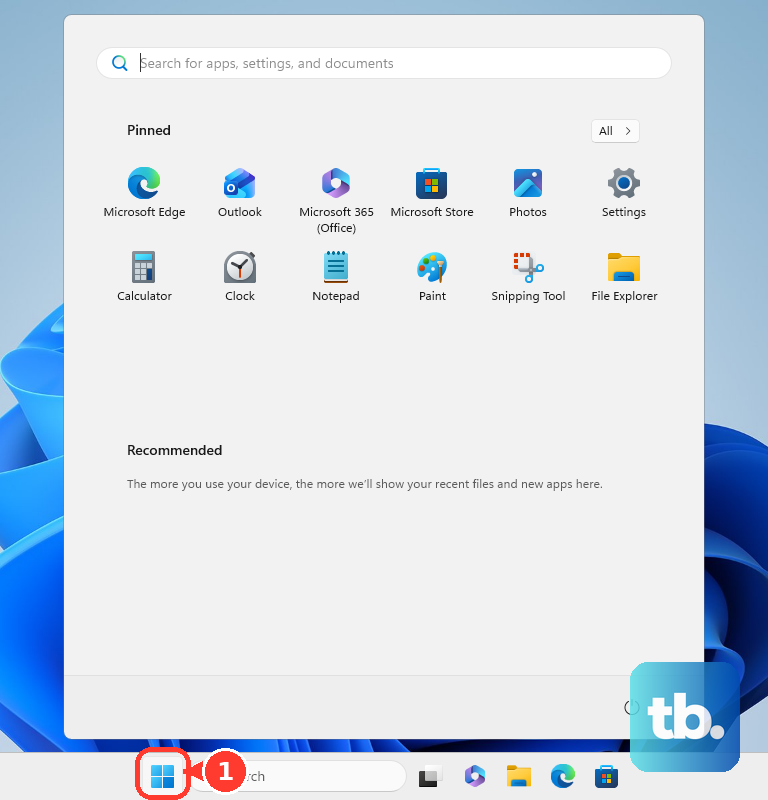
On Windows 11, press Windows + S, type Magnifier, and open the matching Magnifier app result. You can also open Start and search for Magnifier.
Can I open Magnifier settings through Run?
On Windows 11, press Windows + R, enter ms-settings:easeofaccess-magnifier, and press Enter. This opens Magnifier settings, where you can turn on Magnifier.
Can I add more voices for Magnifier reading?
On Windows 11 versions exposing Add voices, open Settings > Accessibility > Magnifier > Reading > Add voices. Choose a language, preview voices, and select the voice entries you want to download. Previewing and downloading require internet access.
Can I back up my Magnifier preferences?
On a Windows 11 consumer device using a personal Microsoft account, open Settings > Accounts > Windows backup. Under Remember my preferences, select Accessibility. Alternatively, open Windows Backup, enable Accessibility under the settings preferences, and select Back up. The backed-up Magnifier preferences include startup, zoom, view, tracking, and reading-shortcut settings.
Can I apply a contrast theme through Magnifier?
On Windows 11 Insider Release Preview builds 26200.9807 and 26300.9807, versions 25H2 and 26H2, Microsoft is gradually rolling out a Magnifier contrast-theme control across all editions. If your installation has the control, use the contrast-theme toggle on the Magnifier toolbar. On those Windows 11 builds, open Settings > Accessibility > Magnifier to choose a different theme.