


To get your computer screen back to normal size, reset browser zoom with Ctrl + 0 on Windows or Command + 0 on Mac, or restore the recommended display settings when the whole desktop is affected. On Windows, press Windows + Esc first to turn off Magnifier. On a Mac, check System Settings > Accessibility > Zoom for screen magnification.
Choose the adjustment that matches what changed: one webpage or app, the entire desktop, text and icons, a full-screen window, or the edges of an external display. There is no universal normal display percentage, so use your screen's recommended or default settings rather than forcing every computer to 100%.
The short version
- One webpage: Press Ctrl + 0 on Windows or Command + 0 on Mac to restore its configured default zoom.
- Magnified desktop: Turn off Windows Magnifier or Mac accessibility Zoom before changing resolution.
- Everything looks wrong: Restore recommended scale and resolution in Windows, or choose Default in Mac display settings.
- Missing screen edges: Check the external monitor or TV's picture fitting controls before changing graphics scaling.
| What changed | Start here | What it adjusts |
|---|---|---|
| One webpage looks too large or small | Reset browser zoom | Webpage content |
| The desktop is magnified | Turn off accessibility magnification | Screen enlargement |
| All apps and desktop items changed size | Restore default display settings | Scale and resolution |
| Only text or icons changed | Adjust text or icon size | Individual interface elements |
| A window fills the screen | Exit full screen or restore the window | Window dimensions |
| A document looks oversized | Reset the app's document zoom | Document viewing size |
| A Chromebook's whole interface changed | Press Ctrl + Shift + 0 | ChromeOS display sizing |
| External display edges are cut off | Check picture fitting and connections | Output size and position |
| Normal resolution choices disappeared | Check connections and graphics updates | Available display modes |
Reset zoom when only a webpage looks wrong
Click inside the affected browser window, then press Ctrl + 0 in Chrome, Edge, or Firefox on Windows. On a Mac, press Command + 0 in Chrome, Firefox, or Safari. These shortcuts restore the configured default size, which can differ from 100%.
When the reset still leaves pages too large, check the browser's default zoom. In Chrome, open More > Settings > Appearance and set Page zoom to 100%. In Edge, open Settings and more > Settings > Accessibility, then set Page zoom under Visibility to 100%.
In Firefox, open Settings, set Default zoom to 100%, and uncheck Zoom text only for ordinary page scaling.
In Safari, open Safari > Settings > Websites > Page Zoom and correct the listed website. Choose 100% under When visiting other websites to set the fallback for sites without their own zoom setting.
Turn off screen magnification
Windows Magnifier can enlarge the full screen, a lens, or a docked area. Press Windows + Esc to close it, or open Start > Settings > Accessibility > Magnifier and turn off Magnifier. To keep it running at a lower zoom, press Windows + Minus repeatedly instead.
If Magnifier returns when you sign in, expand Magnifier on that settings page. Uncheck Start Magnifier after sign in and Start Magnifier before sign in to stop it from opening automatically.
On a Mac with Zoom keyboard shortcuts enabled, press Option + Command + 8 to switch back to an unmagnified view. Press Option + Command + Minus to reduce magnification gradually. If those shortcuts do nothing, open the Apple menu > System Settings > Accessibility > Zoom and turn on Use keyboard shortcuts to zoom, then use the shortcut again.
Restore the desktop scale and resolution
For a Windows desktop where everything looks too large or small, open Start > Settings > System > Display. Select the affected screen, then under Scale & layout, set Scale to the option marked Recommended. Prefer that preset over an unnecessary custom percentage.
Next, set Display resolution to the resolution marked Recommended. Select Keep changes when the picture looks right; if it becomes unusable, leave the confirmation unanswered and Windows reverts after 15 seconds. Repeat these adjustments separately for each monitor, and follow the steps to fix a blurry computer screen if sizing is corrected but text still looks unclear.
On a Mac, open the Apple menu > System Settings > Displays, select the affected display, and choose Default. If a resolution change makes the screen go black, wait 15 seconds, then press Esc if it does not recover. If the screen stays unusable, Apple's next recovery step is safe mode, where you can restore Default in Displays and restart normally.
To enter safe mode on an Apple silicon Mac, choose the Apple menu > Shut Down. After shutdown, hold the power button until the startup volume and Options appear, then select the startup volume. Hold Shift and click Continue in Safe Mode. These startup steps apply to Apple silicon Macs; Intel Macs use a different procedure.
A sideways desktop needs an orientation adjustment instead of a size change. In Windows, open Settings > System > Display > Display orientation and choose Landscape for a normally positioned screen. Intel removed the old rotation hotkeys from newer Graphics Command Center lite versions, so use the Windows setting.
Adjust text and icons separately
When only Windows text is oversized, open Settings > Accessibility > Text size. Move the Text size slider toward the size you want, then select Apply. For desktop icons, right-click an empty desktop area and choose View > Medium icons or Small icons.
File Explorer has its own item layout controls. Press Windows + E, open View, and choose your preferred icon, list, or details layout. Select View > Compact view to reduce spacing between files.
On a Mac, open System Settings > Accessibility > Display > Text size and reduce the slider or the size beside an individual listed app. For desktop icons, hold Control and click the desktop, choose Show View Options, then adjust Text size or Icon size. Finder folders have similar controls under View > Show View Options, with available adjustments depending on the view.
Return a window or document to a comfortable size
A window that fills the display may be in full-screen mode rather than zoomed in. In Chrome, Edge, or Firefox on Windows, press F11 to exit full screen. For a snapped or maximized Windows window, focus it and press Windows + Shift + Down arrow to restore its size.
On a Mac, move the pointer to the green window button and choose Exit Full Screen from its menu. In Firefox, Command + Shift + F also switches out of full screen. These controls change the window's display mode rather than the page's zoom percentage.
For an oversized Word, Excel, or PowerPoint document, move the status-bar zoom slider to 100%. PowerPoint also offers View > Fit to Window. In Google Docs or Sheets, choose 100% from the toolbar's zoom percentage control; in Slides, open Fit and choose the intended view.
PDF viewers have separate sizing controls too. In Acrobat on Windows, open the hamburger menu > View > Zoom; on Mac, open View > Zoom. Choose Actual size, Zoom to page level, Fit to width, or Fit height to match the view you want. Mac Preview offers View > Actual Size.
Reset Chromebook display sizing
Press Ctrl + Shift + 0 to reset a Chromebook's entire interface size, including its tabs and app shelf. This differs from Ctrl + 0, which resets webpage zoom. You can also select the time, open Settings > Device > Displays, select the display, and adjust Display and text size.
Full-screen magnification starts with Ctrl + Search + M, or Ctrl + Launcher + M on a keyboard with that key, and a magnified strip at the top of the screen starts with Ctrl + Search + D or Ctrl + Launcher + D. To turn either one off, select the time, open Settings > Accessibility, and switch off the full-screen magnifier or docked magnifier.
Fit an external monitor or TV correctly
For cut-off edges, start with the display's own picture fitting controls. On compatible Samsung TVs, open Settings or All Settings > Picture > Expert Settings > Picture Size Settings, then enable Fit to Screen. Available controls and menus depend on the model and input.
On a Mac connected to a compatible TV, open System Settings > Displays, select the TV, and adjust Underscan when that control is present. For Windows displays using compatible Radeon graphics, open AMD Software, search for Display, and open Display Settings. Select the affected display and adjust HDMI Scaling until the desktop fits. AMD requires the display's native HDMI resolution and refresh rate for this adjustment.
Duplicating two Windows screens can limit resolution to a mode both support. Press Windows + P, choose Extend for independent desktops, and recheck each screen's scale and resolution. Black bars can preserve the correct proportions, so stretching the picture is not automatically an improvement.
When the native resolution is missing, reseat the display cable and try another cable or video output. Temporarily remove docks, dongles, and adapters, then connect the monitor directly. Check that the connection supports the screen's native resolution.
Recover display settings that keep changing
When a previously working Windows display changes unexpectedly or loses its normal resolution choices, open Settings > Windows Update > Check for updates. Install applicable updates, then revisit the recommended resolution and scale. You can also press Windows + Ctrl + Shift + B to reset a malfunctioning graphics driver, though this does not reset your scale setting.
If the display remains incorrect, choose Start > Power > Restart. If frozen controls prevent that, follow the steps to restart a computer that is unresponsive. After restarting, check the affected display's settings again.
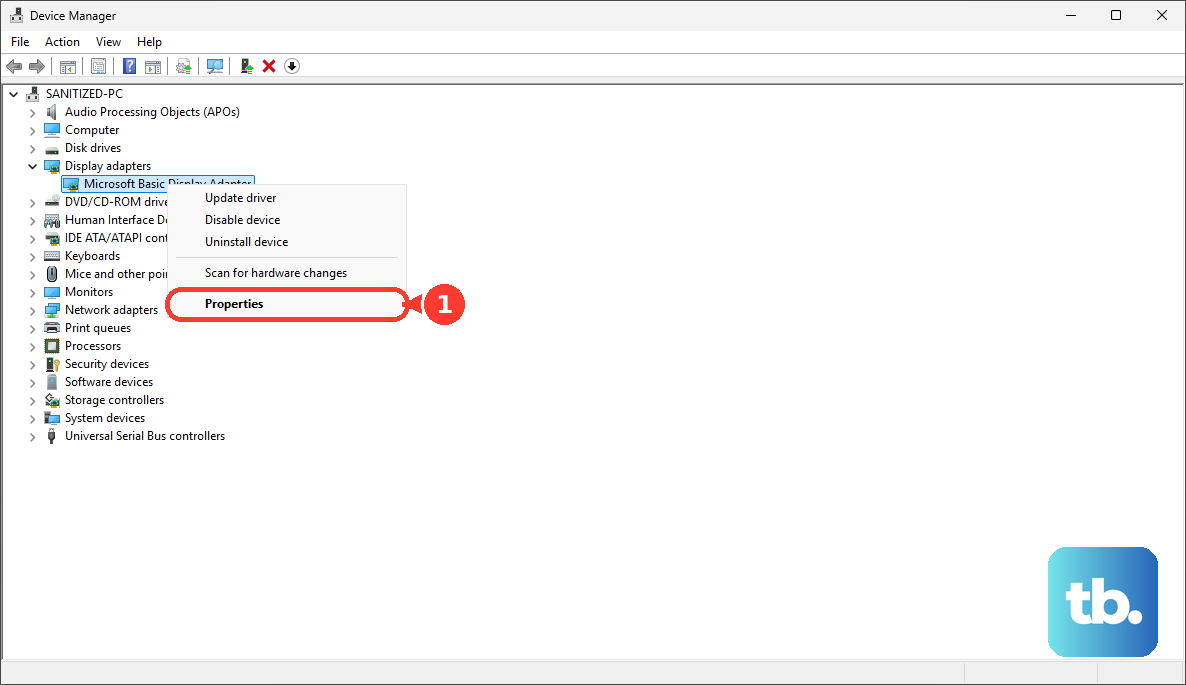
If the problem began immediately after a graphics update, try rolling back the driver. Search for and open Device Manager, expand Display adapters, right-click the adapter, and select Properties > Driver > Roll Back Driver. Complete the displayed prompts when the option is available; it requires Windows to retain an earlier driver.
Frequently Asked Questions
How do you restore normal screen size on Linux?
In GNOME, open Activities, search for Displays, select the screen, and adjust Resolution or Scale before choosing Apply and Keep Changes. For magnification, open Accessibility > Zoom and turn off Desktop Zoom. In KDE Plasma, press Meta + 0 to restore normal zoom, unless you have customized that shortcut.
Why does one Chrome website keep returning to the wrong size?
Chrome can save a separate zoom value for a website. Open More > Settings > Privacy and security > Site Settings > Additional content settings > Zoom levels, then click X beside the affected site to remove its saved override.
How do you undo accidental zoom from a Mac trackpad?
Pinch two fingers together to reduce pinch zoom in a compatible app. To reverse Smart zoom, double-tap the webpage or PDF with two fingers on the trackpad. Accessibility Zoom uses a different gesture: double-tap with three fingers when Use trackpad gesture to zoom is enabled.
Why is a large text box appearing near the pointer or while typing on a Mac?
Hover Text or Hover Typing can create an enlarged overlay without changing the whole desktop's scale. Open the Apple menu > System Settings > Accessibility > Hover Text, then turn off Hover Text or Hover Typing to match the overlay you want to remove.