


To fix a mouse cursor that is not showing up, wake or reconnect your mouse, check its power, and turn on your laptop’s touchpad if it is disabled. If the pointer remains missing, check its visibility settings and follow the fixes for your operating system. When the problem affects only one app, start with that app’s troubleshooting before changing system drivers.
The short version
- Check the mouse: Wake it, charge it or replace its batteries, and reconnect its cable or receiver.
- Check the touchpad: Turn it back on in settings or use your laptop’s documented touchpad toggle.
- Check visibility: Increase pointer size and contrast, or bring it back from another display.
- Narrow the failure: Troubleshoot a single affected app before changing system settings or drivers.
| Fix | When to use it |
|---|---|
| Wake the pointing device | It stopped responding after being idle |
| Check power and physical condition | An external mouse does not respond |
| Reconnect USB hardware | A cable, port, or hub may be involved |
| Reset the wireless receiver connection | A receiver-based mouse remains disconnected |
| Try another computer or mouse | You need to isolate hardware failure |
| Enable the Windows touchpad | The laptop touchpad is switched off |
| Keep the touchpad on with a mouse connected | Connecting a receiver disables the touchpad |
| Use the HP touchpad toggle | Your touchpad supports the corner gesture |
| Use the ASUS touchpad shortcut | Your keyboard has the touchpad symbol |
| Increase Windows pointer size or contrast | The pointer is difficult to see |
| Stop hiding the pointer while typing | It disappears during text entry |
| Change the pointer scheme | A custom cursor is unclear or defective |
| Enable pointer trails | You lose track of pointer movement |
| Disconnect unused displays | The pointer may be on another screen |
| Restore Windows Bluetooth connectivity | A Bluetooth mouse is disconnected |
| Remove and pair the mouse again | Basic Bluetooth checks do not help |
| Exit browser pointer capture | A Chrome web app captures the pointer |
| Disable a Chrome cursor extension | The problem affects Chrome alone |
| Disable Chrome graphics acceleration | A browser rendering fault is suspected |
| Use Firefox diagnostic mode | The problem affects Firefox alone |
| Quit an affected Mac app | The pointer problem is confined to that app |
| Restart Windows | The session is overloaded or unresponsive |
| Install Windows and optional driver updates | The problem persists after restarting |
| Update the pointing-device driver | Windows updates have not resolved it |
| Roll back the driver | The failure began after a driver update |
| Reinstall the pointing-device driver | Other driver checks have failed |
| Check Mac trackpad technique and power | The built-in trackpad does not respond |
| Switch a Magic accessory off and on | The accessory has lost its connection |
| Charge and pair a Magic accessory by cable | It needs power or pairing |
| Turn Mac Bluetooth on with the keyboard | You cannot use the pointer to enable it |
| Connect a third-party Mac mouse | A compatible Bluetooth mouse is disconnected |
| Adjust Mac pointer visibility | The pointer is small or difficult to locate |
| Remove the Mac trackpad restriction | Another pointing device disables the trackpad |
| Restart the Mac | The problem continues across apps |
| Update macOS | The problem persists after restarting |
| Start the Mac in safe mode | Startup software may be involved |
| Re-enable the Chromebook touchpad | ChromeOS has switched it off |
| Remove automatic touchpad disabling | The Chromebook touchpad keeps turning off |
| Clean and restart the Chromebook | The touchpad remains unresponsive |
| Update ChromeOS | Basic touchpad recovery has not helped |
| Reset Chromebook hardware | Simpler fixes have failed |
Wake the mouse and check its connection
Move the mouse, slide one finger across the touchpad, or click a mouse button. Some pointing devices sleep until you move or click them. For an external mouse, charge it or install fresh batteries, check its cable for damage, and remove dirt blocking its sensor.
Unplug a wired mouse or USB wireless receiver, wait briefly, and reconnect it. Try another USB port and connect directly to the computer rather than through a hub. If you need the hub, make sure it has power.
For a wireless receiver connection, unplug the receiver for about 10 seconds before reconnecting it. Alternatively, press the mouse or receiver’s Reset button if your model has one. If nothing changes, try the mouse on another computer with its required driver installed, and try a working mouse on your original computer.
Replace or service a mouse that also fails on the second computer. If a working mouse fails on your original computer too, continue with the settings and software checks.
Turn your Windows laptop touchpad back on
Open Start > Settings > Bluetooth & devices > Touchpad, then turn on Touchpad. Without a working pointer, search for touchpad settings, press Tab to focus the switch, and press Spacebar to change it.
If the touchpad stops working whenever a mouse or receiver is connected, expand Touchpad and check Leave the touchpad on when a mouse is connected. This option is available only on supported touchpads. You can also disconnect the receiver to check whether its presence is involved.
On HP touchpads equipped with a corner toggle, double-tap the upper-left corner to turn the touchpad back on. On ASUS notebooks, find the key with the touchpad symbol, commonly F6 or F9, and press it alone or with Fn as your model requires. The shortcut varies by model, so follow the symbol on your keyboard.
Make a hidden or hard to see pointer visible
On Windows 11, press Windows + U and select Mouse pointer and touch. Increase Size and choose a more visible Mouse pointer style. These controls improve the visibility of an existing pointer; they do not restore a disconnected mouse.
For a pointer that disappears while you type, open Settings > Bluetooth & devices > Mouse > Additional mouse settings > Pointer Options. Uncheck Hide pointer while typing, then select OK. This applies to apps that honor the setting.
If a custom cursor is difficult to see or has defective images, open Pointers in Additional mouse settings. Choose another installed option under Scheme, then select OK. To make movement easier to follow, open Pointer Options, check Display pointer trails, adjust the trail between Short and Long, and select OK.
With multiple displays connected, disconnect unused screens or press Windows + P and choose PC screen only using the keyboard. This helps check whether you were searching on the wrong screen. If the pointer remains absent, continue with connection or driver troubleshooting.
Reconnect a Bluetooth mouse in Windows
Open Settings > Bluetooth & devices and turn on Bluetooth. Make sure Airplane mode is off, then turn the mouse off and back on. Charge it and move it close to the computer before trying again.
If the connection still fails, open Bluetooth & devices > Devices. Beside the mouse, select More options > Remove device, then select Yes. Put the mouse into pairing mode using its model’s procedure, select Add device > Bluetooth, and select the mouse.
Fix a cursor that disappears in one app
In a Chrome web app that has captured the pointer, press Esc to exit ordinary pointer lock. If a fullscreen app has also captured the keyboard, hold Esc for two seconds. This releases supported capture modes, but it does not override every website that deliberately hides its cursor.
For a Chrome-only problem, open More > Extensions > Manage Extensions and turn off a suspected cursor-changing extension. If that does not help in Chrome on Windows, Mac, or Linux, open More > Settings > System, turn off Use graphics acceleration when available, and select Relaunch. Use this change to check for a browser rendering fault. Chromebooks do not include this setting, so skip this step on ChromeOS.
Firefox’s diagnostic mode temporarily disables extensions, themes, and hardware acceleration. Open the menu, choose Help > Troubleshoot Mode…, select Restart, then select Open; some versions name the help menu Help and Report. If the pointer works there, investigate those customizations, then quit and reopen Firefox normally to leave the mode.
On a Mac, save your work if possible and press Command + Q to quit the affected app. For an unresponsive app, press Option + Command + Esc, select the app, and choose Force Quit.
Restart Windows and repair the pointing device driver
Save your work and close unnecessary apps and browser tabs, especially if the computer is overloaded or unresponsive. Select Start > Power > Restart. If the problem continues afterward, check for updates.
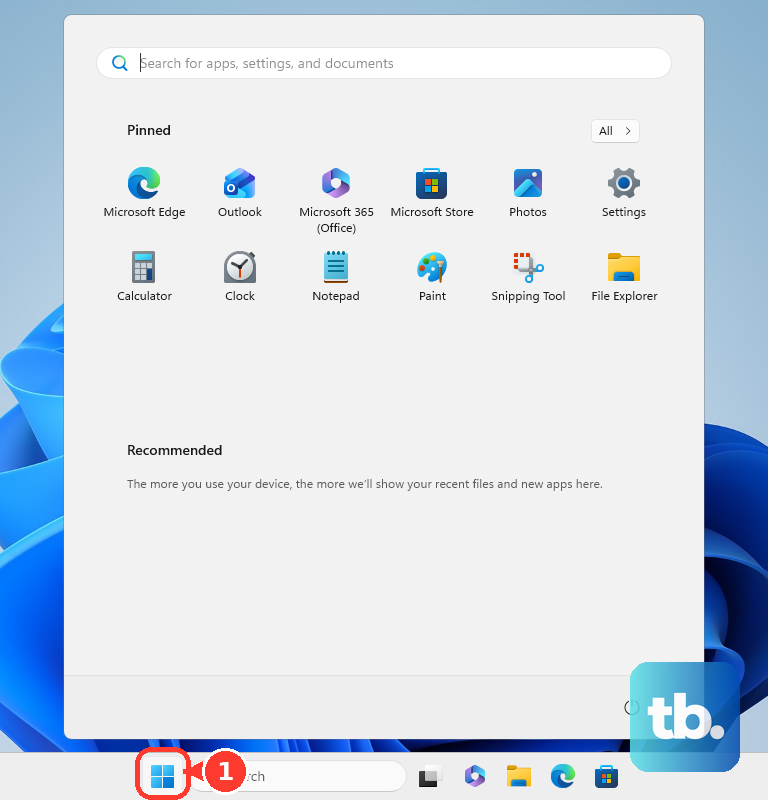
Open Settings > Windows Update and select Check for updates. Next, open Advanced options > Optional updates, select applicable driver updates, and choose Download and install. Restart after installation.
When updates do not help, open Device Manager and find the affected mouse or touchpad. Touchpads commonly appear under Human Interface Devices or Mice and other pointing devices. Right-click the device, select Update driver, and choose the automatic driver-search option.
If the failure began immediately after a driver update, open the device’s Properties > Driver and select Roll Back Driver. Choose a reason, select Yes, and restart when prompted. Rollback requires administrator permissions and an available previous driver.
To reinstall the driver, first save your work and make sure you retain keyboard or alternative input access. Right-click the affected device and select Uninstall device, then Uninstall. Restart afterward; Microsoft says Windows will attempt to reinstall the driver.
Restore a missing pointer on a Mac
Move one finger on the built-in trackpad and connect your Mac laptop to power if it remains unresponsive. Apple says an unseen low-battery alert can explain a trackpad that will not move the pointer. For a Magic Mouse or Magic Trackpad, switch it off so green is hidden, then switch it on so green is visible.
To charge and automatically pair a rechargeable Magic accessory, connect it to the Mac with its appropriate USB-C or Lightning cable. Wait one minute, then disconnect it and try again. A Magic Mouse must be disconnected from its charging cable before you can use it.
If Bluetooth is off and you cannot use the pointer, press Command + Space, search for Bluetooth File Exchange, and press Return. Press Return again to turn Bluetooth on. For a third-party Bluetooth mouse, make it discoverable, then open Apple menu > System Settings > Bluetooth and select Connect beside it.
For visibility, open Apple menu > System Settings > Accessibility > Display. Under Pointer, turn on Shake mouse pointer to locate, then move the mouse or a finger on the trackpad quickly. You can also increase Pointer size or select Reset Colors to restore the default pointer colors.
If connecting another pointing device disables the built-in trackpad, open System Settings > Accessibility > Pointer Control. Turn off Ignore built-in trackpad when mouse or wireless trackpad is present. If the problem persists, choose Apple menu > Restart, then install compatible updates through System Settings > General > Software Update.
To check whether startup software is involved on an Apple silicon Mac, shut down and hold the power button until startup options appear. Select the startup volume, hold Shift, and select Continue in Safe Mode. On an Intel Mac, restart while holding Shift until the login window appears. Compare pointer behavior, then restart normally to leave safe mode.
Bring back a Chromebook touchpad cursor
Press Shift five times to turn the touchpad on when ChromeOS’s built-in disabling feature has switched it off. To prevent that setting from disabling it again, select the time, open Settings > Accessibility > Cursor & touchpad, and choose Never beside Disable built-in touchpad.
Google recommends removing dust or dirt from the touchpad, pressing Esc several times, and drumrolling your fingers on the touchpad for ten seconds. Turn the Chromebook off and back on afterward. If the issue continues, connect to Wi-Fi and open Settings > About ChromeOS > Check for updates, then select Restart when offered after the update downloads.
A hardware reset can remove some files from Downloads, so back up local files first. For most Chromebooks, turn the device off, hold Refresh, tap Power, and release Refresh when startup begins. Some models need a different reset procedure, so confirm the instructions for your model before proceeding.
Frequently Asked Questions
How can you control a Windows computer while the mouse is not working?
On a computer with a numeric keypad, open Settings > Accessibility > Mouse and turn on Mouse keys. Use the numeric-keypad direction keys to move the pointer, press / to select the left mouse button, and press 5 to click. This provides alternative control while you troubleshoot the mouse.
Why does the pointer disappear when you stop moving your iPad mouse?
An iPad can automatically hide a stationary pointer as part of its normal behavior. Move the mouse or trackpad to reveal it, or open Settings > Accessibility > Pointer Control > Automatically Hide Pointer to adjust how long it remains visible.
Can your Mac pointer move onto a nearby iPad or Mac?
Yes, Universal Control can move the pointer between compatible devices signed in to the same Apple Account. Press Control + Option + Command + Delete to disconnect all Universal Control devices. To prevent recurrence, open System Settings > Displays > Advanced and turn off Allow your pointer and keyboard to move between any nearby Mac or iPad.
Why does a Logitech mouse control another computer instead?
A multi-device Logitech mouse can be on a channel paired with a different computer. Press its Easy-Switch button to select the channel paired with the computer you want to use. Logitech Flow can also move the cursor between computers; open Logi Options+, select the mouse, open Flow, and disable Flow to stop that switching.