


To update Instagram, open the App Store on iPhone or Google Play Store on Android, find Instagram, and tap Update. You can also install it through your store’s available updates list or turn on automatic updates for future releases.
The short version
- iPhone: Open the App Store, select My Account or your photo, choose App Updates, and tap Update beside Instagram.
- Android: Open Google Play, select your profile icon, then choose Manage apps & device, Updates available, See details, and Update beside Instagram.
- Automatic updates: Enable App Updates in iPhone settings or configure Auto-update apps in Google Play.
- Stuck downloads: Check your connection and storage, then try the store fixes before reinstalling Instagram.
| Option | Where to start | What it does |
|---|---|---|
| Manual iPhone update | App Store account > App Updates | Updates Instagram individually |
| All iPhone app updates | App Updates > Update All | Includes any available Instagram update |
| iPhone listing search | Search Instagram in the App Store | Checks Instagram directly |
| Official iPhone product page | Linked App Store listing below | Opens Instagram’s store page |
| Automatic iPhone updates | Settings > Apps > App Store | Enables future app updates |
| Manual Android update | Google Play > Manage apps & device | Updates Instagram individually |
| All Android app updates | Available updates > Update all | Includes any available Instagram update |
| Android listing search | Search Instagram in Google Play | Checks Instagram directly |
| Official Android product page | Linked Google Play listing below | Opens Instagram’s store page |
| Automatic Android updates | Google Play > Network preferences | Sets automatic update connections |
| Instagram automatic updates | Instagram’s Google Play page > More | Enables updates for Instagram |
| Instagram’s Android setting | Instagram > About > App updates | Enables updates on eligible phones |
| Meta system updater | Device settings > Meta App Installer | Enables future updates where supported |
| iPhone reinstallation | Instagram icon > Remove App | Replaces the installation through the store |
| Android reinstallation through settings | Settings > Apps > Instagram | Removes Instagram before reinstalling |
| Offloaded iPhone app | Instagram icon with a cloud | Restores the app |
| Archived Android app | Faded Instagram icon | Restores the app |
| Android reinstallation from a computer | Instagram’s Google Play website listing | Installs on a linked phone |
| Android reinstallation from another mobile device | Google Play > arrow beside Install | Installs on a selected linked device |
| iPhone voice navigation | Accessibility > Voice Control | Operates store controls by voice |
| Android voice navigation | Accessibility > Voice Access | Operates store controls by voice |
| Android voice activation shortcut | Voice Access shortcut or attached keyboard | Starts voice navigation |
| Managed iPhone updates | Your organization’s administrator | Updates a managed installation |
| Managed Android updates | Your organization’s administrator | Applies managed update policies |
| iPhone cellular downloads | App Store settings > Cellular Data | Allows a mobile data connection |
| iPhone data restriction | Active connection > Low Data Mode | Removes an automatic update restriction |
| iPhone power restriction | Battery settings > Low Power Mode | Removes an automatic download restriction |
| Queued iPhone download | Instagram icon > Prioritize Download | Advances an existing download |
| iPhone family installation restriction | Family controls > Installing Apps | Permits reinstallation |
| Google Play cache repair | Store app information > Clear Cache | Addresses store download problems |
| Google Play update | Store settings > About | Updates the store before retrying |
Update Instagram on iPhone
Open the App Store, then tap My Account or your account photo. Select App Updates, find Instagram, and tap Update beside it. To install every available app update, including Instagram when offered, tap Update All.
You can also search for Instagram in the App Store, open its product page, and tap Update when available. Alternatively, open the official Instagram App Store listing on your iPhone and continue into the store. Confirm that the seller is Instagram, Inc.; the U.S. listing requires iOS 16.3 or later, and availability depends on your device and storefront.
Update Instagram on Android
Open Google Play Store and tap your profile icon. Choose Manage apps & device, select Updates available, then tap See details. Find Instagram and tap Update, or choose Update all to install every available app update.
For a direct check, search for Instagram in Google Play, open its Details page, and tap Update when offered. You can also open the official Instagram Google Play listing on your phone and continue into the store. Compatibility and availability depend on your device and region.
Turn on automatic Instagram updates
On iPhone, open Settings > Apps > App Store and turn on App Updates. This setting covers all App Store apps, including Instagram. Apple enables automatic app updates by default.
On Android, open Google Play, tap your profile picture, and select Settings > Network preferences > Auto-update apps. Choose Update over Wi-Fi only or Update all apps over Wi-Fi or mobile data, depending on which connection you want to allow. Google also offers Update with limited amount of mobile data, but that option has restricted availability.
To enable automatic updates specifically for Instagram, tap your Google Play profile picture and open Manage apps & device > Manage > Instagram. Tap More, then turn on Enable auto update. Check the store’s network preferences so your selected connection can be used.
On Android phones with Meta App Manager installed, you can also open Instagram and tap Profile or your profile picture. Go to Menu > About > App updates, turn on Auto-update Instagram, and select your connection preference. Meta describes Wi-Fi and mobile data choices, but their labels can differ.
If App updates is missing and your phone contains Meta App Installer, open device Settings > Apps > Meta App Installer and tap Enable. Some manufacturers call the apps menu Application Manager. This enables future updates, and Meta says Google Play update settings may also need adjustment. These Meta settings are limited to eligible Android phones.
Restore an offloaded or archived app
If Instagram’s iPhone Home Screen icon has a cloud symbol, tap it to reinstall the offloaded app. On supported Android devices, tap Instagram’s faded Home Screen icon to restore an archived installation. Instagram must still be available from the store responsible for the installation.
On Android, you can also restore an archived app through its App info page in Settings or its app details page in Google Play. Restoration retrieves a compatible package from the store. It does not guarantee a release unavailable to your device or account.
Fix a stuck Instagram update
If Instagram is missing from the available updates list, check its store product page directly. You can install an update only when the store offers one for your device. Compatibility, store availability, and account restrictions can affect what you can install.
If an offered update will not download, check your connection and available storage, then retry it. Both can prevent installation. If your iPhone is short on space, free up storage on iPhone before returning to Instagram’s store page.
For an iPhone download over mobile data, open Settings > Apps > App Store and turn on Cellular Data. Review the automatic download settings there if you want automatic updates to use cellular. Carrier and data plan restrictions can still apply, and enabling the connection does not start an update by itself.
Apple says Low Data Mode disables App Store automatic updates. For Wi-Fi, open Settings > Wi-Fi, tap Info beside the connected network, and turn off Low Data Mode. For LTE or 4G, use Settings > Cellular > Cellular Data Options; on 5G, continue into Data Mode. With Dual SIM, open Settings > Cellular or Mobile Data, select the relevant number, and turn off Low Data Mode.
Low Power Mode disables automatic downloads on iPhone. On iPhone 15 or later, open Settings > Battery > Power Mode and turn off Low Power Mode; on iPhone 14 or earlier, the toggle is directly under Battery. You can also use the battery control in Control Center or say Hey Siri, turn off Low Power Mode. Then return to the App Store and retry the update.
If Instagram is already queued for download, touch and hold its Home Screen icon and select Prioritize Download when offered. This advances an existing download; it does not check for a new release.
For a Google Play update that fails, touch and hold Google Play Store and select App Info > Storage & cache > Clear Cache. Reopen Google Play and retry Instagram’s Update. Manufacturer menu placement and capitalization can vary.
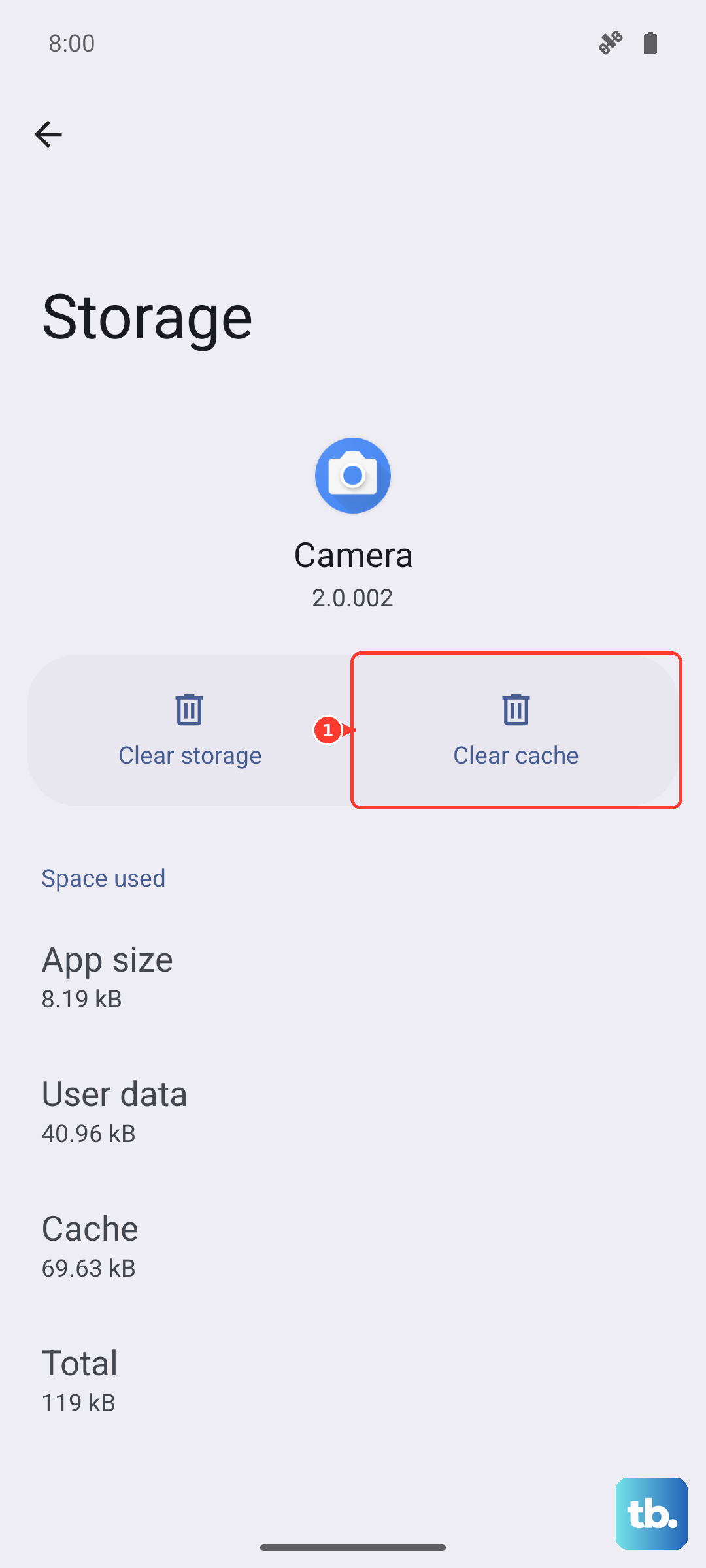
If Google Play still has trouble, tap your profile picture in the store and open Settings > About. Under Play Store version, tap Update Play Store, then return to Instagram and retry Update. Updating the store does not update Instagram itself.
Reinstall Instagram if updates still fail
Reinstallation retrieves a compatible store package, but it cannot guarantee a release unavailable to your device or account. Meta says your photos and profile information survive reinstallation, although local app data may be removed. Before deleting Instagram, make sure you can sign in again; you can find saved passwords on iPhone if you need to check a saved login.
On iPhone, touch and hold Instagram and choose Remove App > Delete App > Delete. Removing the icon only from the Home Screen does not uninstall it, so follow the steps to delete an app on iPhone completely. Reinstall Instagram from the App Store and sign in.
On Android, open Settings > Apps > Instagram and tap Uninstall. Open Google Play Store, reinstall Instagram, and sign in with your username and password.
Reinstall on Android from another device
After removing Instagram from your Android phone, you can reinstall it from a computer using Instagram’s Google Play website listing. Sign in with the same Google Account linked to your phone, find Instagram, and select Install, Installed, or Enable, whichever appears. Select your phone, then choose Install. This installs the app remotely on a compatible phone; it does not provide an update button for an existing installation.
From another Android phone or tablet using the same Google Account, open Google Play and find Instagram after removing it from the target phone. Tap the down arrow beside Install, select the target device’s checkbox, then tap Install. The target device must be compatible with Instagram.
Use voice controls to install an update
On iPhone, open Settings > Accessibility > Voice Control > Set up Voice Control. You can use Apple’s screen navigation controls to follow the App Store update steps by saying Tap followed by a visible label. For an unlabeled control, say Show Numbers, then speak its number. After setup, Siri can turn on Voice Control, subject to supported languages and regions.
On Android, install Voice Access, then open Settings > Accessibility > Voice Access. For Voice Access 17.0 or later, turn on Voice Access shortcut; earlier releases use Use Voice Access. Start listening, open Google Play, and use Tap commands or Show numbers to select the update controls. This applies Google’s screen navigation capability to the normal store update route.
With Voice Access 17.0 or later, Settings > Accessibility > Voice Access > Voice Access shortcut lets you choose volume buttons or another accessibility shortcut to start listening. With an attached keyboard, press Action + Alt + v; Action means Windows on a Windows keyboard or Command on a Mac keyboard. Then navigate Google Play by voice to install the available Instagram update.
Resolve family or workplace restrictions
If family controls block reinstallation under the updated iOS 27 controls, have your parent open Settings > Family > your name > Apps & Websites > App Store > Installing Apps > Allowed. They should enter the Screen Time passcode if requested, then you can retry installation. This permits installation without starting an Instagram update.
If your organization manages Instagram on an iPhone, ask your administrator to update it; device-assigned apps may show no App Store update notification. Apple supports declarative app management on iOS 17.2 or later with update behavior set to Automatically, a new configuration specifying no version or a newer version, or the administrator’s InstallApplication command. The management console’s menus depend on your organization’s provider.
For an approved Instagram installation on a managed Android device or work profile, ask your administrator to check its update policy. Google supports High priority mode, network constraints, maintenance windows, and a minimum version code that can trigger an update. Your administrator must configure these through the organization’s management console.
Frequently Asked Questions
Why is a new Instagram feature missing after updating?
An app update does not guarantee that every Instagram feature becomes available to your account. Meta says some features are not yet available to everyone, so the newest compatible version may still lack a feature you expected.
Does clearing Instagram’s cache or refreshing the feed update the app?
Clearing Instagram’s own cache, refreshing its feed, or logging out does not install a newer app version. Updating your phone’s operating system alone does not install an Instagram app update either. Use the app store to install an available Instagram update.
How can you stop your iPhone from automatically offloading Instagram?
Open Settings > Apps > App Store and turn off Offload Unused Apps. This controls automatic offloading for your apps, while App Updates controls automatic updates.
Can you archive Instagram manually on Android?
On supported devices, open Settings > Apps > Instagram and select Archive. Support depends on your device and app store, and some archiving steps require Android 15 or later. Archiving is separate from installing an update.