


You can uninstall GamePigeon through Settings > General > iPhone Storage when its storage page offers Delete App. Deleting it removes the app and its related local data. Start with that storage page to check which removal controls your iPhone provides.
The short version
- Delete completely: The Delete App control removes the app and its related local data.
- Check restrictions: If parental controls block deletion, make sure the Deleting Apps setting permits app deletion.
- Keep documents and data: Use Offload App if available to retain them while removing the installed app.
- Distinguish disabling from deleting: An on/off control under iMessage Apps, when present, controls availability rather than uninstalling the app.
| Option | What it does | When it applies |
|---|---|---|
| Delete App in iPhone Storage | Removes the app and related local data | GamePigeon has a deletion control |
| Parental control adjustment | Allows blocked app deletion | Parental controls prevent removal |
| Offload App | Removes the installed app but retains documents and data | GamePigeon has an offloading control |
| Turn off under iMessage Apps | Changes availability without uninstalling | GamePigeon has an on/off control |
| Voice Control | Operates existing controls by voice | Voice Control supports your language and region and a removal control is available |
| iPhone Mirroring | Operates existing controls from a Mac | Mirroring requirements are met and a removal control is available |
| Administrator removal | Removes the app and its data through device management | The app and device meet management requirements |
| Official App Store listing | Identifies or reinstalls GamePigeon | You want to find or download the app |
Delete GamePigeon through iPhone Storage
Open Settings, select General, then open iPhone Storage. Look for GamePigeon and select it when listed. This route works only when its storage page offers a deletion control.
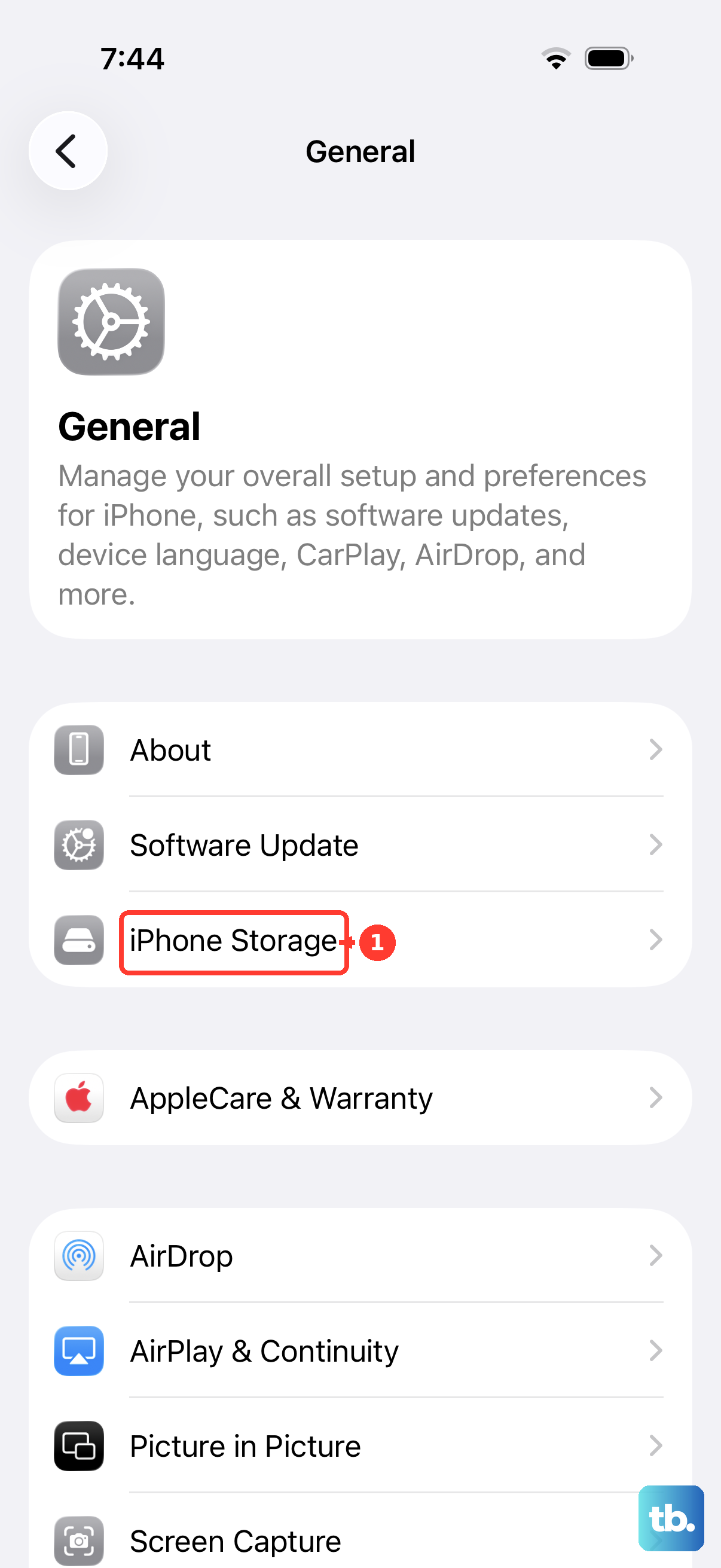
Deleting GamePigeon removes the app and its related local data. Tap Delete App when that control is present. For other apps you also want to remove, you can follow the steps to delete apps on your iPhone.
If GamePigeon is listed but deletion is unavailable, check parental controls next. If it is absent from the storage list, the voice and Mac options below still require an available removal control; they operate the iPhone interface.
Check parental controls when deletion is blocked
Parental controls can prevent you from deleting apps. Check those controls and make sure the Deleting Apps setting permits app deletion, then return to GamePigeon’s page under Settings > General > iPhone Storage. If your iPhone is managed by an organization, contact its administrator.
Removing the app also removes its related local data. Retry Delete App when the control is available. Changing the restriction permits deletion; you still need to perform the removal separately.
Offload GamePigeon to keep its documents and data
Offloading is an alternative when you want to free up space on iPhone while keeping the app’s documents and data. GamePigeon’s storage page must offer offloading for you to use it.
Open Settings > General > iPhone Storage and select GamePigeon when listed. Offloading removes the installed app but keeps its documents and data. Tap Offload App when that control is present.
Turn off an iMessage app without uninstalling it
An iMessage app’s on/off control changes its availability rather than deleting it. Open Settings > Apps > Messages > iMessage Apps. Turn off GamePigeon only when it has an on/off control there.
This option applies only to apps that expose that control. If you want to uninstall GamePigeon, check its iPhone Storage page for Delete App.
Set up Voice Control to operate removal controls
You can use Voice Control on iOS 13 and later in supported languages and regions. Open Settings > Accessibility > Voice Control, then select Set up Voice Control.
After setup, navigate the removal interface using spoken commands. Say Show names to display item names, or say Show numbers to display numeric tags instead. Use the displayed item name or number to operate a control.
Deleting GamePigeon removes the app and its related local data. Use the available Delete App control when you are ready to remove it. Voice Control operates that existing interface, so this route still depends on a removal control being available.
Use iPhone Mirroring to operate the controls from a Mac
You need an iPhone with iOS 18 or later and a Mac with macOS Sequoia 15 or later, plus Apple silicon or a T2 Security Chip. Both devices must use the same Apple Account with two-factor authentication, with Wi-Fi and Bluetooth enabled and the iPhone nearby and locked. Your iPhone must also be set up with a passcode, and your Mac can’t be sharing its internet connection or using AirPlay or Sidecar. Apple says iPhone Mirroring is unavailable in the European Union.
Open iPhone Mirroring on your Mac and establish the connection. On the mirrored iPhone, open Settings > General > iPhone Storage and select GamePigeon when listed.
Deleting GamePigeon removes the app and its related local data. Click Delete App when available, just as you would tap it on the phone. Mirroring lets you operate the iPhone’s existing controls, so it also depends on that deletion control being present.
Ask your administrator to remove a managed app
If your organization manages your iPhone, its administrator can remove eligible apps through its management service. This applies to managed apps on enrolled iPhones, and to unmanaged apps on supervised devices running iOS 26 or later. This removal command does not handle apps managed through Declarative Device Management.
Removal through device management also removes the app’s data. Ask your administrator to remove GamePigeon through the organization’s management service if it meets those conditions. The console’s menu labels depend on the management vendor.
Find GamePigeon again after removal
To identify or reinstall the app, open the official GamePigeon App Store listing. You can also follow the steps to find and reinstall deleted apps on your iPhone. The listing is a download destination, not an uninstall control.
Frequently Asked Questions
Is GamePigeon an iMessage app?
Yes, GamePigeon’s official App Store listing identifies it as “Only for iMessage.” Use that description to identify the product when looking it up.
Why do some instructions show an old Messages app drawer?
Those instructions describe the interface in Apple’s iOS 16 guide. Treat them as instructions for that older interface, not as the current removal procedure.
Which device management command can an administrator use?
Apple supports the RemoveApplication command for eligible apps. Your administrator supplies the target app’s bundle identifier through the organization’s management service.
How can I check whether GamePigeon is available to reinstall on my device?
Check the official App Store listing for its availability and compatibility requirements. Those requirements govern whether you can download GamePigeon for your device.