

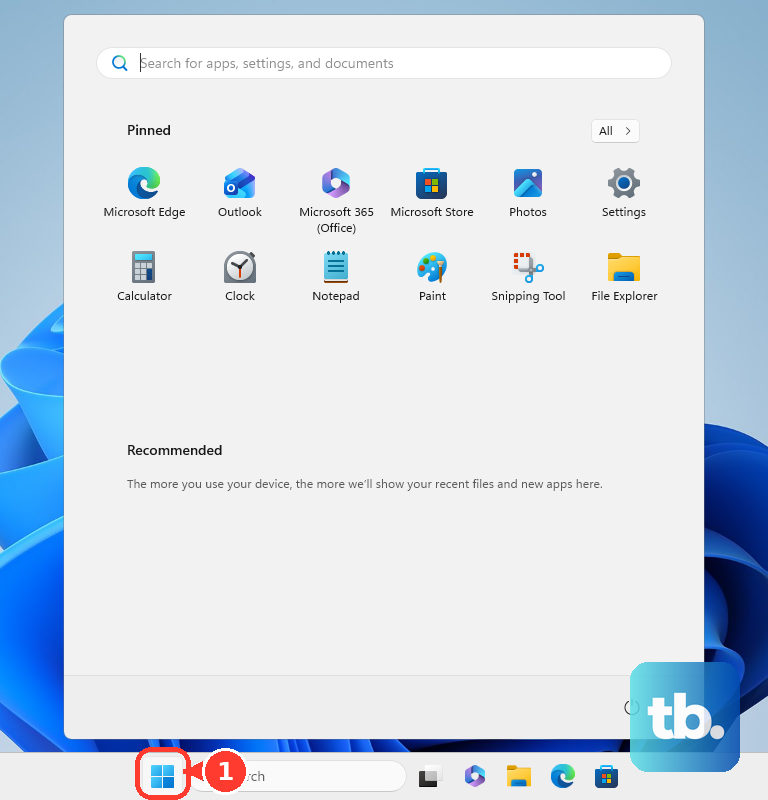
To turn on your laptop camera, select Start, type Camera, and select Camera from the results to start the preview. The steps below use Windows 11 menus. Your laptop’s hardware controls, Windows permissions, website permissions, and calling app’s video button control separate parts of camera access.
The short version
- Start the preview: Open Camera from Start to use your webcam.
- Check the hardware: Open the camera cover or enable the camera using your laptop’s supported privacy control.
- Allow access: Turn on Camera access and the permissions your app needs in Windows 11.
- Enable call video: Allow camera access for your website or calling app, then turn on its video control.
| Task or fix | Where to start | When to use it |
|---|---|---|
| Open the camera preview | Start > Camera | Take photos or record video |
| Enable the hardware | Your model’s privacy cover, switch, key, or utility | The webcam is covered or switched off |
| Allow Windows access | Settings > Privacy & security > Camera | An app needs camera permission |
| Allow website access | Your browser’s permission prompt or settings | A website needs the camera |
| Turn on meeting video | Your calling app’s camera control | You want to appear in a call |
| Enable a disabled camera | Settings > Bluetooth & devices > Cameras | The camera appears under Disabled cameras |
| Check device status | Device Manager | The camera may be disabled through another utility |
| Run camera troubleshooting | Settings > System > Troubleshoot > Other troubleshooters | The camera still will not start |
| Repair the Camera app | App settings > Reset > Repair | The problem affects the Camera app |
| Check for updates | Settings > Windows Update | Windows or camera drivers need updating |
| Check Dell firmware | Integrated Devices in supported Dell BIOS layouts | The integrated camera is disabled in firmware |
Open the Camera app
Select Start, type Camera, then open Camera. Opening the app starts the preview so you can see the picture before taking a photo or recording. If the app is missing, obtain it from the official Windows Camera listing; Microsoft Store determines compatibility and availability.
On a device with multiple available cameras, select Change camera at the upper right to switch between them. To use a compatible USB webcam, connect it securely to a USB port and select it in your camera app. If it is not detected, try another USB port; if the built-in camera does not show a picture, check its privacy controls and permissions next.
Enable your laptop’s camera controls
Your laptop may have a physical lens cover, an electronic privacy switch, or a keyboard camera control. Follow the instructions for your model because their location and behavior vary. On supported HP notebooks, slide the privacy cover right to uncover the lens, or slide the electronic privacy switch away from its adjacent icon to enable the webcam.
On an HP notebook equipped with a shutter key, press the camera shutter key on the action-key row; some models require Fn + camera shutter key. HP identifies an illuminated shutter-key light on these models as meaning the camera is off. On an ASUS laptop whose F10 key bears the camera symbol, press F10 or Fn + F10, depending on its hotkey configuration, and look for Camera on.
On supported Lenovo systems, open Lenovo Vantage, select Device, then open My Device Settings and select Camera. Choose On for the camera. Some layouts put the controls under Display & Camera instead; on supported IdeaPad and ThinkPad systems, find Camera settings there and turn off Camera Privacy Mode.
Allow Windows to use the camera and microphone
Open Settings > Privacy & security > Camera. Turn on Camera access and Let apps access your camera, then enable the individual app you want to use, such as Camera. If the system setting is locked, ask your administrator to allow access.
For browsers and desktop calling software, also turn on Let desktop apps access your camera on that page. This controls desktop application access collectively, separately from the individual app switches. Allowing the Camera app alone does not complete permission setup for desktop software.
Audio requires its own permission. Open Settings > Privacy & security > Microphone, then turn on Microphone access, Let apps access your microphone, and the required app. Enable Let desktop apps access your microphone for desktop software; if audio still fails, continue with troubleshooting your computer’s microphone.
Take photos and record video
Inside Camera, select Photo, then select Take photo. To record, select Video followed by Take video. Finish with Stop taking video, then select the thumbnail to review the result.
For capture options, open Camera > Settings and expand Camera settings, Photo settings, or Video settings. The available controls depend on your hardware. To preview and adjust system image controls, open Windows Settings > Bluetooth & devices > Cameras and select your camera under Connected cameras; these controls also vary by camera and driver.
You can also scan a QR code or barcode by selecting Barcode in Camera and bringing the code into focus. With a camera that supports document or whiteboard capture, select Document or Whiteboard, frame the subject inside the blue outline, then select Take document or Take whiteboard.
Give websites camera permission
In Microsoft Edge, visit the calling or camera website and start its camera feature, then select Allow when prompted. Windows must also permit desktop apps to access the camera. In Chrome, start the site’s camera feature and select Allow while visiting the site or Allow this time.
To change a saved block in Chrome for Windows, open More > Settings > Privacy and security > Site settings > Camera. Select the blocked site and change its camera permission to Allow. Use the camera dropdown on that page to choose your physical webcam. If your organization manages Chrome and prevents permission changes, contact your administrator.
Firefox asks for permission when a website requests the camera; optionally check Remember this decision, then select Allow. To change a saved permission, open the Firefox menu and select Settings, then select Privacy & Security or Permissions and data on the left, whichever your Settings page lists, and scroll down to the Permissions section. Beside Camera, select Settings…, change the site to Allow, then select Save Changes.
Turn on video in your calling app
In Teams on the desktop or web, turn on Camera in the preview before joining, or select Camera in the meeting controls during a call. In the Windows desktop app, you can also toggle video during a call with Ctrl + Shift + O.
In the Zoom desktop app for Windows, select your profile picture, open Settings > Video & effects, and choose your camera. During a meeting, open the arrow beside Video, select Video settings, and use the Camera dropdown to change webcams. Press Alt + V during the meeting to start or stop video.
For Google Meet in your browser, choose the camera from the dropdown below the preview before joining. During a meeting, open the arrow beside Camera to select another camera, or open More options > Settings > Video for additional controls. Press Ctrl + E to toggle the camera during a Meet meeting on Windows.
Fix a camera that still will not start
Close other applications using the camera, then reopen the app you want to use. This can release the camera for your app when simultaneous camera sharing is unavailable.
Open Settings > Bluetooth & devices > Cameras and look under Disabled cameras. Select the camera and choose Enable; this requires administrator access. Cameras disabled through other utilities may not appear there, so check Device Manager next.
Search for and open Device Manager, then expand Cameras, Imaging devices, or Sound, video and game controllers to locate the webcam. Right-click it and select Enable device. If that option is absent, the device may already be enabled.
Next, open Settings > System > Troubleshoot > Other troubleshooters, find Camera, and select Run. Follow the troubleshooter’s instructions. For a Camera app problem, search for Camera, right-click it, open App settings, and select Repair under Reset. If the camera still fails, check for updates and model-specific settings next.
Check updates and model specific settings
Open Settings > Windows Update and select Check for updates. Also inspect Advanced options > Optional updates for camera drivers, install applicable updates, and restart. For a Dell laptop, identify your model on Dell Drivers & Downloads and obtain applicable camera or related drivers.
On a Dell laptop whose BIOS includes a camera control, you may need to enable it there. To open the laptop’s BIOS, restart and press F2 repeatedly at the Dell logo. Open Integrated Devices, check Enable Camera, then select Apply Changes and Exit. Consult your model’s manual if the layout differs.
Frequently Asked Questions
Can an Android phone work as my Windows laptop’s webcam?
Yes, with Windows 11, Android 10 or later, and Link to Windows 1.24022.0 or later; both devices need Wi-Fi. Open Settings > Bluetooth & devices > Mobile devices and turn on Allow this PC to access content and capabilities from your mobile devices. Select Add device and scan the QR code to link, or select Manage devices for an existing connection. Select your phone, enable Use as connected camera, then choose it in your calling app.
Can I open the Camera app by voice?
On Windows 11 version 22H2 or later, open Settings > Accessibility > Speech and enable Voice access. During initial setup, choose a supported language and select Agree and continue; setup downloads language files and requires a microphone. After setup, say Open Camera to launch the app.
Can the laptop camera also unlock Windows with my face?
Facial recognition requires a Windows Hello-compatible infrared camera; an ordinary webcam is insufficient. With compatible hardware on Windows 11, open Settings > Accounts > Sign-in options > Facial recognition (Windows Hello) > Set up, then complete the guided face enrollment.
How do I turn on Windows Studio Effects?
On a supported Windows 11 device with an NPU, select a taskbar Network, Sound, or Battery icon, then select Studio Effects. You can also select Windows Studio Effects inside Camera. Available effects depend on your hardware and adjust video without bypassing camera permissions.