

To troubleshoot a OnePlus 7 Pro display problem, clean the screen, restart the phone, then check the display settings or affected app. For a frozen screen, hold Power + Volume Up together for 10 seconds. A black screen needs charging checks, while persistent lines, bright spots or touch failures may need authorized repair. The settings steps below use OxygenOS 12 menus.
The short version
- Start with the surface: Clean away water, sweat and dirt, then test without accessories that could interfere.
- Restart a frozen phone: Hold Power + Volume Up for 10 seconds.
- Match the symptom: Check charging for a black screen, display settings for appearance changes, and the affected app for isolated faults.
- Protect your data: Back up important data outside the phone before a factory reset.
- Know when to get help: Contact OnePlus Support or an authorized service center for damage or persistent faults.
| Check | When to use it |
|---|---|
| Screen cleaning | Water, sweat or dirt on the touchscreen |
| Accessory removal | Possible touch or sensor interference |
| Temperature and electromagnetic interference | Touch trouble in an unsuitable environment |
| Original charger and cable | Touch problems while charging |
| Static interference | Touch problems associated with static electricity |
| Power menu restart | The screen still responds |
| Force restart | The phone is frozen or unresponsive |
| Charging equipment check | A black screen or no apparent power |
| Incoming call test | The screen stays black after restarting |
| Computer charging test | Suspected charging or power trouble |
| Touchscreen drag test | Only part of the screen responds |
| Screenshot comparison | Abnormal colors, flashing, lines or bright spots |
| Hardware screenshot shortcut | Capturing the affected screen for comparison |
| Manual brightness | Unwanted dimming or brightness changes |
| Eye comfort and color settings | A yellow or monochrome appearance |
| Light mode and automatic switching | An unexpectedly dark interface or changing theme |
| Screen timeout | The screen turns off too soon after inactivity |
| Automatic rotation | The screen orientation behaves unexpectedly |
| Accessibility magnification | An enlarged or cropped interface |
| Accessibility color transformations | Unintended changes to screen colors |
| App cache clearing | A problem confined to one app |
| App update | An affected app has a compatible update |
| App removal or reinstallation | Suspected app incompatibility or app-specific touch trouble |
| System update check | Checking for an offered software update |
| Factory reset | Last-resort software troubleshooting after backup |
| Official app listing | Checking publisher identity and compatibility before reinstalling |
| Authorized inspection | Physical damage or persistent faults |
Clean the screen and remove interference
Wipe away water, sweat and dirt, then test the touchscreen again. Temporarily remove the case and screen protector, take off gloves, and remove any stickers covering the screen or sensors. Retest after these changes to see whether touch response improves.
Move the phone to a normal-temperature environment and test it away from strong electromagnetic sources, such as induction cookers. If touch problems occur while charging, use the original OnePlus charger and cable for the test. Continue with a restart if the screen still responds incorrectly.
Restart the phone and check a black screen
With a responsive screen on OxygenOS 12, press Power + Volume Up together, then tap Restart. For a frozen or unresponsive OnePlus 7 Pro, hold Power + Volume Up together for 10 seconds. If the phone remains off, press Power to start it.
If the screen stays black, check the wired charger, cable, outlet and charging-port connection. Try known-working compatible charging equipment, and allow a depleted battery at least 30 minutes of charging before restarting. For charging trouble, follow the checks for a phone not charging when plugged in.
After restarting, wait approximately two minutes, then call your OnePlus from another phone. If it can receive calls and rings while the screen remains blank, seek authorized repair.
Adjust brightness and color settings
For unwanted dimming or brightness changes on OxygenOS 12, open Settings > Display & brightness. Turn off Auto brightness, then adjust the brightness slider. Check whether the unwanted brightness changes continue with manual control.
For a yellow or monochrome appearance, open Settings > Display & brightness > Eye comfort. Turn off Eye comfort and check whether a schedule turns it on automatically. Under Screen color mode, inspect Natural and the screen color temperature setting (cool, default or warm).
For an unexpectedly dark interface, open Settings > Display & brightness, select Light mode, and inspect Auto switch. These appearance checks do not repair panel damage. If lines, flashing or bright spots remain, compare a screenshot on another display.
Check magnification and accessibility colors
For an unexpectedly enlarged or cropped interface on OxygenOS 12, open Settings > System settings > Accessibility > Vision > Magnification > Magnification shortcut. Disable Magnification shortcut if unwanted magnification is occurring.
For abnormal colors, open Settings > System settings > Accessibility and find the vision controls. Inspect Color correction and Color inversion, then disable any unintended transformations. If the abnormal appearance persists, compare a screenshot with the phone's display before considering a reset.
Check dead zones and compare a screenshot
To check a partially responsive touchscreen, drag slowly from the top-left corner to the bottom-right without lifting your finger, taking approximately 10 seconds. If the notification panel releases unexpectedly, repeat the test. Report a failure that repeats at the same position to support.
For abnormal colors, flashing, lines or bright spots, take a screenshot of the screen by pressing Power + Volume Down together while the phone is on. View that screenshot on a computer and compare it with what the phone shows. Record whether the fault is constant or intermittent.
The same screenshot comparison applies when investigating white spots on a phone screen. If the fault appears only on the phone, provide comparison photographs to support.
Update an affected app and clear its cache
When the display or touch problem occurs only in one app, check for a compatible app update. Open Google Play Store, tap your profile icon, then select Manage apps & device. Under Updates available, select See details and tap Update beside the affected app, or select Update all.
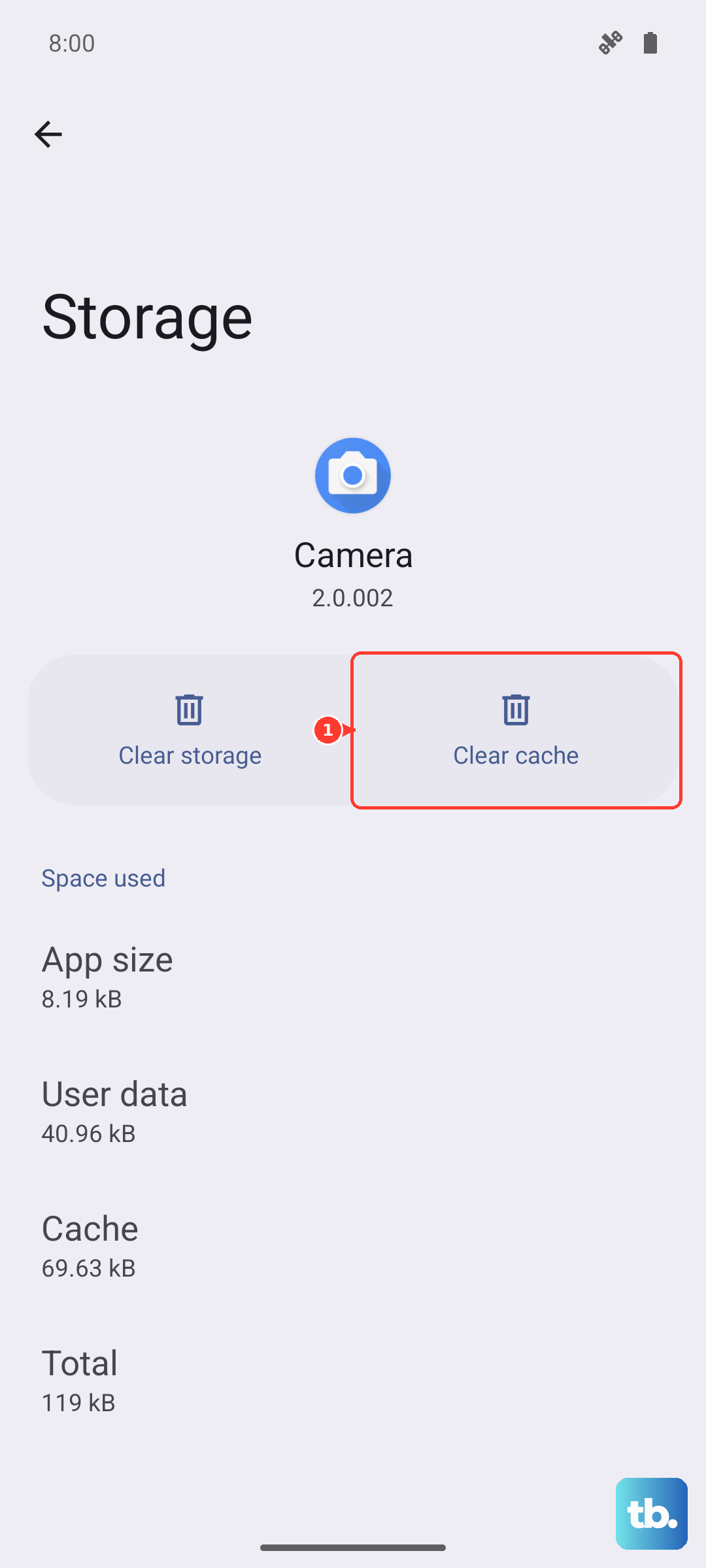
Clearing the cache removes the affected app's cached data. On OxygenOS 12, open Settings > Apps > App management, select the affected app, then open Storage usage and tap Clear cache. Test the app again before moving on to phone-wide troubleshooting.
Removing a suspect app uninstalls it from your phone. Remove recently installed or suspect unofficial apps, then retest the touchscreen. If the fault occurs only in one app, OnePlus also recommends reinstalling that app. Open Google Play Store to locate its official listing, and check the publisher identity and compatibility with your phone's Android version before reinstalling.
Check for a system update
On OxygenOS 12, open Settings > About device and tap the update status shown there, labeled Up to date in OnePlus's OxygenOS 12 guide, to check for an offered update. When an update is offered, follow the displayed download and installation instructions.
If no update is offered, continue to the last-resort software step or arrange inspection for a persistent fault. For impact damage or liquid exposure, contact OnePlus Support or an authorized service center.
Back up before a reset or arrange repair
A factory reset is a last-resort software troubleshooting step. For damage or problems that persist after troubleshooting, contact OnePlus Support or an authorized service center and ask whether OnePlus 7 Pro inspection and replacement parts remain available locally.
A factory reset deletes the phone's data, so back up important data outside the phone before proceeding. On OxygenOS 12, open Settings > System settings > Back up and reset > Reset phone, then select Reset phone and enter your passcode if prompted. Read the displayed deletion warning before completing the reset, and follow the confirmation wording shown on your phone.
If the display problem persists after the reset, arrange an authorized inspection. Describe the symptom and provide any repeatable dead-zone location or screenshot comparison photographs gathered earlier.
Frequently Asked Questions
What can you try if static electricity seems related to the touch problem?
Turn the phone off and leave it unused for a while before testing again. OnePlus specifies no waiting interval for this static-interference check.
Can a computer help check a phone that stays black?
For suspected charging or power problems, connect the phone to a powered computer with a working USB cable. Wait 10 to 15 minutes, then disconnect and reconnect within 10 seconds. If a charging indicator appears, charge for at least 30 minutes before powering on.
How do you stop the screen from turning off too soon?
On OxygenOS 12, open Settings > Display & brightness > Auto screen off and choose a longer interval. This setting addresses a screen that turns off after inactivity.
Where do you change automatic screen rotation?
On OxygenOS 12, open Settings > Display & brightness and adjust Auto rotate. Alternatively, swipe down for Quick Settings and toggle Auto-rotate.