

Remove the case and any removable screen protector, leaving a foldable phone's built-in film attached; clean the screen, then restart your phone. Arrange a screen repair if the white spots persist, and use the app checks below if the mark appears only in one app.
The short version
- Start with cleaning and removable accessories.
- Restart and update using the steps for your phone.
- Check the affected app before resetting the whole phone.
- Use Samsung Safe mode to check downloaded apps.
- A factory reset is optional and erases your data.
- The top-center sensor dot on Pixel 5 can be normal.
| Method | What it does | Time | Use it when |
|---|---|---|---|
| Clean and remove accessories | Checks the glass and coverings | A few minutes | Start here |
| Restart and update iPhone | Checks iOS software | A few minutes to check for updates | You use an iPhone |
| Fix one app | Updates or resets the affected app | A few minutes to start | Only one app shows the mark |
| Check Galaxy software and Safe mode | Checks software and downloaded apps | A few minutes for the Safe mode check | You use a Galaxy phone |
| Restart and update Pixel or Android | Checks Android software | A few minutes to check for updates | You use Pixel or another Android phone |
| Reset settings or erase | Resets settings or removes data | A few minutes to start; Pixel erase up to an hour | Earlier software checks failed |
| Arrange screen service | Gets a professional assessment | A few minutes to start a request | The spot persists or there is damage |
Start with cleaning and removable accessories
Remove the case and any removable screen protector to check the uncovered display. On Pixel, also remove stickers covering the screen or sensors, and take off gloves if touch response is part of the problem. Do not peel off a foldable screen's built-in film, including on Pixel Fold or Galaxy Z Fold and Z Flip.
Turn off and unplug the phone before cleaning it. Gently wipe a Pixel or Galaxy with a soft, lint-free cloth; use a dry cloth for Pixel dust and smudges. For iPhone, use a soft, slightly damp, lint-free cloth, and keep moisture out of openings.
Turn the phone back on and check the mark again. If it has disappeared, stop here rather than continue to resets. If it remains, note whether it is visible in other apps before choosing the next step.
Pixel 5 has a specific exception: a white dot at the top center can be its proximity sensor. The dot shows through the display while the sensor is active and can blink or stay solid. This explanation applies to that sensor dot, not every bright patch on a Pixel screen.
Restart and update your iPhone
Restart normally first
On iPhone X or later, hold either Volume button and the Side button until the power-off slider appears. On iPhone 6, 7, 8 or second- or third-generation SE, hold Side instead. On first-generation SE, iPhone 5 or earlier, hold Top.
Drag the power-off slider and wait 30 seconds for the phone to turn off. Hold Side or Top, as appropriate for your model, until the Apple logo appears to turn it back on. Check the spot again before continuing.
Force restart an unresponsive iPhone
If the phone is frozen or cannot restart normally, use a force restart. On iPhone 8 and later, including iPhone SE second generation and later, press and quickly release Volume Up, then Volume Down. Hold the Side button until the Apple logo appears, then release it.
On iPhone 7 or 7 Plus, hold Side and Volume Down together until the Apple logo appears. On iPhone 6s and earlier, including the first-generation SE, hold Home and Side or Top until the logo appears. Choose the sequence by model, since having a Home button does not always mean using the oldest sequence.
Update iOS on the phone or a computer
Back up your iPhone, connect it to power and Wi-Fi, then open Settings > General > Software Update. Follow the offered update prompts; Download and Install starts an available download, while an already downloaded update may offer Update Now. Check the spot again after installation.
For a computer update, connect the iPhone by USB. On macOS Catalina or later, open Finder, select the iPhone, then choose General > Check for Update > Download and Update. On macOS Mojave or earlier, use iTunes instead.
On Windows, open Apple Devices, select your iPhone and choose General. Select Check for Update if needed, then Update when available. Follow the prompts, including any request to enter your phone passcode or tap Trust on the iPhone.
Fix a spot that appears in one app
Check the affected iPhone app
If the mark appears only inside one app, start with that app's troubleshooting rather than erasing the phone. Close and reopen an affected iPhone app, restart the phone, and check for app updates. If other apps work but this one still has a problem, contact its developer.
On iPhone, delete and redownload the affected app if the earlier checks fail. Touch and hold its icon, then tap Remove App > Delete App > Delete. Save any needed app data first because deleting can lose locally stored information; you can then find and reinstall deleted iPhone apps through the App Store.
Clear Galaxy app cache or data
On Galaxy, open Settings > Apps, select the affected app, then choose Storage > Clear cache. Reopen the app and check again. If needed, return to that app's storage page and choose Clear data > Delete, which removes its saved data and settings.
Clear Pixel app cache and update Android apps
On Pixel, open Settings > Apps > See all apps, select the app, then tap Storage & cache > Clear cache. To update Android apps, open Google Play Store, tap your profile icon, then Manage apps & device. Under Updates available, use See details and Update for one app, or Update all for all available updates.
Check Samsung Galaxy software and Safe mode
Restart your Galaxy before doing deeper software checks. If it freezes, hold Side or Power and Volume Down for more than seven seconds until it restarts. The button name depends on the model.
On One UI 8.5 or later, open Settings > Software update > Check for updates. On One UI 8.0 or earlier, use Download and install instead. Carrier versions can label the menu System updates and offer Check for system updates or Check for software updates; follow the installation prompts.
To check downloaded apps, open the power menu by holding Side and Volume Down. Touch and hold Power off, then tap Safe mode. This mode temporarily prevents third-party apps from running, so check whether the spot is still present.
If the issue disappears, remove apps installed or updated around the time it began. Swipe up from the Home screen to open the app drawer on Android, touch and hold an app, then tap Uninstall > OK. Restart to leave Safe mode and check after each removal; reinstall other apps once you identify the cause.
Restart and update Pixel or other Android phones
On Pixel 5a and earlier, hold Power for about 30 seconds or until the phone restarts. On Pixel 6 and later, including Fold, hold Power and Volume Up for a few seconds, then tap Restart. Check the display again before changing anything else.
For current Android update menus, open Settings > System > Software updates and follow the prompts. Pixel can show System update instead, and Google's screen-appearance troubleshooting still documents that path. Other Android phones can use different menus, so use your manufacturer's instructions if these labels are absent.
Connect to Wi-Fi and charge to at least 75% before an Android update. Older devices cannot always run newer Android versions, so install the newest update your phone offers. Pixel's downloaded system updates become active after you restart.
For Pixel 4a and later, including Fold, a computer offers another software option. Connect the phone by USB and follow Google's Update and Software Repair tool instructions. The tool may update software without erasing data, but its reset option does erase data, so back up before choosing that option.
Consider a reset after the earlier checks
A factory reset is a last software check, not a required step before asking for repair. Back up important data before erasing anything and make sure you know your account credentials. If the phone has visible damage or the checks have already failed, consider a service assessment instead of an erase.
Reset iPhone settings or erase its content
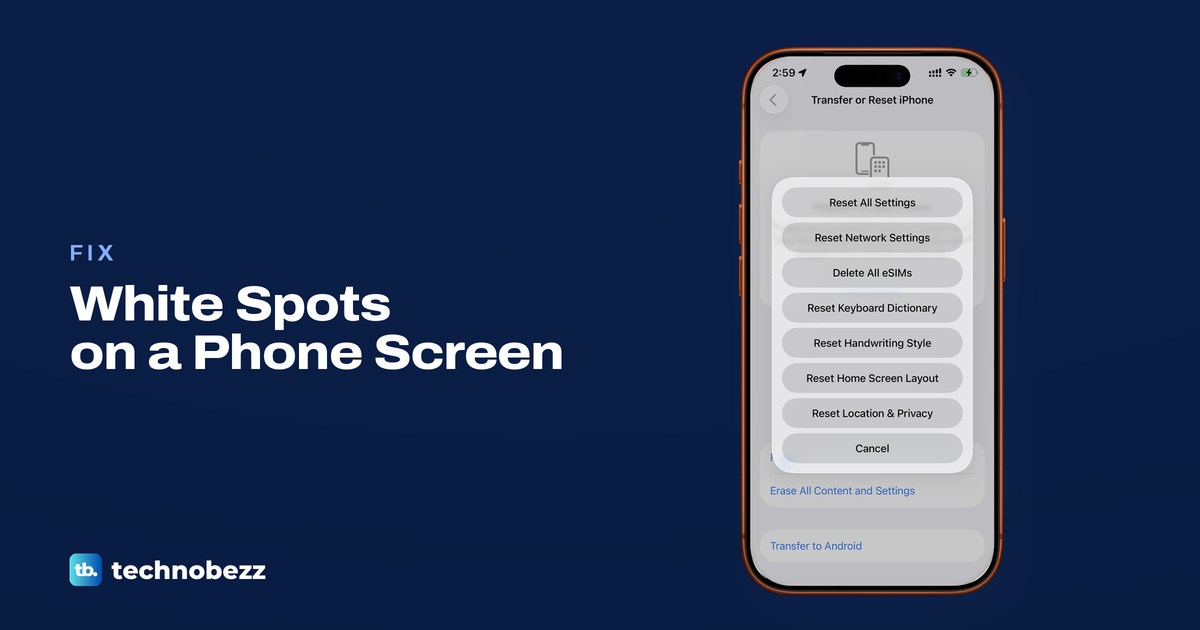
On iOS 15 or later, the less destructive option is Settings > General > Transfer or Reset iPhone > Reset > Reset All Settings. It keeps photos, apps and other content but resets preferences, including Wi-Fi networks and display settings. Expect to reconnect networks and adjust preferences afterward.
To erase an iPhone on iOS 15 or later, open Settings > General > Transfer or Reset iPhone > Erase All Content and Settings. Enter your passcode or Apple Account password if asked, then follow the confirmation prompts, including Continue. This restores factory settings and removes your content.
If asked about an eSIM, keep it for this troubleshooting reset. Erasing it requires contacting your carrier to reactivate the cellular plan.
On iOS 14 or earlier, use Settings > General > Reset, then choose Reset All Settings or Erase All Content and Settings. Use the settings reset first if you want to keep your content, and choose erasure only after backing up.
Reset a Samsung Galaxy
On Galaxy, open Settings > General management > Reset > Factory data reset. Review the warning, tap Reset, supply lock credentials if requested, then tap Delete all. Enter your Samsung account password if prompted.
Reset a Pixel
On Pixel with Android 8.0 or later, use Settings > System > Reset options > Erase all data (factory reset). Tap Erase all data, enter your PIN if asked, and confirm. A Pixel factory reset can take up to an hour; restart and follow setup afterward.
Arrange screen service for persistent spots
If the spot remains after the relevant checks, ask for a professional display assessment. Do not treat a factory reset as proof of a particular failed component. Google directs Pixel screens with dead pixels or physical damage to repair, and Samsung offers professional diagnosis through authorized service centers.
Arrange iPhone screen service
For iPhone, start with Apple's screen repair options. You can arrange in-person service at a Genius Bar or Apple Authorized Service Provider, or mail-in service. AppleCare can also offer Express Replacement; check the options and estimate for your device.
Prepare a Galaxy for service
For Galaxy, use Samsung's repair request service or contact an authorized service center. Have your model, serial number or IMEI ready. On One UI 5 or higher, back up and use Settings > Device care > Maintenance mode > Turn on before service; some versions call the menu Battery and device care.
Start a Pixel repair request
For Pixel, start a Google Store repair request, sign in, select your device or enter its IMEI or serial number, and describe all its issues. Choose the offered in-store or mail-in service, which depends on location and warranty. Back up your data and follow the service's preparation instructions before handing over the phone.
Handle work or school phone restrictions
If an employer or school manages the phone and a setting is unavailable, ask the administrator for help with the software checks or repair. On iPhone, look for a supervision message at the top of the main Settings page. On iOS 16 or later, open Settings > General > VPN & Device Management and select an installed profile to review it.
On iOS 14 or earlier, use Settings > General > Profiles & Device Management instead. Apple's archived iOS 15 documentation also shows that older menu name, so use the label shown on your phone.
For an unwanted, removable profile on your personal iPhone, select it in that menu, tap Delete Profile or Remove Profile, as shown, follow the prompts and restart. Removing it also removes associated settings, apps and data, so review what it controls first. Check with the administrator before deleting profiles on a school or business phone.
Android management can also restrict device settings, but a work profile does not automatically block every consumer troubleshooting step. If you encounter a management restriction, contact your administrator. Ask them to approve the next action rather than remove management as a screen fix.
Skip pressure and pixel repair tricks
Do not press, tap or massage the spot, apply heat or cold, or open the phone to try to fix it. Treat these as steps to avoid, not another troubleshooting stage. Use the supported cleaning and software checks, then seek service when they do not resolve the problem.
A solid-color image can help you describe an abnormal patch, and Samsung documents dead-pixel detection apps as a diagnostic option. That is not a promise that a pixel-fixer app or flashing colors will repair your display. Record what you can see and tell the technician which checks you completed.
Frequently Asked Questions
Can white spots on a phone screen go away on their own?
A temporary app or software issue may clear after troubleshooting, and cleaning can remove a surface mark. Do not count on a persistent display spot disappearing on its own; arrange an assessment if the relevant checks fail.
How do I know if a white spot is hardware damage?
A persistent spot deserves a professional assessment, especially if there are cracks or other visible damage. Its appearance alone does not identify the failed part, and software checks cannot provide a definite hardware diagnosis.
Should I use a pixel fixer app for white spots?
Use the cleaning, update and app checks before considering screen service. Samsung's detection test helps identify abnormalities, but it does not establish that a pixel-fixer app can repair the screen.
Is the small white dot on a Pixel 5 screen a defect?
The top-center dot can be the proximity sensor showing through while it is active. It can blink or stay solid, so check that the location and behavior match before treating it as a display fault.
Will a factory reset delete my photos and apps?
Yes, a factory reset erases phone data, so back up before proceeding. On iPhone, Reset All Settings is different: it resets preferences while keeping your content.