

To fix a Chromebook screen, wake the display, check power, and restart, then correct the display settings that match the problem before trying a hardware reset. A blank screen needs different checks from enlarged text, unusual colors, or a frozen webpage. Start with the matching symptom below and stop when the display works normally.
The short version
- Blank screen: Wake the Chromebook and check its charger connections before treating the problem as a display fault.
- Wrong size or colors: Check display scaling, magnification, color filters, and Night Light.
- Frozen content: Restart, investigate troublesome tabs or extensions, and update ChromeOS.
- Persistent problems: Try a hardware reset before considering Powerwash or ChromeOS recovery, which erase local data.
| Fix or check | When to use it |
|---|---|
| Wake the display | The screen has gone to sleep |
| Check power and raise brightness | A covered Dell Chromebook appears blank |
| Check connections and charge | The Chromebook will not turn on or charge |
| Restart through Quick Settings | The interface still responds |
| Force a shutdown | A covered Dell Chromebook is frozen or blank |
| Change sleep controls | The display goes blank while idle or when closing the lid |
| Turn off Battery Saver | The feature is dimming the display |
| Reset scaling with the keyboard | The entire desktop has the wrong size |
| Adjust Display and text size | You need to change the built-in display size |
| Change Orientation | The image is sideways or upside down |
| Turn off magnification | The view is enlarged or has a magnified strip |
| Reset webpage zoom | Only a webpage has the wrong size |
| Turn off Night Light | The screen has a warm or orange tint |
| Turn off accessibility color filters | Colors look inverted or grayscale |
| Close tabs and investigate resource use | Pages freeze or repeatedly refresh |
| Disable suspect extensions | An extension may be changing webpage appearance |
| Compare Guest mode | You need to check for a profile-specific problem |
| Clear cached content | A webpage has persistent rendering trouble |
| Adjust browser fonts and zoom | Sizing is wrong across Chrome |
| Exit full-screen mode | Chrome has hidden tabs or the launcher |
| Clean the touchscreen | Touch input is unresponsive |
| Mirror an external display | You need to compare built-in and external output |
| Adjust monitor resolution and refresh rate | An external display looks blurry or refreshes poorly |
| Check the USB-C cable | You see Cable may not support displays |
| Calibrate an external touchscreen | Its touch input is misaligned |
| Update ChromeOS | The Chromebook remains eligible for updates |
| Check the update schedule | You need to know when device updates end |
| Perform a hardware reset | Simpler checks have failed |
| Use Safety reset | The option is available and settings may be responsible |
| Use Powerwash | A personal Chromebook still has trouble after simpler fixes |
| Enter recovery mode | Persistent operating system or startup errors require recovery |
| Recover over the internet | The recovery screen offers that option |
| Get Device Recovery Utility | You need to prepare USB recovery media |
| Recover with USB media | You need external recovery media for a supported model |
| Contact the manufacturer | Display or touch faults persist |
Wake a blank screen and check power
Open the lid, then press a key or swipe the touchpad to wake a sleeping Chromebook. On a Chromebook tablet, press Power. For Dell Chromebooks covered by Dell’s screen troubleshooting instructions, including the 3100, 3180, 3189, 5190, 3380, 3400, and 7310 families, connect the charger, press Power, and repeatedly press the Increase screen brightness key. Minimum brightness can make those screens appear blank.
If the Chromebook will not turn on or charge, check the outlet and both charger connections. Disconnect the charger from the Chromebook and the outlet, then reconnect it to the Chromebook first and the outlet second. Let it charge for at least 30 minutes before testing again.
When the interface responds, select the time, select Power, then choose Restart. For a frozen or blank Dell Chromebook covered above, a forced shutdown can lose unsaved work. Hold Power until it switches off, then turn it on again.
For a screen that keeps going blank while idle, select the time and open Settings > System preferences > Power. Under both While inactive and plugged in and While inactive and on battery, select Keep display on. To prevent closing the lid from triggering sleep, turn off Sleep when lid is closed. On a managed Chromebook, ask your administrator if these controls are restricted.
On Chromebooks offering Battery Saver, that feature lowers screen brightness. Select the battery icon, open Settings > System preferences > Power, and turn off Battery Saver. Connecting the charger also switches it off automatically.
Correct screen size and rotation
When the whole desktop looks too large or too small, press Ctrl + Shift + 0 to restore the default screen resolution. For finer control, select the time and open Settings > Device > Displays > Built-in Display. Adjust Display and text size until the desktop has the size you need.
A sideways or upside-down image needs an orientation change. To rotate your Chromebook screen, open the same display settings, select Orientation, and choose the appropriate orientation. For an external screen, select the monitor’s name instead of Built-in Display.
An enlarged view or a magnified strip across the top can come from accessibility magnification. Open Settings > Accessibility, then turn off Full-screen magnifier or Docked magnifier, depending on what is enabled. If only a webpage has the wrong size, press Ctrl + 0 in Chrome to reset its zoom.
Restore normal screen colors
For an orange or unusually warm tint, select the time and select Night Light to turn it off. To stop the tint returning on a schedule, open Settings > Device > Displays. Under Night Light, set Schedule to Never.
Negative-looking colors, grayscale, or other color filters need a different setting. Select the time and open Settings > Accessibility > Display and magnification. Turn off Color inversion or Color correction, depending on the symptom. If the unusual appearance is confined to webpages, continue with the browser checks below.
Fix frozen pages and browser display problems
Close unused tabs and apps when the Chromebook freezes or repeatedly refreshes tabs. For a particular page that causes freezing, press Ctrl + Shift + R to refresh it. Press Shift + Esc to open Task Manager and investigate apps or windows consuming resources.
Extensions can change webpage colors and appearance. In Chrome, select Extensions > Manage extensions, switch off suspect extensions one at a time, and recheck the affected page after each change. If an organization-installed extension is restricted, ask your administrator to review it.
When Guest browsing is enabled, sign out and select Browse as Guest at the sign-in screen to browse as a guest, then recheck the affected website or display behavior. A difference in Guest mode suggests a profile-specific problem, but it does not establish the cause by itself. If your managed Chromebook hides Guest mode, continue with the other browser checks and ask your administrator about the restriction.
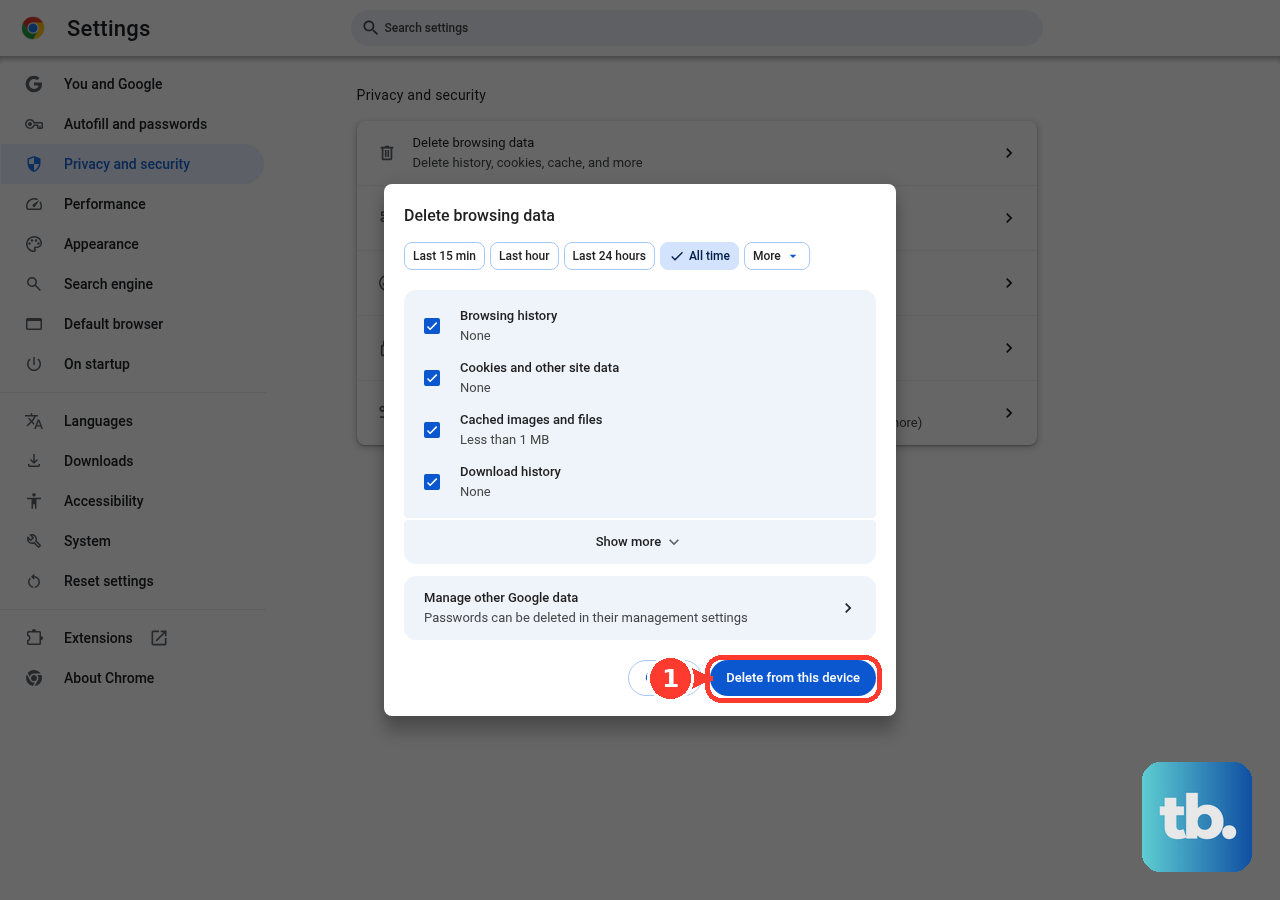
For persistent webpage rendering trouble, deleting cached images and files removes Chrome’s cached webpage content. Open Chrome’s More menu, select Delete browsing data, and choose the time range. Select Cached images and files, leave unrelated categories unselected, then select Delete data.
When text or page sizing is wrong across Chrome, open More > Settings > Appearance. Adjust Page zoom, Font size, or Customize fonts; website design can limit font-only changes. If tabs or the launcher have disappeared because Chrome is in full-screen mode, press the top-row Full screen key.
Check touchscreens and external monitors
For an unresponsive touchscreen, remove dust or dirt from the screen, then test it again. If touch still fails, continue to the hardware reset and factory reset options below. Persistent touch failures need manufacturer assistance.
If your Chromebook supports compatible display output, an external monitor provides another way to compare display behavior. Connect the monitor with a compatible adapter, open Settings > Device > Displays, and select Mirror Built-in Display. A normal external picture alongside a faulty built-in picture can help narrow the investigation toward the built-in display, but that comparison is not a confirmed hardware diagnosis.
To address a blurry external monitor image, select the monitor in Settings > Device > Displays and adjust Resolution. Check the available refresh-rate control for refresh behavior problems. The modes you can select depend on the Chromebook, monitor, and connection.
The message Cable may not support displays calls for a display-capable USB-C cable that meets Google’s SuperSpeed USB 5 Gbps-or-higher guidance. Check the cable’s certified markings and the monitor’s connection requirements. A charging cable alone may not support the display connection.
For misaligned touch input on an external touchscreen, open Settings > Device > Display, select the external touchscreen, and choose Calibrate touchscreen. Select the circles marked Tap here, then press Esc to exit. This calibration procedure applies to connected external touchscreens.
Update ChromeOS and try a hardware reset
For a Chromebook still eligible for updates, connect to Wi-Fi and select the time. Open Settings > About ChromeOS > Check for updates, allow the download, then select Restart in the Update device notification. On a work or school Chromebook, your administrator may control updates.
To check the device’s update end date, open Settings > About ChromeOS > Additional details > Update schedule. Older hardware may no longer receive fixes, so check this date if updating does not resolve the problem.
A hardware reset can lose files in Downloads, so back up local files before proceeding. On most Chromebook laptops, turn the Chromebook off, hold Refresh, and tap Power. Release Refresh when startup begins. On a Chromebook tablet, instead hold Volume Up + Power for at least 10 seconds, then release both buttons.
Consider a reset after simpler fixes fail
On Chromebooks offering Safety reset, it disables extensions and resets relevant settings and temporary site data while preserving local files and apps. Select the time, open Settings > System preferences, and under Reset, select Safety reset. Select Done when it finishes. The screen may briefly go black during the reset.
If you use a work or school Chromebook, contact your administrator for a factory reset. On a personal Chromebook, consider Powerwash only after less destructive troubleshooting fails.
Powerwash deletes local user data, apps, and settings, so back up local files before you factory reset the laptop. On your personal Chromebook, sign out and hold Ctrl + Alt + Shift + R. Select Restart, then select Powerwash and Continue. Complete setup and test the screen again.
Recover ChromeOS for persistent startup errors
For persistent operating system or startup-screen errors, ChromeOS recovery reinstalls the operating system. If your Chromebook is managed by work or school, involve your administrator before proceeding.
ChromeOS recovery erases local storage, so back up local files before proceeding. Disconnect peripherals, hold Esc + Refresh, press Power, then release Power. Release the remaining keys when a message appears. Some models use Esc + Maximize instead; on tablets, hold Volume Up + Volume Down + Power for at least 10 seconds.
On newer Chromebooks displaying Recover using internet connection, select that option and follow the device’s prompts. If that option is absent, use USB recovery instead. Preparing USB recovery requires another Chromebook or a Windows or Mac computer with Chrome, plus a USB drive of at least 8 GB.
Creating recovery media erases the selected USB drive. On the working computer, get Google’s Device Recovery Utility extension, open it, and select Get started > Select a model from a list. Choose the model, select Continue, insert the erasable USB drive, and select it. Select Continue, then Create now.
The next recovery step erases the affected Chromebook’s local storage. On that Chromebook in recovery mode, select Recover using external disk and follow its prompts. Recovery media must be available for your Chromebook model.
Get help for a persistent display fault
A screen that stays blank, a touchscreen that still fails, or a suspected physical display fault needs manufacturer diagnosis after the appropriate software checks. Select your Chromebook’s manufacturer in Google’s manufacturer directory and follow its support process for diagnosis or repair. If recovery cannot complete or the display still fails afterward, continue through that manufacturer support process.
Frequently Asked Questions
Why does the Chromebook interface turn dark at certain times?
The Auto theme schedules changes between light and dark appearances. Right-click the desktop, select Set wallpaper & style, and open Theme to review Dark and Auto. These options change interface appearance rather than repairing a black display.
Can you reduce magnification without turning it off?
With magnification enabled, press Ctrl + Alt + Brightness down to reduce it or Ctrl + Alt + Brightness up to increase it. You can also hold Ctrl + Alt while scrolling with two fingers.
How do you bring a window back from another monitor?
Press Search + Alt + M to move the window between screens. On a keyboard with a Launcher key, use Launcher + Alt + M instead.
Can Chromebook Diagnostics help with freezing or power problems?
On ChromeOS 90 and later, open Settings > About ChromeOS > Diagnostics, or search for Diagnostics in Launcher. Inspect battery information for power-related trouble and use the CPU or memory tests appropriate to freezing symptoms.
How do you reduce distracting screen animations?
Open Settings > Accessibility > Display and magnification and turn on Reduced animations. This setting addresses interface motion rather than hardware flicker.