


To take a screenshot on a Microsoft Surface Laptop, press Windows + Shift + S, choose a capture mode, and select what you want to capture. You can capture a small area, a single window, or the entire screen.
For a full screen screenshot saved immediately, press Windows + PrtScn on a keyboard with a Print Screen key. If your Surface keyboard has a dedicated Snipping key instead, press Windows + Snipping key.
The short version
- Select an area: Press Windows + Shift + S and choose what to capture.
- Save the whole screen: Press Windows + PrtScn, or Windows + Snipping key on a keyboard equipped with that key.
- Find the file: Immediately saved full screen captures go to Pictures > Screenshots in File Explorer.
- Capture an open menu: Open Snipping Tool and set Delay before starting the capture.
| Method | What it captures | Result or requirement |
|---|---|---|
| Windows + Shift + S | Selected area, window, or screen | Opens screen snipping |
| Snipping key | Your selected capture | Requires a keyboard with that key |
| Windows + PrtScn | Entire screen | Saves in Pictures > Screenshots |
| Windows + Snipping key | Entire screen | Saves in Pictures > Screenshots |
| Fn + Windows + Spacebar | Entire screen | Saves a file on supported hardware |
| Snipping Tool from Start | Rectangle, freeform area, window, or screen | Mouse or touch alternative |
| Snipping Tool with Delay | Content displayed before capture begins | Useful for open menus |
| Alt + PrtScn | Active window | Copies to the clipboard |
| PrtScn with screen snipping disabled | Entire screen | Copies to the clipboard |
| Fn + Alt + Spacebar | Active window | Copies on compatible keyboard layouts |
| Fn + Spacebar | Your selected capture | Opens screen snipping on compatible layouts |
| Edge Capture full page | Entire scrolling webpage | Review and save the capture |
| Edge Capture area | Selected webpage area | Copy or save the capture |
| Firefox Take Screenshot | Full webpage or visible page | Download or copy the capture |
Capture an area with the keyboard shortcut
Bring the content you want into view, then press Windows + Shift + S. Choose the capture mode and select the content. For a rectangular selection, drag across the area you want to include.
If your Surface keyboard has a Snipping key, press that key alone to open screen snipping, then select what to capture. For more detail on choosing capture modes, see how to snip on Windows with shortcuts.
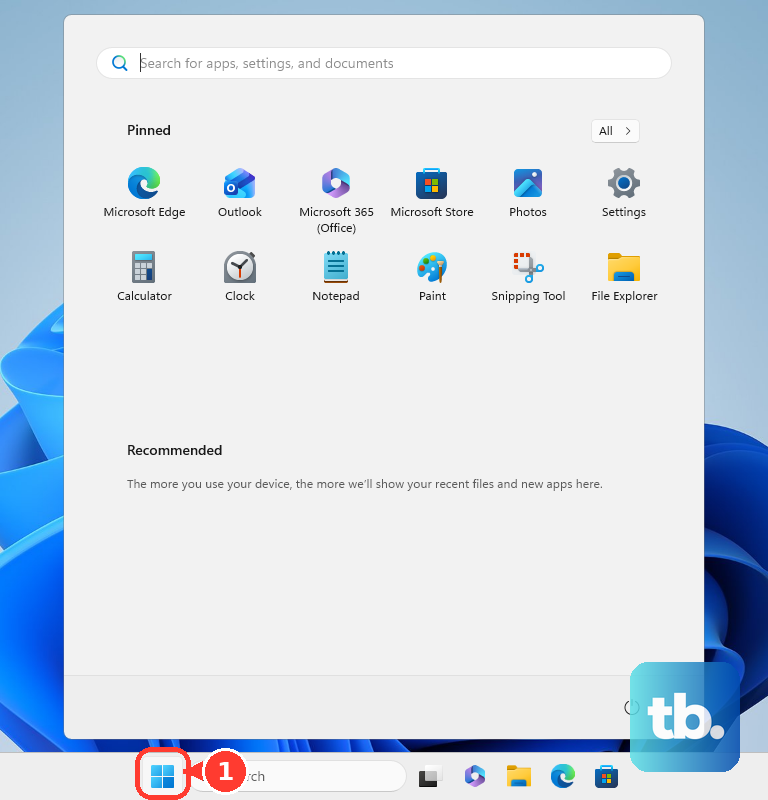
If the shortcut does nothing, open Start, search for Snipping Tool, and open it with your mouse or touch. Choose a capture mode, select New, and make your selection. You can use this route while you work through the steps to fix Windows screen snipping shortcuts.
Save a full screen screenshot immediately
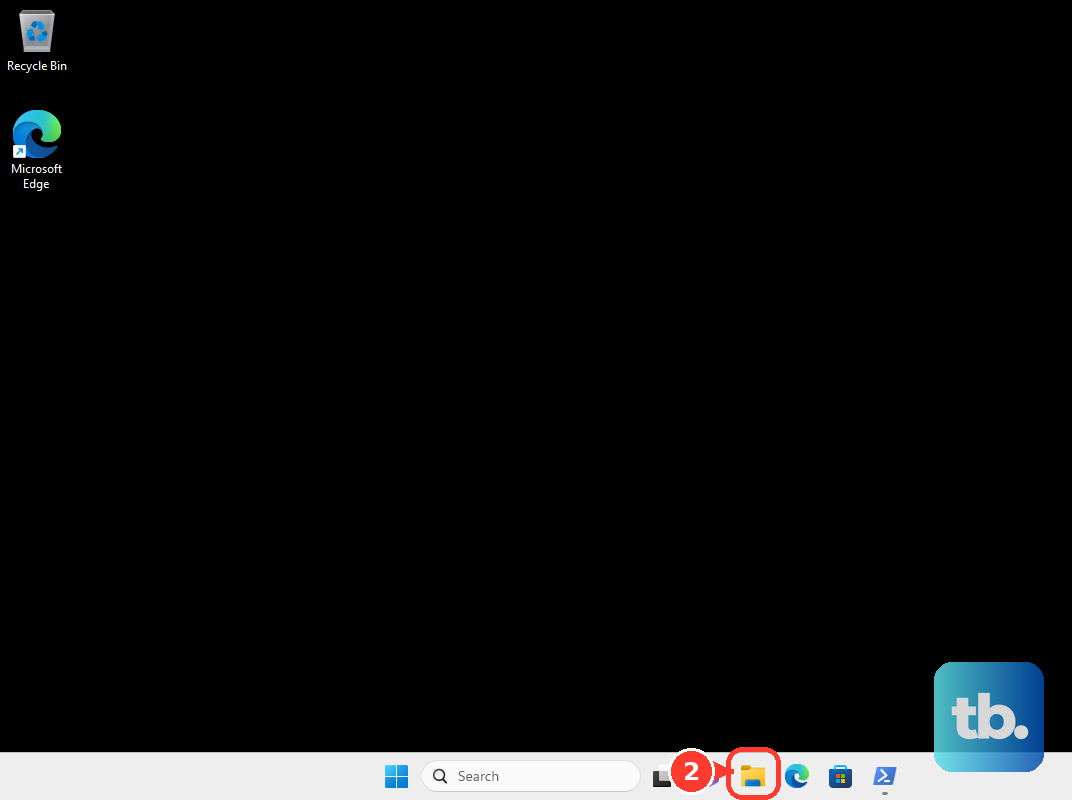
Press Windows + PrtScn to capture the entire screen and save it as a file. Open File Explorer, then go to Pictures > Screenshots to find it.
On a Surface keyboard with a dedicated Snipping key, press Windows + Snipping key to save immediately. The capture also goes to Pictures > Screenshots. If you need help locating a capture, follow the steps to find your screenshots on Windows.
Supported keyboards without a Print Screen key can use Fn + Windows + Spacebar to save a screenshot in that folder. This fallback depends on your hardware, so use Windows + Shift + S if your keyboard does not support it. Microsoft says Power + Volume Up does not work for screenshots on Surface Laptop.
Choose a capture mode in Snipping Tool
Open Start, search for Snipping Tool, and open the app. In the current Windows 11 app, select Snipping Mode, choose Rectangle, Freeform, Window, or Full screen, then select New.
With Rectangle, drag a box around the content. With Freeform, draw a shape around it instead. Choose Window to select a particular window, or Full screen to capture the entire screen.
For an open menu, select Delay and choose a delay such as five seconds. Set Snipping Mode, select New, and open the menu before the capture begins. When capture starts, select the content you want to include.
The current Windows 11 Snipping Tool automatically saves captures to Screenshots. Open See More > Settings to change automatic saving or its destination. To save another copy somewhere else, select Save as, choose a filename and location, then select Save.
Set what the Print Screen key does
In Windows 11, open Start > Settings > Accessibility > Keyboard. Turn on Use the Print screen key to open screen capture when you want PrtScn to open the selection interface. After enabling it, press PrtScn and select your capture.
Turn that setting off when you want PrtScn to copy the entire screen to the clipboard. Microsoft also uses the label Use the Print Screen button to open screen snipping for this setting. If the key opens a selection interface when you expected a clipboard copy, check this setting first.
Copy the screen or a window to another app
To copy only the active window, select that window and press Alt + PrtScn. Open an image-compatible app, such as Paint or an Office document, and press Ctrl + V to paste the screenshot. Save it from that app when you need a separate file.
To copy the entire screen, first disable the screen-snipping setting for PrtScn as described above. Press PrtScn, then press Ctrl + V in an image-compatible app. Save the pasted image there if you need a file.
Compatible Surface keyboard layouts also support Fn + Alt + Spacebar to copy the active window. Paste the result with Ctrl + V. On compatible layouts, Fn + Spacebar opens screen snipping, where you select a window or desktop area.
Capture a scrolling webpage
For an entire webpage, including content below the visible screen, open the page in Microsoft Edge. Press Ctrl + Shift + S and select Capture full page. Review the resulting capture and save it.
To capture only part of the webpage, choose Capture area, drag your selection, and choose Copy or save the capture. You can also open Settings and more > Screenshot, or right-click the page and select Screenshot. These options capture webpage content, so use a Windows screenshot shortcut when you also need the desktop or another app.
If you already use Firefox, right-click an empty webpage area and select Take Screenshot. Choose Save full page for the entire page or Save visible for the portion currently on screen. Select Download to save the image or Copy to place it on the clipboard.
Fix a missing app or conflicting shortcut
If Snipping Tool is missing, obtain or reinstall it through the official Snipping Tool Microsoft Store listing. Once installed, open it from Start, select a capture mode, choose New, and take your screenshot.
A separate screenshot application can intercept a shortcut you intended to use with Windows. To remove an unwanted capture app, open Start > Settings > Apps > Installed apps, locate the app, and select More > Uninstall. Follow the confirmation prompts, then try your Windows screenshot shortcut again.
If holding several keys together is difficult, open Start > Settings > Accessibility > Keyboard and turn on Sticky keys. You can then enter Windows + Shift + S one key at a time. You can also open Snipping Tool directly with your mouse or touch.
Frequently Asked Questions
Can you take a screenshot using the On-Screen Keyboard?
You can use the On-Screen Keyboard to enter the screenshot shortcut with mouse or touch. In Windows 11, open Start > Settings > Accessibility > Keyboard and turn on On-Screen Keyboard. Select General if necessary, then use its keys to enter Windows + Shift + S.
How do you take a screenshot of a game on a Surface Laptop?
In a Game Bar-supported game or application, press Windows + Alt + Print Screen. Your screenshot saves as a PNG in Videos > Captures. In a supported game, you can also press Windows + G and select Take screenshot, the camera icon in the Capture widget.
Can a Surface Pen open the screenshot tool?
On a Surface Slim Pen, double-click the top button to open Snipping Tool. First pair the pen through Start > Settings > Bluetooth & devices > Add device > Bluetooth. Customize its shortcut through Settings > Bluetooth & devices > Pen & Windows Ink. The Bluetooth shortcut does not mean your laptop display supports pen writing.
How do you back up screenshots with OneDrive?
Select the OneDrive cloud icon, then Help & Settings > Settings > Sync and backup > Manage backup. Enable Pictures, select Save changes, and save your screenshots inside that backed-up folder. The former Save screenshots to OneDrive setting is no longer available; use folder backup for Pictures instead.
What does Perfect Screenshot do on eligible Surface laptops?
You can use Perfect Screenshot for an AI-assisted rectangular capture in Snipping Tool on eligible Windows 11 Copilot+ PCs where the feature is available. Select Perfect Screenshot and choose a rectangular area. Adjust the resulting crop handles if needed.