

To stop sharing your iPhone location with one person, open Find My, tap People, select the person, then tap Stop Sharing My Location and confirm with Stop Sharing Location. If you don’t see that button on the person’s card, tap More first and scroll down to it. This ends that person’s access to your ongoing Apple location share across Apple apps. Separate shares in Google Maps, WhatsApp, Snapchat, or Life360 need to be stopped in those apps.
Apple says ordinary stopping does not notify the recipient, but the person can notice that your location is missing. Older operating systems may show a notification in Messages, so don’t assume the change will go unnoticed.
The short version
- One person: Open Find My, tap People, select the person, tap Stop Sharing My Location (under More if it isn’t on the card), then confirm with Stop Sharing Location.
- Other Apple controls: You can also end an existing Apple location share through Messages or Contacts.
- Temporary pause: On iOS 27, choose Hide Location to hide your location until sharing resumes the next day.
- Separate apps: End independent location shares inside each app you use.
| Control or method | What to know |
|---|---|
| Stop an Apple person share | Ends one person’s ongoing Apple location access |
| Stop through Messages | Affects the selected person or conversation recipients |
| Stop through Contacts | Ends an existing Apple share from the contact card |
| Hide an Apple person share | On iOS 27, sharing resumes the next day |
| Hide through Messages | Pauses sharing for the rest of the day in the current interface |
| Family location setting | Changes access for the selected family member |
| Block a contact | Also affects communications; family device access needs a separate change |
| Google Maps person share | Independent of Apple location sharing |
| WhatsApp chat share | Ends live updates; the last location remains as a thumbnail |
| Snap Map exclusions | Excludes selected friends from your location audience |
| Snap Map selected friends | Limits access to the friends you choose |
| Life360 Circle sharing | Affects everyone in that Circle |
| Life360 temporary link | Stops the temporary location share |
| Apple Maps active ETA | Ends sharing for the current trip |
| Apple Maps automatic ETA | Removes a recipient for a pinned destination |
| Google Maps trip progress | Ends the active navigation share |
| Messages Check In | Ends the session and informs the recipient |
| Safety Check review | Reviews and stops selected sharing on eligible iPhones |
| Pause Apple sharing globally | Affects everyone; turning it back on restores existing recipients |
| Disable device location access | Affects apps and services broadly |
| Revoke an app’s location permission | Affects every recipient in that app, without erasing previous locations |
| Reinstall the location app | Restores its controls; deleting the app does not end sharing |
Stop sharing with one person
Open Find My and tap People, then select the person whose access you want to end. Tap Stop Sharing My Location, then confirm by tapping Stop Sharing Location.
In some layouts, the stop control sits behind More instead of directly on the person’s card. If you don’t see it, tap More, scroll down, and tap Stop Sharing My Location there.
Stopping this Apple person share removes its visibility across Apple apps, so you do not need to repeat the change in Messages and Contacts. Check separately for shares in other apps and active trips. Instructions for the standalone app named Find My Friends apply to iOS 12; on current systems, open Find My.
Use Messages or Contacts instead
In Messages, open your conversation with the person and tap their name at the top. Tap Stop Sharing My Location to end the ongoing Apple location share. This controls the same Apple sharing permission.
A group conversation’s sharing control affects that conversation’s recipients. To stop sharing through a group, open the conversation, tap the group’s name, then tap Stop Sharing My Location. To change access for just one person, open Find My and select their entry under People.
From Contacts, open the person’s contact card and tap Stop Sharing My Location. This route applies when you already have an Apple location share with that person.
Hide your location until the next day
On iOS 27, open Find My, tap People, select the person, and tap More. Choose Hide Location to pause sharing with them. Sharing automatically resumes the next day.
The iOS 27-era Messages interface also offers a pause for the rest of the day. Open Messages, select the conversation, tap the person’s or group’s name, then choose Hide Location. A group conversation control applies to its recipients.
If you use an older release without this temporary control, follow the stop-sharing steps to end access. Choose the stop option whenever you want sharing to stay ended instead of returning automatically.
Change sharing with a family member
For a Family Sharing recipient, open Settings > Family > Location Sharing. Turn off location sharing beside the relevant person. The separate Automatically Share Location setting controls sharing with new family members, so use the individual recipient’s switch for this change.
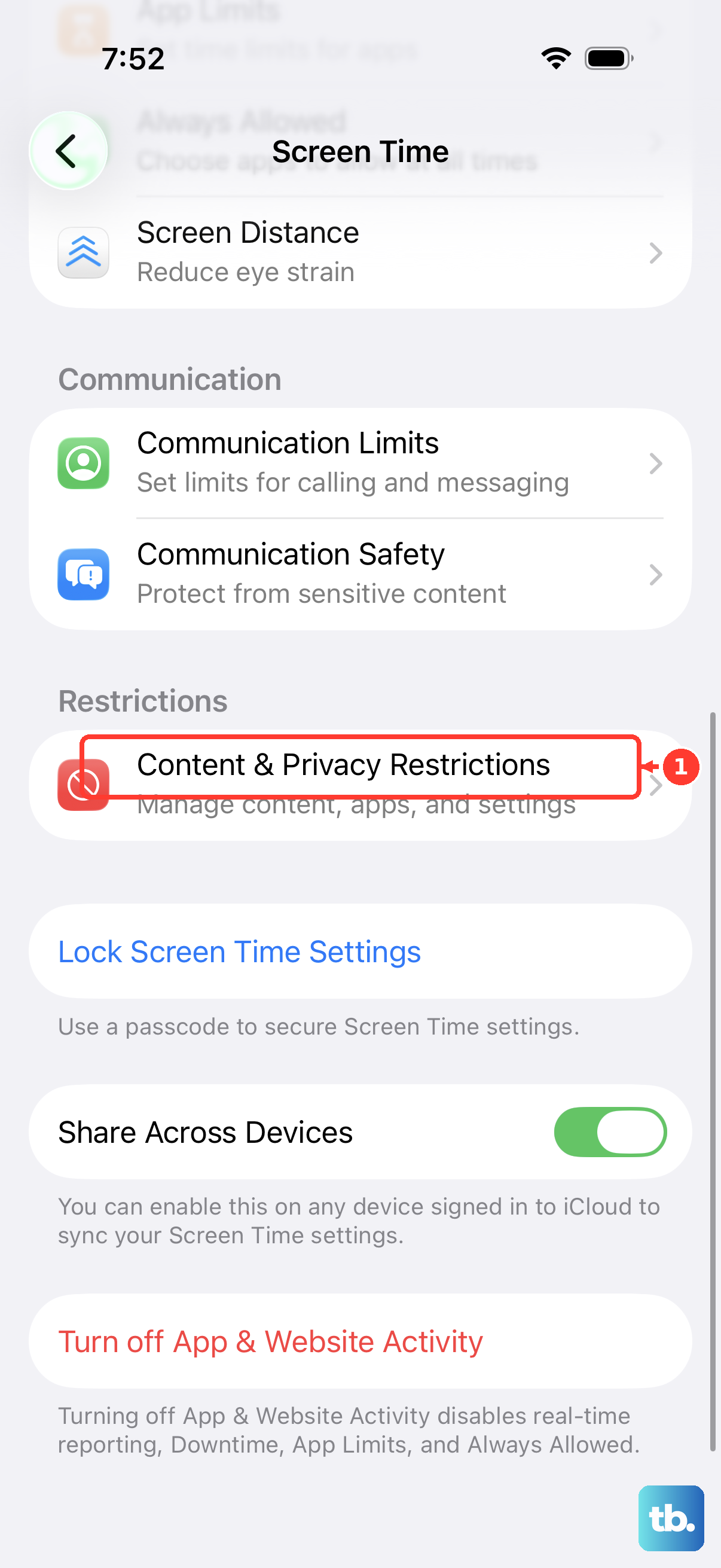
Parental restrictions may prevent children and teens from changing location sharing. With the upgraded iOS 27 parental controls, an authorized parent can allow changes under Settings > Family, selecting the child’s name, then opening Content & Privacy Restrictions > Allow Changes to Settings and reviewing settings such as Location Services and Share My Location. Families that haven’t upgraded can continue using the previous version of Screen Time and parental controls.
If you also want to stop communications, you can block a number or contact. On iOS 26, open Settings > Privacy & Security > Blocked Contacts > Add Blocked Contact, then select the contact. Apple says blocking stops Find My People location sharing, but a blocked Family Sharing member can still see associated device locations. Change that family member’s location-sharing setting as well.
End shares in other location apps
Google Maps sharing works independently of Apple location sharing. Open Google Maps, tap your profile picture or initial, and select Location sharing. Select the person’s profile and tap Stop.
In WhatsApp, open the individual or group chat containing your live location. Tap Stop sharing, then tap Stop sharing again to confirm. In a group, this ends the share for the whole group, and your last location remains available as a static thumbnail.
For Snapchat, open Snap Map, tap the gear icon, then choose My Friends, Except…. Select the person you want to exclude from seeing your location. Alternatively, choose Only These Friends and select the people who should retain access.
Life360’s Circle setting affects the whole Circle. In the relevant Circle, open Settings > Location Sharing and turn off the toggle, repeating this in other shared Circles as needed. Members see Location Sharing Paused, and Check In, SOS, and Crash Detection can still disclose location.
A temporary Life360 sharing link has a separate stop control. Tap your avatar on the map, then tap Stop Sharing. This applies to temporary sharing links, including links recipients view in a browser.
Stop active trip sharing and Check In
For an active Apple Maps trip, open Maps and the trip’s route card. Tap Sharing with, then tap Stop Sharing ETA below the relevant contact’s name. This ends that trip’s ETA and route sharing, but automatic sharing can restart on a later trip.
Removing an automatic ETA recipient ends automatic sharing with that person for the selected destination. Open Maps, tap your profile icon, and select Places > Pinned, then tap Info beside the place. Under Share ETA, tap Remove beside the person. Repeat for other pinned destinations that share with them.
Google Maps trip progress has its own control during navigation. Swipe up on the information card and tap Stop sharing. Trip-progress sharing also ends when you stop navigation or reach the destination.
To end an active Check In on an iPhone with iOS 17 or later, open Messages and the conversation containing it, then tap Details. Tap Cancel Check In and complete the confirmation. The recipient is informed that the session ended, and location can remain visible briefly afterward.
Review broader sharing when needed
Safety Check lets you review more of what you share with a person. It requires an iPhone with iOS 16 or later, signed into an Apple Account with two-factor authentication. Screen Time, device management, and Stolen Device Protection can affect the available options.
Open Settings > Privacy & Security > Safety Check > Manage Sharing & Access, then tap Continue. Select People to choose the person, or select Information to review location sharing, and stop the relevant sharing through the onscreen review. Complete the remaining review and tap Done.
Keep any account review within Apple’s own controls. Sign in only through Apple’s own app or website, and never share a code, password, or remote access with someone who contacts you.
To pause Apple location sharing with everyone, open Find My, tap Me, and turn off Share My Location. Turning it back on restores visibility to existing recipients. For an ongoing change affecting one person, end that person’s share individually.
You can also turn off location on iPhone by opening Settings > Privacy & Security > Location Services and turning off Location Services. This interrupts location access for apps and services broadly instead of revoking one person’s sharing permission. Emergency location use and other ways of estimating location can remain.
To deny one app location access, open Settings > Privacy & Security > Location Services, select the app, and choose Never. This affects all recipients in that app and does not erase previously shared locations. Use the app’s recipient controls as well to end the actual share.
Restore missing controls and check restrictions
Deleting the app named Find My does not stop location sharing. If you removed it, find and reinstall deleted apps, or reinstall it from Apple’s App Store listing. Then open Find My and use the person’s sharing controls under People.
On a supervised work or school iPhone, device management can restrict friend-location functionality and limit Safety Check options. Ask your administrator about those restrictions if they prevent you from changing sharing. For a child’s iPhone, have the authorized parent review the parental controls described above.
Powering off the iPhone is not a reliable way to revoke sharing permission. Apple says its device-finding network can locate an iPhone for up to 24 hours after shutdown. Use the recipient’s stop-sharing control to end access.
Frequently Asked Questions
Does turning off Precise Location stop someone from seeing my location?
Turning off Precise Location leaves approximate location available. To end someone’s access, stop their share through the relevant app’s recipient controls.
What happens if I remove the person completely?
Removing the friend removes both of you from each other’s People lists and removes your access to their shared location. On iOS 27, open Find My, tap People, select the person, and tap More. Tap Remove to remove the friend.
Can I stop sharing from my Apple Watch?
On watchOS 27 and later, the separate Find People app has been replaced by Find My, which shows the same people as your iPhone. Apple’s watchOS 27 guide doesn’t document a stop-sharing control on the watch, so use the Find My steps on your iPhone to end that person’s share.
Will stopping live sharing retract a location pin I already sent?
A one-time location pin is a snapshot rather than an ongoing share: the person sees only the location you sent and can’t follow you as you move. Stopping live sharing ends your ongoing share, which is separate from that pin.
Can I stop a Google Maps location share from a computer?
In your Google Account on a computer, open People & sharing, select Location Sharing, then select Manage Location Sharing. Click Stop beside the person. This controls Google location shares, including Google Maps shares; Apple location shares require their own controls.