


To set up your TP-Link router, connect your internet source to its Internet or WAN port, join its network, then use tplinkwifi.net or the compatible Tether app to enter your internet details and set your Wi-Fi name and password. Deco systems use the Deco app, while DSL and cellular models have different connection steps. Follow the route that matches your model and interface.
The short version
- Connect first: For a standard router, connect your modem or Ethernet outlet to Internet or WAN, then join the router’s network.
- Choose your setup tool: Standard routers use a browser or compatible Tether app, while Deco uses the Deco app.
- Have your internet details ready: Enter the connection type, credentials and VLAN information required by your internet provider.
- Finish with Wi-Fi: Create your network name and password, apply the settings and reconnect.
| Your device or task | Setup route | What to confirm |
|---|---|---|
| Standard router with New Interface | Browser at tplinkwifi.net | Internet port and connection type |
| Standard router with Classic Interface | Browser at tplinkwifi.net | ISP details and required VLAN settings |
| Tether router with New Interface | Tether app | Model and firmware compatibility |
| Tether router with Classic Interface | Tether app | Model and firmware compatibility |
| Main Deco with Ethernet internet | Deco app | ISP connection details |
| Supported same-package Deco units | Automatic onboarding | Main Deco setup completed |
| Additional compatible Deco | Deco app discovery | Phone connected to existing Deco network |
| Cellular Deco | Deco app | SIM service or Ethernet uplink |
| DSL Deco | Deco app | DSL parameters or Ethernet uplink |
| Compatible Archer or TD DSL router | Browser at tplinkmodem.net | DSL synchronization and ISP parameters |
| Tether-compatible LTE router | Tether app | SIM size and carrier profile |
| Archer NX200 or MR600 with SIM internet | Browser at tplinkmodem.net or 192.168.1.1 | Model-specific carrier settings |
| Compatible travel router | Browser setup wizard | Supported internet source |
| Router with built-in access-point operation | Operation Mode menu | Model-specific uplink wiring |
| Router without an Operation Mode menu | Manual access-point configuration | LAN address and DHCP settings |
| Deco behind an existing router | Deco access-point settings | Existing router supplies DHCP |
| Router needing a fresh setup | Physical factory reset | Model-specific button timing |
| Deco needing fresh onboarding | Deco reset procedure | Reset instructions for that model |
Connect the router and gather your internet details
For a standard Wi-Fi router, connect your modem or wall Ethernet outlet to the port labeled Internet or WAN. For Classic-interface setup, restart the modem, then power on the router. Connect your computer by Ethernet, or join the default Wi-Fi network using the name and password printed on the router’s label.
Have your internet provider’s connection details ready before starting the wizard. Depending on your service, you may need a connection type, PPPoE username and password, static IP details or a VLAN ID. Enter the values your provider supplies.
Menu names depend on your model and firmware, so match the steps to the interface your router displays. Find your exact model and hardware version in the TP-Link Download Center to get its installation manual. Both the New and Classic interfaces support setup.
Set up a standard router in your browser
While connected to the router, open https://tplinkwifi.net in your browser’s address bar. You can also open https://192.168.0.1. If you need help reaching that address, follow the steps to log in to 192.168.0.1 router settings.
On the New Interface, create the local administrator password. Turn on the setting that reads "I have read and agree to the Terms of Use", then click Let's Get Started. Verify the selected Internet port and Connection Type, then enter your provider’s credentials and required VLAN settings.
Enter your Wi-Fi name and password in the wireless settings. You can optionally enable Smart Connect during setup. Click Next, then Finish.
On the Classic Interface, log in or create the administrator password requested by your router, select your time zone and click Next. Choose Dynamic IP, PPPoE or Static IP to match your service, or select AUTO DETECT. Enter the internet details requested for that connection type.
If your provider requires VLAN tagging, open Special ISP Settings (IPTV/VLAN), select Custom and enter its VLAN ID. Check 802.1Q Tag and set the required port assignments. Choose Use Default MAC Address unless your provider requires a different choice.
Set your wireless network names and passwords, then complete the connection test. Choose your firmware-update preference and finish with Next.
Use Tether for setup on your phone
Check your router’s compatibility and install Tether through the App Store or Google Play links on the official Tether page. Connect the internet source to the router’s Internet or WAN port and join its labeled Wi-Fi network. Open Tether to begin.
For a compatible router running the New Interface, open Devices, select your router and create its local password. Choose Auto Internet Port only if your provider doesn't require a VLAN ID and the detected port is correct; otherwise, choose Set Manually and select the port. Then configure Connection Type. Enter required IPTV or VLAN details under Advanced Settings (IPTV/VLAN).
Create your Wi-Fi credentials, then choose Enable Auto Update or Skip. Tap Apply, followed by Finish.
On a compatible Classic-interface router, select your router and create its login password. Select your provider’s connection type and enter its parameters. If VLAN tagging is required, enable IPTV/VLAN, select Custom, enter Internet VLAN ID and check 802.1Q Tag.
Set the required LAN assignments and tap Done. Select Do not Change MAC address (Recommended) unless your provider instructs otherwise, then configure the wireless networks. Configure Update Time or tap Skip, apply the settings and allow the connection test to finish.
Set up a Deco mesh system
Install the Deco app and sign in with a TP-Link ID. For a Deco X60, select the matching hardware version and open Apps on its official download page to get the app. Power on the main Deco and wait for its LED to pulse blue.
Tap Let's begin, or tap + and choose Create a Network. Connect your phone to the Deco’s default Wi-Fi, then connect the Deco to your modem or Ethernet outlet. Select its room and Internet Connection Type, entering required ISP details and any VLAN information under Advanced Settings > IPTV/VLAN.
Create your Wi-Fi name and password, then reconnect your phone to that network. On iOS 14 or later, allow Local Network access for Deco. TP-Link also recommends disabling your phone’s power-saving mode during setup.
For supported Wi-Fi 6 and newer Deco packages, power on the remaining same-package units near the main Deco after its setup finishes. Supported units join automatically within approximately two minutes.
To add a separately purchased compatible unit, power it on near the main Deco and wait for its LED to flash blue. Connect your phone to the existing Deco network, then open Network > + > Add a Deco Unit in the app. Complete discovery and placement through the app.
For a cellular Deco, sign in to Deco, tap Let's begin and select your model. Select Use as a 4G/5G Router, insert the SIM and power on the unit. Join its default Wi-Fi, select its room and verify the carrier parameters, then create your Wi-Fi credentials and reconnect.
For Ethernet service on a supported cellular Deco, select Use as a Wi-Fi Router. Connect a WAN/LAN port to your modem or Ethernet outlet, enter the ISP connection type and any required IPTV/VLAN Settings, then create your Wi-Fi credentials.
For Deco X20-DSL, X50-DSL or X73-DSL, sign in to Deco, tap Let's begin, select your model and choose Use as a DSL Modem Router. Connect the telephone line to DSL, power on the unit and join its default Wi-Fi. Assign its room, then select your region and ISP, or Other.
Enter the DSL and internet parameters your provider requires, including PPPoE credentials and VLAN information where needed. Create your Wi-Fi credentials and reconnect, then configure VoIP only if your model supports it. For an Ethernet uplink instead, select Use as a Wi-Fi Router.
Set up a DSL cellular or travel router
For compatible Archer VR/VX and TD DSL modem routers, connect the DSL line and wait for DSL synchronization. Join the router through Wi-Fi or Ethernet, then open http://tplinkmodem.net. Create the administrator password or use the credentials documented for your exact model.
Select the region and time zone, choose your ISP or Other, then enter the required DSL interface, connection type, credentials and VLAN parameters. Set your wireless credentials and apply the settings. Allow the connection test to finish.
For Tether-compatible LTE routers, including supported MR600, MR500, MR400, MR200, MR6400 and MR150 versions, install the correct SIM size and power on the router. Join its labeled Wi-Fi, open Tether and sign in with your TP-Link ID. Select the router, create its local password and wait for carrier detection.
Select Profile Name, configure the wireless credentials and apply the settings. Reconnect to your new Wi-Fi network when setup finishes.
For SIM-based browser setup on an Archer NX200 or MR600, insert an active compatible SIM, power on the router and connect to its network. Open tplinkmodem.net or 192.168.1.1. If needed, follow the steps to open the 192.168.1.1 admin page.
On an NX200, open Basic > Internet and select MBB. If carrier detection fails, open Advanced > Network > Mobile WAN > Create Profile and enter your carrier’s parameters.
On an MR600, run Quick Setup and set the time zone and carrier parameters. If you need to enter APN settings manually, open Advanced > Network > Internet > Create Profile. Use the carrier parameters required for your service.
On portable routers with this travel-router interface, join the router’s Wi-Fi, open tplinkwifi.net and create the login password. Open Advanced > Quick Setup, select Ethernet, Wi-Fi, USB Tethering, USB Modem or Cellular Internet as supported by your model, then click NEXT.
Supply the matching Ethernet connection details, upstream Wi-Fi credentials, USB device or SIM, then finish the wizard. Hotspot service may also require captive-portal authentication. Available sources, ports and modem compatibility depend on the model and firmware.
Use an existing router with access point mode
If you are adding a TP-Link router as a wired access point, connect it to the existing router using your model’s wiring instructions. Log in at tplinkwifi.net and open Advanced > Operation Mode. Depending on the interface, the control is under Advanced > System > Operation Mode, or labeled Change Mode.
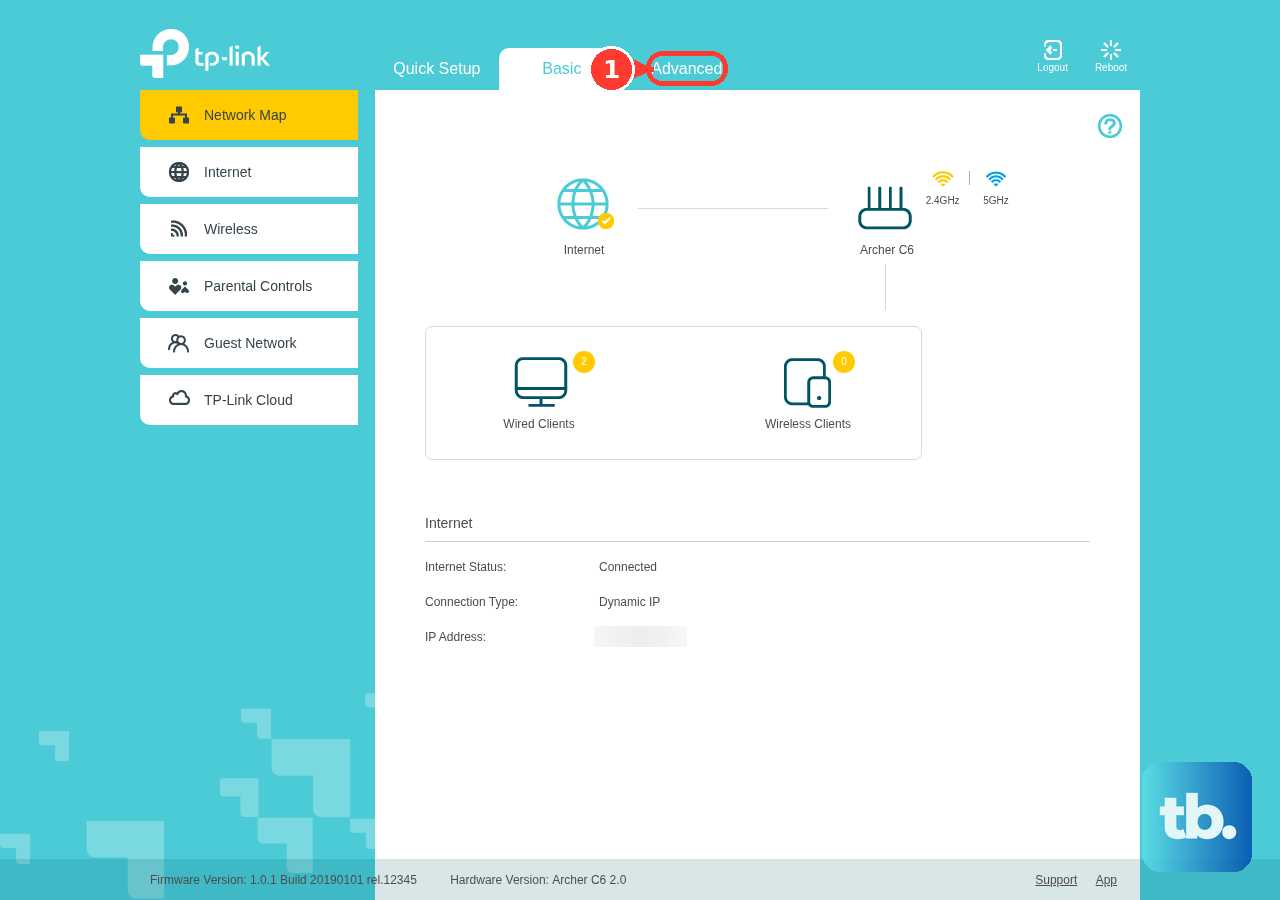
Select Access Point Mode and allow the router to reboot. Complete Quick Setup and set the wireless credentials. Use the uplink port specified for your model.
For a router without an Operation Mode menu, log in locally and open Advanced > Network > LAN. Assign an unused address in the main router’s subnet but outside its DHCP pool, then reconnect using that address. Open Wireless > Wireless Settings, configure Wi-Fi and select Save.
Next, open Advanced > Network > DHCP Server, disable the DHCP server and select Save. Open Advanced > System > Reboot and select Reboot. Connect the two routers LAN-to-LAN; exact menu locations vary by model.
For a Deco system supporting access-point operation, complete normal Deco setup first and ensure the existing router supplies DHCP. Connect your phone to Deco Wi-Fi, then open More > Advanced > Operation Mode > Access Point > Save. Tap Reboot and wait for the system to restart. Routing-dependent features become unavailable in this mode.
Reconnect using your new WiFi details
After applying your wireless settings, join the network using the Wi-Fi name and password you created. Keep those details separate from the local administrator password used to manage the router. For Classic browser or Tether setup, allow the wizard’s connection test to finish.
To revise the wireless credentials later, follow the steps to change your router’s WiFi password. After applying the changes, reconnect using the updated details.
Start over when you need a fresh setup
A factory reset removes the existing configuration, so use it when you need to set up the router again from its defaults. With the router powered on, hold its Reset or WPS/Reset button for the interval specified for your model. TP-Link’s general router instructions specify more than ten seconds, but that timing does not apply universally to Deco or Mobile Wi-Fi devices.
Release the button when the reset indicator changes, then wait for the router to reboot. Reconnect using the default information on its label and repeat setup.
For Deco units covered by this reset procedure, including the X60, keep the unit powered on and press Reset for one second. Wait approximately two minutes for the LED to pulse blue, then repeat Deco app setup. Resetting removes that unit’s configuration.
Frequently Asked Questions
Can I set up a TP-Link router using WPS?
WPS connects a compatible client device to Wi-Fi; it does not configure the router’s internet connection. Complete the router’s setup first. iOS does not support this WPS joining method, and you should not assume a current Android device offers it.
Can I use the setup CD that came with an older router?
The bundled Easy Setup Assistant CD is a historical, model-specific route for older hardware such as the TL-WR941ND V5. For a router with the New or Classic interface, use its browser or compatible Tether setup.
How do I create a TP-Link ID for the Deco app?
Select Create Account or Create a TP-Link ID in the app and enter the registration information. Turn on the setting that reads "I accept the Terms of Use and confirm that I have fully read and understood the Privacy Policy", then select Sign Up. Activate the account through the emailed link.
Can I add a second TP-Link router through EasyMesh?
Yes, when your main router supports EasyMesh and the second router supports satellite operation with its hardware revision and installed firmware. On the main router, open Advanced > EasyMesh > Add Satellite Devices, select TP-Link Router, click Next, scan for the satellite and add it. Ethernet onboarding additionally requires explicit EasyMesh Ethernet backhaul support on both routers.