


To operate a laptop for the first time, connect its power adapter, turn it on, complete the onscreen setup, then open apps, manage files, and shut it down through its power menu. Connect to the internet during setup so you can sign in and install updates. The Windows steps use Windows 11 menus; follow the MacBook or Chromebook instructions for those laptops.
The short version
- Start with setup: Connect power and follow the prompts for your language, network, account, and privacy choices.
- Learn the controls: Practice clicking, scrolling, opening apps, and finding files before adding more software.
- Update and protect: Install system updates and configure your sign-in protection.
- Save your files: Set up backup or persistent storage before accumulating important documents.
| Laptop | Open applications | Find files | Install system updates |
|---|---|---|---|
| Windows 11 laptop | Start | File Explorer | Settings > Windows Update |
| MacBook | Dock or Spotlight | Finder | System Settings > General > Software Update |
| Chromebook | Launcher | Files | Settings > About ChromeOS |
Connect power and turn on the laptop
Connect the power adapter specified for your Windows laptop to its charging port and a power outlet, then press and release the power button. Its location and the required charger depend on the model. On a Surface Laptop that does not respond, connect the power supply and try the power button again.
For a MacBook, open the lid and connect the supplied power adapter and cable to begin setup. On a Chromebook, press the power button to reach its welcome screen.
Complete the account and network setup
On Windows 11, choose your country or region and keyboard layout, connect to the internet, and review the license terms. Sign in to or create a Microsoft account, configure the requested sign-in protection, and review the offered privacy settings. Windows 11 Home and Pro for personal use require both internet connectivity and a Microsoft account during initial setup, although individual screens vary by manufacturer, build, region, and account.
During MacBook setup, choose your language, accessibility options, network, and setup or migration route. Create the Mac’s computer account and password, then sign in to an Apple Account if you want to use its services. Review the remaining offered settings before finishing Setup Assistant.
A Chromebook asks you to choose its language and keyboard settings, connect to a network, and complete the terms screen. Enter your Google Account email address or phone number and password, then complete any requested verification. Use Accessibility on the setup screen when you need assistance with the controls.
To connect to another Wi-Fi network later on Windows 11, select the taskbar’s Network, Sound, or Battery area, then select Manage Wi-Fi connections beside Wi-Fi. Choose your network, select Connect, enter its password, and select Next. A current Windows 11 laptop with a camera can also scan a Wi-Fi QR code: open Camera, switch to barcode mode, point the camera at the code, and select the detected link to complete the connection.
On a Mac, choose your network from the menu bar’s Wi-Fi menu, enter its password, and click Join when requested. On a Chromebook, select the time at the bottom right, select the network area, and choose your Wi-Fi network. Supply its password when requested.
Practice using the touchpad and keyboard
With a Windows 11 touchpad, tap to select an item and slide two fingers to scroll. Tap with two fingers or press the lower-right corner to open a shortcut menu, and pinch to zoom. Some gestures require a precision touchpad; customize supported gestures through Settings > Bluetooth & devices > Touchpad, then choose Three-finger gestures or Four-finger gestures.
MacBook trackpad controls are under the Apple menu > System Settings > Trackpad. Review Point & Click, Scroll & Zoom, and More Gestures, then configure Secondary click and Tap to click to suit you. The settings demonstrate the gestures your trackpad supports, including two-finger scrolling and pinch gestures.
On a Chromebook, tap or press the touchpad to click, use two fingers for a shortcut menu, and slide two fingers to scroll. Swipe three fingers upward to see the window overview. Select the time, then open Settings > Device > Touchpad to customize these controls; some models label the page Touchpad and mouse.
For editing on Windows 11, select text and press Ctrl + C to copy, Ctrl + V to paste, or Ctrl + Z to undo. On a Mac, use Command + C, Command + V, and Command + Z instead. Switch between open windows on Windows with Alt + Tab, or between Mac applications with Command + Tab. Individual applications can assign shortcuts differently.
You can take a screenshot on your laptop to capture something displayed on screen. Press Windows + Shift + S on Windows 11, Shift + Command + 4 for a selected area on a Mac, or Ctrl + Show windows on a Chromebook.
Open apps and find your files
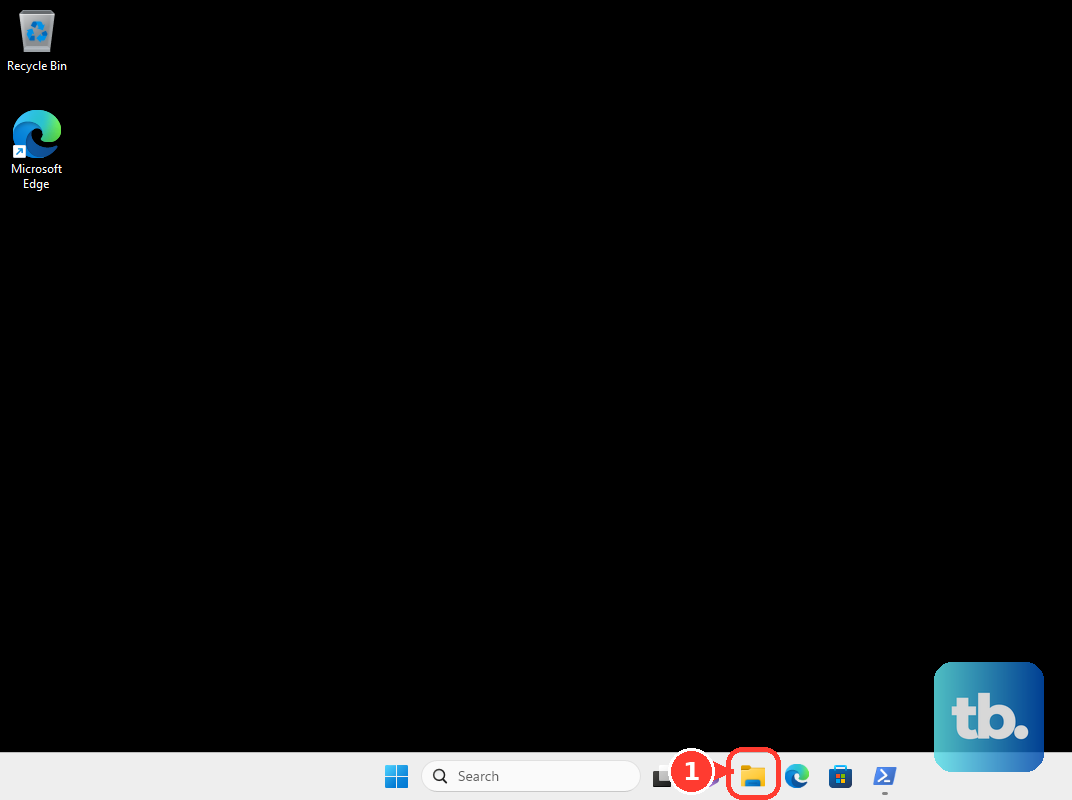
Press Windows to open Start and find an application on Windows 11. Open File Explorer with Windows + E, choose a folder in its sidebar, and use its search field to find a file. For the web, open Microsoft Edge from Start or the taskbar, then enter a website address or search in the address bar.
On a Mac running macOS 27, click an application’s Dock icon or press Command + Space to find it with Spotlight. You can also open Finder > Applications and double-click an application. In applications that support it, press Command + S to save your document.
For Chromebook apps, press Launcher or Search and find the application you want. Open Launcher > Files to choose a local folder, Google Drive, or connected storage, then double-click a file to open it. To save supported content, press Ctrl + S, enter a name, choose a location, and select Save.
Install updates and the apps you need
On Windows 11, open Start > Settings > Windows Update and select Check for updates. Install the updates offered for your laptop and restart when requested. For applications, open Start > Microsoft Store and browse Apps or Gaming; Store applications normally update automatically.
Mac updates are under the Apple menu > System Settings > General > Software Update. Install the compatible update offered, enter the administrator password when requested, and keep the lid open and the Mac awake until installation finishes. To get a free application, open App Store, find it, and select Get followed by Install.
On a Chromebook, select the time and open Settings > About ChromeOS > Check for updates, then allow the download and restart to finish. Chromebooks supporting Google Play can obtain compatible Android applications through Play Store. Their related controls are under Settings > Apps > Manage Google Play preferences. If that setting is absent, your hardware may not support Google Play or an administrator may have restricted it.
Set up sign in and camera permissions
Windows 11 sign-in controls are under Settings > Accounts > Sign-in options. Under Ways to sign in, choose PIN (Windows Hello), Fingerprint recognition (Windows Hello), or Facial recognition (Windows Hello), then select Set up and complete enrollment. Fingerprint sign-in requires a compatible reader, and facial recognition requires a Windows Hello-compatible infrared camera.
A MacBook with Touch ID lets you enroll a fingerprint through the Apple menu > System Settings > Touch ID & Password > Add Fingerprint. Enter your existing Mac password and follow the enrollment instructions. To lock your screen when stepping away, press Control + Command + Q; on Windows 11, press Windows + L, and on a Chromebook, press Launcher + L.
Before making calls on Windows 11, open Settings > Privacy & security > Camera. Configure Camera access, Let apps access your camera, and the individual application switches; the Let desktop apps access your camera switch controls supported desktop applications as a group, although some desktop apps may not appear in the list or may still be able to access the camera when it is off. Repeat on the Microphone page using its corresponding access switches. If a call still cannot pick up your voice, troubleshoot your computer’s microphone problems.
For Mac application camera permissions, open the Apple menu > System Settings > Privacy & Security > Camera and change the application’s access switch. For a Chromebook, select the time and open Settings > Privacy and security > Privacy controls to configure Camera access, Microphone access, and listed application permissions. If your Chromebook has physical camera or microphone switches, enable the hardware needed for calls too.
Protect your important files
On Windows 11, search Start for Windows Backup and open it. Expand Folders, turn on the folders to protect, expand the other backup categories to choose the preferences you want saved, and select Back up. This requires a personal Microsoft account and sufficient OneDrive storage.
For automatic Mac backups, connect a suitable external backup drive and open the Apple menu > System Settings > General > Time Machine > Add Backup Disk. Choose the drive, select Set Up Disk, and complete setup. An existing drive may require erasure, so review that choice before proceeding.
On a Chromebook, keep important files in persistent cloud or external storage because Downloads is temporary local storage. Choose Google Drive or connected storage in Files when saving supported content. Eject external storage before disconnecting it.
Put the laptop to sleep or shut it down
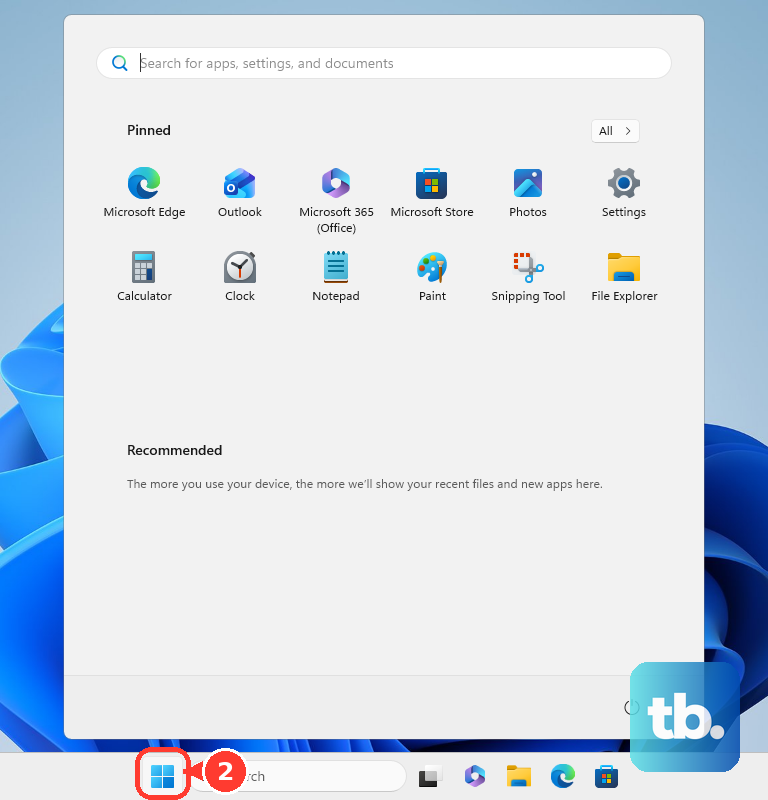
To turn off a Windows 11 laptop, open Start > Power > Shut down. For help with a task or problem, search Start for Get Help, open it, and describe what you need.
Put a MacBook to sleep through the Apple menu > Sleep or by closing its display. To turn it off, choose the Apple menu > Shut Down and wait for shutdown to finish before closing the lid. Open the display, press a key, or click the trackpad to wake a sleeping MacBook.
On a Chromebook, close the lid to sleep, then open it and press a key or use the touchpad to wake it. To shut down, select the time, then Power > Shut down. Open Explore from Launcher when you want more built-in tutorials and manufacturer help.
Frequently Asked Questions
Can you use a local account on Windows 11?
Yes, you can switch from a Microsoft account after initial setup. Open Settings > Accounts > Your info and select Sign in with a local account instead, then supply the requested username, password, and password hint. Select Next, select Sign out and finish, then sign back in with the local account.
Can you use a Chromebook without a Google Account?
Yes, select Browse as Guest at the sign-in screen when guest browsing is enabled. The Chromebook owner or administrator can restrict this option, and some offline services do not work in guest mode.
Can you restore an old Windows backup during setup?
Yes, sign in during Windows 11 setup with the personal Microsoft account associated with the backup, then choose the offered backup. Select More options to choose another available backup. After setup, select restored app pins to reinstall their apps and sign in to OneDrive to access backed-up files.
Can you set up a MacBook with an iPhone or iPad?
Yes, a Mac running macOS 15.4 or later can use an iPhone running iOS 18.4 or later or an iPad running iPadOS 18.4 or later, with Wi-Fi and Bluetooth enabled. In Setup Assistant, select Set up with iPhone or iPad, then Continue. Unlock the nearby device, tap Continue, and scan the pattern on the Mac or select Authenticate Manually. Complete account creation on the Mac, then tap Done on the mobile device when the transfer finishes.
How can you operate Windows 11 by voice?
On Windows 11 22H2 and later, open Settings > Accessibility > Speech and turn on Voice access. Choose a supported language, select Agree and continue, and complete the initial download and microphone setup with an internet connection. Open Help > Start interactive guide on the voice access bar to practice.