


To save an image from the clipboard in Windows, open Paint, press Ctrl + V, then select File > Save as, choose PNG as the format, choose a filename and folder, and select Save. These steps use Windows 11 menus. You can also retrieve an earlier image from clipboard history or use PowerToys to create a PNG directly in a folder.
The short version
- Save the current image: Paste into Paint with Ctrl + V, then choose File > Save as.
- Find an earlier image: Focus Paint, press Windows + V, and select an image already stored in clipboard history.
- Save directly into a folder: Enable PowerToys Paste as .png file, then open its menu with Windows + Shift + V.
- Save a snip: Open the screenshot notification and press Ctrl + S in Snipping Tool.
| Method | Best use | Main catch |
|---|---|---|
| Paint | Save the current clipboard image | Paste before choosing the filename and folder |
| Clipboard history and Paint | Retrieve and save an earlier image | The image must already be in history |
| PowerToys Advanced Paste | Create a PNG directly in a folder | Requires enabling Paste as .png file |
| PowerToys direct shortcut | Save with your assigned shortcut | No default shortcut is assigned |
| Snipping Tool manual saving | Choose a capture’s filename and destination | Applies to the tool’s own capture |
| Snipping Tool automatic saving | Keep new captures as files | Check the destination in the app’s Settings |
| Windows + PrtScn | Capture a new screenshot straight to a file | Does not save the existing clipboard image |
| Print Screen or Alt + Print Screen and Paint | Copy the screen or active window before saving | Print Screen behavior depends on its setting |
Save the current clipboard image with Paint
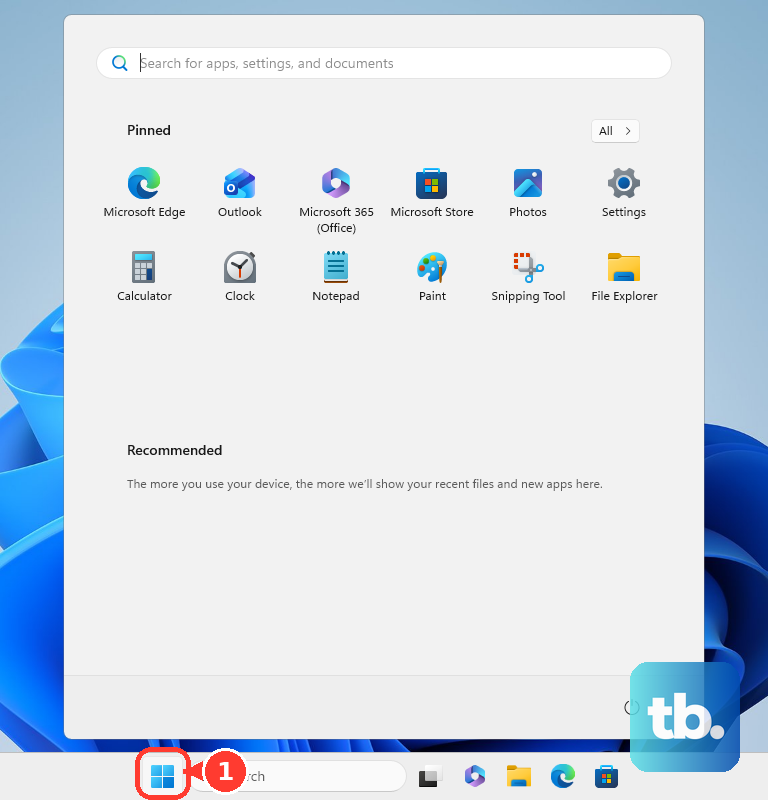
Open Start, search for Paint, and open Paint. Press Ctrl + V to paste the image currently on your clipboard. Once the picture is on the canvas, select File > Save as and choose PNG as the format.
Choose the destination folder and enter a filename, then select Save. You can choose another image format from Save as instead of PNG. You now have an image file in the folder you chose, separate from the clipboard entry.
If the picture you wanted does not paste, return to the app containing it and copy the image again before returning to Paint. If you need an earlier copy, check clipboard history before taking a new screenshot.
Retrieve an earlier image from clipboard history
With Paint open, click its canvas and press Windows + V. Select the image you want from clipboard history to paste it into Paint. Save it through File > Save as, choose the format, filename and destination, and select Save.
Clipboard history retrieves stored content; it does not create an image file by itself. You still need to paste the selected picture into an image-capable app and save it.
If history is off, press Windows + V and select Turn on to retain future copies. Alternatively, on Windows 11, open Start > Settings > System > Clipboard and turn on clipboard history. Turning it on does not recover entries that were never captured, so copy the original image again when possible.
Save a PNG directly into a folder with PowerToys
For repeated clipboard saving, get PowerToys through Microsoft’s PowerToys installation page. This workflow applies to current PowerToys on Windows 11 with x64 or ARM64 hardware. It creates a PNG in your chosen folder.
Open PowerToys Settings and enable Advanced Paste. Under Actions > Paste as file, enable Paste as .png file. Copy the image you want to save, then open the destination folder in File Explorer.
With that folder focused, press Windows + Shift + V and select Paste as .png file. Microsoft says this action runs locally and requires no AI provider. If you cannot find the action in the menu, return to its PowerToys settings and enable it before trying again.
You can also assign a direct shortcut under Advanced Paste > Actions > Paste as file for Paste as .png file. This optional shortcut has no default assignment. Once configured, focus the destination folder in File Explorer and press your assigned shortcut with an image on the clipboard.
Save a capture from Snipping Tool
If your clipboard image came from Windows + Shift + S, select the screenshot notification to open that capture in Snipping Tool. Select Save as, or press Ctrl + S. Choose the destination and filename, then select Save.
This route saves Snipping Tool’s own capture. To create a fresh capture, follow the steps to snip an area in Windows, then save the resulting picture. Use Paint or PowerToys for an image copied from another app.
Current Snipping Tool also saves new captures to Screenshots by default. Open See More > Settings in Snipping Tool to change automatic saving or the destination folder. If you are trying to locate an automatically saved capture, check where Windows saves your screenshots before taking it again.
Capture a new screenshot straight to a file
To capture a new screenshot directly to a file, press Windows + PrtScn. Open File Explorer and go to Pictures > Screenshots to find the saved image. Microsoft also documents Fn + Windows + Space Bar for hardware without a PrtScn key. These shortcuts capture a new screenshot rather than saving an image already on your clipboard.
To copy only the active window, press Alt + Print Screen, then paste into Paint and save. Some keyboards require their hardware-specific Fn modifier. For the whole screen, Print Screen copies to the clipboard when configured for traditional capture, but it can open screen snipping instead.
Fix missing images and unexpected capture behavior
If Paint pastes the wrong content, copy the intended image again or select its stored entry with Windows + V. If the capture shortcut itself fails, follow the fixes for Windows screenshot shortcuts that stop working before trying to save the capture.
When Print Screen opens snipping but you want traditional clipboard capture, open Start and search for open screen. Open Use the Print screen key to open screen capture and turn off that setting. Press Print Screen again, then paste into Paint and save. Turn the setting on when you prefer the Snipping Tool capture workflow.
If an image is absent from clipboard history, return to the original image and copy it again, or take a new capture if that meets your needs. Once you have the desired picture, save it with Paint or the configured PowerToys action.
Frequently Asked Questions
Why is a large clipboard image missing from Windows clipboard history?
Windows 11 clipboard history supports bitmap images up to 4 MB per item and retains up to 25 entries. An image beyond that size limit will not be retained as a supported history item. Copy it again and use the current-clipboard Paint workflow.
Does pinning a clipboard image save it as a PNG?
Pinning retains the item in clipboard history, but it does not create a PNG or JPEG file. Paste the pinned image into Paint and save it to create a separate file.
Can you save a clipboard image from Microsoft Word?
Yes, you can use Save as Picture in supported Windows desktop Office apps, including current Microsoft 365 and Office 2024 applications. Paste the image with Ctrl + V, right-click it, and select Save as Picture. Choose Save as type, enter File name, choose the folder, and select Save.
Why does GIMP save the pasted image as an XCF file?
In current GIMP 3.2 for Windows, ordinary Save creates GIMP’s XCF document format. Select File > Export As…, choose a destination and a filename ending in .png or another supported image extension, and select Export. Complete the format-specific export dialog to finish.
Should you use Paint 3D to save clipboard images?
Use current Paint instead. Microsoft deprecated Paint 3D and removed it from Microsoft Store on November 4, 2024. Existing installations may continue working, but current Paint provides the supported clipboard saving workflow.