


To safely reduce space used by the Windows Installer folder, uninstall unused applications through Windows and leave cached MSI and MSP files intact. Savings depend on the application, and Microsoft provides no supported universal button to clear C:\Windows\Installer. If you need more drive space, Windows storage tools can clean other locations.
The short version
- Keep the cache: Deleting Installer files can break later application updates, repairs, and removals.
- Remove unused apps: Let each application's uninstaller handle its packages, with savings depending on the application.
- Recover space elsewhere: Cleanup recommendations, Storage Sense, and Disk Cleanup offer supported cleanup options.
- Handle failures first: Repair a failed uninstall or contact the publisher instead of deleting cached files.
| Option | When to use it | Effect on storage |
|---|---|---|
| Uninstall through Settings | Remove unused applications | Cache savings depend on the app |
| Uninstall through Control Panel | Remove classic desktop programs | Uses the product's uninstaller |
| Uninstall through Start | Begin removal from the app list | Uses the app's removal workflow |
| Repair failed removal | Get an app uninstall working | No direct cache cleanup |
| Cleanup recommendations | Review unwanted files and apps | No universal Installer-cache purge |
| Disk Cleanup | Remove reviewed cleanup categories | Does not prune application packages |
| Storage Sense | Schedule supported storage cleanup | Leaves Installer cache alone |
| Remove a previous Windows installation | Recover space when rollback is unnecessary | Removes Windows.old |
| Move personal files | Free space using another drive | Leaves Installer folder in place |
| Publisher maintenance | Address a particular app's cache | Product-specific savings and prerequisites |
Adobe PatchCleanFlag | Manage applicable Acrobat or Reader patch caches | Triggers old-cache cleanup during the next app update |
| Reset Windows | Recover from unresolved installation or removal failures | Removes applications and settings |
Leave the Installer cache intact
Keep C:\Windows\Installer and its cached packages in place. Microsoft says Windows Installer needs these files for application maintenance, including updates, repairs, and uninstallation. Damage from deleting them may appear only when you attempt one of those operations later.
A large cache does not mean its contents are disposable. Do not bulk-delete MSI or MSP files, remove Installer subfolders, or assume an apparent leftover package is safe to erase. Microsoft also cautions against tools that classify files as orphaned solely by comparing them with registry entries.
Do not follow older instructions for manually deleting $PatchCache$. Microsoft's current guidance discourages manually deleting files or folders under the Installer folder to free space, noting that reduction methods differ by product. Microsoft's MaxPatchCacheSize policy limits only future baseline caching and does not affect files already saved, so start with applications you no longer need.
Uninstall applications you no longer use
Open Start > Settings > Apps > Installed apps. Locate an unwanted application, open More, then select Uninstall. Complete the application's own removal workflow rather than stopping after the initial Windows prompt.
Normal removal lets the application's installer manage its packages. Installer-cache savings depend on the application, so an uninstall does not guarantee that the folder will shrink by a particular amount. Leave remaining cached packages alone when removal finishes.
For a classic desktop program that cannot be removed through Settings, search for and open Control Panel. Choose Programs > Programs and Features, right-click the program, then select Uninstall or Uninstall/Change. Follow the product's removal workflow to completion.
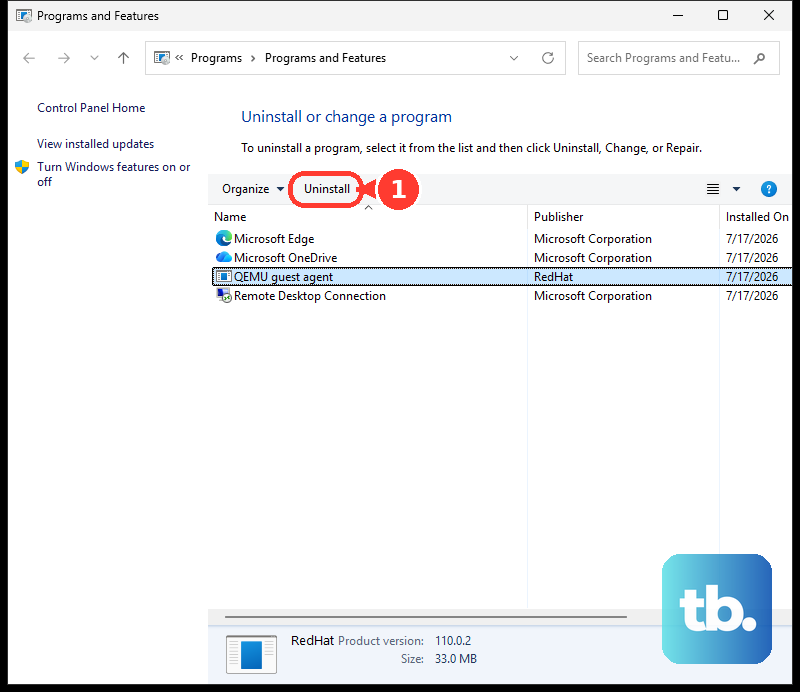
You can also open Start > All apps, right-click an application, and select Uninstall. Complete the application's removal workflow. Start-menu layouts and app-list labels vary, so use Installed apps if that route does not match your screen.
Resolve an uninstall that fails
Restart the PC, then retry the application's normal removal workflow. If the computer is not responding, follow the steps to restart an unresponsive computer before attempting removal again. Deleting cached installation files can create further maintenance problems.
For an application that provides repair controls, open Start > Settings > Apps > Installed apps, open its Advanced options, and select Repair. Follow any troubleshooting Windows offers, then retry removal. Not every application provides these controls.
Contact the publisher if removal still fails, especially when Windows reports missing installation files. The older downloadable Program Install and Uninstall troubleshooter belongs to Microsoft's Windows 10 workflow. For Windows 11, Microsoft directs you to restart, repair where available, and follow the troubleshooting Windows offers.
Recover space with Windows cleanup tools
Open Start > Settings > System > Storage > Cleanup recommendations. Review the offered files and applications, select only items you no longer want, then select Clean up for the relevant section. This gives you a supported way to recover drive space without manually removing Installer packages.
If the recommendations do not recover enough space, review the categories available in Disk Cleanup. Search for and open Disk Cleanup, choose the system drive, and select OK. To review system categories, select Clean up system files and choose the drive again.
Select only categories you have reviewed, such as Thumbnails, then select OK followed by Delete files. Windows Update cleanup targets Windows component-store data rather than arbitrary cached application MSI or MSP files. If you still need space, consider moving personal files to another drive.
Configure automatic cleanup with Storage Sense
For ongoing cleanup, open Start > Settings > System > Storage and turn on Storage Sense. Open Storage Sense, configure Run Storage Sense, and review the retention periods for personal files. Check the Downloads and cloud-content settings before changing them.
Storage Sense handles temporary files and other supported categories. It does not manage the Windows Installer cache, so enabling it will not directly shrink that folder. Use it to manage other storage over time after removing unused applications.
Remove an old Windows installation or move files
Removing a previous Windows installation deletes Windows.old and sacrifices the option to roll back using those files. If you still want to revert to a previous Windows version, keep that installation instead of selecting it for cleanup.
When rollback is no longer needed and a previous installation is available for cleanup, open Start > Settings > System > Storage > Temporary files. Select Previous Windows Installation(s), then select Remove files. This removes the old Windows installation while leaving C:\Windows\Installer in place.
Moving personal files offers another way to free system-drive space. Connect external storage, open File Explorer, select the personal files to move, and select Cut. Open a destination on the other drive, then select Paste, keeping the Windows Installer directory in its original location.

Use publisher guidance for a large application cache
When a particular application is responsible for substantial cache growth, obtain its publisher's supported cleanup instructions. Product-specific maintenance can have prerequisites that do not apply to other software. Avoid applying another application's cleanup procedure just because the cached files look similar.
Where the publisher supports uninstalling and reinstalling to address cache growth, back up application data, uninstall normally, then reinstall the current version. Microsoft says this can consolidate historical patch data, but the outcome depends on the product. If the publisher does not support that procedure for your application, follow its recommended maintenance route.
For certain Acrobat and Reader configurations, Adobe provides an administrator-level PatchCleanFlag procedure. Adobe's employee guidance says the next application update removes old cache files after you configure it. The guidance does not specify a minimum application build or guarantee how much space it will recover, so confirm that it applies to your installation.
As an administrator, create a REG_DWORD named PatchCleanFlag with a value of 1 in the registry location for your edition. For 32-bit Acrobat Reader, use HKEY_LOCAL_MACHINE\SOFTWARE\WOW6432Node\Policies\Adobe\Acrobat Reader\DC\FeatureLockdown. For 64-bit Reader or Acrobat DC Pro, use HKEY_LOCAL_MACHINE\SOFTWARE\Policies\Adobe\Adobe Acrobat\DC\FeatureLockdown. Cleanup occurs during the next application update rather than immediately when you create the value.
Reserve Windows recovery for unresolved failures
Resetting Windows is a last-resort recovery option for unresolved installation or removal failures. It removes applications and settings, making it far broader than managing a large Installer folder. A large cache alone is not a reason to reset Windows.
Before proceeding, back up important data and retain your BitLocker recovery key. To reset a laptop through Windows, open Settings > System > Recovery. Under Recovery options, select Reset PC, then select Keep my files.
Choose Cloud download or Local reinstall and complete the displayed workflow. Even when you select Keep my files, Windows removes applications and settings. Reserve this operation for recovery after ordinary repair and publisher troubleshooting have failed.
Frequently Asked Questions
Can WinGet clear the Windows Installer folder?
WinGet can invoke an application's uninstaller, but it cannot independently prune cached MSI or MSP files. It can recognize some applications installed outside Windows Package Manager, so its uninstall capability is not limited to apps you installed with WinGet.
Will setting MaxPatchCacheSize to zero recover existing space?
Setting MaxPatchCacheSize to 0 stops additional baseline files from being cached but leaves existing files in place. The setting controls baseline caching rather than all cached MSI and MSP packages, and its default value is 10. Reducing caching can increase dependence on original installation sources.
Can Orca tell which application a cached MSI belongs to?
Yes, Orca can expose ProductName, Manufacturer, ProductVersion, and ProductCode in an MSI package. Have an administrator inspect a copy in a working folder and leave the original untouched. Orca is supplied through Windows SDK components, and identifying a product does not prove its package is disposable. MSP files may not expose equivalent properties.
Does DISM component cleanup reduce the Installer cache?
DISM component cleanup and the StartComponentCleanup scheduled task target the Windows component store associated with WinSxS, not the application Installer cache. Adding /ResetBase means existing update packages can no longer be uninstalled, so it should not be treated as routine Installer-folder cleanup.
Is PatchCleaner a supported choice for Windows 11?
HomeDev does not list Windows 11 among PatchCleaner's supported Windows versions. Its vendor lists Windows 7, Windows 8, and Windows 10 compatibility and acknowledges false positives, including Adobe-related problems. Those compatibility claims do not establish a supported Windows 11 cleanup procedure.