A Windows upgrade can break apps, drivers, or the workflow you use every day. Start with the built-in rollback tool, then move to update removal, recovery, restore, or reinstall options when the easy route is gone.
The key is choosing the right recovery path before deleting the files Windows needs to go back.
1. Start with Go back after a recent upgrade
Use Go back first when you recently upgraded Windows and want the previous Windows version back.
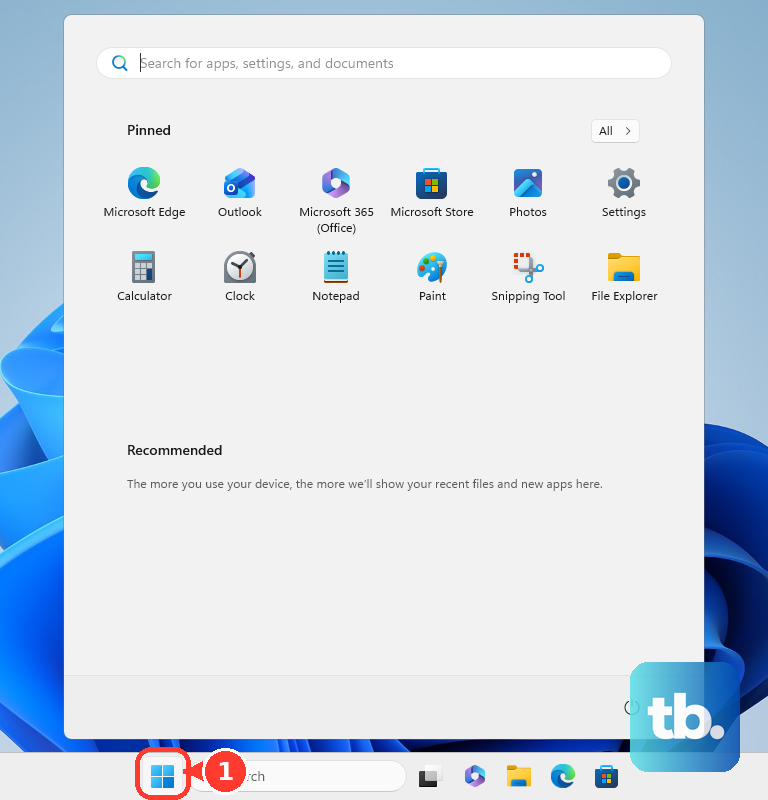
- 1.Open Start.
- 2.Select Settings.
- 3.Choose System.
- 4.Open Recovery.
- 5.Select Go back.
- 6.Follow the prompts on screen.
Microsoft says this keeps personal files. It removes apps and drivers installed after the upgrade, along with settings changes made after the upgrade.
This works only while the rollback files remain. Microsoft says the option is available for a limited time, generally 10 days, and it needs the Windows.old and $windows.~bt folders.
2. Remove one bad Windows update
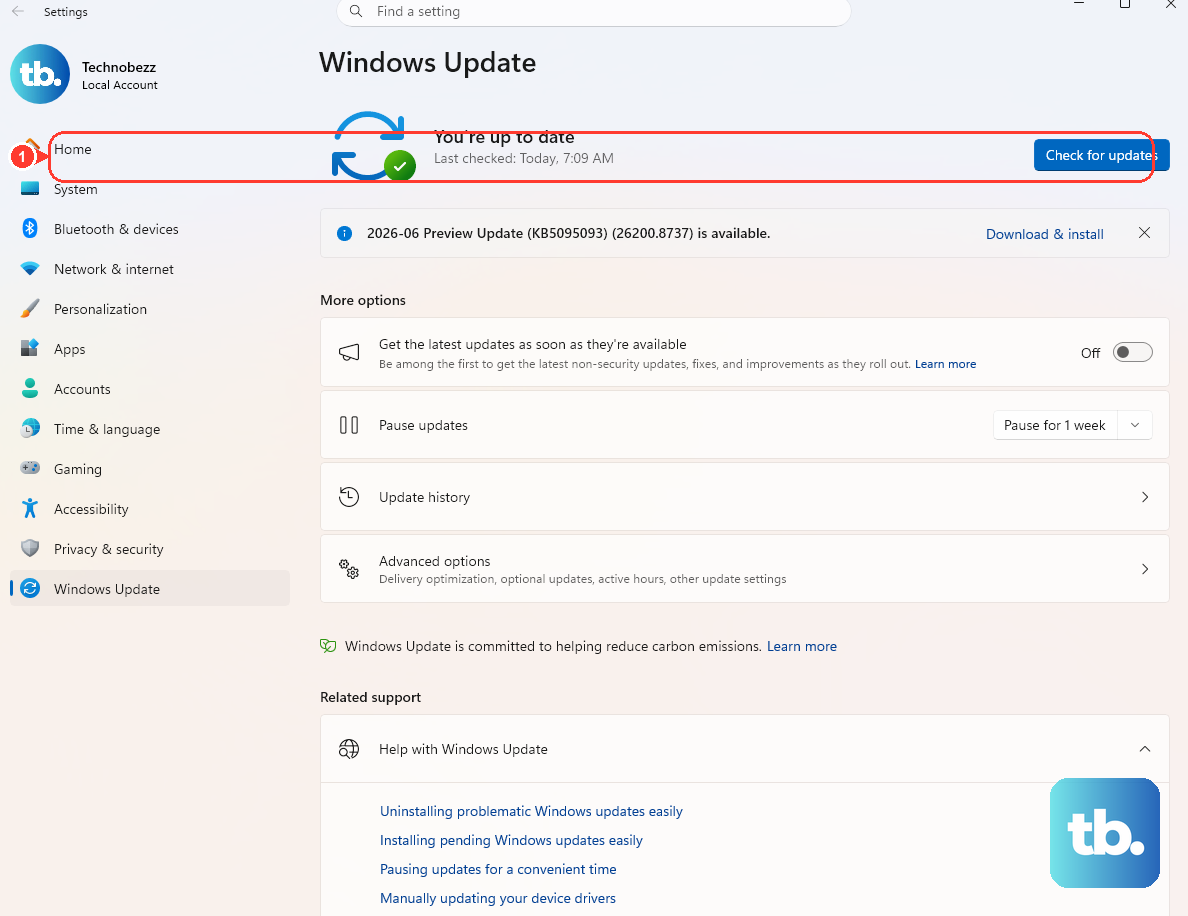
- 1.Open Start.
- 2.Select Settings.
- 3.Choose Windows Update.
- 4.Open Update history.
- 5.Select Uninstall updates.
- 6.Choose the update you want to remove.
- 7.Select Uninstall.
Use this route when Windows still opens and the problem started after a regular update, because uninstalling that update is narrower than rolling back the whole Windows version.
Some updates cannot be removed. If the update does not offer an uninstall option, move to recovery tools instead.
Skip old instructions that tell you to use wusa.exe /uninstall for current combined servicing stack and cumulative update packages. Microsoft says that command does not work for those combined packages because they include the servicing stack update. For those current packages, the documented command-line path is removing the LCU with DISM.
3. Open recovery when Windows will not start
When the desktop will not load, use Windows Recovery Environment and remove the latest update from there.
From the recovery screen, select Troubleshoot > Advanced options > Uninstall Updates. Then choose Uninstall latest quality update or Uninstall latest feature update.
- From Windows 11, open Start > Settings > System > Recovery > Advanced startup > Restart now.
- From the sign-in screen or Start power menu, hold Shift while selecting Power > Restart.
- If the PC will not boot, start it and wait for the Windows logo or manufacturer logo. Hold the power button until it shuts down. Repeat once. Turn it on a third time, then select Advanced options when Automatic Repair appears.
- On supported PCs, use the manufacturer recovery button or recovery key combination, then choose Troubleshoot > Advanced options.
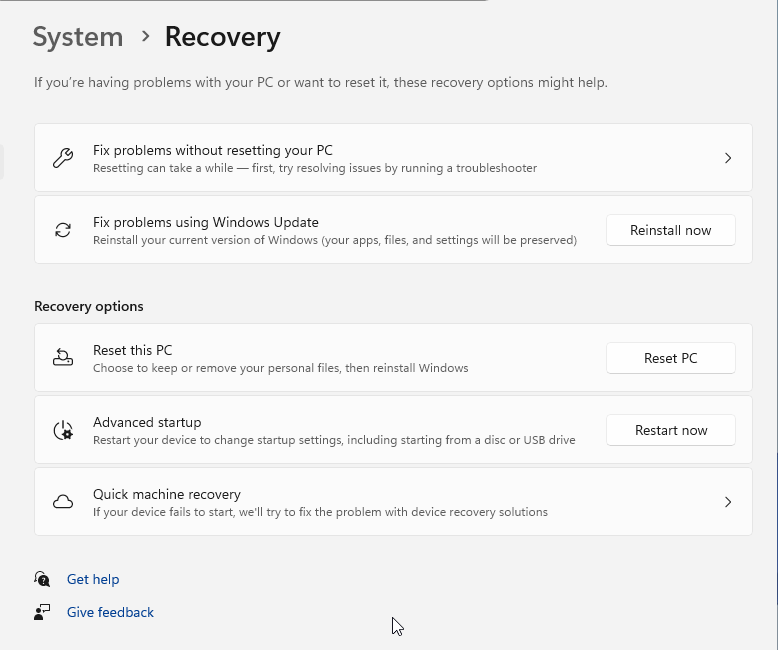
Any available route to recovery works.
4. Boot from recovery media if recovery will not open
- 1.Boot the affected PC from a USB recovery drive or Windows Repair Disc you created earlier.
- 2.Select Troubleshoot.
- 3.Choose Advanced options.
- 4.Select Uninstall Updates.
A recovery drive, repair disc, or Windows installation USB gets you into recovery when the installed copy of Windows will not cooperate.
Use Recover from a drive only when you want to restore or reinstall from that recovery media. That is not the same as an in-place feature rollback.
If you do not have recovery media, create Windows installation media on a working PC. Connect it to the affected PC, boot from it, choose your language and preferences, select Next, choose Repair my PC, then select Next to access Windows Recovery Environment.
5. Restore Windows to an earlier working state
System Restore helps when a driver, app, setting, or registry change damaged Windows. It restores system files, registry settings, and installed programs. It does not work like a Windows feature-version rollback.
From Windows, open Control Panel > Recovery > Open System Restore. You can also press Windows logo key + R, type rstrui.exe, and press Enter.
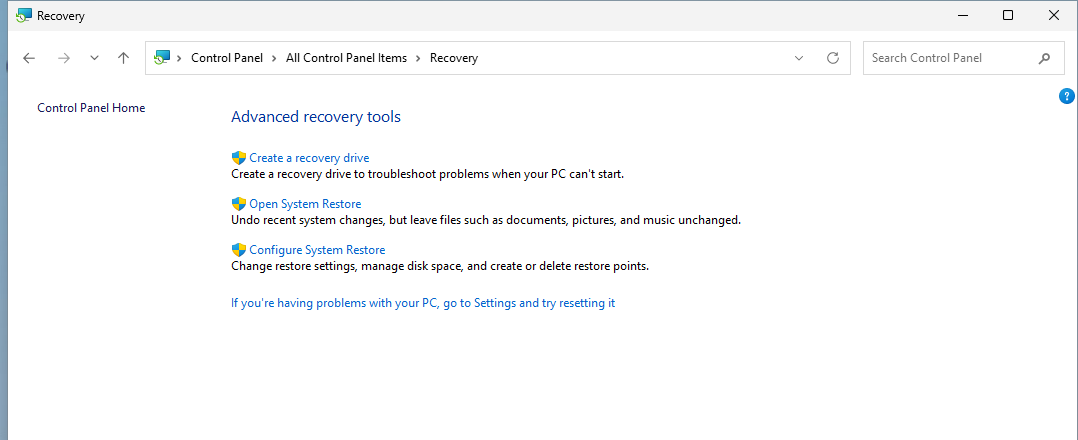
- 1.Select Next.
- 2.Choose a restore point.
- 3.Select Scan for affected programs if you want to see what changes.
- 4.Choose Next.
- 5.Select Finish.
From Windows Recovery Environment, select Troubleshoot > Advanced options > System Restore. On BitLocker-protected devices, enter the BitLocker recovery key when prompted.
On Windows 11 devices with the June 2026 Windows non-security update or later, Point-in-time restore is another recovery option in Windows Recovery Environment. Microsoft says those restore points include the Windows OS, installed apps, system and app configurations, settings, and local user files.
6. Use DISM or PowerShell for admin rollback
DISM /Online /Get-OSUninstallWindowCommand-line rollback is for administrators and advanced recovery work. It still needs the rollback files to be present. To check the OS uninstall window, open Command Prompt as administrator and run the command above.
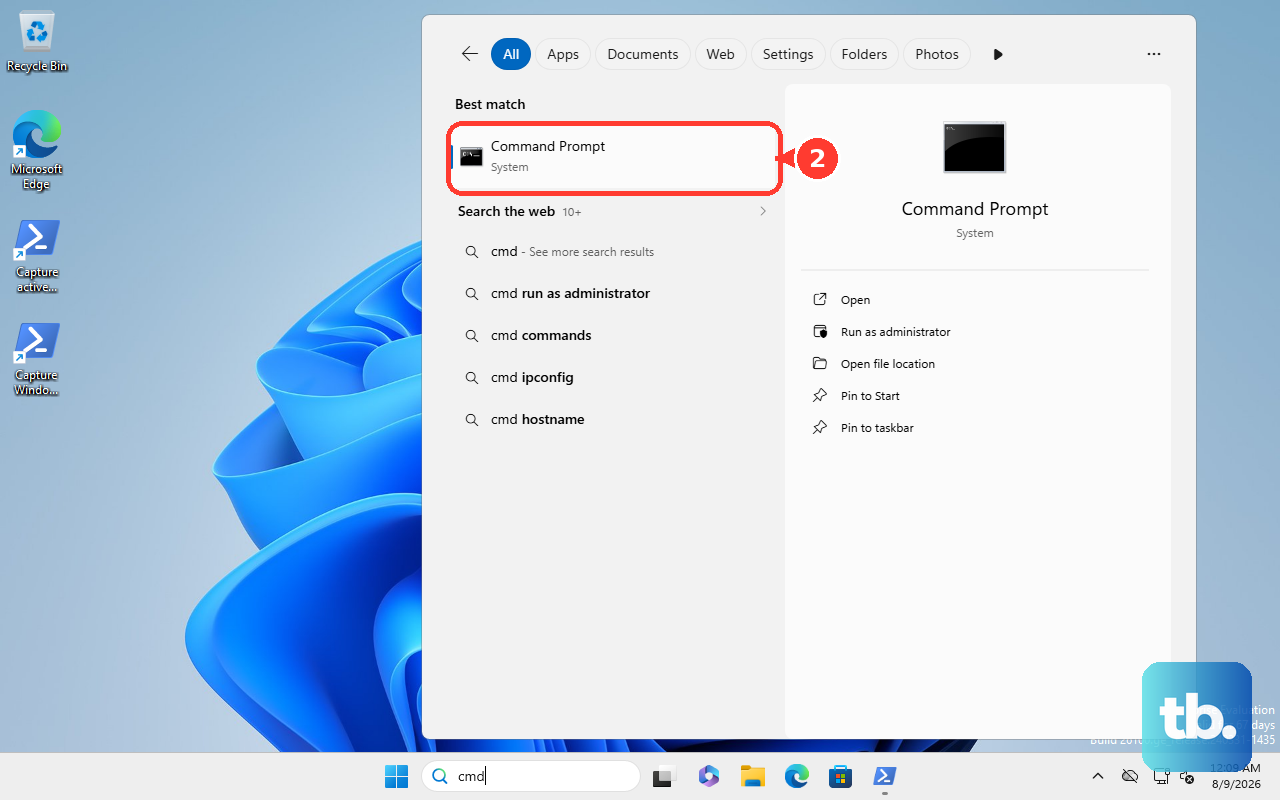
To start the rollback, run:
DISM /Online /Initiate-OSUninstallYou can add /NoRestart or /Quiet where that fits the admin workflow. To extend the rollback window before it expires, run:
DISM /Online /Set-OSUninstallWindow /Value:<days>Microsoft documents the uninstall window value from 2 to 60 days. Values outside that range use the default 10 days.
On Windows 11 client, PowerShell also supports Start-OSUninstall -Online. Add -NoRestart when you want to suppress the restart prompt and restart manually.
7. Reinstall Windows when rollback files are gone
Use official installation media after the rollback window expires or the rollback folders are removed. Back up your files before reinstalling.
For Windows 11, go to Microsoft’s Windows 11 download page and use Windows 11 Installation Assistant, Create Windows 11 Installation Media, or Download Windows 11 Disk Image ISO for x64 devices. Microsoft notes the Installation Assistant and media creation tool work only on x64 PCs, not Arm-based PCs; for an Arm-based PC, download the separate Windows 11 Arm64 disk image instead. Microsoft lists the current release there as Windows 11 2025 Update, version 25H2.
With official installation media, boot from USB or DVD. On the Install Windows page, choose the language, time, and keyboard options. Select Next, then choose Install Windows.
If you bought Windows digitally through Microsoft, open your Microsoft account Order history. Find Windows, select Product key/Install, choose Copy to copy the key, select Install, then choose Download tool now and follow the wizard.
8. Keep the previous Windows files until you are sure
The cleanup path is Start > Settings > System > Storage > Temporary files > Previous version of Windows > Remove files.
The cleanup option for the previous Windows version removes your easy way back. Use it only after you decide to stay on the newer Windows version.
Microsoft says deleting the previous version cannot be undone. After that cleanup, Go back will not return you to the older Windows version.
9. Ask IT before changing a managed PC
Ask IT before uninstalling updates or reinstalling Windows on a managed device.
Work and school PCs can use administrator-controlled rollback through Microsoft Intune update rings. In Intune, the path is Devices > By platform > Windows > Manage updates > Windows updates > Update rings > select the ring policy > Uninstall > choose Feature or Quality updates > OK.
Feature update rollback through Intune depends on the configured 2 to 60 day uninstall period. It does not work for feature updates installed by enablement package.
Frequently Asked Questions
Will reverting to a previous Windows version delete my personal files?
Using Settings > System > Recovery > Go back keeps personal files, according to Microsoft. Apps, drivers, and settings changes made after the upgrade are removed.
Why is the Go back button missing?
The rollback option disappears when the limited rollback window has passed or when the Windows.old and $windows.~bt rollback folders are no longer on the PC.
Should I uninstall an update or use Go back?
Use Uninstall updates for one recent quality or feature update. Use Go back when you want to return to the previous Windows version after a version upgrade and the rollback files still exist.
Can System Restore revert Windows to an older feature version?
No. System Restore returns system files, registry settings, and installed programs to a restore point. It is not the same as a Windows feature-version rollback.
What should I avoid when trying to roll back Windows?
Do not delete Previous version of Windows in Temporary files until you are staying on the newer version. That cleanup removes the files needed for Go back.