


To restore an Acer computer running Windows 11 to factory settings, open Settings > System > Recovery, select Reset PC, then choose Remove everything. Choose Cloud download or Local reinstall, review the removal settings, select Next, then select Reset. This reinstalls Windows and removes your files, apps, and settings, but it does not guarantee restoration of Acer's original factory image.
When Windows will not open, you can start the reset from recovery instead. Acer Chromebooks use Powerwash, while Acer Googlebooks have a separate factory reset option.
The short version
- Prepare first: Back up local files, connect power, and obtain your BitLocker recovery key when applicable.
- Full Windows reset: Choose Remove everything to erase personal files, apps, and settings.
- Without signing in: Hold Shift while selecting Restart, then open Troubleshoot > Reset this PC.
- Acer startup shortcut: Press Alt + F10 at the Acer logo to open recovery on compatible computers.
- ChromeOS reset: Choose Powerwash on an Acer Chromebook.
| Method | When to choose it | Main limitation |
|---|---|---|
| Windows Settings reset | Windows opens normally | Does not guarantee the original Acer image |
| Acer Care Center | Your Windows computer includes the app | Availability varies by model and operating system |
| Shift with Restart | You can reach the sign-in screen | Requires working Windows recovery |
| Alt + F10 | You need recovery during startup | Recovery support varies by model and installation |
| Automatic Repair | Windows repeatedly fails to start | Requires functional Windows recovery |
| Windows USB Recovery Drive | Built-in recovery fails | Requires a recovery drive created for that computer |
| Windows installation media recovery | You lack a suitable Recovery Drive | Available recovery tools vary |
| Windows clean installation | You need to reinstall from installation media | Removes Acer manufacturer customizations |
| Original Acer recovery software | You need the original factory software | Availability depends on your product |
| Chromebook sign-in screen reset | You need to reset before signing in | First account used afterward becomes the owner |
| Chromebook internet recovery | ChromeOS needs reinstallation | Not available on every model |
| Chromebook USB recovery | Internet recovery is unavailable | Requires another computer and an empty USB |
| Googlebook Settings reset | You can open Googlebook Settings | Requires a device administrator account |
| Googlebook USB recovery | The operating system needs reinstallation | Requires an empty USB of at least 32 GB |
Prepare your files and power supply
Back up the local files you want to keep, then connect the computer to power. Obtain your BitLocker recovery key when applicable so you have it ready for recovery. Finish your backup before confirming any reset that removes personal data.
Decide whether you want a fresh Windows installation or Acer's original factory software. A Windows reset reinstalls Windows, while a clean installation removes manufacturer customizations; Acer recovery media provides a separate route to the original software. Keep that distinction in mind when choosing how to factory reset a laptop.
Start the reset from Windows Settings
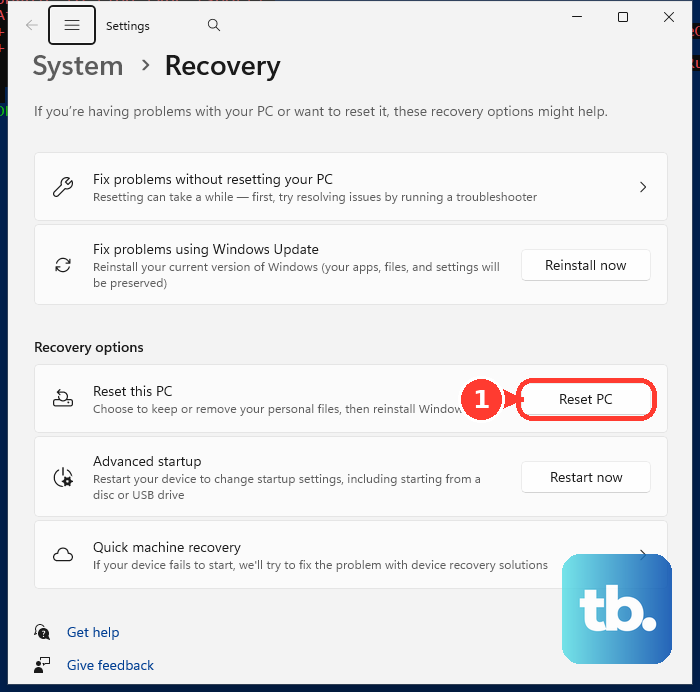
Open Start > Settings > System > Recovery. Select Reset PC, then choose Remove everything to remove your personal files, apps, and settings. Continue with the installation and removal choices below before confirming the reset.
For a partial reset, select Keep my files. Windows removes apps and settings while retaining personal files, so this choice does not prepare the computer for another owner. Back up your files before proceeding even when you choose to retain them.
Some Acer Windows 11 models also provide a route through Start > All apps > Care Center > Recovery Management. Select Restore > Get started, then select Reset PC > Remove everything. Choose the installation source and review the settings as described below before selecting Reset. Acer says app availability varies by model and operating system, so open Windows Settings if the app is absent.
Choose what Windows reinstalls and removes
Select Cloud download to obtain Windows online, or choose Local reinstall to use files already on the computer. These are installation sources within the same reset process. Neither choice guarantees the original shipping version of Windows or every Acer application.
Before selling or giving away the computer, choose Remove everything, select your installation source, then open Change settings. Set Clean data? to Yes, then select Confirm. Microsoft says this consumer cleaning option makes deleted data harder to recover, but it does not meet government or industry erasure standards.
Review the final settings, select Next, then select Reset. Confirm that the removal choice matches your goal before starting. The same Windows choices apply when you reset an Acer laptop.
Open recovery without signing in
At the Windows sign-in screen, select Power, hold Shift, and select Restart. After the computer restarts, select Troubleshoot > Reset this PC, then choose Remove everything from the reset options. Choose the offered reinstallation and removal options, then select Reset.
If you cannot reach the sign-in screen, turn the computer off, turn it on, and press Alt + F10 at the Acer logo. When Windows recovery appears, select Troubleshoot > Reset this PC, then choose Remove everything from the reset options. Choose the offered reinstallation and removal options, then select Reset.
During startup failures, Windows can enter recovery automatically after repeated unsuccessful starts. To trigger it manually, interrupt startup with the Power button at the logo twice, then start the computer a third time. Select Advanced options > Troubleshoot > Reset this PC and complete the reset choices. Never interrupt an active reset this way.
The startup shortcut and available recovery screens depend on your Acer model and Windows installation. If neither the shortcut nor automatic recovery opens a usable reset screen, continue with recovery media.
Fix recovery failures with USB media
A Windows USB Recovery Drive created for this Acer provides another restore route. To create one while Windows works, search Start for Recovery Drive, open it, and select Back up system files to the recovery drive. Select Next, choose the USB drive, then select Next > Create. Creation erases the USB, and restoring from it erases the computer.
Insert that recovery USB and start the Acer from it. On compatible models, press F12 repeatedly during startup, select the recovery drive, then press Enter. Select Recover from a drive, choose Just remove my files or choose Fully clean the drive, then select Recover.
If the boot menu does not open, you may need to enable Main > F12 Boot Menu > Enabled in firmware first. To get to BIOS on Windows, press F2 at startup on an Acer notebook or Delete on a desktop. Some models lack that boot menu; use their firmware instructions to change Boot > Boot Order instead. Press F10 to save the change.
Without a suitable Recovery Drive, boot official Windows installation media and complete the initial language and keyboard screens. Select Repair my PC, then select Next to open recovery. Choose Reset this PC if it is available; the tools offered depend on the media and recovery configuration.
If you need a clean Windows installation, use Windows 11 installation media compatible with your Acer's processor architecture. This removes personal files, apps, settings, and Acer manufacturer customizations. For the original Acer software instead, use the factory recovery route below.
Boot the installation media, choose the language, select Next, then choose the keyboard and select Next. Select Install Windows 11, then select I agree everything will be deleted including files, apps, and settings. Select Next, supply the matching license and edition if requested, then select Accept.
On Select location to install Windows 11, identify the target installation's disk and remove its partitions with Delete Partition. Microsoft uses Disk 0 in its example; do not modify other disks. When Disk 0 is the intended target, select Disk 0 Unallocated Space, then select Next > Install.
Restore the original Acer factory software
Contact Acer to order the original factory software for your product. Acer lists 1-800-910-2237 for US and Canada orders; elsewhere, contact regional Acer Support. Confirm availability, format, and price using your product's serial number.
Follow the instructions supplied with that recovery media. Acer recovery USB keys and Windows Recovery Drives have different restoration prompts, so follow the sequence supplied for your particular media and model.
After reinstalling, obtain model-specific drivers and apps from Acer's Drivers and Manuals page. Identify the computer by serial number, SNID, or model, then select the matching operating system and resource category. Download only items listed for that model; a factory image is not guaranteed to be available there.
Factory reset an Acer Chromebook
Back up local files before starting because Powerwash erases local data. To reset from the sign-in screen, sign out and press Ctrl + Alt + Shift + R. Select Restart, then Powerwash > Continue. Complete setup afterward; the first account used becomes the owner.
When ChromeOS needs reinstallation, disconnect peripherals, hold Esc + Refresh, and press and release Power. Release the other keys when a message appears, then select Recover using internet connection and follow the prompts. Some models use Esc + Maximize instead. If internet recovery is unavailable, use USB recovery media.
To create that media on another computer, install the official Device Recovery Utility in desktop Chrome. Open it, select Get started > Select a model from a list, choose the correct Acer model, and select Continue. Choose an empty USB of at least 8 GB, then select Continue > Create now. Enter recovery on the affected Chromebook using the keys above, select Recover using external disk, and follow the prompts.
Factory reset an Acer Googlebook
On an Acer Googlebook, sign in as a device administrator and open Settings > System > Reset options > Erase all data (factory reset). Google recommends at least 70% charge before starting. Select Erase all data and choose the offered restart option when the process finishes.
If the operating system needs recovery, insert an empty USB of at least 32 GB into another computer. In Chrome, open Extensions > Device Recovery Utility, then select Get started > Select Googlebook. Choose the manufacturer and product, select Continue, choose the USB, then select Continue > Create now.
Disconnect peripherals from the Googlebook, hold Esc + F2, then press and release Power. Release the other keys when the screen lights, select Use USB drive, and follow the recovery prompts. This reinstalls the operating system and erases local data.
Frequently Asked Questions
Does the Acer battery reset pinhole restore factory settings?
No, Acer's battery reset pinhole performs an electrical or power reset without affecting the operating system. It does not reinstall Windows or erase your files.
Will restoring BIOS defaults erase Windows?
No, restoring BIOS or UEFI defaults resets firmware configuration only. It does not reinstall Windows or remove personal files.
Can you remotely factory reset a personal Acer through Find My Device?
Microsoft's personal Find My Device feature provides location and locking, but no factory-wipe action. Use Windows reset or recovery media to erase a personal Acer computer.
Is Chromebook Safety reset the same as Powerwash?
No, Safety reset restores supported Chromebook settings while preserving local data and apps. It does not prepare the Chromebook for transfer to another owner.
Can you reset an Acer Chromebook supplied by work or school?
Contact your administrator before resetting a managed Chromebook. Your organization can restrict Powerwash, and administrators have separate tools for resetting managed devices.