

To force reset Windows 11 without opening Settings, hold Shift while selecting Power > Restart, then select Troubleshoot > Reset this PC in recovery. Choose whether to preserve personal files or remove everything before reinstalling Windows. These steps use Windows 11 menus.
The short version
- Start here: Hold Shift while selecting Restart from the Start menu or sign-in screen.
- Preserve personal files: Select Keep my files to retain personal files while removing installed apps and settings.
- Choose installation files: Select Cloud download when local installation files may be damaged and internet access is available.
- Let the reset finish: Never force a shutdown during a reset already underway.
| Route | When to choose it | Main requirement |
|---|---|---|
| Hold Shift and select Restart | The power menu still works | Accessible Start menu or sign-in screen |
| Interrupt startup twice | Windows cannot reach its normal menus | Working Windows Recovery Environment |
| Run the restart command | Windows and a command window still work | An account with shutdown rights |
| Open recovery from installation media | Built-in recovery cannot open | Compatible bootable USB or DVD |
| Perform a clean installation | Recovery or reset cannot work | Compatible installation media and a suitable license |
Prepare for file removal and an encryption prompt
A reset reinstalls Windows, and your choice determines what stays. Installed apps and settings are removed even if you choose to preserve personal files. Keeping personal files through a reset is not a backup. If you can still access important files, back them up before you begin.
An encrypted PC may request a BitLocker recovery key before recovery can proceed. Record the recovery-key ID shown on the screen, then use another device to open Microsoft’s recovery key page. From there, go to https://aka.ms/myrecoverykey for a Microsoft account, or https://aka.ms/aadrecoverykey for a work or school account, and sign in. Match the ID to its recovery key and enter the matching 48-digit key when prompted.
Open recovery from the power menu
From the Start menu or the Windows sign-in screen, select Power. Hold Shift while selecting Restart to access the Windows Recovery Environment. This route reaches the reset controls without opening Settings.
Once recovery opens, select Troubleshoot > Reset this PC. Continue with the file and installation choices below. If you cannot reach the power menu, skip to the startup interruption method.
Choose which files to keep
Resetting removes installed apps and settings even when personal files are retained. To reset Windows while keeping personal files, select Keep my files. Choose this option when you want your personal files to remain after Windows is reinstalled.
The other choice removes personal files as well as apps and settings. To reset Windows and remove everything, select Remove everything. Check that this is the outcome you want before continuing.
Additional reset options depend on how you entered the workflow. If you are disposing of the PC and have chosen to remove everything, enable Clean data when offered. That choice cleans the drive as part of the reset.
Choose cloud download or local reinstall
Select Cloud download when local installation files may be damaged. This option requires internet access and downloads Windows instead of reusing the local installation files.
Choose Local reinstall to reuse the installation files already on the PC. If those files may be damaged, choose Cloud download with an internet connection instead. Your earlier file retention choice still determines whether the reset preserves personal files.
Review the reset and let it finish
Review the reset summary, checking the file removal and installation choices. The reset removes apps and settings, and it also removes personal files if you selected Remove everything. Select Reset when the summary matches what you intend.
Do not force the PC off during the reset. The startup interruption method below is only for entering recovery before a reset begins. Once the reset is underway, let it finish without repeating those forced shutdowns.
Trigger recovery when Windows will not start
Repeated startup failures can open Windows Recovery Environment automatically. If you have already reached Automatic Repair, select Advanced options. From there, select Troubleshoot > Reset this PC.
Interrupt startup only, and never interrupt a reset already underway. To trigger recovery manually, turn on the PC and wait for the Windows or manufacturer logo. Hold the power button until the PC shuts down, then turn it on and repeat that interruption once.
Start the PC a third time and select Advanced options on the Automatic Repair screen. Select Troubleshoot > Reset this PC, then complete the reset choices above. This method depends on working recovery components; if recovery still does not open, use the installation media option below.
Use a command when Windows still runs
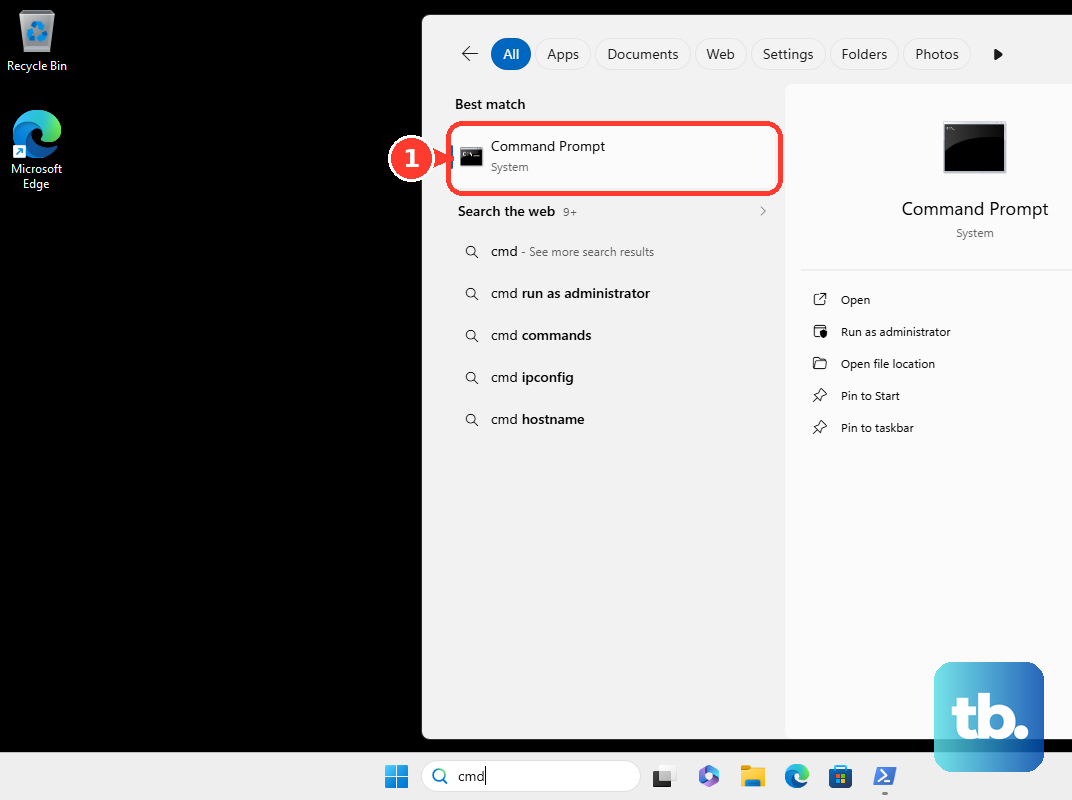
If Windows still runs and your account has shutdown rights, you can restart directly into advanced startup. Save your work first, because the command restarts the computer immediately. Open Command Prompt or Terminal and run:
shutdown /r /o /t 0After the restart, select Troubleshoot > Reset this PC and complete the reset choices above. The command opens advanced startup; it does not erase the PC itself. Microsoft says systemreset.exe is not a documented, supported reset interface in current Windows 11 releases, so use the recovery workflow.
Use installation media if recovery cannot open
Compatible Windows installation media provides another way to enter recovery. For an x64 PC, open the official Windows 11 download page and, under Create Windows 11 Installation Media, select Download Now. Use a blank USB drive with at least 8 GB of space.
Run the tool, select Accept, then choose Create installation media for another PC > Next. Choose the language, edition and architecture, then select USB flash drive or ISO file for the media you need. The Media Creation Tool does not create Arm installation media.
For a compatible Arm64 PC, use Microsoft’s Windows 11 Arm download page instead. Select the edition and language, then follow the Arm installation media instructions linked there. Manufacturer drivers may be required for bootable media.
Boot the affected PC from compatible installation USB or DVD media, with firmware that supports booting that media. Choose the language and keyboard preferences, selecting Next as requested. Select Repair my PC, then select Next to enter Windows Recovery Environment.
The recovery tools you can use depend on the media and the Windows installation. If you see Reset this PC under Troubleshoot, select it and complete the reset choices above. If recovery or reset cannot work, continue with a clean installation.
Reinstall Windows if reset cannot work
A clean installation deletes files, apps and settings. To reinstall Windows 11 using installation media, boot from media compatible with your PC’s architecture. Select your language and Next, then select your keyboard preferences and Next.
Select Install Windows 11, then turn on the setting that reads "I agree everything will be deleted including files, apps, and settings". Select Next and supply your product key or, if you have an appropriate existing digital license, select I don't have a product key. Choose the edition that matches your license, then select Accept.
Deleting partitions removes the data on them, so carefully identify the intended Windows disk before proceeding. On that disk, use Delete Partition to remove its existing partitions. Select the resulting unallocated space, then select Next.
The installation will replace the existing Windows setup and remove its files, apps and settings. Select Install to proceed.
Frequently Asked Questions
Can an Acer keyboard shortcut open the reset options?
On Acer Windows 11 PCs that support the startup recovery shortcut, start the powered-off PC and press Alt + F10 together at the Acer logo. Select Troubleshoot > Reset this PC to reach the standard reset choices.
Can the Lenovo Novo button open recovery?
Yes, on Windows 11 IdeaPad models equipped with Novo and its recovery option. Shut down the PC, gently press the Novo button or recessed control identified in the model’s manual, then select System Recovery > Troubleshoot > Reset this PC. This shortcut applies only to models with the required button and recovery option.
Can a reset restore the apps that came with the PC?
You can reapply manufacturer customizations by enabling Restore preinstalled apps when the reset workflow offers it. The additional options and their presentation depend on the entry point you used.
Can reinstalling Windows preserve installed apps too?
Yes, you can use compatible installation media from within Windows 11 when Windows and File Explorer still work. Open the media, run setup.exe, select Yes, then select Change what to keep. Choose Keep personal files and apps, then select Next and Install. This route runs Windows Setup from within Windows.