You want the computer wiped, not repaired around the edges. The right path is Reset this PC with Remove everything, but the best starting point changes based on whether Windows still opens, recovery still loads, or you need the maker's factory image. Start with the normal Windows 11 reset, then move down only when that route is blocked.
1. Start with Reset this PC in Windows 11
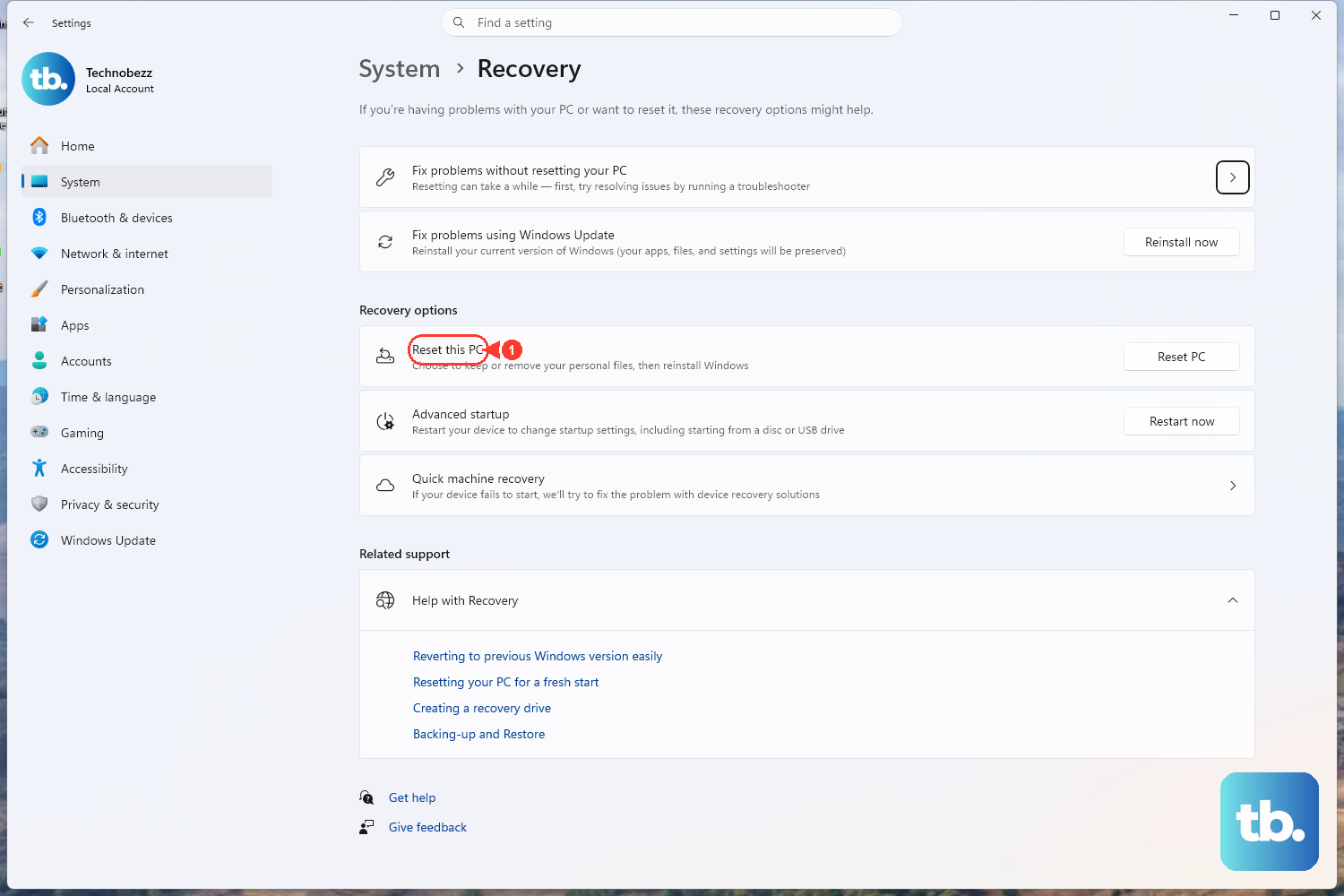
Use this first when the PC still opens Windows. It is Microsoft's primary consumer path for Windows 11 Home, Pro, Enterprise, and Education desktop editions.
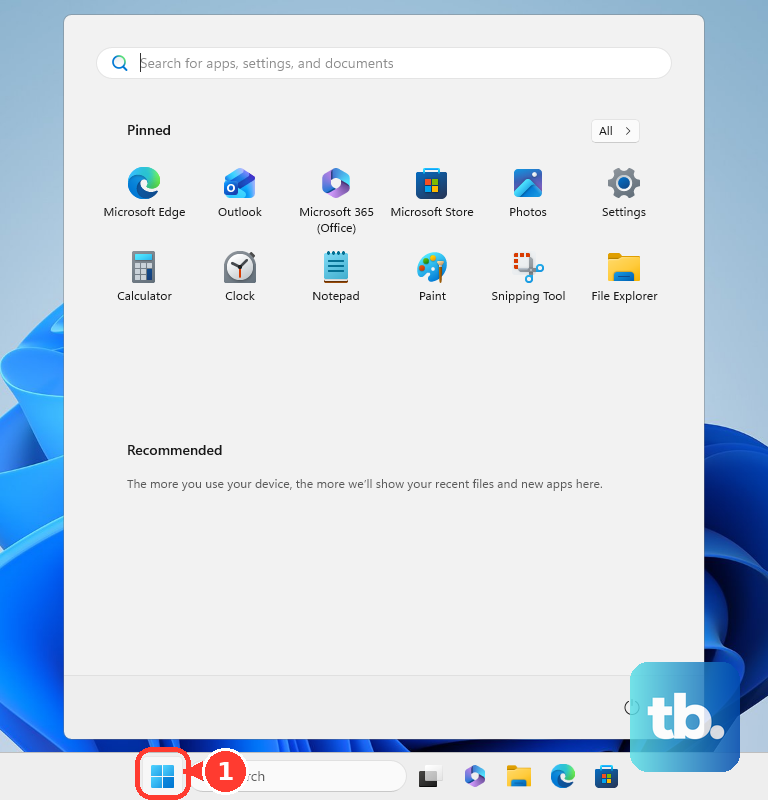
- 1.Select Start, then open Settings.
- 2.Go to System, then Recovery.
- 3.Select Reset PC.
- 4.Choose Remove everything.
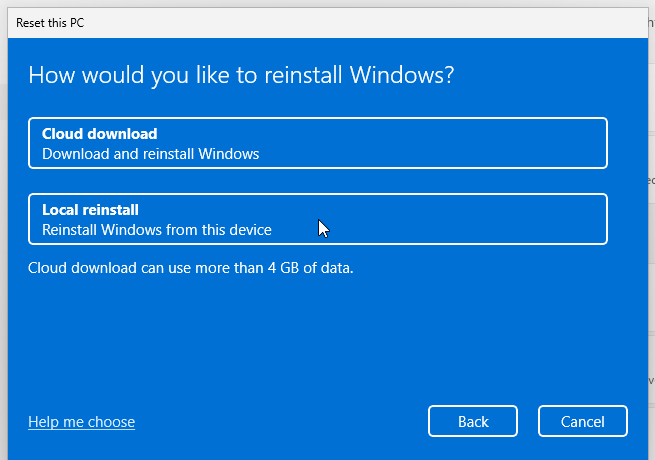
- 5.Select Cloud download or Local reinstall.
- 6.When Windows shows Clean data, turn it on before selling or recycling the PC.
- 7.Follow the on-screen instructions to finish the reset.
Cloud download and Local reinstall both continue the reset. The choice that matters most is Remove everything; that is the Windows option for wiping the PC in the reset flow.
2. Use Windows Recovery Environment when sign-in blocks you
- 1.Hold Shift while selecting Power.
- 2.Select Restart.
- 3.In Windows Recovery Environment, choose Troubleshoot.
- 4.Select Reset this PC.
- 5.Choose Remove everything.
- 6.Select the reset options shown by Windows, then continue through the prompts.
Use this route if you are stuck at the sign-in screen and need to open recovery without signing in. Have the BitLocker recovery key ready on BitLocker-encrypted devices before you continue.
3. Force Automatic Repair when Windows will not start
When the PC fails before you reach the desktop or sign-in screen, make Windows load its recovery tools.
Turn on the PC. When the Windows logo or manufacturer logo appears, hold Power until the computer shuts down. Turn it on again, repeat the shutdown once, then turn it on a third time.
At Automatic Repair, select Advanced options, then choose Troubleshoot, Reset this PC, and Remove everything. Some PCs also include a hardware recovery button or manufacturer button combination that opens Windows Recovery Environment; once that menu opens, use the same Troubleshoot path.
4. Build a recovery USB for a stubborn PC
A Windows recovery drive gives you another route when the built-in reset path is damaged. Microsoft says the recovery drive is intended for the device it was created for and recommends recreating it annually.
- 1.Select Start, search for Recovery Drive, and open it.
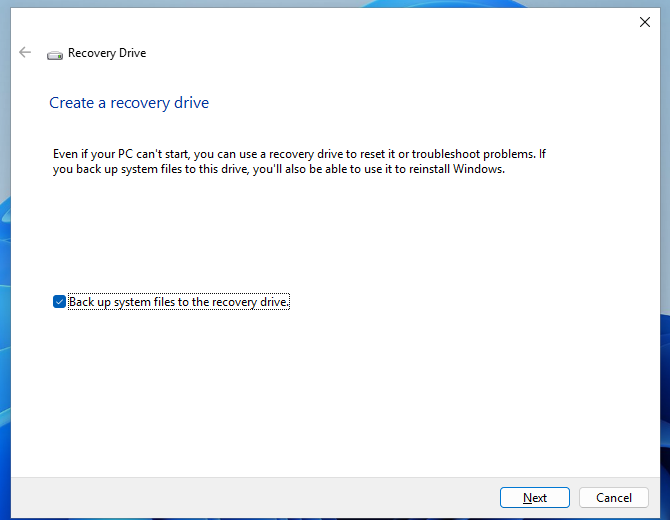
- 2.Keep Back up system files to the recovery drive selected.
- 3.Select Next.
- 4.Choose the USB drive, then select Next.
- 5.Select Create.
- 6.Boot the PC from the USB recovery drive.
- 7.Select Recover from a drive.
- 8.Choose Just remove my files or Fully clean the drive.
- 9.Select Recover.
The recovery drive flow ends on the choice between Just remove my files and Fully clean the drive. After you pick one, Recover starts the wipe.
5. Reinstall Windows 11 with installation media
- To create the media, use Microsoft's Download Windows 11 page, choose Create Windows 11 Installation Media, select Download Now, run MediaCreationTool.exe, and follow the prompts to create installation media.
- If Windows opens, open File Explorer, select the installation media drive, run setup.exe, select Yes, choose Change what to keep, pick Keep nothing, select Next, then select Install. This removes personal data, settings, and apps.
- For a clean install, boot from the USB or DVD. In Windows 11 Setup, choose the language and keyboard settings, select Next, then Install Windows 11. Check the box agreeing that everything will be deleted, including files, apps, and settings, then select Next. If a product key is requested, select I don't have a product key and pick your edition, then in Applicable notices and license terms select Accept. Delete every partition on Disk 0 that is not listed as Unallocated Space, select Disk 0 Unallocated Space, select Next, then select Install on the Ready to install screen.
- To use the media only for recovery, boot from it, choose the language preferences, select Next, then select Repair my PC. Continue through Troubleshoot, Reset this PC, and Remove everything.

Use installation media when you want a reinstall path instead of the built-in reset flow, or when you need external media to reach recovery.
6. Pick the PC maker route for factory images
Use the manufacturer option when you specifically need that brand's recovery image or the Windows reset path is not the right fit for the device. Match the tool to the PC brand and model.
- Dell: In SupportAssist OS Recovery, select Start Reset or START RESET on the RESET tile. Choose Reset to factory settings, select NEXT, choose No, do not back up my files, confirm I understand that the reset will delete all of my system data and personal files, select NEXT or YES, CONTINUE, then select RESTART after completion.
- HP consumer PCs: Use HP Cloud Recovery Tool to create a recovery USB. On HP Business PCs, use HP Cloud Recovery Client instead, or check the HP support page for your exact model. HP asks for a blank USB flash drive with a minimum of 64 GB for the recovery media. HP's steps are to insert the USB drive, turn the PC off, disconnect everything except the monitor, keyboard, mouse and power cord, then turn it on and immediately press F9 to open the boot menu. Select the USB drive, press Enter and follow the on-screen prompts to complete the recovery.
- Lenovo: On IdeaPad or idea devices with Novo support, power off the PC, press the Novo Button with a paper clip or press the model-specific Novo key, then select System Recovery. In recovery, choose Troubleshoot, Reset this PC, and Remove everything, or use the factory recovery option shown for that model.
- ASUS: To use MyASUS in WinRE, press Power, then quickly press the model's WinRE hotkey several times—usually F12, but F9 on some models—choose Troubleshoot, then select MyASUS in WinRE. Select Agree when prompted, choose Cloud Recovery, connect to a network, choose the backup options shown, and select OK when asked to reset the whole system back to default settings.
- Surface: Insert the Surface USB recovery drive. Press and hold Volume Down, press and release Power, then release Volume Down when the Surface logo appears. Select Recover from a drive, or choose Troubleshoot and Recover from a drive, then pick Just remove my files or Fully clean the drive and select Recover.
Dell, HP, Lenovo, ASUS, and Surface recovery availability depends on the supported model and recovery image. If the maker tool does not match your PC, return to the Windows 11 reset, recovery drive, or installation media paths above.
7. Avoid old reset shortcuts and managed PC traps
Do not treat Windows 10 reset instructions as current Windows guidance. Windows 10 has a legacy Reset this PC path through Settings, Update & Security, and Recovery, but Microsoft says Windows 10 support ended on October 14, 2025.
- Skip older Command Prompt advice that tells you to run systemreset -factoryreset. Current Microsoft consumer reset documentation points to Settings, Windows Recovery Environment, a recovery drive, or installation media instead.
- For a school or work-managed PC, the reset can be controlled by the organization through Microsoft Intune Wipe, Intune Fresh Start, or Windows Autopilot Reset. Ask the IT admin to wipe or release the device before you sell it, return it, or reuse it personally.
Frequently Asked Questions
How do I open Advanced startup from Windows 11 Settings?
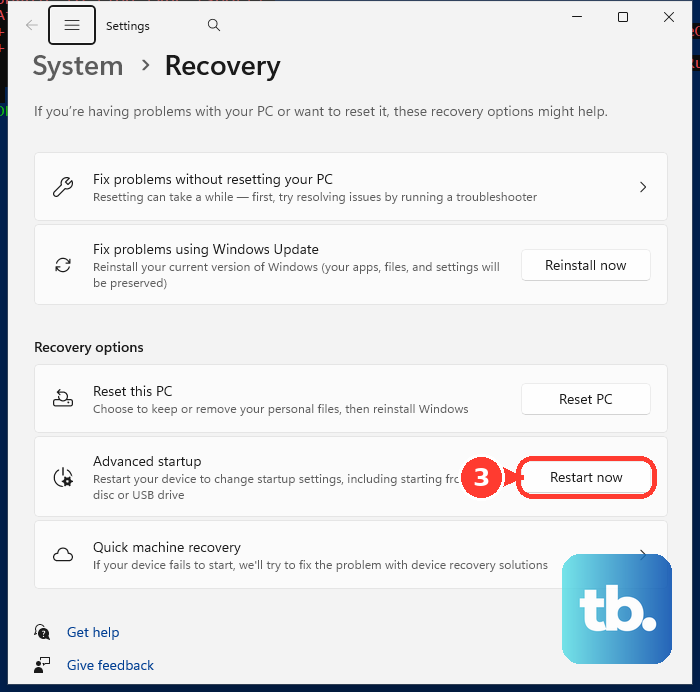
Open Settings, go to System, then Recovery. Under Recovery options, next to Advanced startup, select Restart now, then use Troubleshoot, Reset this PC, and Remove everything.
Can I use a recovery drive made for another PC?
Use the recovery drive made for that device. Microsoft says a recovery drive is intended for the device it was created for and recommends recreating it annually.
Can ASUS Cloud Recovery start from BIOS?
Yes, on supported ASUS PCs. Press F2 during boot to enter UEFI BIOS, select Cloud Recovery, or press F7 for Advanced and select ASUS Cloud Recovery. Connect to a network, continue through the prompts, and select OK when asked to reset to default settings.
What is Surface Data Eraser for?
Surface Data Eraser is the current Surface IT Toolkit USB erase route for supported newer Surface devices. Open Surface IT Toolkit, use Data Eraser USB-Builder, select Create USB, boot the target Surface from that USB, then type CONFIRM to erase.
Who can wipe a managed Windows PC remotely?
An authorized Intune admin can open Microsoft Intune admin center, go to Devices, then All devices, select the device, and choose Wipe. For Fresh Start, the admin should leave Retain user data on this device unselected when the goal is to remove user data.