


To fix Windows Security not responding, restart your PC, install available Windows updates, then repair or reset the Windows Security app. If it still will not open, repair Windows components and system files before considering a Windows reinstall. Stop when Windows Security opens normally.
The Settings paths below use Windows 11 menus, with Windows 10 alternatives included where applicable. Sign in only through Microsoft’s own app or website, and never share a code, password, or remote access with someone who contacts you.
The short version
- Start small: Restart Windows and try opening Windows Security through another entry point.
- Update and repair: Install Windows updates, then select Repair if the app settings expose it.
- Reset carefully: Resetting Windows Security can delete its stored app data and preferences.
- Escalate gradually: Try system file repairs and a clean boot before reinstalling or resetting Windows.
| Method | When to use it | Main consideration |
|---|---|---|
| Restart Windows | First attempt | Save your work first |
| Alternate entry point | One shortcut does not work | Try search or the notification area |
| Windows Update | Before deeper repairs | Install offered updates and restart when requested |
| Manual Windows Security update | Installing the app and service update directly | Match the package to your PC’s architecture |
| App repair | The Repair control is present | Retains app data |
| App reset | Repair fails or is missing | Can delete app data and preferences |
| PowerShell package reset | The Windows 11 package remains installed | Cannot recreate a missing package |
| DISM and SFC | App repairs do not help | Requires administrator access |
| Clean boot | Possible background interference | Restore normal startup afterward |
| Windows Update repair reinstall | Persistent Windows 11 problems | Preserves apps, files and settings |
| Windows installation media download | You need media for a Windows 11 repair | Match the architecture and licensed edition |
| Installation media repair | Alternative to the Windows Update repair | Requires compatible media and the retention option |
| System Restore | A restore point predates the failure | Can reverse later app, driver and system changes |
| Reset Windows | Earlier repairs fail | Removes apps and settings even when retaining files |
Restart and try another way into Windows Security
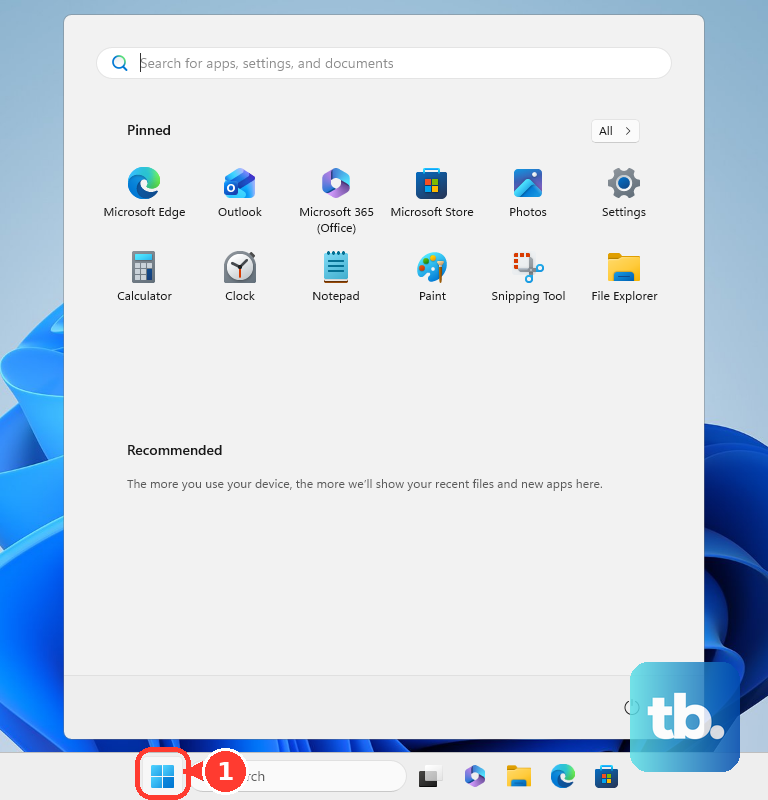
Save your work, then select Start > Power > Restart. After signing in again, search Start for Windows Security and open the result. These steps apply to Windows 11 and Windows 10.
On either version, try the Windows Security shield icon in the taskbar notification area as another entry point. On Windows 11, you can also open Settings > Privacy & security > Windows Security and select a protection area. Trying these routes helps establish whether only a shortcut or entry point is failing.
Install Windows and Windows Security updates
On Windows 11, open Start > Settings > Windows Update and select Check for updates. Install the offered updates and restart when requested, then try Windows Security again. Microsoft distributes updates for the Windows Security app and its underlying service through KB5007651.
For a manual installation on Windows 11 build 22000 or later, open Microsoft’s Windows Security app update page. Under Manually download the update, select 64-Bit or ARM64 to match your PC, then run the downloaded installation as an administrator. If Windows Security still does not respond, continue with the app repair controls.
Repair or reset the Windows Security app
On Windows 11, search Start for Windows Security, right-click the result and select App settings. If you see Repair, select it and reopen Windows Security afterward. Microsoft says repair retains the app’s data, but the control depends on the installed package.
If repair fails or its control is missing, check whether the page offers Reset. Resetting Windows Security can delete its stored app data and preferences. Select Reset, then select Reset again in the confirmation. Restart Windows and reopen the app.
On Windows 10, search Start for Windows Security and open App settings. Resetting it can delete the app’s stored data and preferences. If the control is available, select Reset, confirm with Reset, then restart Windows and try the app again.
If the app settings do not expose either control, continue to the PowerShell method on Windows 11. On Windows 10, move to the Windows component and system file repairs.
Reset the installed package with PowerShell
On Windows 11, PowerShell provides another route to reset an installed Microsoft.SecHealthUI package. It cannot recreate a package that the command does not find. Use this route when the app controls do not resolve the problem or you cannot reach them.
Search Start for Windows PowerShell, right-click the result and select Run as administrator. Select Yes if User Account Control prompts. This reset can delete the app’s stored data and preferences. Paste the following command and press Enter.
Get-AppxPackage Microsoft.SecHealthUI -AllUsers | Reset-AppxPackageReopen Windows Security after the command finishes. If the package is not found or the app still does not respond, continue with the Windows component and system file repairs.
Repair Windows components and system files
On Windows 11 and Windows 10, you can repair Windows using Command Prompt with DISM and System File Checker. Install available Windows updates and restart before running them. Search for Command Prompt, right-click it, select Run as administrator and select Yes.
Run DISM first to repair Windows components. Enter the following command and press Enter.
DISM.exe /Online /Cleanup-image /RestorehealthAfter DISM completes successfully, run System File Checker. Enter this command and press Enter.
sfc /scannowWait for verification to finish before closing the window, then try Windows Security again. If DISM does not complete successfully, seek help through Microsoft’s official support website for the reported error before proceeding with SFC. If both complete but the app remains unresponsive, move to the clean boot diagnostic.
Check for interference with a clean boot
A clean boot helps you identify whether a background service or startup app is interfering with Windows Security. If Windows Security works during a clean boot, re-enable items in batches to find the interference. Use an administrator account for this procedure.
Search for msconfig and open System Configuration. Open Services, select Hide all Microsoft services, then select Disable all and Apply. Keep the Microsoft services hidden before disabling the remaining services.
Open Startup > Open Task Manager. On Windows 11, under Startup apps, record which items are enabled, then select each enabled item and choose Disable to stop apps from opening on startup. On Windows 10, use Task Manager’s Startup tab instead.
Close Task Manager, select OK in System Configuration and restart the PC. Test Windows Security; if it now works, re-enable items in batches to identify the interference. After testing, restore General > Normal Startup, restore the services and startup items, then restart again. If Windows Security still fails, continue with a Windows repair reinstall.
Reinstall Windows while keeping apps and files
On eligible Windows 11 installations, a repair reinstall through Windows Update preserves your apps, files and settings. Keep the PC connected to power and the internet. On Windows 11, open Start > Settings > System > Recovery, then under Fix problems using Windows Update, select Reinstall now.
Select OK to proceed. After installation, restart manually if you did not select automatic restart. This feature requires Windows 11 2022 Update or later with the February 2024 optional update or later. It may be unavailable on devices with managed updates; contact your managing administrator in that case, or use compatible installation media on your own PC if the control is missing.
You can also perform an in-place repair using compatible installation media on Windows 11 or Windows 10. Back up your files first, and match the media’s edition to your license. For Windows 11, open Microsoft’s Download Windows 11 page and choose Create Windows 11 Installation Media or Download Windows 11 Disk Image (ISO) for x64 devices as appropriate. For an ARM PC, use the page’s ARM64 ISO link.
While signed in to Windows, connect the installation media and open setup.exe in File Explorer. Select Yes, then select Change what to keep > Keep personal files and apps > Next > Install. Proceed with this route only when compatible media provides that retention option; otherwise, seek help through Microsoft’s official support website before continuing.
Use a restore point for a recent problem
System Restore is another option on Windows 11 and Windows 10 when you have an existing restore point from before the failure. It retains personal files, but application, driver and system changes made after the restore point can be reversed. Press Windows + R, enter the following command, then press Enter.
rstrui.exeSelect Next and choose a restore point from before Windows Security stopped responding. If needed, select Show more restore points, and select Scan for affected programs to review what will be affected. Select Next > Finish to proceed.
You can also access the Windows Recovery Environment and select Troubleshoot > Advanced options > System Restore. If you do not have a suitable restore point and the repair reinstall did not help, consider resetting Windows.
Reset Windows only after the earlier repairs fail
A Windows reset is a broader recovery step than resetting the Windows Security app. Even when you retain personal files, resetting Windows removes apps and settings, so back up your files and obtain your BitLocker recovery key first. On Windows 11, open Settings > System > Recovery > Reset PC.
On Windows 10, open Settings > Update & Security > Recovery and select Get started under Reset this PC. To reset Windows while keeping personal files, select Keep my files. Choose Cloud download or Local reinstall and complete the displayed instructions, which vary by device and reset mode.
The recovery environment provides another entry point through Troubleshoot > Reset this PC. If Windows Security still fails after the recovery steps, contact Microsoft through its official support website for further help.
Frequently Asked Questions
Why is Microsoft Defender Antivirus disabled when Windows Security opens?
An installed third-party antivirus can legitimately disable Microsoft Defender Antivirus without disabling the Windows Security dashboard. On Windows 11 or Windows 10, open Windows Security, select Settings > Manage providers, then expand Antivirus. Open the active product’s app and check its status.
Could a tuning utility cause incorrect security status?
Yes, changes to SecurityHealthService or wscsvc can affect security-status information on Windows 11 and Windows 10. Disabling these services can leave that information stale. If the problem followed service changes or use of a tuning utility, ask Microsoft support or your managing administrator to investigate those services.
Should you use the old downloadable Windows Security troubleshooter?
The old troubleshooter uses MSDT technology, which Microsoft has deprecated. Its documented targets include UAC, DEP, firewall and antivirus status, rather than specifically repairing the modern Windows Security dashboard.
Will changing DisableAntiSpyware in the registry repair the dashboard?
Do not use DisableAntiSpyware or DisableAntivirus registry changes as a general Windows Security repair. Microsoft says those deployment settings were not intended for consumer devices and have been removed or are ignored in the documented modern configurations.