

To fix corrupted system files in Windows 11, open Command Prompt as an administrator, run DISM to repair the component store, then run System File Checker to replace damaged protected files. If those repairs cannot finish, you can try a repair reinstall that preserves your files and apps. These steps use Windows 11 menus.
The short version
- Start with DISM and SFC: Repair the component store first, then scan and repair protected system files.
- Handle scan failures: Retry SFC in Safe Mode when it cannot perform the requested operation.
- Keep files and apps: Try a repair reinstall before choosing a reset.
- Windows will not start: Open Windows Recovery Environment and try Startup Repair.
- Reset last: A reset removes installed applications and settings even when you choose to retain personal files.
| Method | When to use it | Main consideration |
|---|---|---|
| DISM followed by SFC | First repair while Windows starts | Requires administrator access |
| SFC in Safe Mode | SFC cannot perform its operation | Runs the same repair tool in Safe Mode |
| Windows Update troubleshooting | Updates fail and DISM needs repair files | Repairs the update mechanism |
| DISM with a repair source | Windows Update cannot supply repair files | Requires compatible source files |
| Windows Update repair reinstall | Command repairs leave damage unresolved | Preserves files, apps, and settings |
| Installation media repair | Windows starts and Setup can run | Choose Keep personal files and apps |
| Startup Repair | Windows cannot start correctly | Targets startup damage |
| Offline SFC | Protected files need repair outside Windows | Requires correct offline directories |
| Offline DISM | An offline component store needs repair | Requires an image path and compatible source |
| System Restore | A suitable earlier restore point exists | Reverses later system changes |
| Reset this PC | Other repairs have failed | Removes apps and settings |
Open an administrator prompt and run the repairs
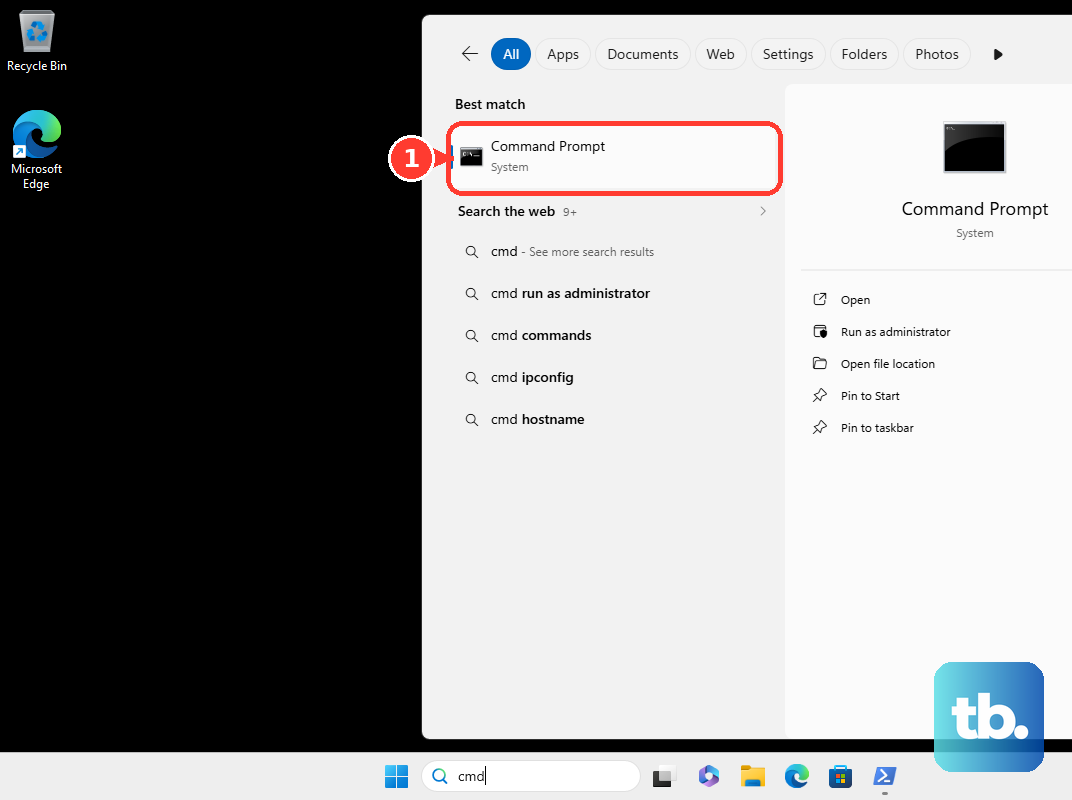
Search for cmd, right-click Command Prompt, and select Run as administrator. Administrator access is required for these repairs. Start with the following DISM command, which repairs the component store that SFC uses:
DISM.exe /Online /Cleanup-Image /RestoreHealthWait for DISM to succeed before starting System File Checker. Then run SFC to repair Windows by entering this command in the same administrator window:
sfc /scannowKeep the window open until verification reaches 100%. SFC uses the repaired component store to replace damaged protected system files. If DISM fails or SFC cannot finish, follow the matching fix below.
Retry SFC in Safe Mode when it cannot run
When SFC says it cannot perform the requested operation, Microsoft recommends retrying in Safe Mode. To open Advanced Startup in Windows, go to Settings > System > Recovery, then under Advanced startup, select Restart now.
In Windows Recovery Environment, select Troubleshoot > Advanced options > Startup Settings > Restart. Press 4 or F4 for Enable Safe Mode, or press 6 or F6 for Enable Safe Mode with Command Prompt.
Safe Mode changes the environment in which SFC runs, while SFC still performs the file repair. Open Command Prompt with administrator privileges and run the following command again:
sfc /scannowIf SFC runs but cannot repair a file, you can find details about the failed file in %windir%\Logs\CBS\CBS.log. If damage remains unresolved, continue to a repair reinstall that preserves your files and applications.
Resolve DISM repair source problems
When Windows Update cannot supply the files DISM needs, start by checking the update mechanism. Open Settings > Windows Update and select Check for updates. If updating fails, run the Windows Update troubleshooter through Settings > System > Troubleshoot > Other troubleshooters, selecting Run beside Windows Update.
Restart and retry updates after troubleshooting. This can restore the update mechanism used by DISM and repair reinstalls. Once updating works, retry the original DISM command and follow it with SFC.
If you already have a compatible local, mounted-image, or network repair source, you can tell DISM to use it directly. The source must include the required language components and compatible servicing updates. In an administrator Command Prompt, run this command after replacing the example directory with your actual repair-source directory:
DISM /Online /Cleanup-Image /RestoreHealth /Source:C:\RepairSource\Windows /LimitAccessThe /LimitAccess option prevents DISM from contacting Windows Update. After DISM succeeds, run sfc /scannow again. If you do not have a compatible repair source or the repair still fails, continue with a repair reinstall.
Reinstall through Windows Update while keeping your apps
Before using the reinstall and recovery options below, back up your important files and obtain your BitLocker recovery key if your device is encrypted. The Windows Update repair reinstall preserves your files, applications, and settings. Open Start > Settings > System > Recovery. Under Fix problems using Windows Update, select Reinstall now, then select OK.
Keep the PC connected to power and the internet during installation, then restart afterward. This option requires Windows 11 22H2 or later with the February 2024 optional update or a later update, and availability is restricted on devices with managed updates. If the option is missing, use the installation media repair method below.
Windows Update can also offer this repair directly after an update failure involving relevant system-file or component problems. When Settings > Windows Update offers the repair reinstall, select Reinstall now, then OK. Restart after installation to complete the same repair process.
Repair Windows with installation media
If Windows starts well enough to run Setup, you can reinstall Windows and choose what to keep using compatible installation media. If you need to save personal files, back them up before you reinstall. Match the installed Windows edition and use media for your PC's architecture. Get an x64 ISO from the official Windows 11 download page, or an Arm64 ISO from the official Windows 11 Arm download page.
For an x64 ISO, right-click the downloaded image and select Mount. While signed into Windows, open the installation drive in File Explorer and open setup.exe. Select Yes when prompted.
Other retention choices remove applications or all existing content, so back up your files first and choose Keep personal files and apps in the following step to preserve both. Select Change what to keep, choose Keep personal files and apps, then select Next and Install. If Windows cannot start sufficiently to run Setup, use the recovery tools below.
Use recovery tools when Windows will not start
When Windows cannot start correctly, begin with Startup Repair. To enter recovery from a failed startup, hold the power button at the startup logo to interrupt startup, repeat once, then start the PC a third time and select Advanced options. This opens Windows Recovery Environment, which contains the repair tools.
To use Startup Repair for boot problems, select Troubleshoot > Advanced options > Startup Repair > Restart. Supply the BitLocker recovery key when requested. Windows diagnoses and attempts to repair startup-related system-file and boot-configuration damage.
If Startup Repair does not resolve the problem, offline SFC is an advanced alternative. Open Troubleshoot > Advanced options > Command Prompt. Recovery drive letters can differ from those in normal Windows, and encrypted volumes must be accessible.
Run the following command only after replacing the example boot and Windows directories with the correct offline locations. The example uses D:\ for the boot directory and D:\Windows for the Windows directory:
sfc /scannow /offbootdir=D:\ /offwindir=D:\WindowsIf the offline component store also needs repair, DISM requires an explicit offline image path and a compatible repair source. Do not use /Online inside recovery to target your installed Windows system. Replace both example paths in this command with your actual offline Windows volume and repair-source directory:
DISM /Image:D:\ /Cleanup-Image /RestoreHealth /Source:E:\RepairSource\WindowsAfter offline DISM succeeds, rerun the offline SFC command above. If you cannot identify the correct directories or obtain a compatible source, continue with System Restore or the reset options below. These options provide recovery routes without requiring you to supply an offline DISM repair source.
Restore an earlier working system state
System Restore requires a usable restore point from before the damage. It retains personal files but reverses system changes made after the selected restore point. Open Control Panel > Recovery > Open System Restore.
Choose a restore point from before the problem began, selecting Show more restore points if needed. Review the affected software before selecting Next and Finish. When Windows cannot start, open the same tool through recovery at Troubleshoot > Advanced options > System Restore.
If you have no suitable restore point, move to a reinstall or reset instead. Choose a preserving repair reinstall when you need to keep applications and settings, since System Restore reverses later system changes.
Reset the PC after other repairs fail
A reset removes installed applications and settings; choosing Remove everything also deletes personal files, while choosing Keep my files retains them. Open Settings > System > Recovery and select Reset PC, or, if Windows will not start, open recovery and begin at Troubleshoot > Reset this PC.
Select Keep my files, then choose Cloud download to avoid relying on damaged local installation files. The other installation choice is Local reinstall. Complete the reset wizard and do not interrupt its restarts.
Frequently Asked Questions
Can CHKDSK repair corrupted Windows system files?
CHKDSK repairs filesystem structures rather than replacing protected Windows files from the component store. You can use it for underlying filesystem errors, while DISM and SFC handle the component store and protected system files.
Can you repair just one protected system file?
You can use SFC's /scanfile option with the full path of the affected protected file in an administrator command prompt. The /verifyfile and /verifyonly options inspect files but do not repair them.
Can you use PowerShell instead of DISM?
You can use the Repair-WindowsImage cmdlet in elevated Windows PowerShell on Windows 11 with the DISM PowerShell module. Its -Source parameter accepts a custom repair source, and -LimitAccess prevents contacting Windows Update. Run SFC afterward to repair protected system files.
What if only one application is damaged?
Open Settings > Apps > Installed apps, open the affected app's More menu, and select Advanced options > Repair if available. For traditional programs, open Control Panel > Programs > Programs and Features, right-click the program, and select Repair or Change. Available actions depend on the application, and they repair the app rather than the Windows system-file store.
Should you download the System Update Readiness Tool for Windows 11?
Do not install that older repair package on Windows 11. Microsoft scopes it to Windows 7 and Windows Server 2008 R2, so use the built-in DISM and SFC procedures for Windows 11.