You pushed through a failed boot, waited while the recovery tool churned, and landed on the worst possible result: a screen telling you Startup Repair couldn't repair your PC. It feels like a dead end, but it is really just one tool reporting that it could not finish the job on its own. Windows did not start for any of several reasons, and the recovery environment still has plenty of other tools waiting behind that screen.
The eight fixes below move from the safest and simplest options to the deeper command-line repairs you reach for only when Windows will not start at all. Work through them in order and stop the moment your PC boots normally again. These steps apply to both Windows 11 and Windows 10.
Fix 1: Get Back Into the Recovery Menu
Every fix here runs from the Windows Recovery Environment (WinRE), so you need to be on the Advanced options screen. If Startup Repair just failed, you are likely already there. If not, here is how to reach it deliberately.
When the PC can still open Settings, go to Settings > System > Recovery and select Restart now next to Advanced startup (on Windows 10, the path is Settings > Update & Security > Recovery). If you can sign in but want a faster route, press and hold Shift while you select Power > Restart.
If Windows will not start at all, Microsoft documents forcing the recovery screen by interrupting startup. Hold the power button until the PC shuts down, power it back on, and repeat the interruption; after repeated failed boots, Windows displays the Automatic Repair screen, where you select Advanced options. You can also boot from a USB recovery drive or from Windows installation media and choose Repair your computer to reach the same menu.
Fix 2: Run Startup Repair One More Time
A single failure does not always mean Startup Repair is finished. Inside WinRE, select Troubleshoot > Advanced options > Startup Repair and let it run again.
This tool automatically diagnoses and tries to fix common problems that stop Windows from starting. A second pass can succeed after a first one stalls, especially if conditions on the drive have changed since the first attempt or if the first run cleared part of the problem.
If your device is encrypted, the recovery process may ask you to confirm your identity before it can continue, so it helps to have your sign-in details and any recovery information on hand before you start.
Fix 3: Undo a Recent Windows Update
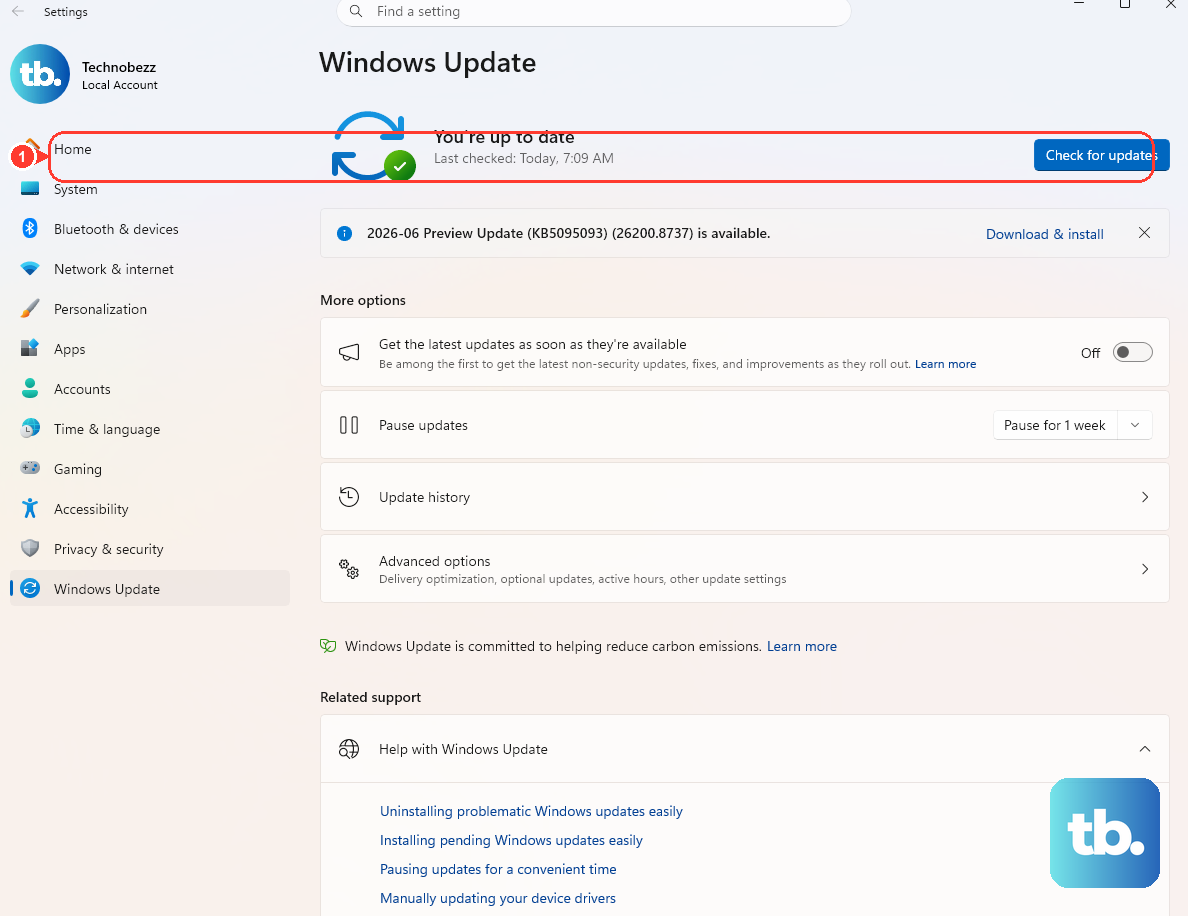
If the boot trouble started right after an update installed, that update is the prime suspect. From WinRE, select Troubleshoot > Advanced options > Uninstall Updates.
You will see two choices: Uninstall latest quality update and Uninstall latest feature update. Start with the quality update if the problem appeared after routine monthly patching, and try the feature update only if a larger Windows version change preceded the failure.
Be aware of the trade-off before removing a security update, since rolling one back can leave the system exposed until you reinstall it. This is the officially documented way to pull a problem update when you cannot start Windows normally.
Fix 4: Roll the PC Back With System Restore
System Restore takes your PC back to a point when it was working, without touching your personal files. From the recovery menu, select Troubleshoot > Advanced options > System Restore.
Pick a restore point dated before the trouble began, then follow the prompts to confirm and start the rollback. The process reverts system files, registry settings, and installed programs to their state at the time the restore point was created, while leaving your documents and photos alone.
The catch is that it only works if a restore point already exists. If none was ever created, System Restore has nothing to roll back to, so move on to the next fix.
Fix 5: Boot Into Safe Mode to Isolate the Cause
Safe Mode starts Windows in a basic state with a limited set of files and drivers, which is exactly what you want when a single bad driver or startup program is to blame. From the recovery menu, select Troubleshoot > Advanced options > Startup Settings > Restart.
After the PC restarts, the Startup Settings list appears. Press the matching number key for the option you want: 4 (or F4) for Enable Safe Mode, or 5 (or F5) for Enable Safe Mode with Networking if you may need internet access to download a driver.
If Windows loads in Safe Mode, that tells you a driver or startup app, not the core system, is causing the failure. From here you can uninstall the recently added driver or program that triggered the problem, then restart normally to see whether the system boots on its own.
Fix 6: Repair System Files With DISM, Then SFC
Corrupted protected system files are a frequent cause of boot failures, and Windows has two built-in tools to repair them. If Windows can start (for example, through Safe Mode), open Command Prompt as administrator: type cmd in Search, right-click Command Prompt, and select Run as administrator.
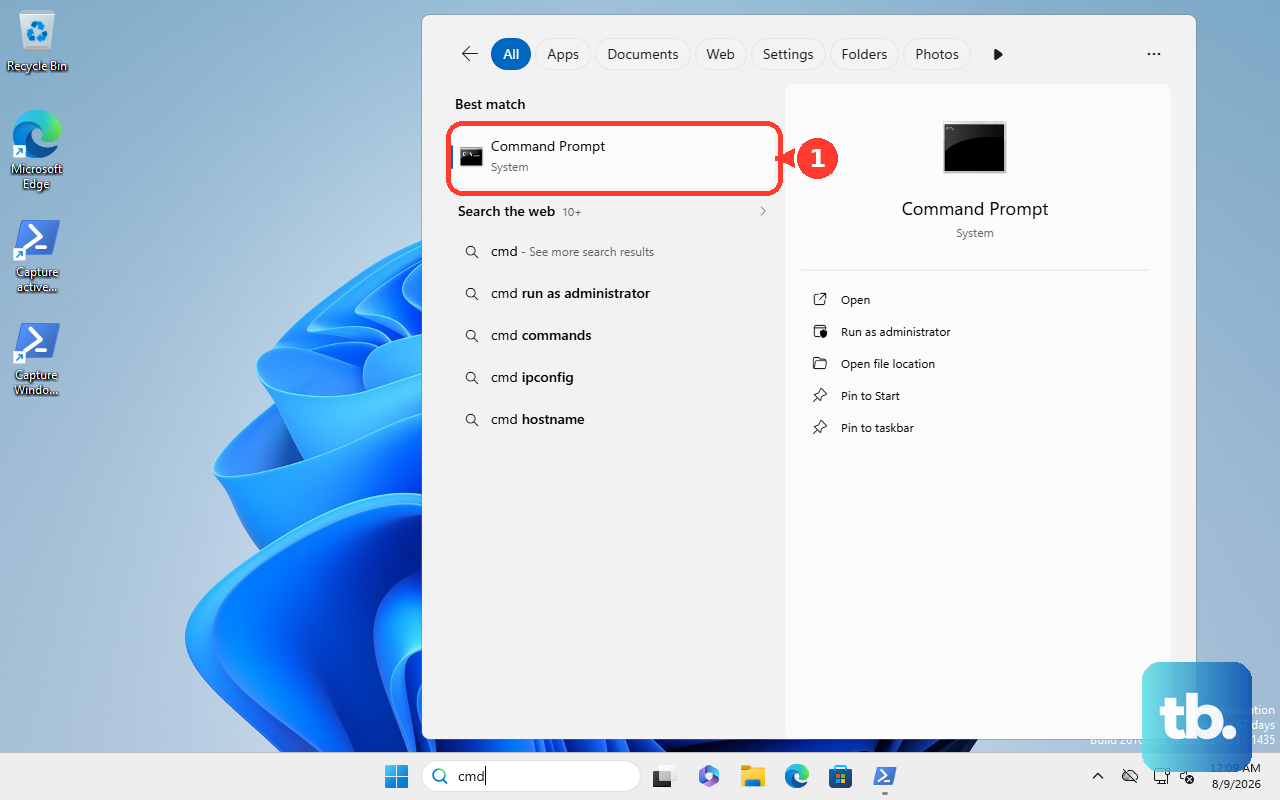
Run the image-repair command first:
- 1.Run
DISM.exe /Online /Cleanup-image /Restorehealthand wait for it to finish. - 2.Then run
sfc /scannowto scan and replace corrupted protected system files.
Run DISM before SFC, because DISM repairs the Windows component store and provides the healthy files that SFC relies on for its repairs. Leave the window open until the verification reaches 100 percent complete; closing it early can leave the repair unfinished. If you cannot boot at all, you can run these against the offline drive from the WinRE Command Prompt instead, covered in the final fix.
Fix 7: Check the Disk for Errors With CHKDSK
Disk corruption can stop Windows from booting entirely, and CHKDSK is the tool that finds and repairs it. From an elevated Command Prompt, run CHKDSK with the /f parameter to fix logical errors, for example chkdsk D: /f.
The /f parameter fixes errors on the disk, but the drive must be locked to do so; if CHKDSK cannot lock the drive, it offers to run the check on your next restart, which you should accept. If you suspect physical disk problems as well, the /r parameter locates bad sectors and recovers readable information, and it includes everything /f does.
One thing to know: run without any parameters, CHKDSK only reports the status of the volume and does not fix anything, so always include /f (or /r) when you want repairs.
Fix 8: Run the Offline Repair Commands From WinRE
When Windows will not start no matter what, you can run the same repair tools against the offline installation directly from the recovery command line. From WinRE, select Troubleshoot > Advanced options > Command Prompt.
Before running any repair, you need the true drive letter of your Windows volume, because inside WinRE it is often not C:. Run BCDEdit and read the osdevice value under Windows Boot Loader to find it.
With that letter in hand, run these commands in order, replacing D: with the letter you found:
- 1.
chkdsk D: /f - 2.
DISM /image:D:\ /cleanup-image /restorehealth - 3.
sfc /scannow /offbootdir=D:\ /offwindir=D:\windows
When the commands finish, close Command Prompt and restart the PC. This sequence lets you clear disk and system-file corruption from outside the installation, so it can reach problems that nothing else can while Windows refuses to load.
Frequently Asked Questions
Will any of these fixes erase my personal files?
The fixes here are not designed to delete your files. System Restore specifically reverts system files, registry settings, and installed programs without affecting your personal files, and Startup Repair, Safe Mode, DISM, SFC, and CHKDSK target system components and disk errors rather than your documents.
Why does Microsoft say to run DISM before SFC?
DISM repairs the Windows component store and provides the healthy files that System File Checker needs for its repairs. If you run sfc /scannow against a damaged component store first, it may not have good files to copy from, which is why DISM.exe /Online /Cleanup-image /Restorehealth comes first.
What does the /f parameter do in CHKDSK?
The /f parameter tells CHKDSK to fix logical errors on the disk. Run without any parameters, CHKDSK only reports the status of the volume and repairs nothing, so include /f when you want it to make changes. The /r parameter goes further by locating bad sectors and recovering readable information, and it includes everything /f does.
How do I get back to the recovery menu if I cannot reach Settings?
Hold the power button until the PC shuts down, power it back on, and repeat the interruption. After repeated failed boots, Windows shows the Automatic Repair screen, where you select Advanced options. You can also boot from a USB recovery drive or Windows installation media and choose Repair your computer.
Why is my Windows drive shown as something other than C: in WinRE?
Inside the recovery environment, the system volume is often assigned a different letter, so it may not appear as C:. Run BCDEdit and read the osdevice value under Windows Boot Loader to confirm the real drive letter before running any offline CHKDSK, SFC, or DISM command.











