Windows can start acting broken when protected system files are missing or corrupted. Apps fail, settings misbehave, or the PC refuses to boot cleanly, and sfc /scannow is the built-in repair command Microsoft documents for those files. Start with the current online repair order, then move to Safe Mode or Windows Recovery Environment if Windows cannot complete the scan normally.
1. Run the Microsoft repair order first
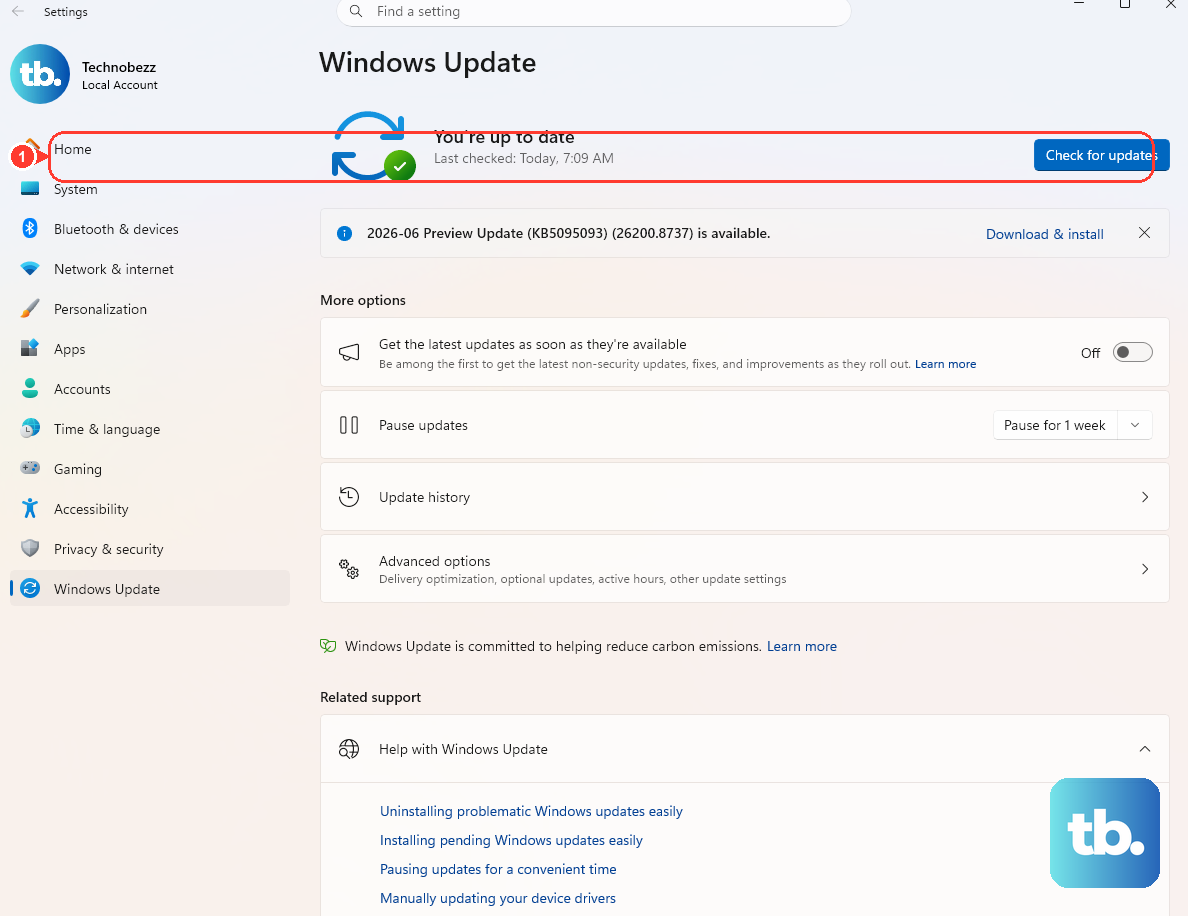
Use this first when Windows still opens. Microsoft’s current online flow repairs the Windows image with DISM before SFC checks protected system files.
Install the latest Windows updates, then restart the PC.
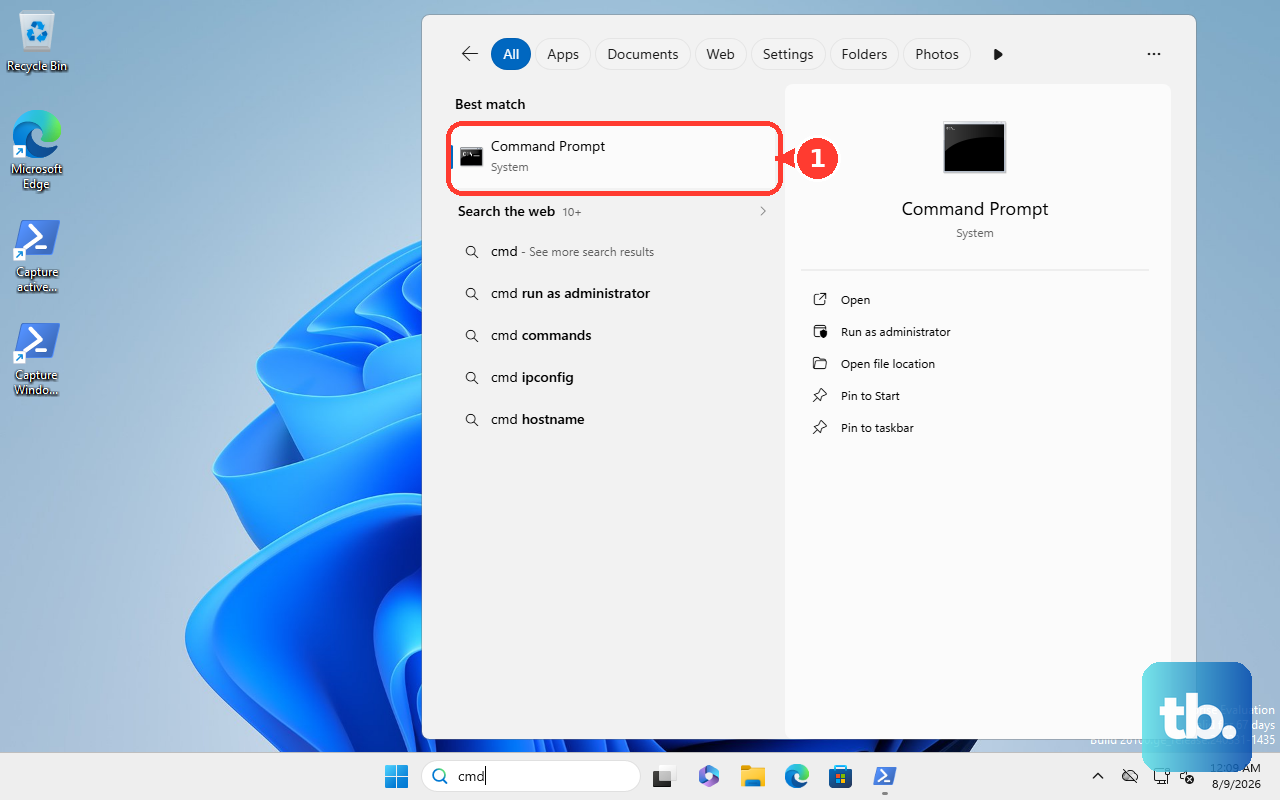
Select the taskbar search box and type command prompt.
Right-click or press and hold Command Prompt.
Select Run as administrator, then select Yes at the User Account Control prompt.
Run DISM.exe /Online /Cleanup-image /Restorehealth.
After The operation completed successfully appears, run sfc /scannow.
After Verification 100% complete appears, type exit and press Enter.
This flow applies to Windows 11. Windows 10 still has SFC, but free Windows 10 support ended on October 14, 2025.
2. Open SFC through Windows Terminal
Press Windows key + X.
Select Terminal (Admin) (labeled Windows Terminal (Admin) on older Windows 11 builds).
Approve the User Account Control prompt.
Run sfc /scannow.
If you prefer Windows Terminal, run the same command from an elevated Terminal window. SFC works from Command Prompt or PowerShell profiles because sfc.exe is a Windows command-line tool. For repeat repairs, open Settings in Windows Terminal, choose the profile or defaults, enable Automatically run as Administrator, then approve elevation when that profile opens.
3. Switch to Safe Mode when SFC stops
Safe Mode is the next place to run the scan when SFC returns Windows Resource Protection could not perform the requested operation.
Access Windows Recovery Environment.
Select Troubleshoot > Advanced options > Startup Settings > Restart.
On the Startup Settings screen, select Enable Safe Mode with the number key or function key.
After Windows starts in Safe Mode, open Command Prompt with Run as administrator.
Run sfc /scannow.
4. Repair offline from Recovery options
Open Settings.
Select System > Recovery.
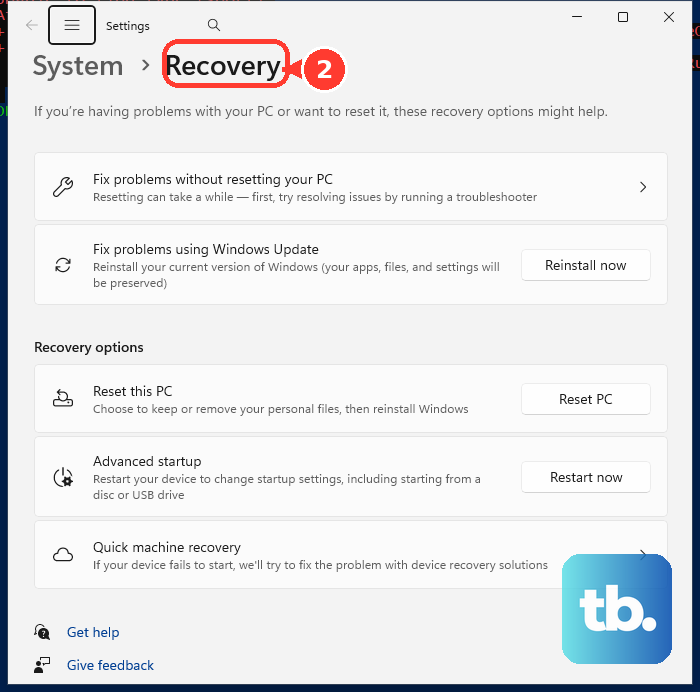
Under Recovery options, next to Advanced startup, select Restart now.
In Windows Recovery Environment, select Troubleshoot > Advanced options > Command Prompt.
Run BCDEdit and note the Windows volume shown next to osdevice.
Run SFC /scannow /offbootdir=D:\ /offwindir=D:\windows, replacing D: with the correct Windows volume.
Use offline SFC when you need to repair Windows from Windows Recovery Environment instead of the running copy of Windows. You can also press and hold Shift while selecting Power > Restart from Start or the sign-in screen, then open Troubleshoot > Advanced options > Command Prompt and run the same offline command.
5. Force recovery when Windows will not boot
When Windows does not reach the desktop, Automatic Repair can still lead to the recovery Command Prompt.
Start the device and wait for the Windows logo or manufacturer logo.
Press and hold the power button until the device shuts down.
Repeat that shutdown once.
Turn on the device a third time.
On the Automatic Repair screen, select Advanced options.
Select Troubleshoot > Advanced options > Command Prompt.
Run BCDEdit and identify the Windows volume.
Run SFC /scannow /offbootdir=D:\ /offwindir=D:\windows with the correct drive letter.
A USB recovery drive reaches the same place: boot from the recovery drive, select Troubleshoot > Advanced options > Command Prompt, identify the Windows volume with BCDEdit, then run offline SFC.
6. Create installation media for a dead PC
On a working PC, open Microsoft’s Download Windows 11 page.
Under Create Windows 11 Installation Media, select Download Now.
Run the Media Creation Tool as an administrator.
Accept the license terms.
Select Create installation media for another PC, then create a bootable USB or ISO.
Connect the media to the nonfunctional PC and turn it on.
On the initial setup screen, select language and other preferences, then select Next.
Select Repair my PC, then select Next to access Windows Recovery Environment.
Select Troubleshoot > Advanced options > Command Prompt.
Run BCDEdit, then run SFC /scannow /offbootdir=D:\ /offwindir=D:\windows with the correct Windows volume.
If there is no recovery drive, Windows 11 installation media can open Windows Recovery Environment on the nonworking PC. The Media Creation Tool creates media only for x64 processors; for Arm-based PCs, use Microsoft’s Windows 11 Arm64 ISO instead, and note that manufacturer drivers may be needed to make bootable media.
7. Check what SFC repaired
SFC reports whether it repaired files or could not repair some of them. To see the file-level details, create an sfcdetails.txt file from the CBS log.
Open Command Prompt with Run as administrator.
Run findstr /c:"[SR]" %windir%\Logs\CBS\CBS.log >"%userprofile%\Desktop\sfcdetails.txt".
Open Sfcdetails.txt from the desktop.
Check the latest date and time entries for files SFC repaired or could not repair.
For one protected file, open an elevated Command Prompt or elevated Windows Terminal and run sfc /scanfile=<file>. Offline single-file repair uses the same /offbootdir and /offwindir pattern, with the correct path and drive letter.
8. Avoid old SFC switches
Do not use legacy switches such as /scanonce, /scanboot, /purgecache, /cachesize, /cancel, /enable, or /quiet for current Windows repairs. Microsoft’s current SFC syntax supports the repair paths above, including sfc /scannow, sfc /scanfile, and offline repair with /offbootdir and /offwindir.
After SFC reports corrupt files it could not fix, Microsoft documents an advanced manual replacement path: review Sfcdetails.txt, run takeown /f <Path_And_File_Name>, run icacls <Path_And_File_Name> /grant administrators:F, then copy a known-good file from the same Windows version with Copy <Source_File> <Destination>. On school or work-managed PCs, Windows Recovery Environment access and recovery authentication can also be affected by management settings, so administrator consent or credentials may be required.
Frequently Asked Questions
Does sfc /scannow need an internet connection?
While Windows is running, sfc /scannow runs locally from an elevated Command Prompt or elevated Windows Terminal with no internet connection. Inside Windows Recovery Environment, run offline SFC instead, such as SFC /scannow /offbootdir=C:\ /offwindir=C:\Windows, replacing the drive letter as needed. Microsoft’s recommended online repair order runs Windows updates and DISM before SFC.
What command should I use for offline SFC?
Use BCDEdit in Windows Recovery Environment to find the Windows volume, then run SFC /scannow /offbootdir=D:\ /offwindir=D:\windows with D: replaced by the correct drive letter.
Can SFC repair just one file?
Yes. From an elevated Command Prompt or elevated Windows Terminal, run sfc /scanfile=
What should I do with old SFC commands from older guides?
Skip /scanonce, /scanboot, /purgecache, /cachesize, /cancel, /enable, and /quiet on current Windows repair workflows. Use sfc /scannow, sfc /scanfile, or the offline /offbootdir and /offwindir syntax.