


To migrate from one iPhone to another, turn on the new iPhone beside your unlocked old phone and use Quick Start to transfer your data. Connect the old phone to Wi-Fi, enable Bluetooth, and keep both phones nearby and powered until the transfer finishes. You can also connect the phones with a cable or restore an iCloud or computer backup.
The short version
- Start with Quick Start: Keep your old iPhone unlocked and nearby with Wi-Fi connected and Bluetooth enabled.
- Choose your transfer: Transfer directly between phones or download an available iCloud backup.
- Prepare the destination: Erasing an already configured iPhone removes its existing content, so preserve destination-only data before restarting setup migration.
- Finish the essentials: Move your cellular service and check apps that have their own transfer process.
| Method | What you need | Main consideration |
|---|---|---|
| Quick Start direct transfer | Both iPhones nearby | Keep both powered until completion |
| Quick Start with iCloud | Old phone and an available iCloud backup | Apps and data download in the background |
| USB-C wired transfer | Two iPhone 15 or later models and a USB-C Charge Cable | Leave both phones connected until completion |
| Lightning to USB-C transfer | Lightning-equipped iPhone 14 or earlier, iPhone 15 or later, and a USB-C to Lightning Cable | Complete setup on the destination |
| Lightning to Lightning transfer | Two Lightning-equipped iPhones, a powered camera adapter, and a Lightning to USB Cable | The adapter needs a power adapter rated at 12W or higher |
| iCloud backup restoration | Accessible compatible backup | Works without the old phone |
| Finder backup restoration | Mac running macOS Catalina 10.15 or later | Encrypt the backup to preserve sensitive data |
| Apple Devices backup restoration | Compatible Windows PC running Windows 10 or later | Retain the encrypted backup password |
| Selective iCloud synchronization | Same Apple Account on both phones | Moves selected data without reproducing the entire setup |
Prepare both iPhones
Apple recommends updating both devices before using Quick Start, which requires iOS 11 or later on the source iPhone. Transferring all your data wirelessly from the old phone requires iOS 12.4 or later on both phones; with an earlier version, Quick Start copies many of your settings and you restore the rest from your iCloud backup. Connect the old phone to Wi-Fi, turn on Bluetooth, unlock it, and leave its Home Screen showing. Start with a new or erased destination for setup migration.
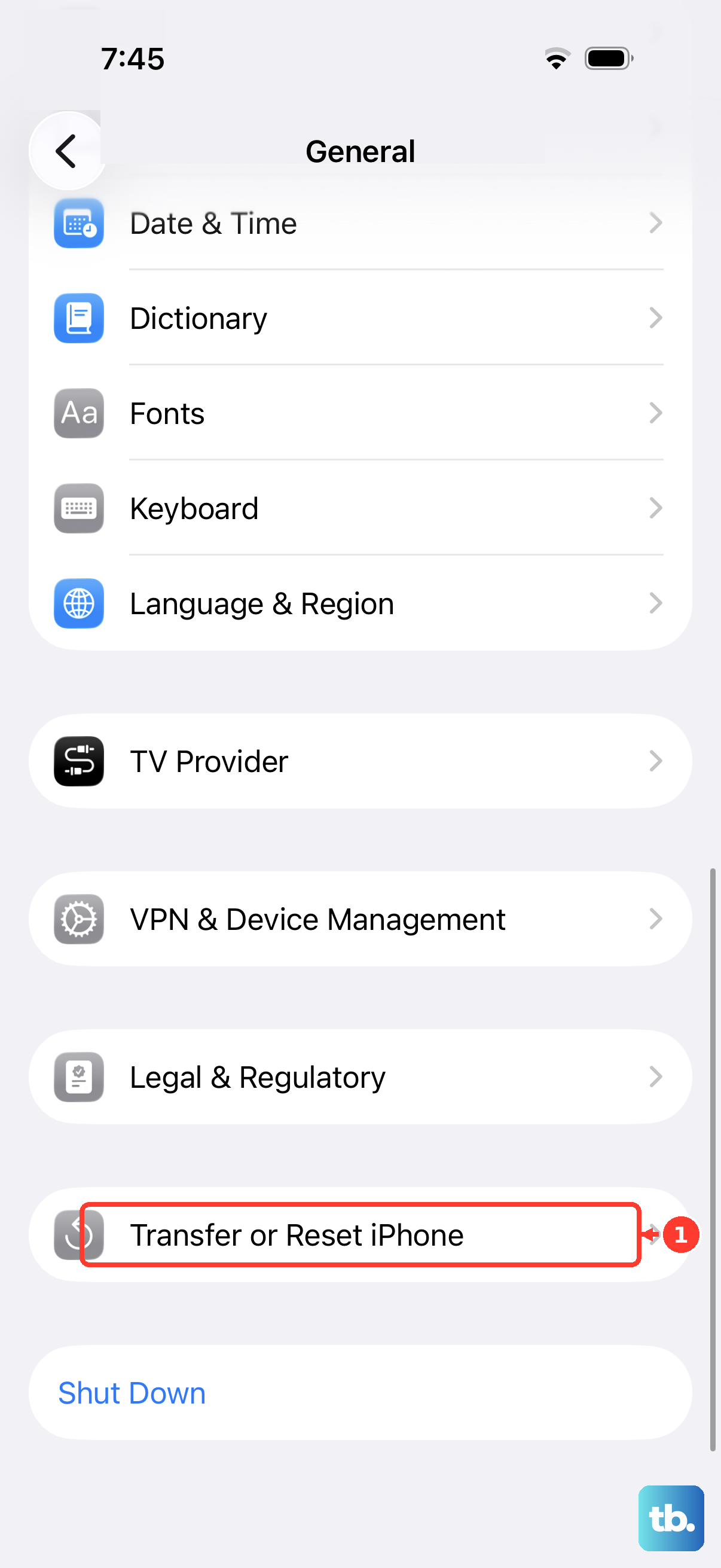
If you have already set up the destination, erasing it removes its existing content and does not merge the two phones, so back up any destination-only data first. To erase an already configured iPhone, open Settings > General > Transfer or Reset iPhone > Erase All Content and Settings. Enter the requested credentials, tap Continue, and choose whether to retain the eSIM. After erasure, begin your selected transfer method during setup.
For an organization-managed iPhone, get your administrator’s migration procedure before starting. Quick Start is unavailable when the destination is enrolled in Apple School Manager or Apple Business, and management policies can control which app data enters backups.
Have access to the Apple Account containing your backup when using iCloud restoration. Sign in only through Apple’s own app or website, and never share a code, password, or remote access with someone who contacts you.
Use Quick Start to transfer your data
Turn on the new iPhone beside the old one and follow the Quick Start prompts. Connect the new phone to a network, activate cellular service when prompted, and configure Face ID or Touch ID. When asked how to transfer your data, choose direct transfer from the previous device.
Keep both phones nearby and connected to power until the transfer completes, following the setup prompts on both screens. If you cannot use the old phone, restore an available iCloud or computer backup instead.
With an available iCloud backup, you can choose downloading from iCloud during Quick Start instead of direct transfer. Finish setup while apps and data download in the background. Keep the new iPhone connected to Wi-Fi and power while those downloads continue.
Connect the phones for a wired transfer
The cable you need depends on the charging ports on both phones. For an iPhone 15 or later transferring to another iPhone 15 or later, connect their charging ports with a USB-C Charge Cable. For a Lightning-equipped iPhone 14 or earlier transferring to an iPhone 15 or later, use a USB-C to Lightning Cable.
For two Lightning-equipped iPhones described by Apple as iPhone 14 or earlier, use a Lightning to USB 3 Camera Adapter and a Lightning to USB Cable. Power the camera adapter through its Lightning socket using a power adapter rated at 12W or higher, then attach the camera adapter to the old iPhone. Connect the new iPhone’s Lightning to USB Cable to the camera adapter’s USB socket.
Once connected, turn on both phones and follow setup. Connect the destination to Wi-Fi or cellular, activate service when requested, and complete biometric setup. Leave the phones connected until both finish transferring.
Back up and restore through iCloud
To create an ordinary iCloud backup, open Settings, tap your name, then open iCloud > iCloud Backup on the old phone. Turn on Back Up This iPhone, then tap Back Up Now. This route requires enough available iCloud storage for the backup.
If you bought a new iPhone and your iCloud allowance cannot hold the backup, you may qualify for temporary free storage. Update the old phone to its latest available iOS, then open Settings > General > Transfer or Reset iPhone. Under Prepare for New iPhone, tap Get Started.
When backup is disabled, tap Turn On Backup to Transfer. If offered additional temporary storage, tap Continue and wait for the backup to finish. Restore it within 21 days, or open Settings and tap Keep My Backup Longer if you need an extension.
On the new or erased destination, follow the onscreen setup steps and choose to restore from your iCloud backup. Sign in to the Apple Account containing the backup, then choose the appropriate backup by its date and size. Authenticate purchases when requested and update iOS if setup requires a newer version.
Keep Wi-Fi and power connected throughout restoration and the downloads that follow. You can restore your iPhone from a backup even when the old phone is no longer available, provided you can access its Apple Account and a compatible backup.
Use a Mac or Windows backup
Use Finder on macOS Catalina 10.15 or later, or Apple Devices on a compatible Windows PC. Apple’s Windows restoration instructions specify Windows 10 or later. Use a new or erased destination for the restoration steps.
On a Mac, connect the old iPhone, select it in Finder, and open General. Select Back up all of the data on your iPhone to this Mac, then select Encrypt local backup. Set and retain the encryption password, then click Back Up Now. Encryption is needed to preserve sensitive categories such as Health data and saved passwords.
For Windows, get Apple Devices through Apple’s official Windows download page, follow its Microsoft Store link, and choose Get. Connect the old iPhone, tap Trust on the phone when prompted, and open Apple Devices. Select the phone and open General, then select Back up all of the data on your [device] to this computer. Select Encrypt local backup, retain the password, and select Back Up Now.
To restore with Finder, connect the destination, select it in the sidebar, and choose to restore from a backup. Select the source phone’s backup, provide its encryption password when required, and confirm the restore. Leave the phone connected until its restart and synchronization finish.
In Apple Devices, connect the destination, select it, then open General > Restore Backup. Choose the source backup and select Restore. Supply the encryption password when requested.
Move your phone number and cellular service
Cellular service has its own transfer process, separate from moving apps and photos. With a supported carrier and both phones running iOS 18.4 or later, you can use eSIM Quick Transfer during setup or afterward. Sign in to both phones with the same Apple Account, unlock the old phone, and enable Bluetooth.
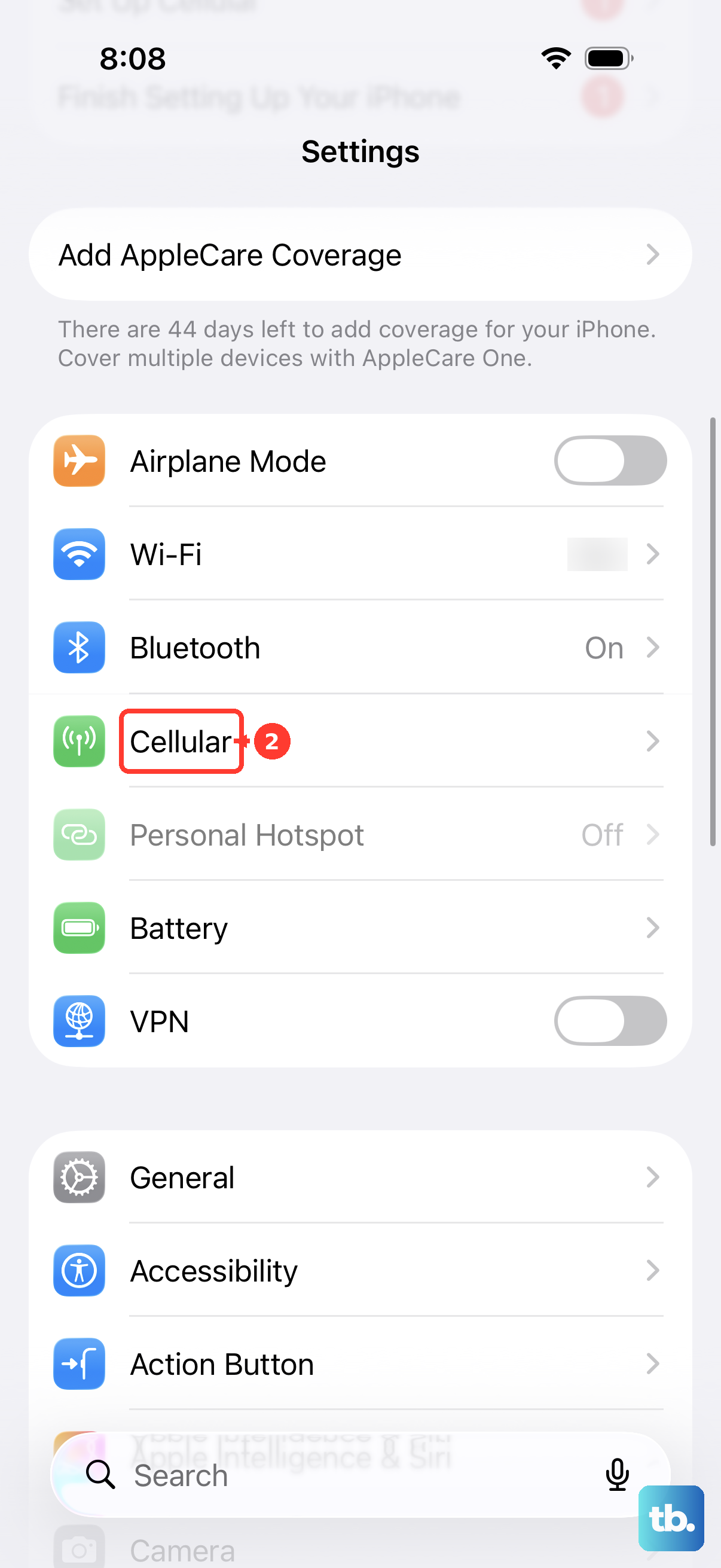
On the new phone, open Settings > Cellular and tap Set Up Cellular or Add eSIM. Choose the number to transfer from your other iPhone, or tap Transfer From Nearby iPhone if no list of numbers appears. On the old phone, tap Transfer and enter the displayed verification code when requested. If your carrier uses provisioning instead, ask it to provision the existing line on the new phone, then open Settings, tap Carrier Cellular Plan Ready to Be Installed, and tap Continue.
If your carrier supplies a QR code, scan it in Camera and open its notification, then tap Continue and Add Cellular Plan. On iOS 17.4 or later, you can instead hold a QR code in email or a browser and tap Add eSIM. For a carrier activation link on iOS 17.4 or later, open the link, tap Allow, then tap Continue.
If your carrier supplies details for manual entry, open Settings > Cellular > Add Cellular Plan > Enter Details Manually. Participating carriers also offer activation through their own app, so follow the method your carrier provides.
When both phones have compatible physical SIM trays and carrier service, you can remove and move your SIM card using a SIM tool or paper clip. Put the SIM into the new phone’s own tray, align its notched corner, and reinsert the tray; do not exchange trays between models. US-purchased iPhone 14 and later models use eSIM, while regional configurations vary.
Restore missing apps and WhatsApp chats
To find and reinstall missing apps, open the App Store, tap your account photo, and open Apps & Purchase History > Your Apps > Not on this iPhone. Find each app and tap its Redownload button. This works for compatible apps still available to your Apple Account.
Sign in to an app’s own account when needed to retrieve its cloud-held data. Reinstalling an app alone does not recover its unsynced local data.
For WhatsApp, open Settings > Chats > Chat Backup inside WhatsApp on the old iPhone and confirm that a backup exists. On the destination, make sure iCloud Drive is turned on with Sync this iPhone and that WhatsApp is allowed to sync with iCloud Drive. Install WhatsApp there (uninstall and reinstall it if it is already set up), verify the same phone number and Apple ID, then tap Restore Chat History. Provide additional security credentials when requested; restoration requires sufficient storage and an existing chat backup.
You can also use WhatsApp’s built-in direct chat transfer with both iPhones running the latest iOS and the latest WhatsApp, connected to power, close together, connected to Wi-Fi and the internet, and using the same number. Start the transfer on the source before activating WhatsApp on the destination, accept local network permissions on both phones when prompted, then scan the destination’s transfer QR code with the source. This method applies to consumer WhatsApp, excludes WhatsApp Business, and cannot merge old and new chat histories.
Transfer Signal and authenticator data
For Signal’s direct transfer, both phones need Signal 7.89 or later, and the source camera must work. Enable Wi-Fi, Bluetooth, and Signal’s Local Network permission on both phones, then turn off Low Power Mode. On the destination, open Signal, select Restore or Transfer Account, then select I Have my Old Phone.
Signal’s direct transfer moves your history to the destination and deletes it from the source. On the source, use the chat-list camera button to scan the destination’s QR code, then tap Transfer Account. Keep the phones close until completion.
For Signal Secure Backup restoration, first enable backups on the source through Signal’s Settings > Backups > Setup > Enable Backups and securely retain the recovery key. During destination registration, select Restore or Transfer Account > Restore Signal Backup. Enter the recovery key, tap Next, then tap Restore Backup. This route requires a previously enabled Secure Backup and its 64-character recovery key.
For Google Authenticator codes already synchronized with your Google Account, sign in to that same account inside Authenticator on the destination. The synchronized codes appear automatically. Account synchronization requires iOS app version 4.0 or later, and the current App Store release requires iOS 17 or later.
For codes stored without account synchronization, open Authenticator on the source and choose Menu > Transfer accounts > Export accounts. Unlock the phone, choose the accounts, and tap Next. On the destination, choose Menu > Transfer accounts > Import accounts > Scan QR code, then scan every generated code.
Bring over selected cloud data and files
If you want selected data without reproducing the whole phone’s settings or layout, use iCloud synchronization. Sign in to the same Apple Account on both phones, open Settings, tap your name, and open iCloud. Tap See All beside Saved to iCloud, open each desired app’s entry, and enable its synchronization. Allow uploads from the old phone and downloads to the new one to finish.
For files, open Settings, tap your name, then open iCloud > Drive on both phones and turn on Sync this iPhone. Access transferred files in Files > Browse, then choose iCloud Drive under Locations. Copy locally stored files into iCloud Drive before retiring the source phone, and make sure enough cloud storage is available.
Passwords and passkeys can synchronize through iCloud Keychain using the same Apple Account. Open Settings, tap your name, then open iCloud > See All > Passwords & Keychain. Turn on Sync this iPhone and complete the account or device authentication requested on the destination.
Frequently Asked Questions
Can AirDrop migrate an entire iPhone?
AirDrop transfers selected photos, documents, and other shareable items, but it does not migrate the whole phone or its app data. To send photos, enable Wi-Fi and Bluetooth on both phones, open Photos, tap Select, choose your items, then use Share > AirDrop and select the destination. Tap Accept on the destination if requested.
What if the new iPhone does not appear in AirDrop?
On the destination, open Control Center, hold the connectivity controls, and select AirDrop > Everyone for 10 Minutes. For an unfamiliar recipient on iOS 26.2 or later, tap Get AirDrop Code on the destination and enter its code on the sender.
Will an iCloud backup restore Signal messages?
An iCloud backup cannot restore Signal history. Use Signal’s own direct transfer or Secure Backup restoration instead. With Secure Backups, media retention depends on the backup plan.
How long does the temporary iCloud backup remain after restoration?
The temporary backup remains available for seven days after you restore it. That is separate from the initial 21-day period allowed for restoring the temporary backup.
Can iCloud back up the old iPhone automatically?
Automatic iCloud backups run while the iPhone is locked, charging, and connected to Wi-Fi. On a supported 5G-capable model with carrier support, turning on Back Up Over Cellular also enables cellular backups.
How do you add previous Apple Pay cards to the new iPhone?
On an Apple Pay-compatible iPhone, open Wallet, tap Add Card, then choose Cards Found For You. Select the previous card, tap Continue, and complete the issuer’s verification. You need a signed-in Apple Account, device authentication, and a supported country and issuer.