


To insert a check mark in Word for Windows, place your cursor where it belongs, select Insert > Symbol, and choose a check mark or find one under More Symbols. You can also copy and paste ✓, or type 2713, select those digits, and press Alt + X in Windows desktop Word.
The desktop steps cover Word for Microsoft 365 and Word 2024, with separate options for Mac, the browser, and phones. The Windows system tools use Windows 11 menus. Choose a static character for a check mark in text, or a checkbox control or checklist when you need to click a box to check and clear it.
The short version
- Windows menu: Open Insert > Symbol > More Symbols and choose a check mark.
- Windows shortcut: Type
2713, select the four digits, and press Alt + X for ✓. - Copy and paste: Copy ✓, ✔, or ✅ and paste it into your document.
- Mac menu: Open Insert > Advanced Symbol > Symbols and choose a check mark.
- Clickable marks: Use a checkbox content control in Windows desktop Word or Checklist in Word for the web.
| Method | Where to use it | Result or requirement |
|---|---|---|
| Symbol menu | Windows desktop Word | Static check mark |
| Specific character codes | Windows desktop Word | Plain or boxed symbol |
| Advanced Symbol | Mac desktop Word | Static check mark |
| Unicode conversion | Windows desktop Word | Code converted with Alt + X |
| Wingdings keypad code | Windows desktop Word | Numeric keypad required |
| Copy and paste | Desktop Word and Word for the web | Existing check character |
| Windows emoji panel | Desktop or browser on Windows 11 | Emoji or symbol |
| Character Map | Desktop or browser on Windows 11 | Copied symbol |
| Character Viewer | Desktop or browser on macOS with Character Viewer | Selected symbol |
| Configured Fn or Globe key | Mac keyboards with the relevant setting | Single key access to Character Viewer |
| Windows AutoCorrect | Windows desktop Word | Reusable typing trigger |
| Mac AutoCorrect | Mac desktop Word | Reusable typing trigger |
| AutoText | Windows desktop Word | Saved reusable entry |
| Custom bullets | Windows and Mac desktop Word | Static list markers |
| Checkbox content control | Windows desktop Word | Clickable box with a check mark |
| Web checklist | Word for the web | Clickable checklist |
| Icons | Windows and Mac desktop Word | Graphic check mark |
| Online Pictures | Windows desktop Word | Image from search |
| Saved picture or SVG | Windows and Mac desktop Word | Image from a file |
| Browser picture insertion | Word for the web | Local, cloud, stock, or searched image |
| Digital ink | Desktop Word, iPhone, iPad, and Android | Drawn mark with device and edition dependent input |
| Drawing shapes | Windows desktop Word | Two connected lines |
| Gboard emoji | Android Word with Gboard active | Check-mark emoji |
| iPhone text replacement | iPhone Word using Apple’s keyboard | Abbreviation that inserts ✓ |
Insert a check mark from the Word menu
In Windows desktop Word, click where you want the symbol, then select Insert > Symbol. Choose a displayed check mark, or select More Symbols and choose a suitable font under Font. Double-click the check mark, then select Close.
For a specific Wingdings character, open Insert > Symbol > More Symbols and choose Wingdings under Font. Enter 252 in Character code for a check mark or 254 for a boxed check mark. Select Insert, then Close.
Alternatively, choose Segoe UI Symbol and use Unicode character code 2713 for ✓, 2714 for ✔, or 2705 for ✅. Select Insert, then Close. These are static characters, and ✅ may appear as an emoji.
On Mac, place the cursor and select Insert > Advanced Symbol > Symbols. Choose the check mark, select Insert, and select Close.
Use a shortcut or paste a check mark
For a plain ✓ in Windows desktop Word, type 2713, select those four digits, and press Alt + X. Use 2714 for ✔ or 2705 for ✅ instead. Selecting the digits prevents a neighboring hexadecimal character from becoming part of the code.
To copy and paste instead, select whichever character you need from here: ✓, ✔, or ✅. On Windows, press Ctrl + C, click in your document, and press Ctrl + V. On Mac, use Command + C and Command + V.
In Word for the web, open the document for editing before pasting. Supported browsers also let you paste without source formatting using Ctrl + Shift + V on Windows or Command + Shift + V on Mac.
If your Windows keyboard has a numeric keypad, you can use a Wingdings code. Under Home > Font, choose Wingdings and turn on Num Lock. Hold Alt, type 0, 2, 5, 2 in sequence on the numeric keypad, then release Alt. For a boxed check mark, use 0, 2, 5, 4 instead.
Restore your previous font before continuing ordinary text after either Wingdings code. The number row above the letters does not substitute for the numeric keypad.
Use your computer’s symbol picker
On Windows 11, place the cursor in desktop Word or Word for the web and press Windows + .. Search the emoji collection for check and select a check-mark emoji, or select Symbols to browse characters. A colored emoji can look different from a plain text check mark.
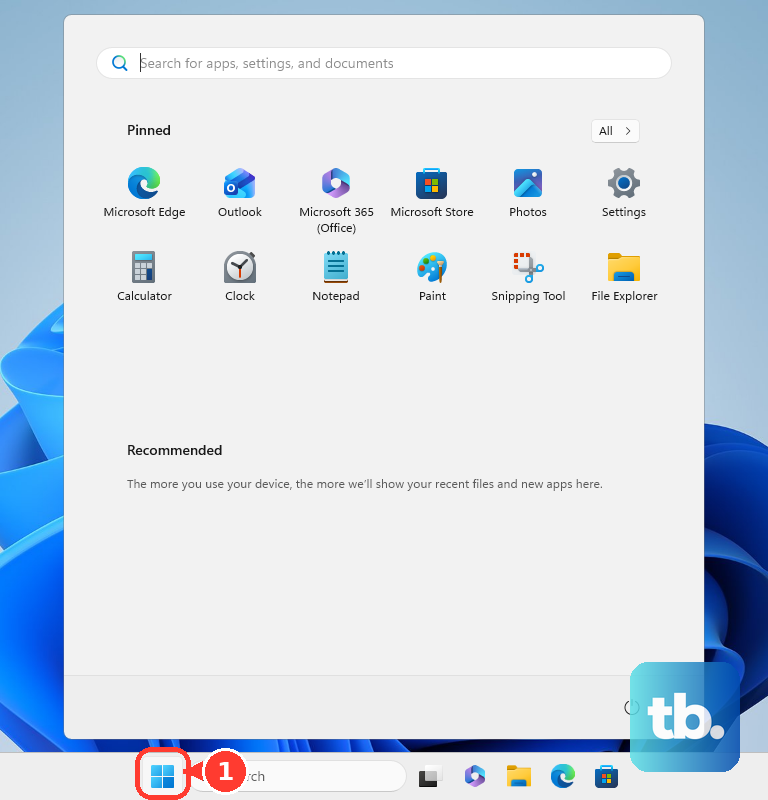
For Character Map on Windows 11, open Start, type Character Map, and press Enter. Choose a font containing a check mark, such as Segoe UI Symbol. Select the check mark in the grid, press Enter, and activate Copy. Return to desktop Word or Word for the web and press Ctrl + V.
On a Mac with Character Viewer, place the cursor in Word and press Fn + E or Globe + E, depending on your keyboard, or choose Edit > Emoji & Symbols. Search for check mark and click the character you want. Double-click the character when the viewer is expanded; this method also works in Word for the web on macOS.
Set up a shortcut for repeated check marks
In Windows desktop Word, insert and select a check mark, then open File > Options > Proofing > AutoCorrect Options. On AutoCorrect, select Replace text as you type. Enter a unique trigger such as ;tick in Replace, and confirm that With contains your selected check mark. Select Add, then OK twice.
Type ;tick followed by Spacebar or Enter to insert the mark. Choose a trigger that you will not normally type as part of your text. Custom AutoCorrect replacement creation is unavailable in Word for the web.
For Mac desktop Word, copy a Unicode check mark and open Word > Preferences > AutoCorrect. Select Replace text as you type, then select + on AutoCorrect. Enter your trigger in Replace, paste the mark into With, and press Enter. Use the trigger when typing.
Add check marks to a list
To use static check marks as bullets in desktop Word, select your list and open Home > the Bullets arrow > Define New Bullet. On Windows, select Symbol; on Mac, select Bullet. Choose a check-mark character from a suitable font and select OK twice. For a graphical bullet, choose Picture instead and select the image.
These bullets are list markers, so clicking them does not toggle a checked state. Custom bullet creation is unavailable in Word for the web. To add check boxes in Word that you can check and clear, use a Windows desktop content control or the web checklist feature.
Create a check mark you can click
In Windows desktop Word, enable the tab through File > Options > Customize Ribbon when needed. Under Main Tabs, select Developer, then select OK. Place the cursor and select Developer > Check Box Content Control.
Select the control, then open Developer > Properties. In Content Control Properties, select Change beside Checked symbol, choose a check mark, and select OK twice. Click the checkbox in the document to toggle its state. Microsoft limits this checked-symbol customization to Windows desktop Word.
For Word for the web, select Home > Paragraph > Checklist, or press Ctrl + ,, then enter your list items. Click an empty checkbox to mark the item complete, and click it again to clear it. If you also need other form fields, follow the steps to create a fillable form in Word.
Insert a graphical or drawn check mark
For a graphic in desktop Word on Windows or Mac, select Insert > Icons, search for a check mark or browse the categories, and select an icon. Choose Insert, then use Graphics Format to adjust its appearance. The result is a graphic rather than a text character.
To insert a saved picture or SVG, choose Insert > Pictures > This Device on Windows, or Insert > Pictures > Picture from File on Mac. Select your file, then select Insert.
For an online picture in Windows desktop Word, place the cursor and select Insert > Pictures > Online Pictures. Search for check mark, checkmark, or tick mark, choose a picture, and select Insert. Resize the picture using a corner handle.
In Word for the web, open Insert > Picture. Choose This device and open a saved image, or choose OneDrive, select an image, and select Insert. For a searched image, choose Stock Images or Search on Web, search for check mark, select a result, and select Insert. You can also paste or drag an image into the document.
For a handwritten mark on Windows, select View > Print Layout first if drawing is unavailable. Select Draw, choose a pen, and draw the check mark with a supported pen, touch input, or mouse. On Mac, iPhone, iPad, Android phones, and Android tablets, select Draw, choose a pen, and draw the mark; input capabilities vary by device and edition.
Drawing creates ink rather than a text character. If you plan to share the finished document as a PDF, follow the steps to save a Word document as PDF and check the result.
Insert a check mark on your phone
On an Android phone or tablet with Gboard already active, tap the insertion point in your Word document. Tap Emoji and choose a check-mark emoji such as ✅. Tap ABC to return to letters.
On an iPhone using Apple’s keyboard, open Settings > General > Keyboard > Text Replacement, then tap +. Paste ✓ into Phrase and enter a unique abbreviation in Shortcut. Save the replacement, then use that abbreviation while entering text in Word.
Fix a check mark that looks wrong or will not insert
If a Unicode check mark does not display correctly in Windows desktop Word, select it and choose a font containing the character, such as Segoe UI Symbol. If conversion produces the wrong character, select only the four digits of 2713, 2714, or 2705 before pressing Alt + X.
If a Wingdings keypad code fails, check that Wingdings is selected, Num Lock is on, and you are using the numeric keypad. If your keyboard lacks a numeric keypad, use Unicode conversion or the Symbol menu.
If an older form relies on ActiveX, Microsoft 365 and Office 2024 disable those controls by default, preventing creation and interaction. Use a Check Box Content Control for a new Windows desktop checklist. Enabling ActiveX is unnecessary for inserting a check-mark character.
Frequently Asked Questions
Can I save a check mark without making an AutoCorrect trigger?
Yes, Word for Microsoft 365 and Word 2024 for Windows let you save it as AutoText. Insert and select the mark, press Alt + F3, give it a recognizable name in Create New Building Block, and save it. Insert it later through Insert > Quick Parts > AutoText, then choose your saved entry. AutoText is unavailable in Word for the web.
Can I open the Mac symbol picker with just one key?
Yes, on Mac keyboards that expose the setting, open Apple menu > System Settings > Keyboard. Open Press fn key to or Press Globe key to, depending on your keyboard, and choose Show Emoji & Symbols. In Word, press the configured Fn or Globe key, find the check mark, and select it.
Can I build a check mark from shapes in Word?
Yes, in Word for Microsoft 365 and Word 2024 for Windows, select Insert > Shapes and draw two connected line segments forming a check mark. Select both shapes, then choose Shape Format > Group to keep them together. This uses Word’s line-drawing and grouping tools.
Can I use Insert Photo from Mobile Device for a photographed check mark?
No, Insert Photo from Mobile Device is no longer available in Office for Windows or the web; Microsoft disabled it on August 22, 2025. Save the photographed or scanned check mark as an image, then insert that file through the local-picture option.