


To indent a whole paragraph in Word on Windows or Mac, select it and choose Home > Paragraph > Increase Indent. To move only the first line, open paragraph settings, choose First Line under Special, enter the amount in By, and select OK.
A first-line indent moves only the opening line, while a hanging indent moves the second and subsequent lines. Whole-paragraph indentation moves the paragraph inward from the left or right. The desktop steps cover Word for Microsoft 365 and Word 2024, with separate instructions for the web and mobile apps.
The short version
- First line: Choose First Line under Special in paragraph settings and enter the amount in By.
- Whole paragraph: Select the paragraphs and choose Home > Paragraph > Increase Indent.
- Hanging indent: Choose Hanging under Special to indent every line except the first.
- Remove indentation: Set Special to None and set Left and Right to zero.
| Method | What it changes | Where to use it |
|---|---|---|
| First-line setting | Only the opening line | Desktop or web paragraph settings |
| Hanging setting | Second and subsequent lines | Desktop or web paragraph settings |
| Ribbon buttons | Whole-paragraph left indentation | Desktop Home > Paragraph |
| Left and right fields | Exact paragraph edges | Desktop paragraph settings or web Layout |
| Windows shortcuts | Whole-paragraph or hanging indentation | Ctrl + M or Ctrl + T |
| Ruler markers | First line, hanging indent, or paragraph edges | Desktop View > Ruler |
| Tab key | First-line indentation at a paragraph's beginning | Windows with automatic indentation enabled, or web |
| Phone paragraph controls | Whole-paragraph or special indentation | Expanded Home ribbon |
| Tablet indent icons | Whole-paragraph indentation | Word for iPad or Android tablets |
| Android tablet special controls | First-line or hanging indentation | Paragraph tab icon > Special Indent |
| iPad context menu | A leading tab character | Insert > Tab |
| Modify the default style | Automatic first-line indentation | Windows Normal > Modify |
| Create a paragraph style | Reusable indentation | Windows Styles > Create a Style |
| List indent settings | Bullet and text positions | Windows Adjust List Indents |
| List level controls | An item's nesting level | Tab before new item text, or Windows Change List Level |
| Explicit indent removal | Special and whole-paragraph indents | Paragraph settings |
| Style formatting reset | Paragraph formatting restored to its style | Windows Ctrl + Q |
Indent the first line or create a hanging indent
Select the paragraphs you want to format. In Word for Windows, open Home, find the Paragraph group, and select its dialog box launcher. Open Indents and Spacing, then under Indentation, choose First Line from Special.
Enter the indentation depth in By, then select OK. To indent the second and subsequent lines instead, choose Hanging from Special, set the depth in By, and select OK. Applying either setting to several selected paragraphs gives them the same indentation.
On Mac, select the paragraphs and choose Format > Paragraph. Under Indents and Spacing, choose First Line or Hanging from Special, set By, and select OK. You can also open paragraph settings through Home > Line and Paragraph Spacing > Line Spacing Options.
Move an entire paragraph inward
For a quick left indent on Windows or Mac, select the paragraphs and choose Home > Paragraph > Increase Indent. Select Decrease Indent to move them back toward the left. These buttons move the whole paragraph.
For an exact measurement, open paragraph settings and select Indents and Spacing. Under Indentation, enter the amounts in Left and Right, then select OK. A right indent brings the paragraph's right edge inward.
On Windows, place the cursor in a paragraph or select several paragraphs, then press Ctrl + M to indent. Press Ctrl + Shift + M to decrease the indent. For a hanging indent, press Ctrl + T, or press Ctrl + Shift + T to reduce or remove it.
Adjust indentation with the ruler
On Windows or Mac, select your paragraphs, open View, and select Ruler. The horizontal ruler has separate markers for the first line, subsequent lines, and paragraph edges.
Drag the upper-left triangle to move the first line. For a hanging indent, drag the upward-pointing triangle just above the lower-left rectangle to position the second and subsequent lines. Drag the lower-left rectangle to move the whole paragraph, carrying both left-side triangles with it.
Drag the lower-right triangle leftward to bring the paragraph's right edge inward. If you need an exact amount, enter the measurement in paragraph settings. To change the space between lines, double space your Word document separately.
Set up the Tab key for indentation
In Word for Windows, place the cursor at the beginning of a paragraph and press Tab to indent its first line when automatic indentation is enabled. After finishing the paragraph, press Enter to continue with an indented paragraph. If this behavior does not work, use paragraph settings directly or check the automatic indentation option.
In Word for Microsoft 365 for Windows, open File > Options > Proofing > AutoCorrect Options > AutoFormat As You Type. Under Automatically as you type, check Set left- and first-indent with tabs and backspaces. Select OK, then select OK again.
With that setting enabled, pressing Tab at the beginning of the first line changes its first-line indent. At the beginning of a subsequent wrapped line, pressing Tab changes the whole paragraph's indent. Check the cursor position if the wrong lines move.
Indent paragraphs in Word for the web
If the document is in viewing mode, open Viewing and select Editing. Select the paragraphs, then open Layout > Paragraph. Enter the indentation in Left or Right, or use their adjustment arrows.
For first-line or hanging indentation, open Home > Paragraph using the dialog box launcher. Under Special, select First Line or Hanging, enter the depth in By, and select OK. Apply the setting to several selected paragraphs when they need matching indentation.
For a quick first-line indent, place the cursor at the beginning of a paragraph and press Tab. After finishing that paragraph, press Enter to continue with an indented paragraph.
Indent paragraphs on a phone or tablet
On iPhone or an Android phone, select the paragraph and expand the ribbon. Open Home > Paragraph formatting > Special indent, then choose First line or Hanging. With VoiceOver or TalkBack, move to each control and double-tap to activate it.
To move the whole paragraph on iPhone, select it, expand Home, and select Increase indent position or Decrease indent position. On Android phones, select the paragraph, expand Home, and choose Increase indent or Decrease indent.
On iPad or an Android tablet, tap inside the paragraph and tap the indent icon to move it right, or the negative indent icon to move it left. On Android tablets, tap the paragraph tab icon, select Special Indent, and choose first-line or hanging indentation.
On iPad, you can also tap the beginning of the line, open the context menu, and tap Insert > Tab. This inserts a tab character, so use paragraph indentation controls when you need to change the paragraph's formatting.
Make paragraph indentation automatic
In Word for Windows, place the cursor in a paragraph, open Home, right-click Normal, and select Modify. Choose Format > Paragraph > Indents and Spacing. Under Indentation, choose First line from Special and set the amount in By.
Select OK to return to the style settings. To apply the change to future documents based on that template, select New documents based on this template, then select OK. Paragraphs using that style will use its indentation.
To create a separate reusable style, select an already indented paragraph, right-click it, and choose Styles > Create a Style. Enter a name and select OK. To reuse it, select another paragraph and choose the named style under Home > Styles.
In Word for the web, select your paragraphs and choose an existing indented style under Home > Styles. Creating or modifying styles requires the desktop app.
Adjust indentation in lists
In Word for Windows, click a bullet to select the list's bullets, right-click, and select Adjust List Indents. Set Bullet position and Text indent. If needed, set Follow number with to Tab character, Space, or Nothing, then select OK.
To create a nested item on Windows, Mac, or the web, press Enter at the end of an existing item, or Return on Mac. Press Tab before typing the new item's text. In Windows, you can also click in an item, choose Home > Paragraph > Multilevel List > Change List Level, and select the required level.
Word for the web preserves bullet alignment set in desktop Word, but it cannot fine-tune that alignment through Adjust List Indents. Open the document in desktop Word when you need those controls.
Paragraph indentation changes where paragraph text starts or ends. For other document layout tasks, you can create two columns in Word or add page numbers in Word.
Fix unwanted paragraph indentation
To remove a first-line or hanging indent, select the paragraphs and open paragraph settings. Set Special to None, then select OK. To remove whole-paragraph indentation too, set Left and Right to zero before confirming.
On Windows, press Ctrl + Q to restore the paragraph formatting defined by its style. That style may contain indentation, so the shortcut can leave an indent in place. Use Special set to None and zero values for Left and Right when you want to remove all paragraph indentation.
Frequently Asked Questions
How do you indent text inside a table cell?
Click immediately before the text inside the cell and press Ctrl + Tab to insert a leading tab. This shortcut applies to desktop Word on Windows and Mac. It inserts a tab character rather than changing the paragraph's indentation settings.
What are the indent keyboard shortcuts on Mac?
Select the paragraphs and press Control + Shift + M to indent, or Command + Shift + M to remove a paragraph indent. For a hanging indent, press Command + T. Press Command + Shift + T to remove the hanging indent.
Can you copy indentation from another paragraph?
In Word for Windows, select the source paragraph including its paragraph mark, then choose Home > Clipboard > Format Painter. Paint over the destination paragraph to copy the formatting. To apply it to several destinations, double-click Format Painter first and press Esc when finished. Other formatting can transfer along with the indentation.
Can you indent a paragraph by speaking?
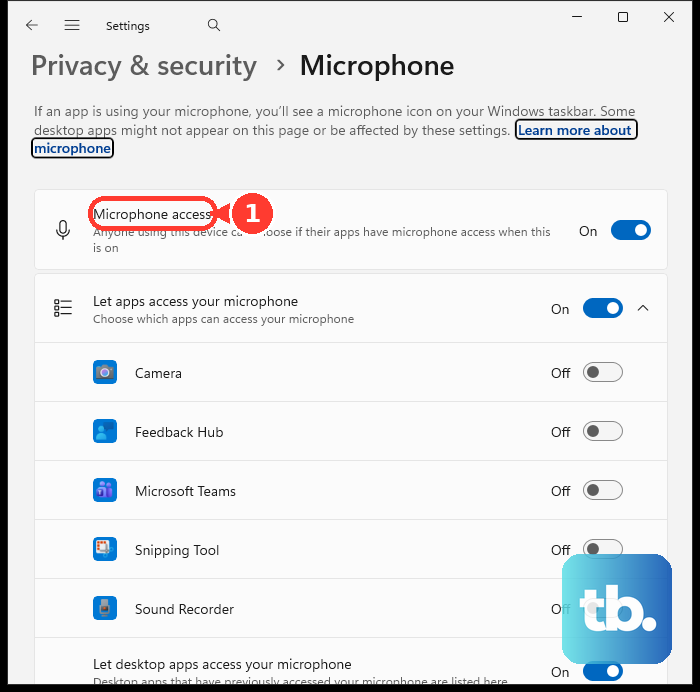
In Word for Microsoft 365 on Windows or Mac, place the cursor in the paragraph, choose Home > Dictate, wait until it is listening, then say increase indent or decrease indent. You need a microphone, internet access, and an eligible subscription for desktop dictation. On the web, sign in, open an editable document, position the cursor, choose Home > Dictate, and activate Dictate with microphone access enabled. Say either English command, then select Dictate again to stop.
Can you save indentation for only the current document?
In Word for Windows, select text with the indentation you want, open the Paragraph dialog, and select Set as Default. Choose This document only, then select OK.