

To double space a whole Word document, open the Design tab, select Paragraph Spacing and choose Double. To double space only some paragraphs, select them and choose Home > Line and Paragraph Spacing > 2.0, or press Ctrl + 2. Double spacing changes the gap between lines, while the Before and After boxes control the extra space between paragraphs.
Two things we saw are worth knowing first. The Design preset leaves 8 pt of space after each paragraph, so it is not pure double spacing, and a new document on our PC did not start at the spacing Microsoft's help pages describe.
The short version
- Whole document: Design > Paragraph Spacing > Double.
- Some paragraphs: select them, then Home > Line and Paragraph Spacing > 2.0.
- Shortcut: Ctrl + 2 on Windows or Command + 2 on a Mac, after Ctrl + A or Command + A for the whole file.
- Extra gap between paragraphs: set Before and After to 0 pt in Line Spacing Options.
- New documents: choose Double, then Set As Default > All documents based on the Normal template.
Double spacing options at a glance
| What you want | Where to go or what to press | What changes |
|---|---|---|
| The whole document | Design > Paragraph Spacing > Double | Every paragraph's line spacing, keeping a small gap after each one |
| Selected paragraphs | Home > Line and Paragraph Spacing > 2.0 | Only the paragraphs you selected |
| Ctrl + 2 | Press it with the cursor in a paragraph or a selection | Line spacing of that paragraph or selection |
| Double lines with no paragraph gap | Line Spacing Options, Line spacing Double, Before and After 0 pt | Lines and the space around each paragraph |
| Every new desktop document | Line Spacing Options > Double > Set As Default | New documents based on the Normal template |
| A document in a browser | Editing mode, then Home > ... > Paragraph > Line Spacing > 2 | The selected text in that web document |
| Command + 2 on a Mac | Press it with the cursor in a paragraph or a selection | Line spacing of that paragraph or selection |
Double space the whole Word document
The Design tab has the quickest route for a whole document, and it is where Microsoft's own instructions start. Before you reformat a shared or graded file, make a copy of the Word document so the original stays untouched. If the ribbon itself is new to you, our guide to basic Word document tools shows where each tab sits.
Open Design, select Paragraph Spacing near the right end of the ribbon, and choose Double from the Built-In list. You do not need to select anything first. On our PC, hovering over Double previewed the whole document, and clicking it spread out every line in all three paragraphs.
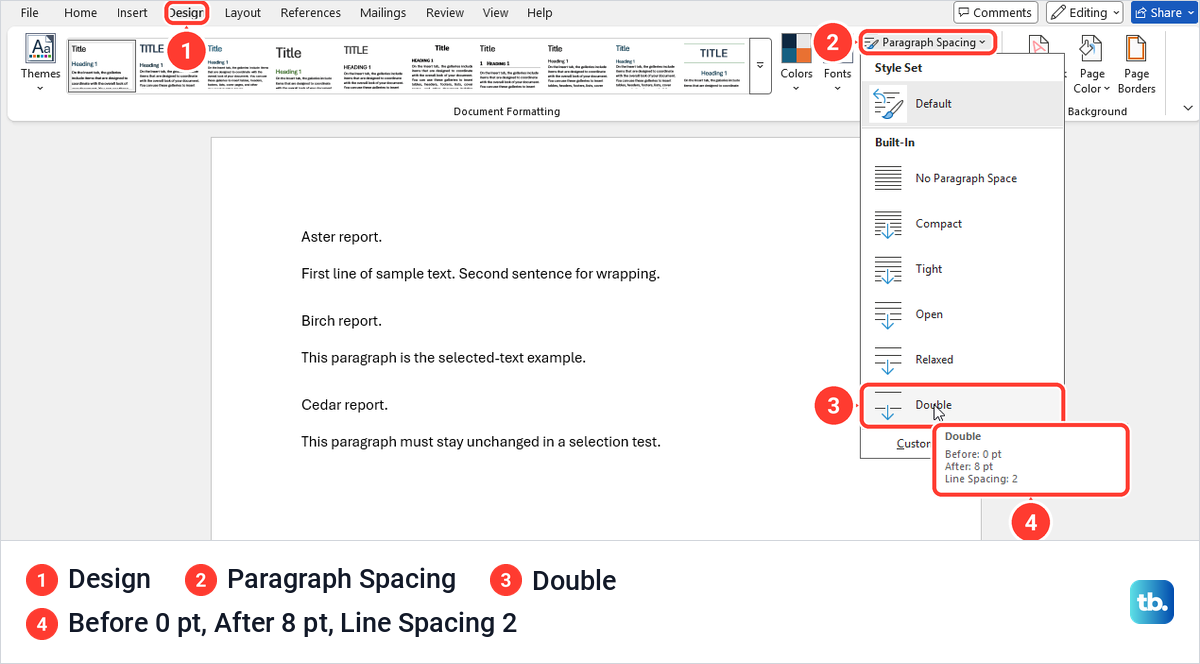
The same menu lists No Paragraph Space, Compact, Tight, Open and Relaxed, with Custom Paragraph Spacing at the bottom. Hover over Double and a tooltip shows what the preset really sets. Ours read Before: 0 pt, After: 8 pt and Line Spacing: 2. To go back, Microsoft says to open Design > Paragraph Spacing again and choose the option under Style Set, which might be Default.
That After value matters. Double is a preset for the whole document rather than a pure line setting, so it keeps a small extra gap after each paragraph. If your teacher or style guide wants double spacing with no extra space between paragraphs, apply Double and then follow the section on removing that space below.
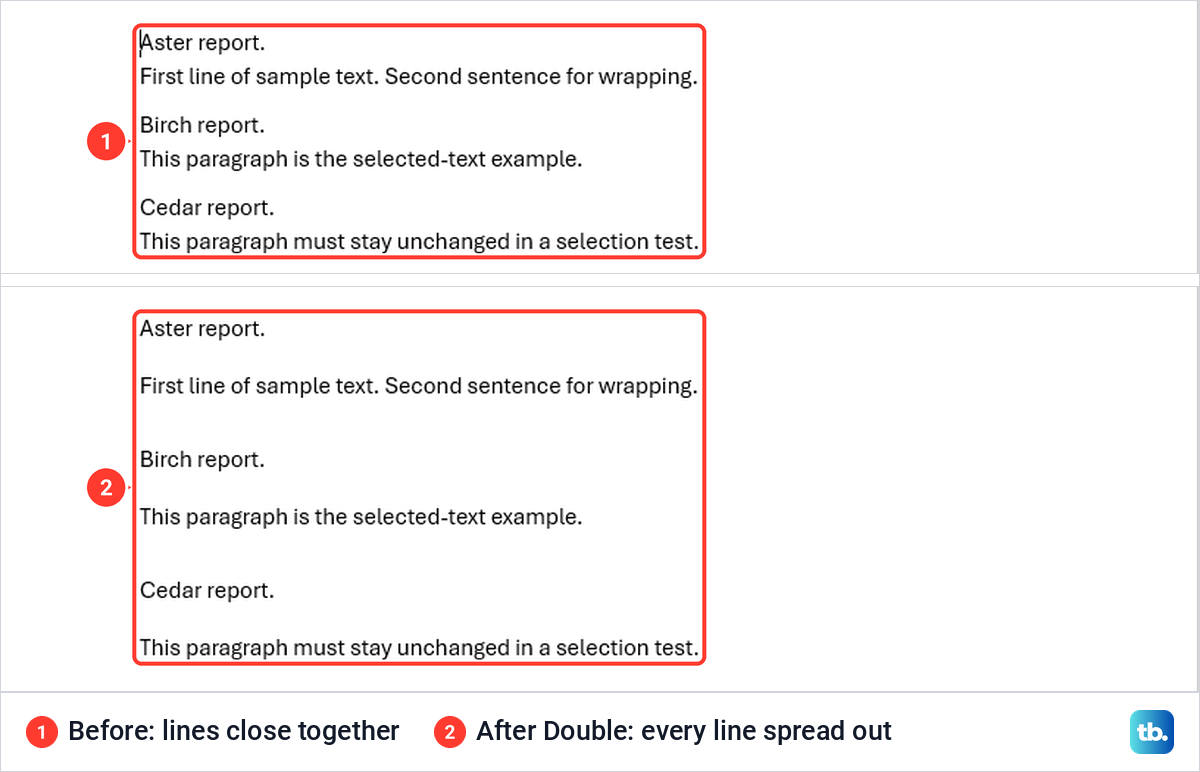
Our sample had a manual line break, made with Shift + Enter, inside each paragraph, so each one ran over two lines. Double spacing spread those lines apart as well. Line spacing works inside a paragraph, while the paragraph gap only appears where someone pressed Enter.
If a paragraph keeps its old spacing after the preset, press Ctrl + A to select everything and use the Home tab method in the next section, which sets 2.0 on each selected paragraph directly. If pasted text carries its own layout, clear formatting in Word on that text before applying Double again. Clearing it also removes bold, colors and other styling from that text.
Double space only selected paragraphs
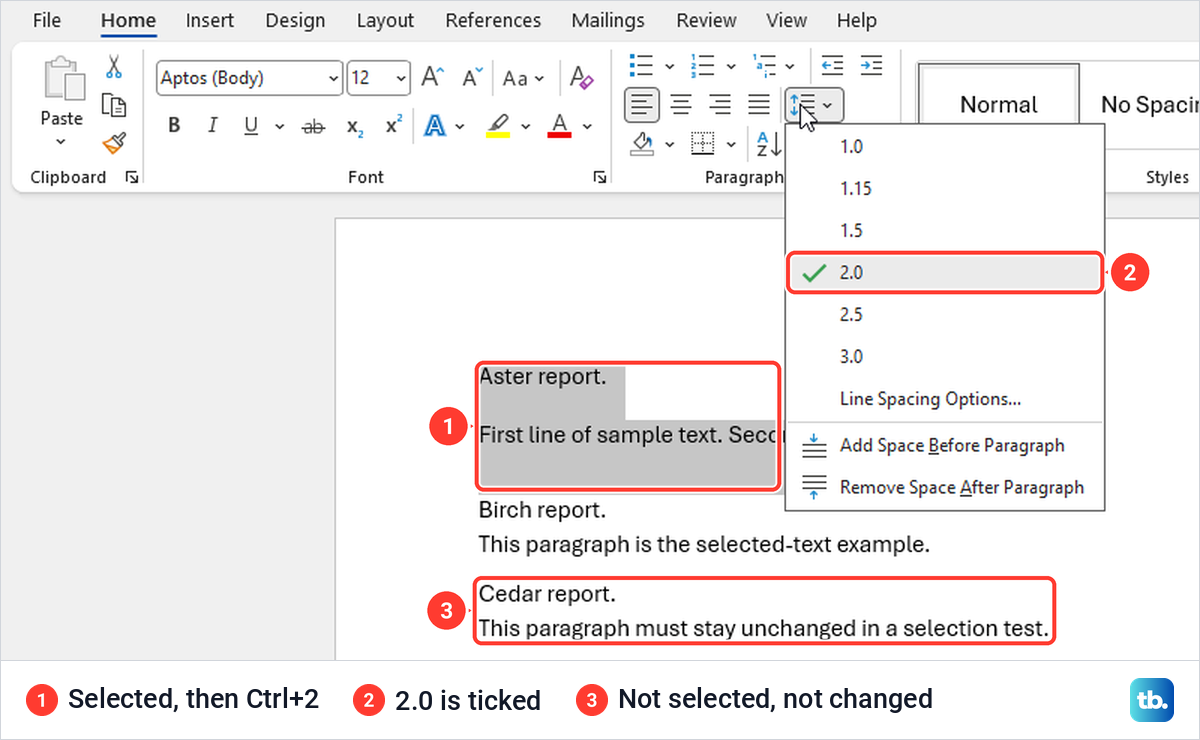
To change part of a document, select the paragraphs first. Drag across them, or click in the first one and hold Shift while you click in the last. Then open Home, select the Line and Paragraph Spacing button in the Paragraph group and choose 2.0.
The menu lists 1.0, 1.15, 1.5, 2.0, 2.5 and 3.0, then Line Spacing Options, Add Space Before Paragraph and Remove Space After Paragraph. With only our Birch paragraph selected, hovering over 2.0 previewed the change and clicking it double spaced Birch alone. Aster above it and Cedar below it kept their original spacing.
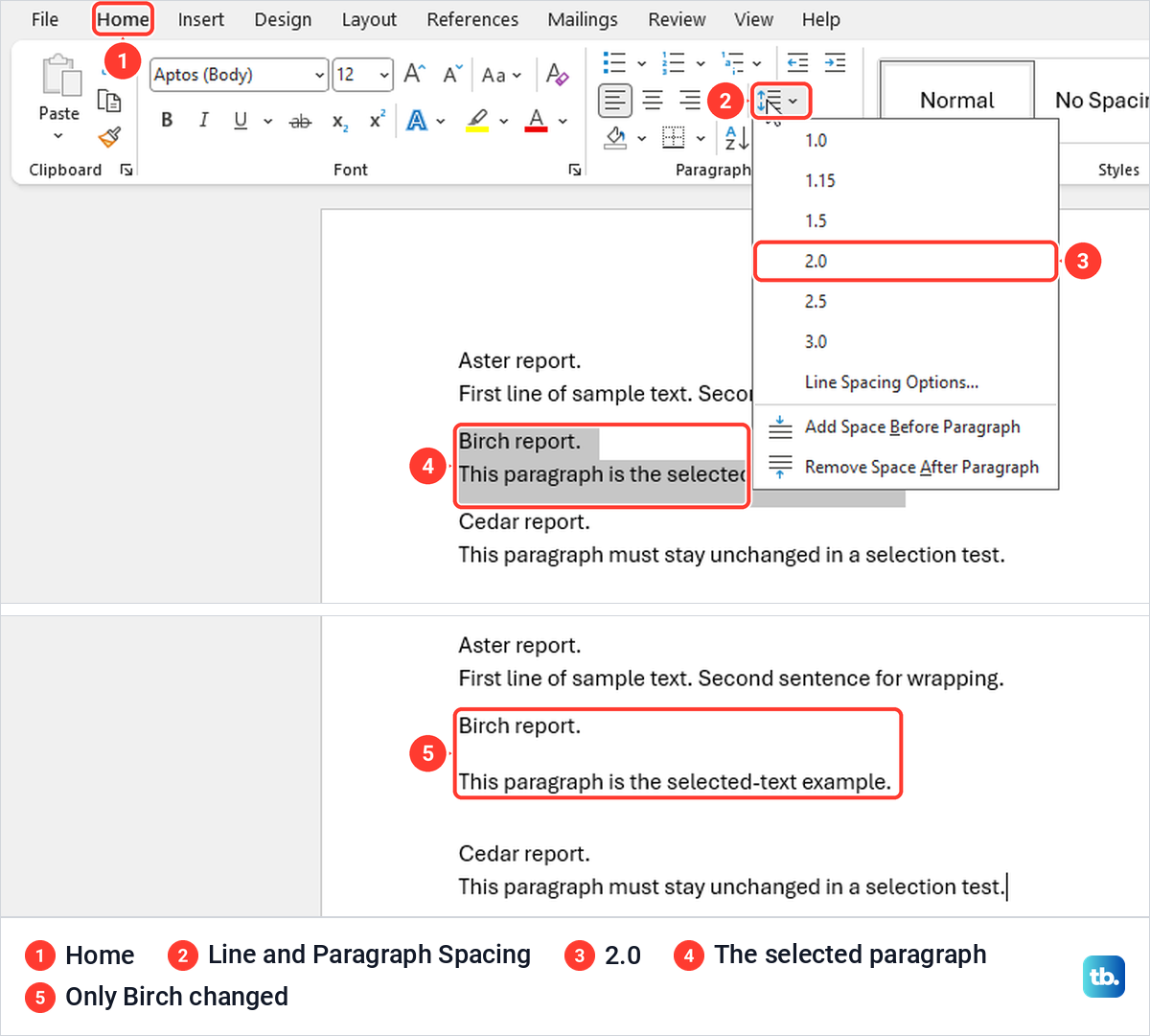
You do not even need to select a whole paragraph. With the cursor sitting in our Cedar paragraph and nothing selected, the same 2.0 command changed Cedar and nothing else. That explains a common complaint, a document where only one paragraph changed, so press Ctrl + A first whenever you want the whole file.
Use the Ctrl+2 double spacing shortcut
Click in a paragraph or select several, then press Ctrl + 2. Microsoft's shortcut list describes it as Apply double spacing to the paragraph.
We selected our Aster paragraph and pressed Ctrl + 2, and its two lines spread apart while Birch and Cedar stayed as they were. When we reopened the Line and Paragraph Spacing menu, 2.0 had a check mark beside it, so the shortcut sets exactly the same value as the ribbon.
Microsoft lists Ctrl + 1 for single spacing and Ctrl + 5 for 1.5-line spacing, so you can change a paragraph again without opening a menu. To get back an exact earlier value, such as 1.16, use Undo instead. On a Mac, Microsoft gives Command + 2 for double spacing.
Set Double in the Paragraph dialog
The Paragraph dialog shows line spacing and paragraph spacing side by side, which makes it the best place to get both right at once. Select the paragraphs, open Home > Line and Paragraph Spacing and choose Line Spacing Options. Word opens the Paragraph dialog on its Indents and Spacing tab.
Look at the Spacing group. Before and After set the space above and below each paragraph, and the Line spacing list offers Single, 1.5 lines, Double, At least, Exactly and Multiple. Choose Double and select OK.
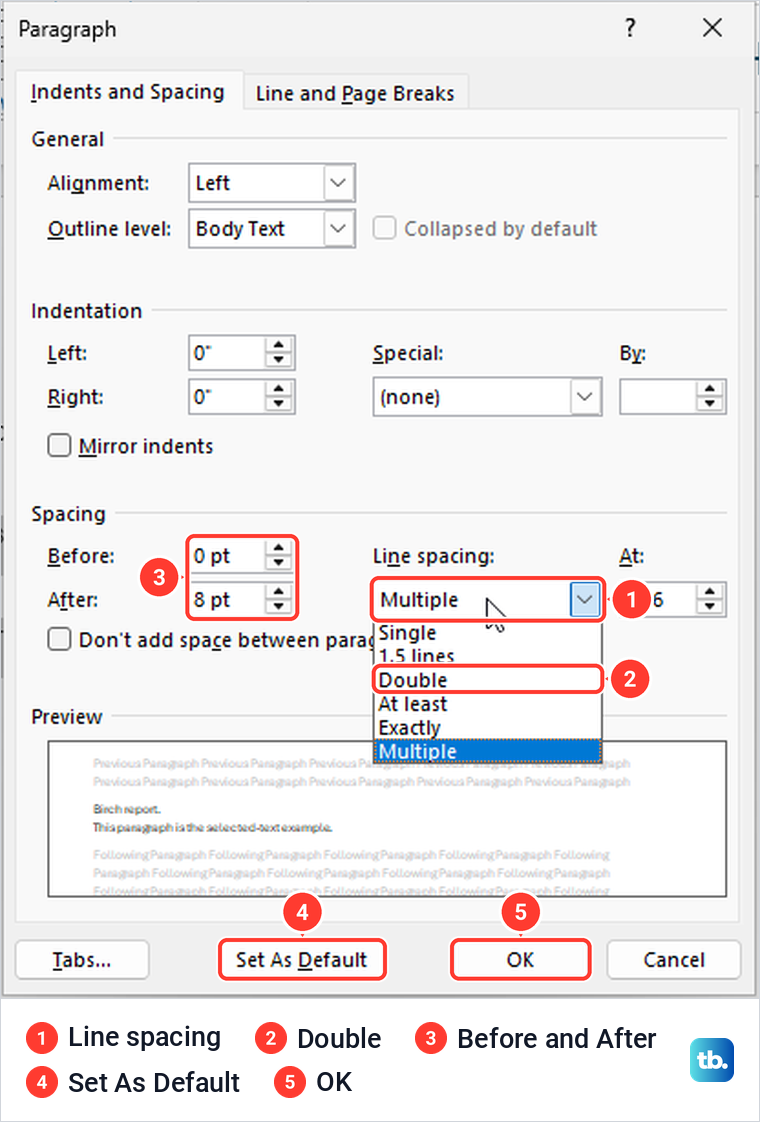
We selected Birch and Cedar, chose Double here and clicked OK, and exactly those two paragraphs changed. There is a shorter way in, too. Right-click inside a paragraph and choose Paragraph, which sat between Font and Synonyms on our menu, and the same dialog opens for the paragraph you clicked.
Remove the extra space between paragraphs
Double spacing can leave a bigger gap between paragraphs than between lines, and the cause is the Before or After value rather than the line spacing. On our PC, after Ctrl + A and 2.0, the Paragraph dialog showed Line spacing Double with After at 8 pt, and the paragraphs had visibly larger gaps between them.
To remove that gap, open Line Spacing Options with the paragraphs selected, look at both Before and After, and set the one that adds space to 0 pt. Ours had Before at 0 pt, and when we set After from 8 pt to 0 pt, the extra gaps disappeared and every line sat the same distance apart. Ticking Don't add space between paragraphs of the same style instead removed the gaps in our sample as well, because all three paragraphs used the Normal style.
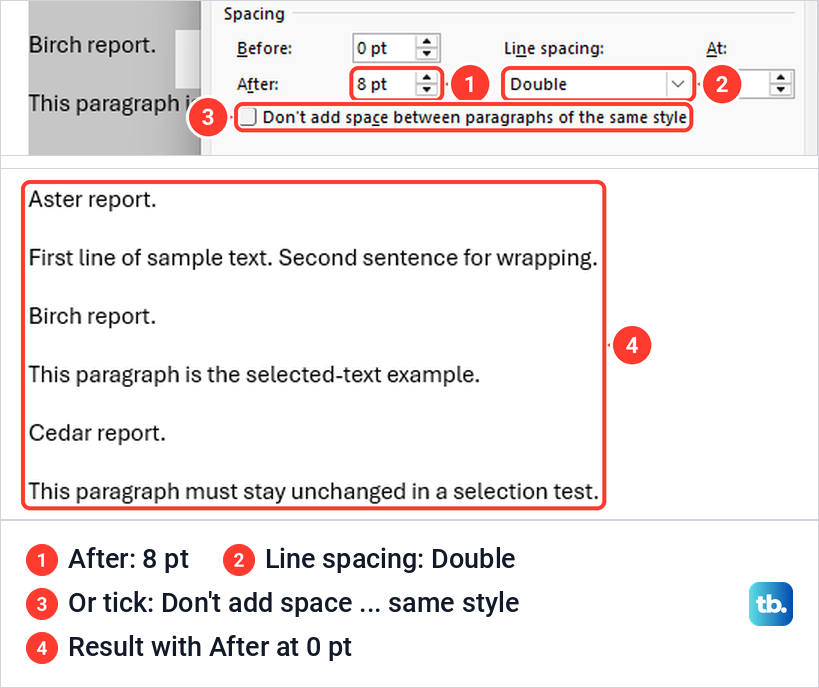
Setting Before or After to 0 pt applies to whatever you selected, while the checkbox only drops the space between paragraphs that share a style, so headings in another style keep theirs. Microsoft describes the checkbox as a way to exclude some paragraphs, such as items in a bulleted list, from the Before and After spacing.
If extra blank lines remain, the gap may be empty paragraphs left by pressing Enter twice. Show or hide paragraph marks in Word to check, with the ¶ button on the Home tab or Ctrl + Shift + 8, the shortcut Microsoft lists for nonprinting characters.
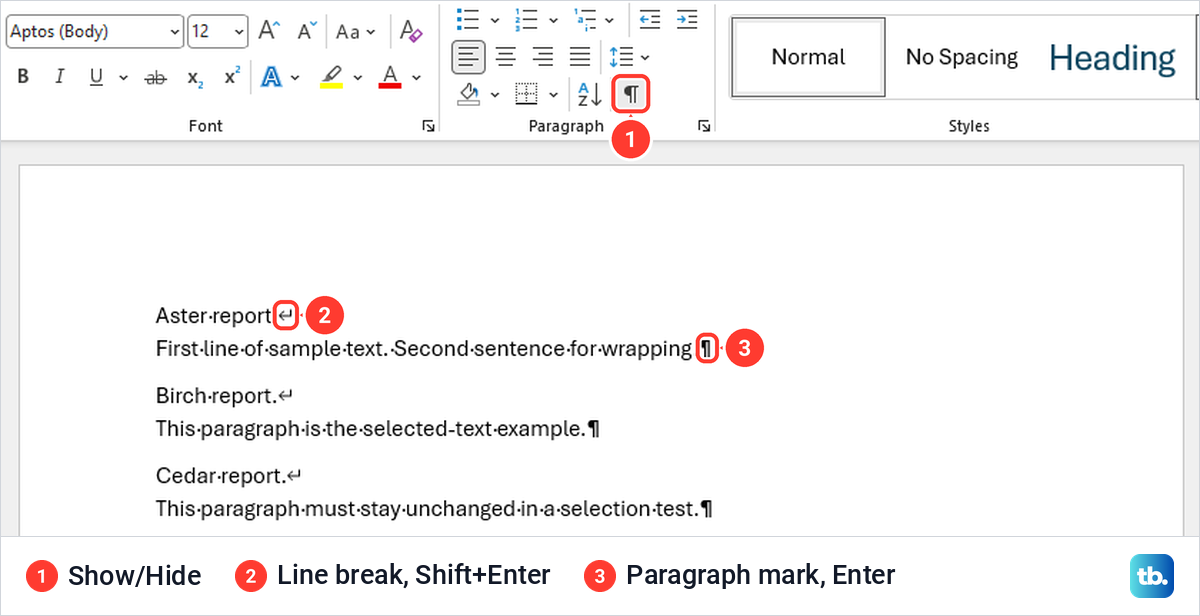
Our sample showed a bent arrow where we had pressed Shift + Enter and a ¶ mark at the end of each paragraph. A line holding nothing but a ¶ mark is an empty paragraph, so delete it rather than fighting it with spacing settings. Double spacing also makes a document longer, and if a blank last page appears, remove an unwanted page in Word after checking the marks at the end.
Make new Word documents double spaced
Desktop Word can start every new blank document double spaced. Open any document, select Home > Line and Paragraph Spacing > Line Spacing Options, choose Double, and select Set As Default instead of OK.
Word then asks whether to set the default alignment, indentation and spacing for This document only, which is selected by default, or for All documents based on the Normal template. Choose the second and select OK. On our PC the next new blank document opened with Line spacing already set to Double.
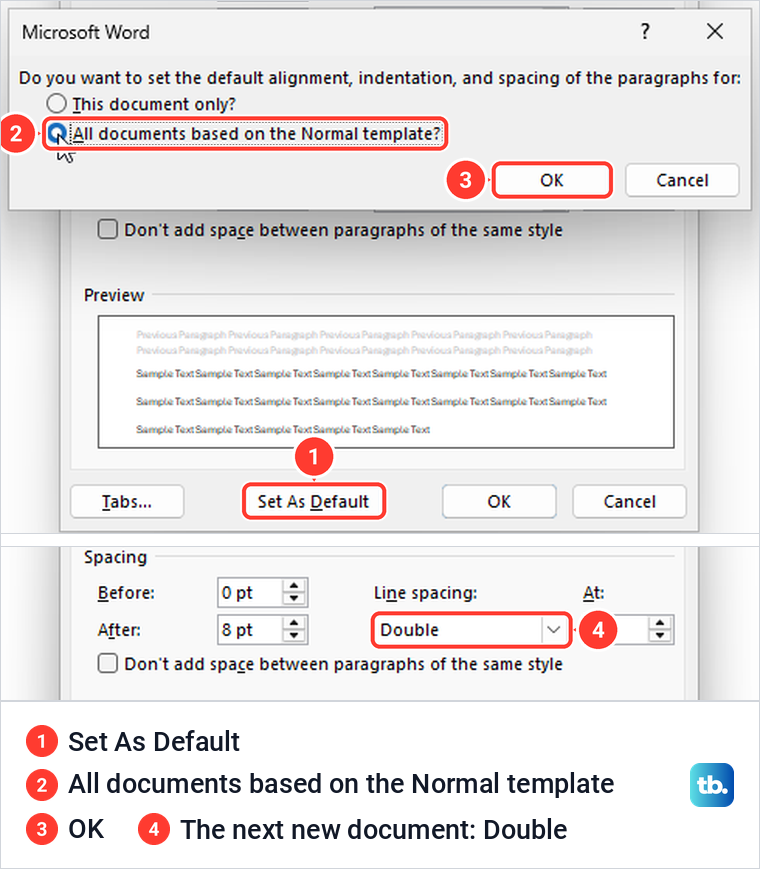
Note your starting values before you change them, because they may not be what you expect. A new blank document on our PC started at Multiple 1.16 with 0 pt before and 8 pt after each paragraph. Microsoft's help page gives the default as 1.15 lines with 10 points after, so check your own Paragraph dialog rather than trusting either number.
Going back works the same way. We set Multiple at 1.16 again, chose Set As Default and All documents based on the Normal template, and the next new document started at 1.16 once more. The change lives in the Normal template on that PC, so it affects new desktop documents there and not Word for the web.
Double space a Word style
Styles are the tidy way to double space a long document, because every paragraph in a style follows one setting. On Home, right-click Normal in the Styles gallery and choose Modify. In the Modify Style dialog, select the third line spacing button, then OK.
That button has no label, and on our PC it showed no tooltip either. The description under the preview is how you know it worked, and ours changed to Line spacing: Double. Leave Only in this document selected, as it was by default, unless you want new documents based on the template to change too.
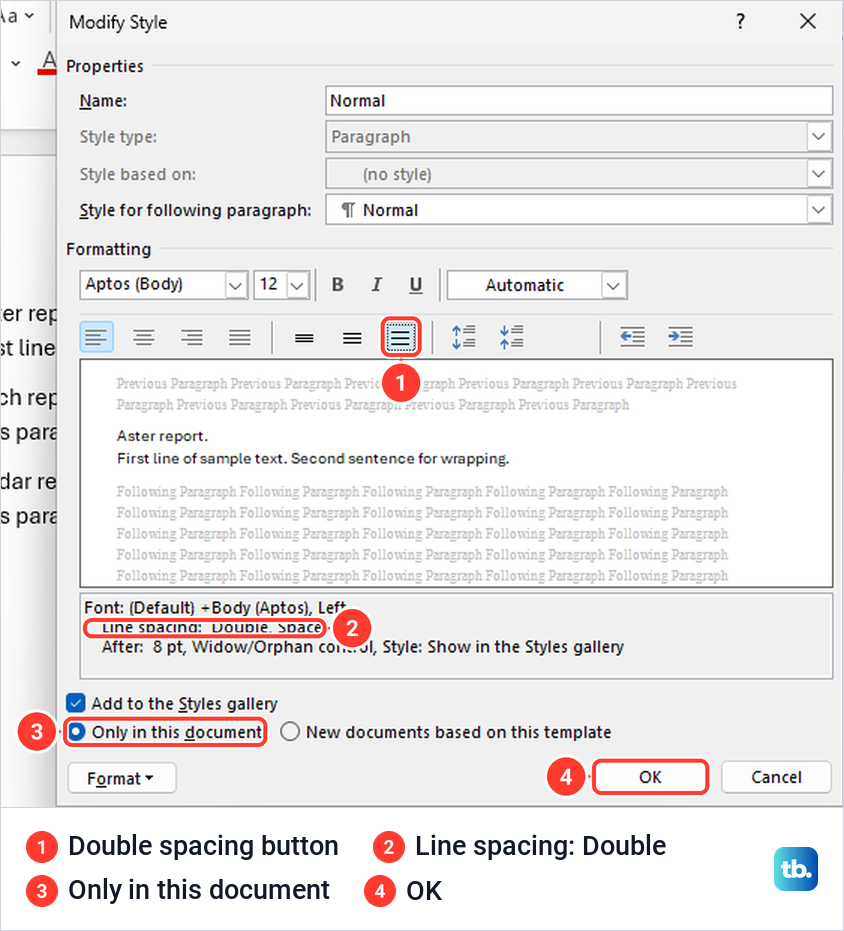
When we clicked OK, all three of our Normal paragraphs became double spaced. Change the body text style rather than turning headings into Normal, because Word builds a table of contents from heading styles. Keep them intact if you plan to create a table of contents in Word, and modify Heading 1 or Heading 2 separately if they need double spacing as well.
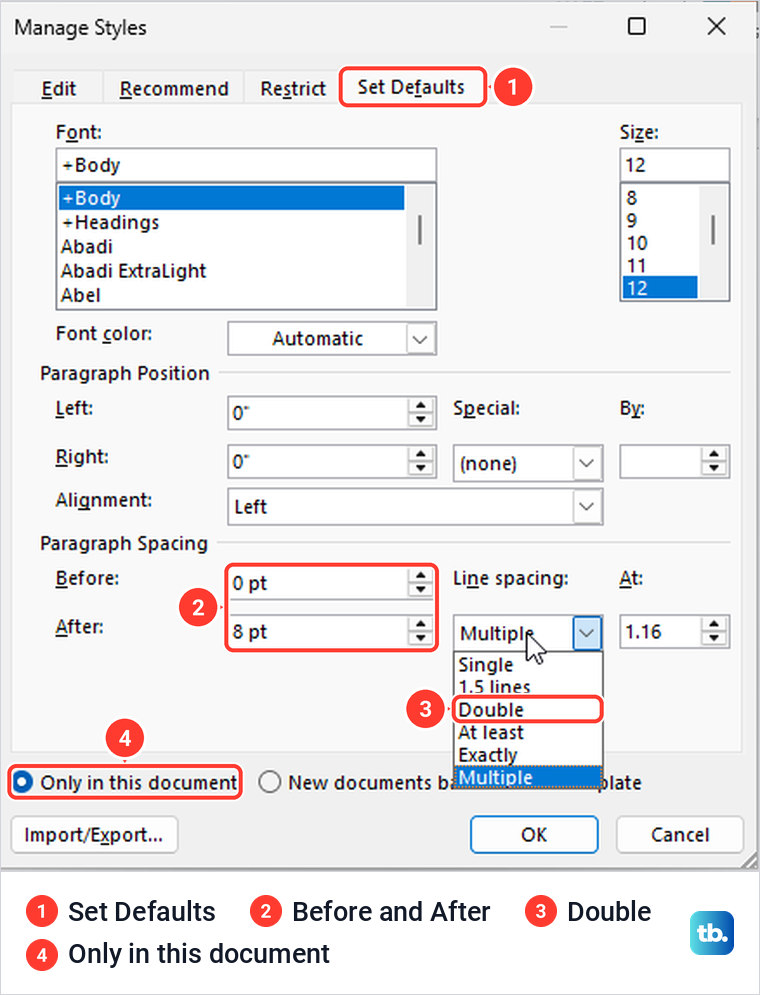
Design > Paragraph Spacing > Custom Paragraph Spacing is the other style route, and it lets you set the paragraph gap in the same place. On our PC it opened the Manage Styles dialog on its Set Defaults tab, with Before, After, Line spacing and At boxes under Paragraph Spacing. Choosing Double there, with Only in this document selected, double spaced the whole document.
For a paper that also needs notes, add footnotes in Microsoft Word after you set the body spacing. Then click inside a footnote and check its spacing in the Paragraph dialog, because footnote text has a style of its own.
Double space in Word for the web
Word for the web uses the same idea with a different layout. First make sure you are editing. In Viewing mode the ribbon disappears completely, and ours showed only Accessibility Mode, Edit Document, Print and Share, so select Edit Document > Edit to get the ribbon back.
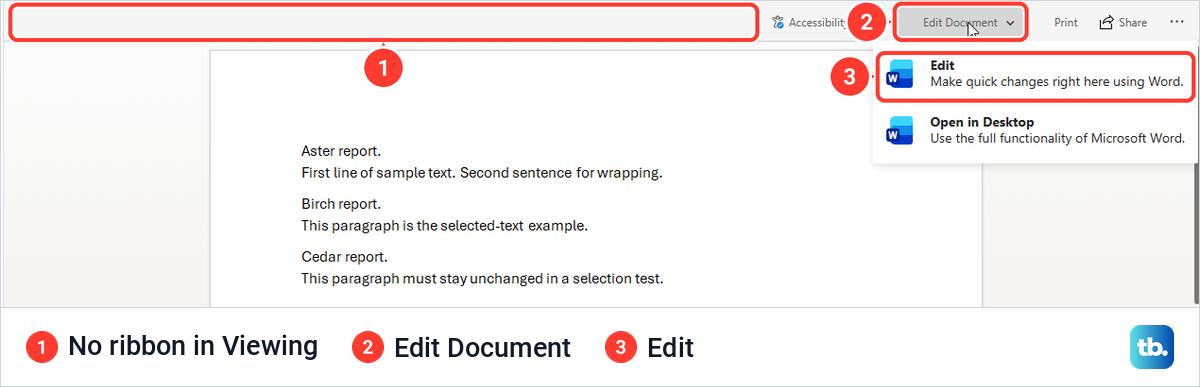
The mode menu at the top right lists Editing, Reviewing and Viewing, plus Open in Desktop, and Microsoft's advice is to switch Viewing or Reviewing to Editing. Once the ribbon is back, select the text, or press Ctrl + A for the whole document.
Microsoft's help page puts the Line Spacing button directly on the Home tab. In our Edge window the simplified Home ribbon had no such button, and we found it under Home > ... > Paragraph > Line Spacing, using the three-dot button at the right end of the ribbon. Its choices read 1, 1.15, 1.5, 2, 2.5 and 3, so choose 2.
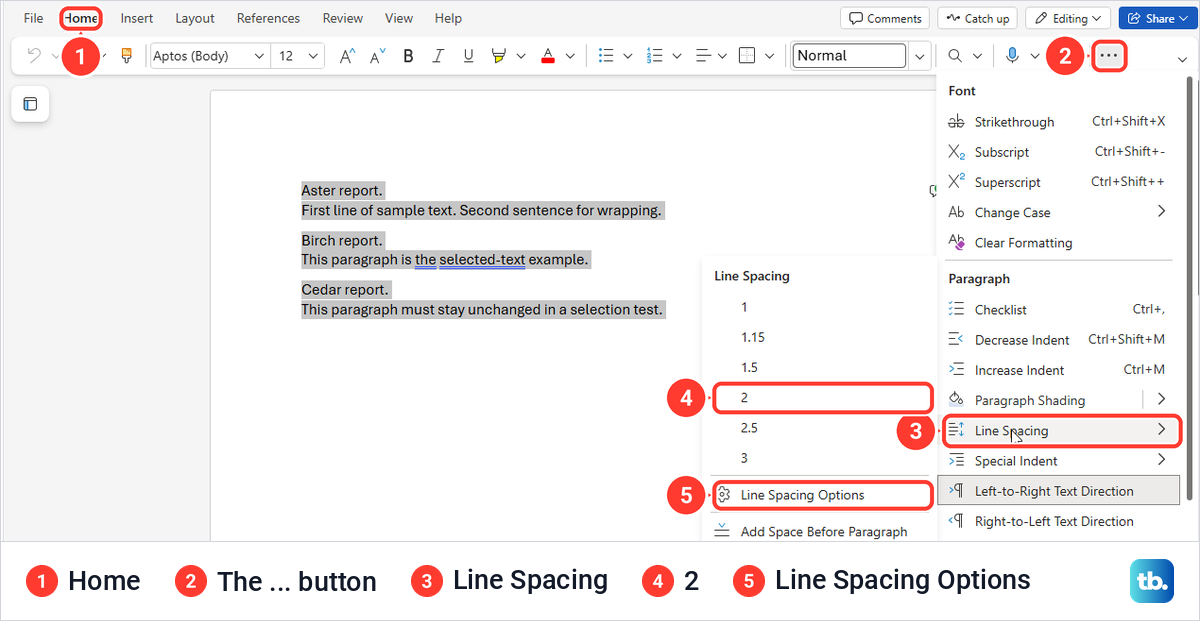
With our whole sample selected, 2 double spaced all three paragraphs. In a wider browser window the button may sit on the ribbon itself, so look there first. The same three-dot menu also lists Show/Hide with the shortcut Ctrl + Shift + 8, which helps you spot empty paragraphs in a web document.
For exact control, choose Line Spacing Options at the bottom of the Line Spacing list. Word for the web opens its own Paragraph dialog with General, Indentation, Spacing and Pagination sections, and its Line spacing list has the same six choices as the desktop. With only Birch selected, we chose Double and OK, and Birch alone changed.
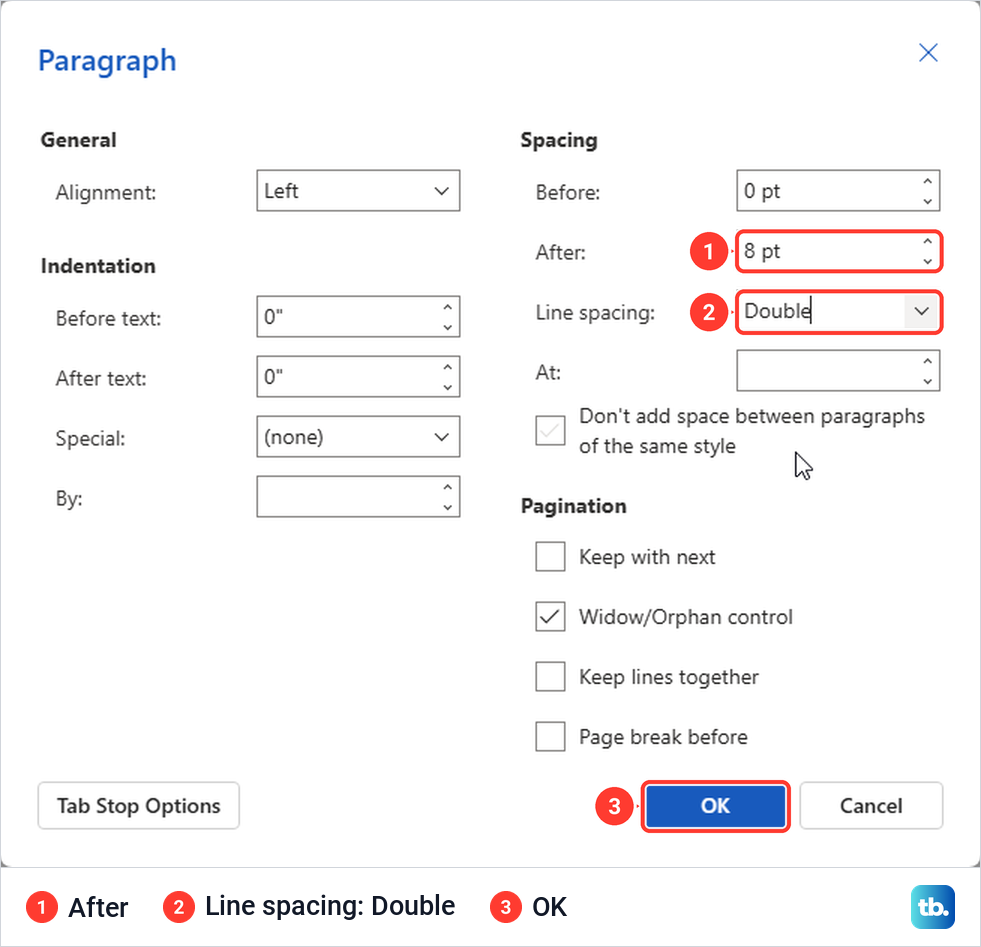
The web dialog has no Set As Default button, only Tab Stop Options, OK and Cancel. Once we had undone our change, our web document showed Multiple 1.16 with 8 pt after, the same values as a new desktop document. Microsoft says Word for the web goes back to its standard spacing in each new document, so set Double in each web document you need it in.
Double space in Word on a Mac, iPhone, iPad or Android
Word for Mac follows the Windows layout. Microsoft's steps are Design > Paragraph Spacing, where you choose Double for the whole document, or select paragraphs and use Home > Line and Paragraph Spacing for part of it. Command + 2 applies double spacing to the paragraph you are in.
On an iPad, Microsoft says to select the text, tap the Home tab, tap the Line Spacing icon and choose 2.0. On an iPhone, tap the Edit icon at the top of the screen, then choose Line Spacing in the Home menu and pick 2.0. Microsoft notes that Word for iPad and iPhone has no special options for the space before or after paragraphs.
On an Android tablet, tap the Home tab, then the Paragraph icon, and choose 2.0 from the Line Spacing menu. On an Android phone, tap the Edit icon, then Paragraph Formatting under Home, and choose 2.0 the same way. The phone and tablet menus offer values from 1.0 to 3.0. To pick the whole document, Microsoft says to tap and hold in it, then tap Select All.
Whichever device you use, save the finished Word document as a PDF when you need to share a copy whose layout cannot shift. The PDF keeps the spacing you set, even on a computer without Word.
When Word will not let you change the spacing
Grayed-out spacing buttons can mean the document is protected. To see what that looks like, we protected a spare document with Review > Protect > Restrict Editing, chose No changes (Read only) and started enforcing it. The formatting controls on the Home tab turned gray, the mode button switched to Viewing, and the pane said This document is protected from unintentional editing.
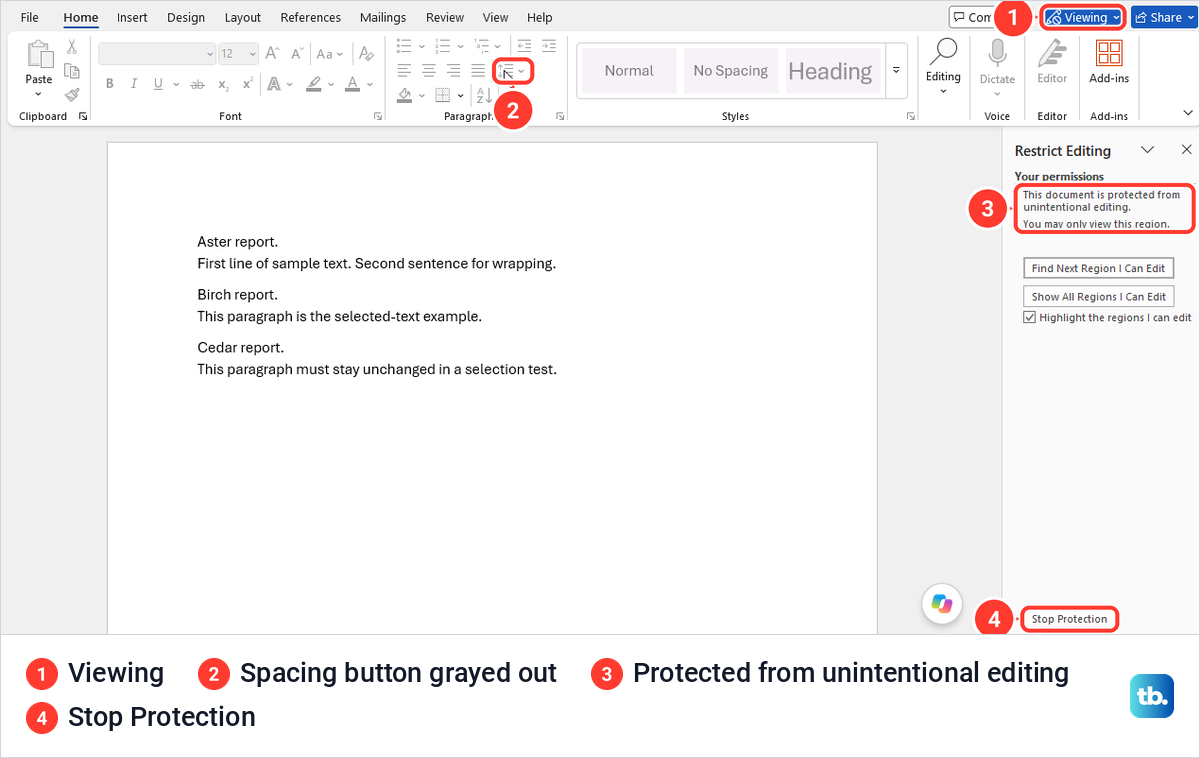
The pane also had a Stop Protection button. Our document had no password, so Stop Protection turned editing straight back on and 2.0 then worked. A document protected with a password may ask for it, so if the file belongs to someone else, ask its owner to change the spacing or lift the restriction.
Microsoft notes that some editing restrictions are controlled by the document owner or your organization and cannot be changed locally. In Word for the web, if Editing is missing from the mode menu, Microsoft's advice is to request edit permission or open the document in desktop Word.
A file you receive may also open for viewing only in Protected View, and Microsoft says the author or an administrator can set rules that keep it that way. If a file always opens read-only, Microsoft's fix is File > Info > Protect Document, then select Always Open Read-Only to clear it.
How we tested this guide
We tested this in Word for Microsoft 365 on Windows 11, version 25H2, and in Word for the web in Microsoft Edge, double spacing a three-paragraph sample document.
Frequently Asked Questions
How do I double space a whole Word document?
Open Design, select Paragraph Spacing and choose Double. You can also press Ctrl + A and choose 2.0 from Home > Line and Paragraph Spacing, which double spaces every selected paragraph.
How do I double space only one paragraph in Word?
Click anywhere inside it, then choose Home > Line and Paragraph Spacing > 2.0 or press Ctrl + 2. You do not need to select the text first, because the command changes the paragraph the cursor is in.
Why is there extra space between my double-spaced paragraphs?
The gap comes from the Before or After setting, which is separate from line spacing. Open Line Spacing Options and set whichever adds space to 0 pt, or tick Don't add space between paragraphs of the same style. Then show the paragraph marks to find any empty paragraphs.
Why can't I change line spacing in Word for the web?
The document is probably open in Viewing or Reviewing mode. Switch to Editing from the mode menu or Edit Document. If Editing is not offered, ask the owner for edit permission.
How do I make Word double spaced by default?
In desktop Word, open Line Spacing Options, choose Double, select Set As Default and pick All documents based on the Normal template. Word for the web has no such setting, so set double spacing in each web document.
What is the keyboard shortcut for double spacing in Word?
Press Ctrl + 2 in Word for Windows, and press Ctrl + A first if you want the whole document. On a Mac, Microsoft lists Command + 2 for double spacing and Command + A to select everything.