


To hard reset a Gateway laptop, turn it off, unplug the AC adapter, hold Power for 20 seconds, then reconnect the adapter and turn it on. This power reset does not reinstall Windows. To erase your files and reinstall Windows instead, use Reset PC and select Remove everything. The Settings steps below use Windows 11 menus.
The short version
- Power reset: Turn off the laptop, disconnect its adapter, hold Power for 20 seconds, then reconnect power and start it.
- Reinstall Windows: Open Reset PC and select Keep my files to retain personal files while removing apps and settings.
- Erase the laptop: Select Remove everything to remove personal files, apps, and settings.
- Cannot sign in: Hold Shift while selecting Power > Restart, then select Troubleshoot > Reset this PC.
- Before recovery: Back up needed files, obtain your BitLocker recovery key, and keep the charger connected during reinstallation.
| Method | When to choose it | Effect on files |
|---|---|---|
| Power reset | Power or charging trouble | Does not reinstall Windows |
| Forced shutdown | The laptop will not turn off | Unsaved work can be lost |
| Blank display power reset | The screen is blank but LEDs remain lit | Does not reinstall Windows |
| Windows Settings reset | Windows opens normally | Keep personal files or erase everything |
| Reset with drive cleaning | You are selling, donating, or recycling the laptop | Removes files and cleans the drive |
| Shift with Restart | You can reach the sign-in screen or Start menu | Depends on the reset choice |
| Advanced startup | Windows opens and recovery works | Depends on the reset choice |
| Automatic recovery | Windows cannot start and recovery works | Depends on the reset choice |
| F8 recovery shortcut | Your Gateway model supports this route | Depends on the reset choice |
| F9 recovery shortcut | Your Gateway model supports this route | Depends on the reset choice |
| Windows installation USB recovery | You need to open recovery from external media | Depends on the available reset options |
| Clean Windows installation | Recovery fails on a compatible Windows 11 laptop | Deletes the selected disk's contents |
Perform a power reset
Turn the laptop off completely and unplug the AC adapter. Hold Power for 20 seconds, reconnect the adapter, and turn the laptop on. Gateway recommends this procedure to discharge residual power when troubleshooting charging problems.
If the laptop will not turn off, hold Power for 10 to 15 seconds to force it off. Reconnect the charger and check whether it powers on. Unsaved work can be lost during a forced shutdown. For an unresponsive computer, you can also follow the steps to restart a computer that is unresponsive.
A blank screen with lit keyboard or power LEDs has a separate Gateway procedure. Hold Power for 15 seconds with the charger connected, then try with the charger disconnected; Gateway instructs repeating the procedure three times. If the display remains blank, continue with troubleshooting for a laptop with power but no display.
Prepare for a Windows reset
Back up any files you need before starting Windows recovery, including when you plan to select Keep my files. Obtain your BitLocker recovery key before proceeding because encryption recovery requirements can still apply. Keep the AC adapter connected throughout Windows reinstallation.
Decide how much you want to remove before opening the reset wizard. Select Keep my files to retain personal files while removing apps and settings, or select Remove everything to remove all three. These choices also apply when you reset a laptop through Windows recovery.
Older Gateway recovery software and the Alt + F10 factory recovery shortcut belong to older recovery systems. For Windows Reset this PC, choose the entry route that matches what your laptop can still open.
Reset through Windows Settings
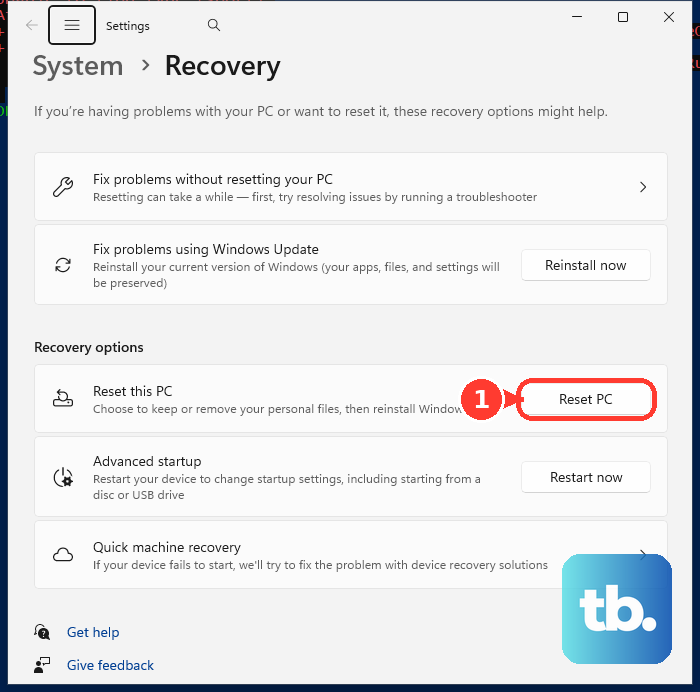
On Windows 11, open Settings > System > Recovery. Under Recovery options, select Reset PC. Select Keep my files to preserve personal files, or select Remove everything for an erasing reset.
Choose Cloud download to download Windows installation files, or choose Local reinstall to use files already on the laptop. Review the settings, select Next, then select Reset. Leave the charger connected and allow the laptop to restart automatically.
For a laptop you are selling, donating, or recycling, Microsoft recommends drive cleaning. After selecting Remove everything and your installation source, select Change settings and enable Clean data. If the laptop has more than one user-accessible drive volume, also choose to remove data from all volumes rather than only the Windows volume. Select Confirm, select Next, then select Reset.
Start recovery from the sign in screen
You can reach the reset options from the sign-in screen when you have forgotten your Windows password. Hold Shift while selecting Power > Restart. The same combination works from the Start menu.
On Choose an option, select Troubleshoot > Reset this PC, then follow the prompts to select Remove everything, which Gateway recommends for a forgotten password, and continue through the reset wizard. Gateway lists Keep my files for when you can still sign in and only need Windows repaired. Reaching recovery this way does not remove any encryption recovery requirement.
You can also enter recovery through Settings when Windows still opens and Windows Recovery Environment works. On Windows 11, open Settings > System > Recovery and select Restart now next to Advanced startup. After restarting, select Troubleshoot > Reset this PC and choose your reset options.
Enter recovery when Windows will not start
When Automatic Repair appears, select Advanced options. Continue to Troubleshoot > Reset this PC, then choose your reset options. This route requires a functioning Windows Recovery Environment.
To trigger recovery when Windows cannot start, turn the laptop on and wait for the Windows or manufacturer logo. Hold Power until the laptop shuts down, then repeat that startup interruption once. Start the laptop a third time and select Advanced options > Troubleshoot > Reset this PC.
Interrupt startup only before Windows loads. Never perform these forced shutdowns during an ongoing reset. If recovery still does not open, try a supported startup shortcut or move to installation media.
Try your Gateway recovery shortcut
Gateway lists F8 and F9 as recovery shortcuts, but the working key depends on your model. Restart the laptop and immediately tap F8 repeatedly. If the recovery screen opens, select Troubleshoot > Reset this PC, then follow the prompts to select Remove everything or Keep my files and complete the displayed reset instructions.
On Gateway models implementing the other shortcut, restart and repeatedly press F9 as startup begins. If the recovery screen opens, select Troubleshoot > Reset this PC and choose your reset options. If neither shortcut opens recovery, use the sign-in screen route or external installation media.
On Gateway models using its startup menu, tapping Esc first and then pressing F9 opens boot-device selection. That sequence lets you select a USB drive instead of opening recovery directly. Check your model's instructions before relying on a startup shortcut.
Use a Windows installation USB if recovery fails
For a compatible x64 Gateway laptop, get the Media Creation Tool from the official Windows 11 download page. Under Create Windows 11 Installation Media, select Download Now. Use a blank USB drive with at least 8 GB of space.
Run the tool, select Accept, and choose Create installation media for another PC > Next. Choose the language and edition, then select USB flash drive and complete the media creation process. Connect the resulting installation drive to your Gateway laptop.
On Gateway models using the Esc and F9 boot-menu sequence, turn the laptop off and on, then immediately tap Esc repeatedly. At Startup Menu, press F9, select the USB drive, and press Enter. Model-specific keys can differ.
After booting the installation media, select your language preferences and Next. Select Repair my PC, then select Next to enter recovery. Use Troubleshoot > Reset this PC when that option is offered; the available recovery tools depend on the media and recovery configuration.
Clean install Windows as a last resort
A clean installation is an erasing fallback for a compatible Gateway laptop licensed for Windows 11. It deletes the selected disk's contents and manufacturer customizations. Carefully identify the intended Windows disk before deleting any partitions.
Boot the Windows 11 installation USB, complete Select language settings and Select keyboard settings, and select Next after each. Select Install Windows 11, then select I agree everything will be deleted including files, apps, and settings. Select Next to continue.
Supply your licensed product key, or select I don't have a product key when applicable, and choose the matching Windows edition. Select Accept. Under Select location to install Windows 11, delete the intended Windows disk's partitions using Delete Partition.
Select that disk's Unallocated Space, select Next, then select Install. Keep power connected and allow automatic restarts while Windows installs.
Frequently Asked Questions
Will a Windows reset restore Gateway's preinstalled apps?
When the reset wizard offers the option, enable Restore preinstalled apps to apply manufacturer customizations. Whether that choice is offered depends on the configured recovery installation.
Can you open Recovery settings with a command?
Yes, on a Windows installation with the Recovery settings page available, launch ms-settings:recovery from the Run dialog. On Windows 11, select Reset PC to choose your reset options.
Can a previously created Recovery Drive reinstall the laptop?
Yes, boot a Windows Recovery Drive created for that Gateway laptop and select Recover from a drive. Choose Just remove my files or choose Fully clean the drive, then select Recover. This removes personal files, apps, and settings.
Can you reinstall Windows from installation media while Windows still runs?
Yes, with matching installation media, open the installation drive in File Explorer, run setup.exe, and select Yes. Select Change what to keep > Keep nothing > Next > Install. This removes files, settings, and apps.
Does resetting a Windows 10 Gateway laptop restore standard support?
No, Windows 10 standard support ended October 14, 2025. Resetting the laptop does not change that support end date.